
Site Settings
These settings control the global behaviour of the site. All options are found under Admin → Settings → Global unless noted otherwise. For restricting who can list on the site, see Private Site / Single Seller.
SEO Settings
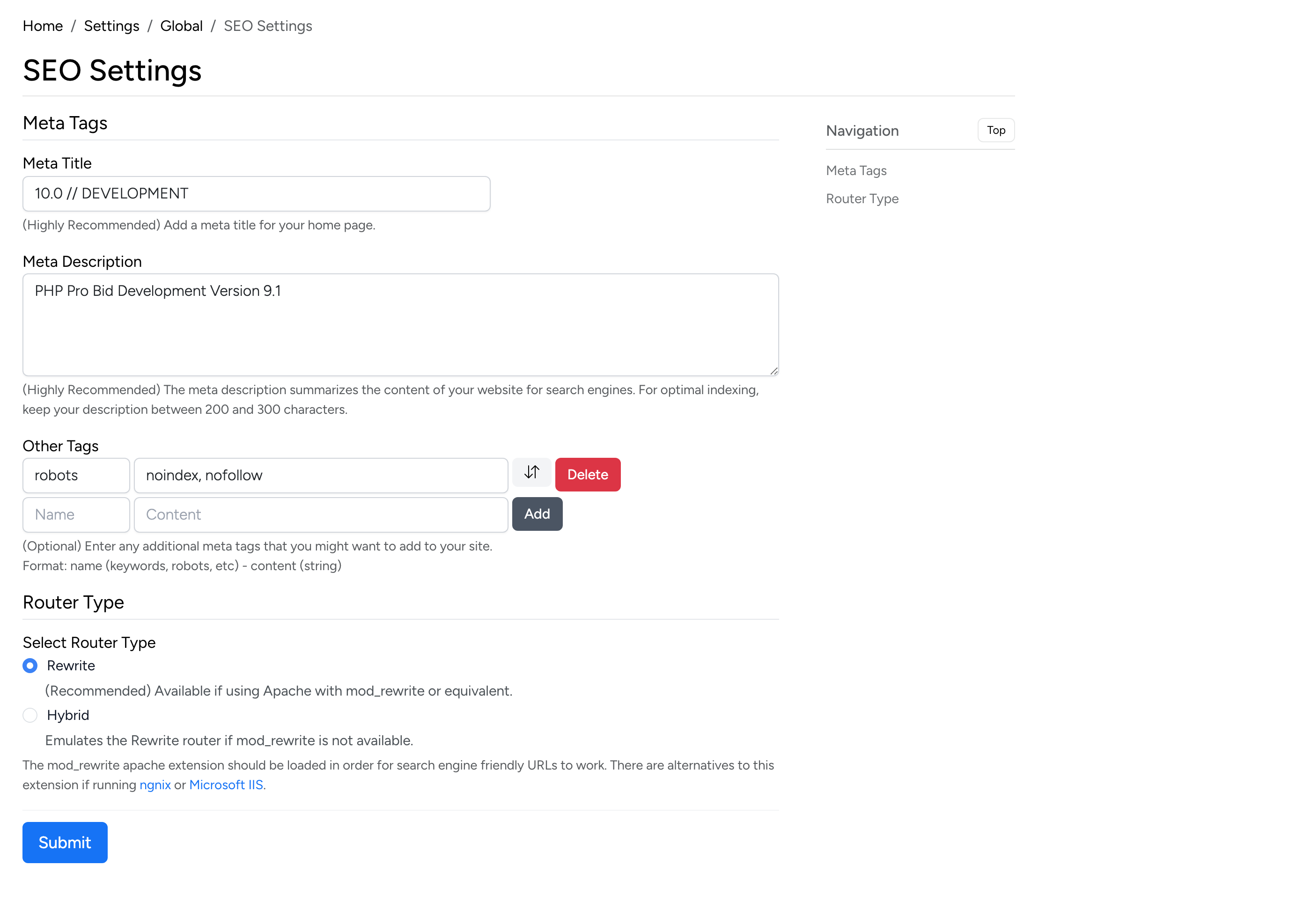
- Meta Title — the default title tag used on pages that don’t set their own.
- Meta Description — the default meta description for the site.
- Other Tags — additional meta tags injected into the <head> of every page.
- Select Router Type — choose between Rewrite (clean SEO-friendly URLs) and Hybrid (query-string fallback). Rewrite requires mod_rewrite on Apache or equivalent on Nginx.
Cron Jobs
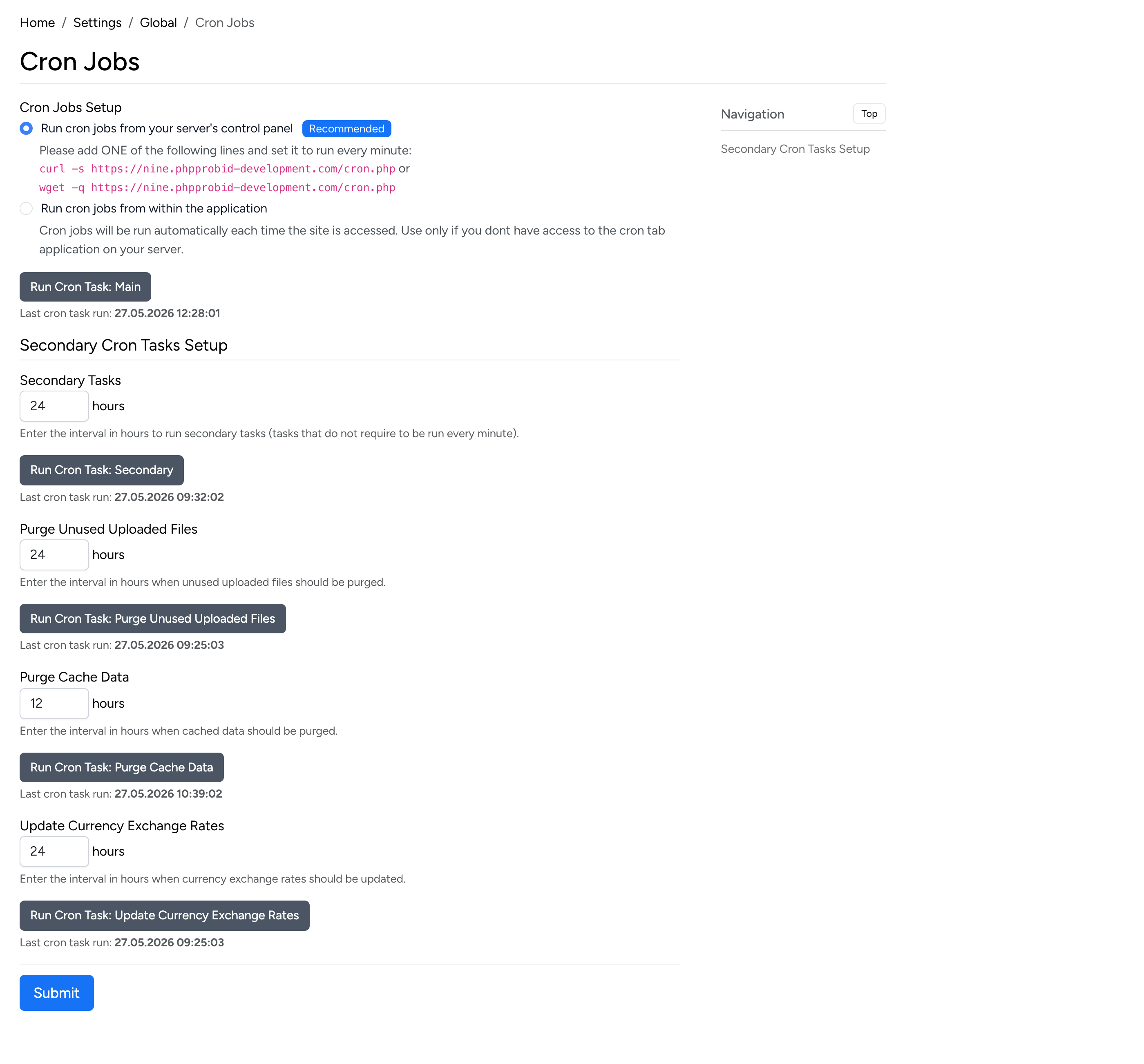
- Cron Jobs Setup — choose between running cron from your server’s control panel (recommended) or from within the application. Server-based cron is more reliable for high-traffic sites.
- Task Status — the page shows the last run time for each cron task: secondary tasks, purge unused files, purge cache data, and update currency exchange rates.
Caching
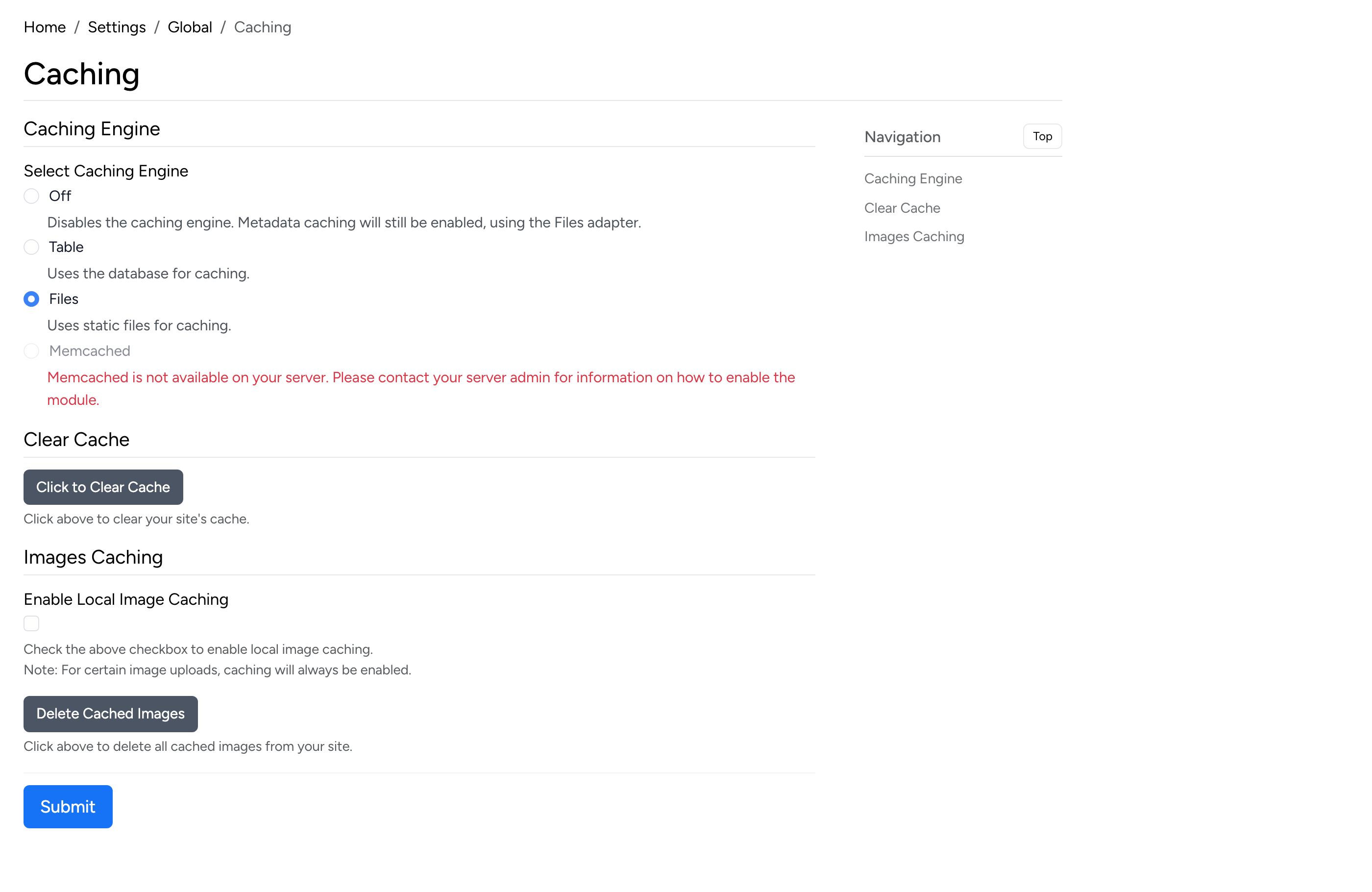
- Select Caching Engine — choose between Off (no caching), Table (database), Files (filesystem), or Memcached (in-memory). Files is a good default for most installations.
- Enable Local Image Caching — when checked, remote images are cached locally to improve page load times.
Time and Date
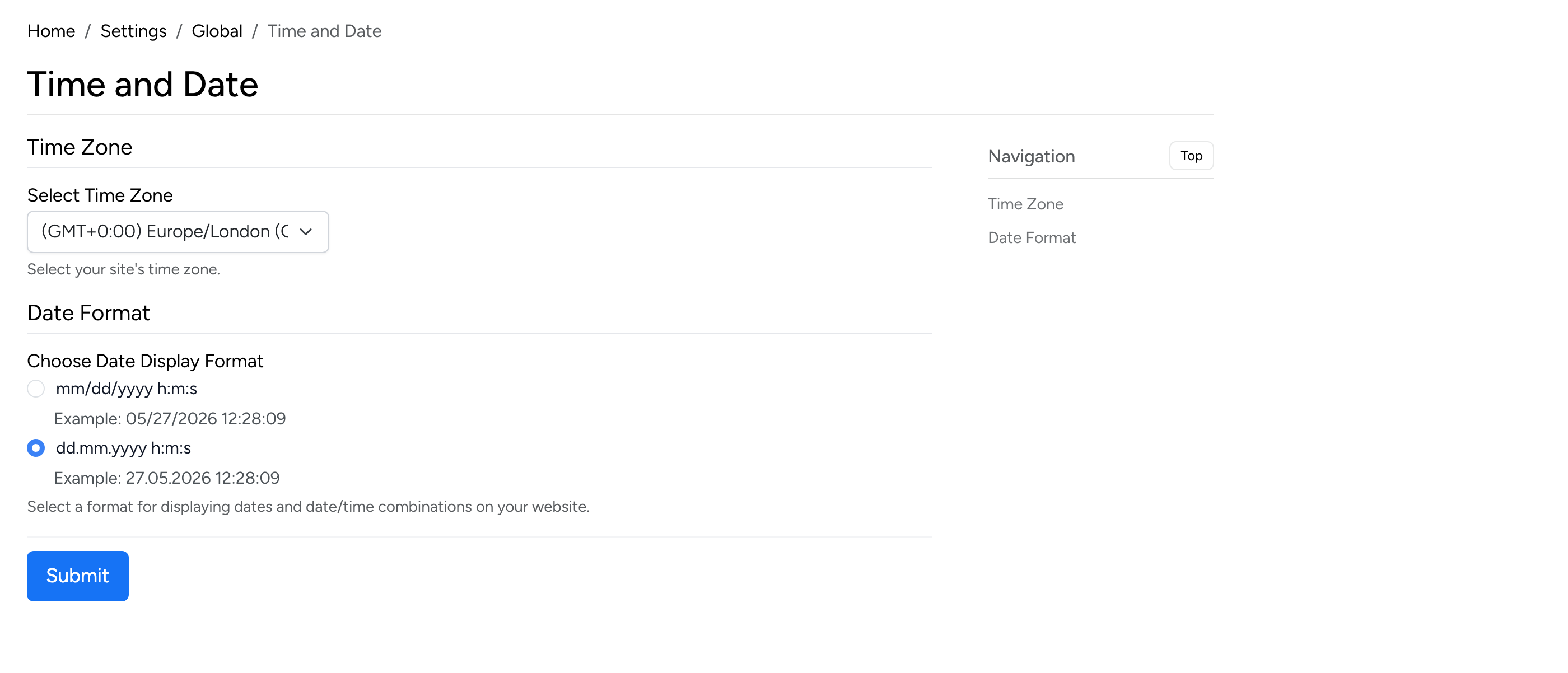
- Select Time Zone — the server time zone used for all date/time calculations (auction end times, scheduled listings, cron jobs).
- Choose Date Display Format — US format (mm/dd/yyyy) or EU format (dd.mm.yyyy).
Google Analytics
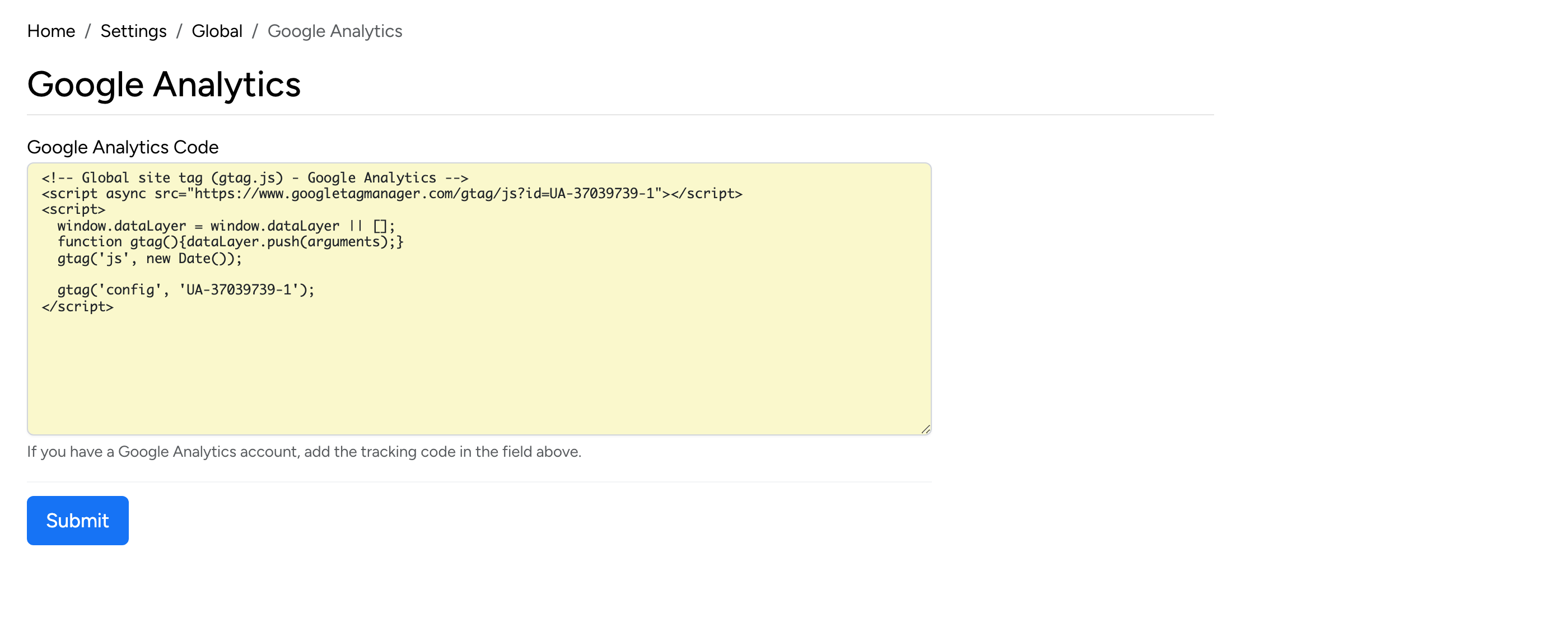
- Google Analytics Code — paste your Google Analytics tracking code (or Google Tag Manager snippet) here. It will be injected into every page on the site.
Anti-Spam & reCAPTCHA
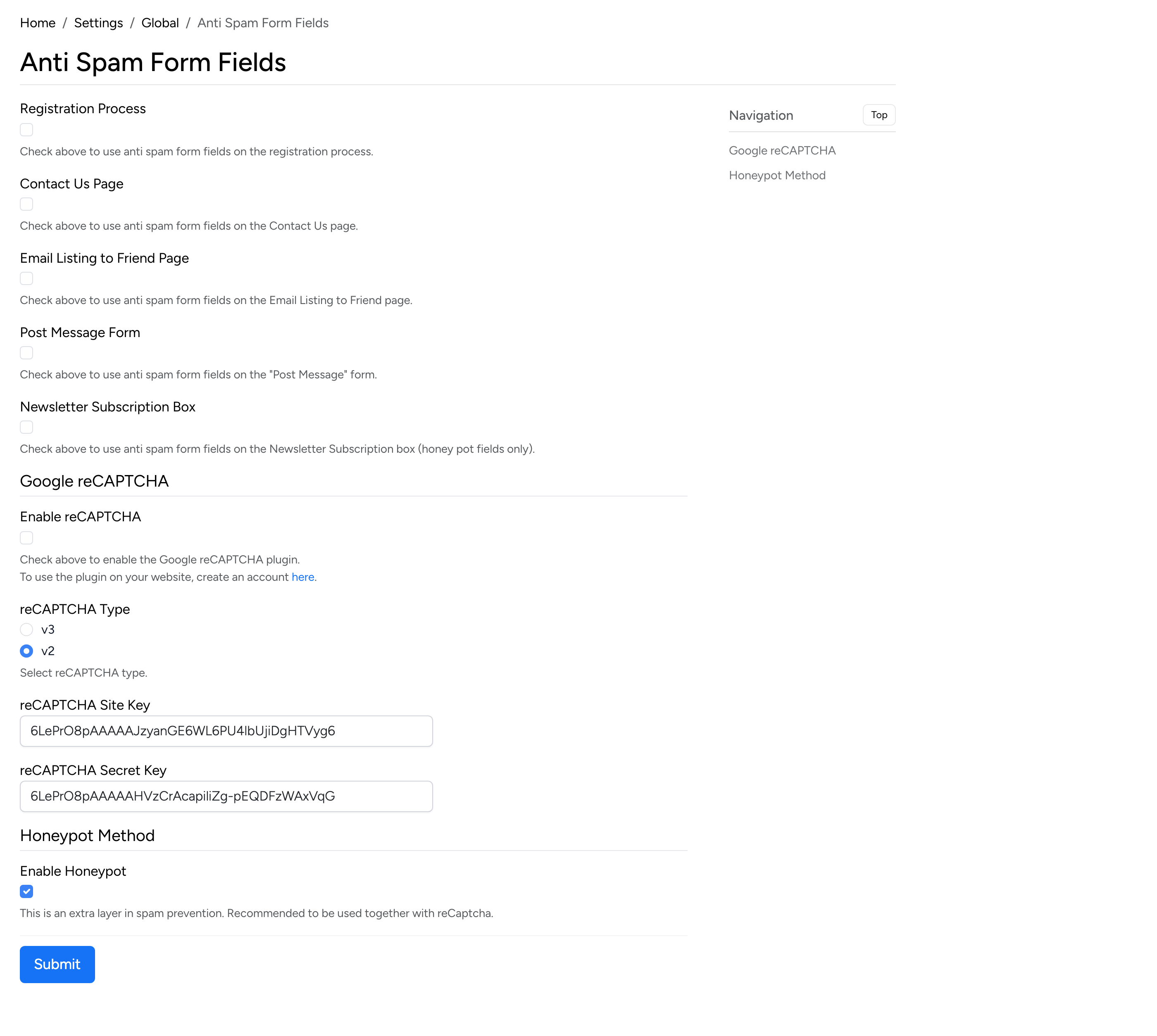
Choose which forms are protected by anti-spam measures:
- Registration Process, Contact Us Page, Email Listing to Friend, Post Message Form, Newsletter Subscription Box — check to enable protection on each form.
- Enable reCAPTCHA — enable Google reCAPTCHA on the selected forms.
- reCAPTCHA Type — choose between reCAPTCHA v2 (checkbox) and v3 (invisible score-based).
- reCAPTCHA Site Key / Secret Key — enter your reCAPTCHA API credentials from the Google reCAPTCHA admin console.
- Enable Honeypot — adds a hidden field to forms that catches automated bots. Works alongside or as an alternative to reCAPTCHA.
BCC Emails to Admin
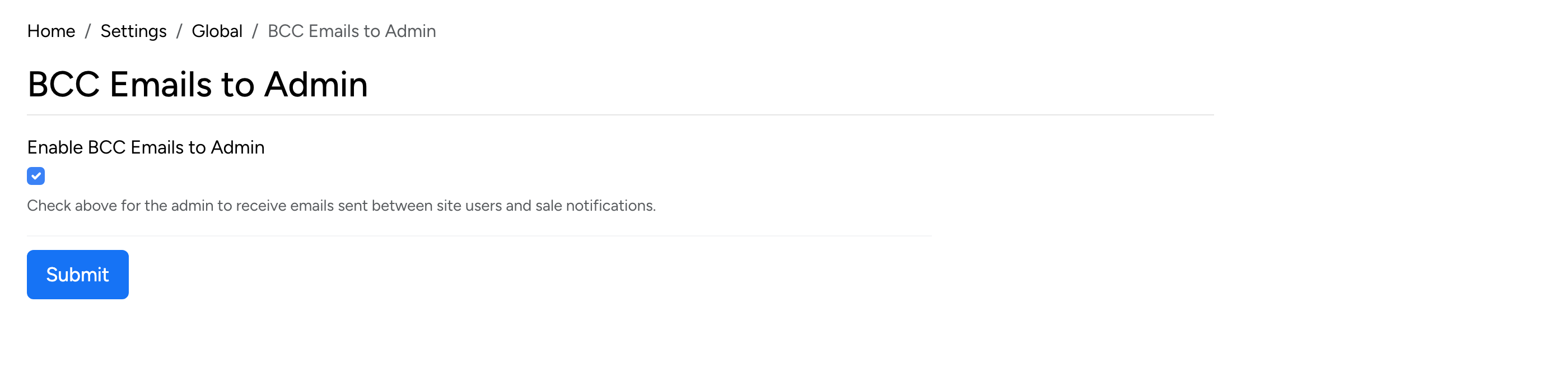
- Enable BCC Emails to Admin — when checked, a copy of all system emails (registration confirmations, sale notifications, etc.) is sent to the admin email address.
Newsletters Module
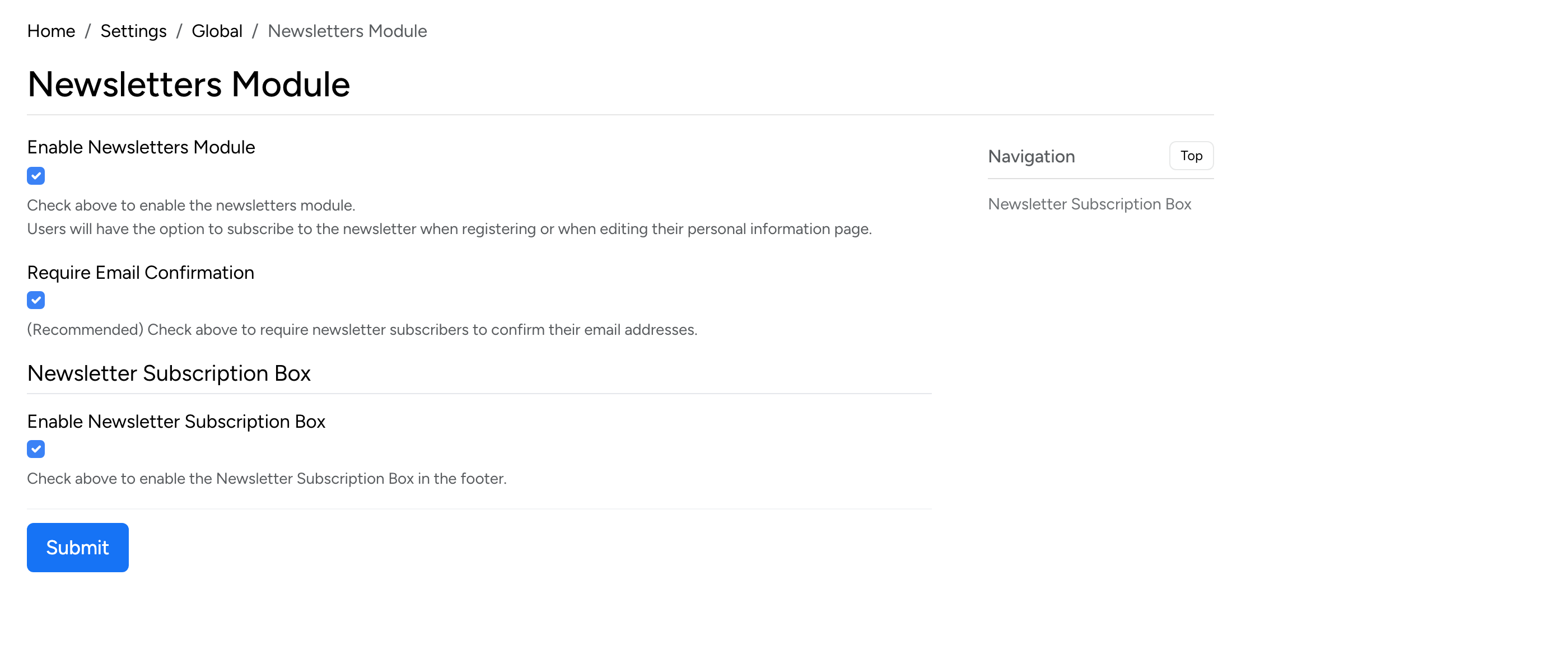
- Enable Newsletters Module — activates the newsletter system. Administrators can send newsletters from the admin panel.
- Require Email Confirmation — when checked, subscribers must confirm their email address before receiving newsletters.
- Enable Newsletter Subscription Box — displays a newsletter signup form on the site.
Preferred Sellers
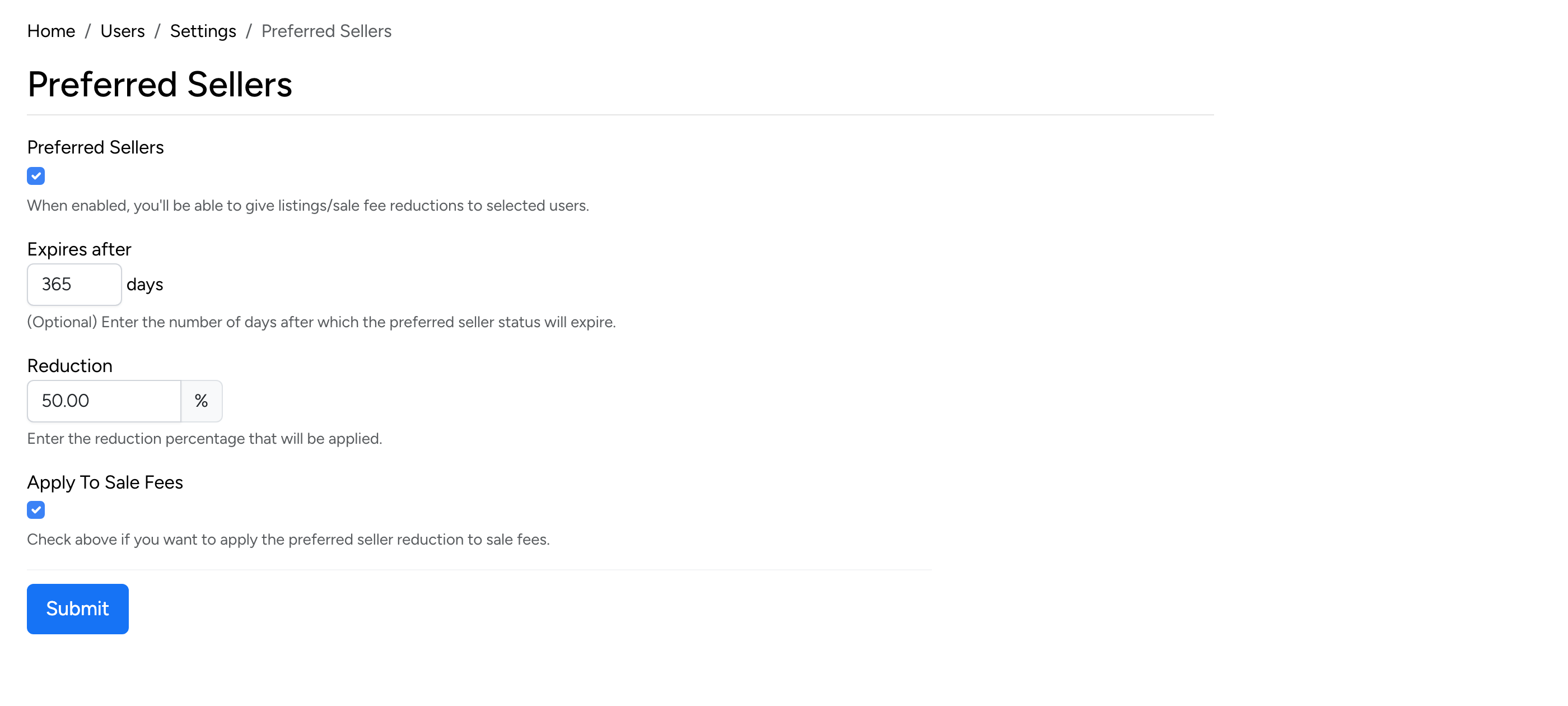
Found at Admin → Users → Settings → Preferred Sellers.
- Preferred Sellers — when enabled, administrators can grant preferred status to selected sellers, giving them fee reductions.
- Expires after — the number of days after which preferred seller status automatically expires. Leave empty for no expiry.
- Reduction — the percentage discount applied to listing and feature fees for preferred sellers.
- Apply To Sale Fees — when checked, the reduction also applies to sale transaction fees.
Social Media
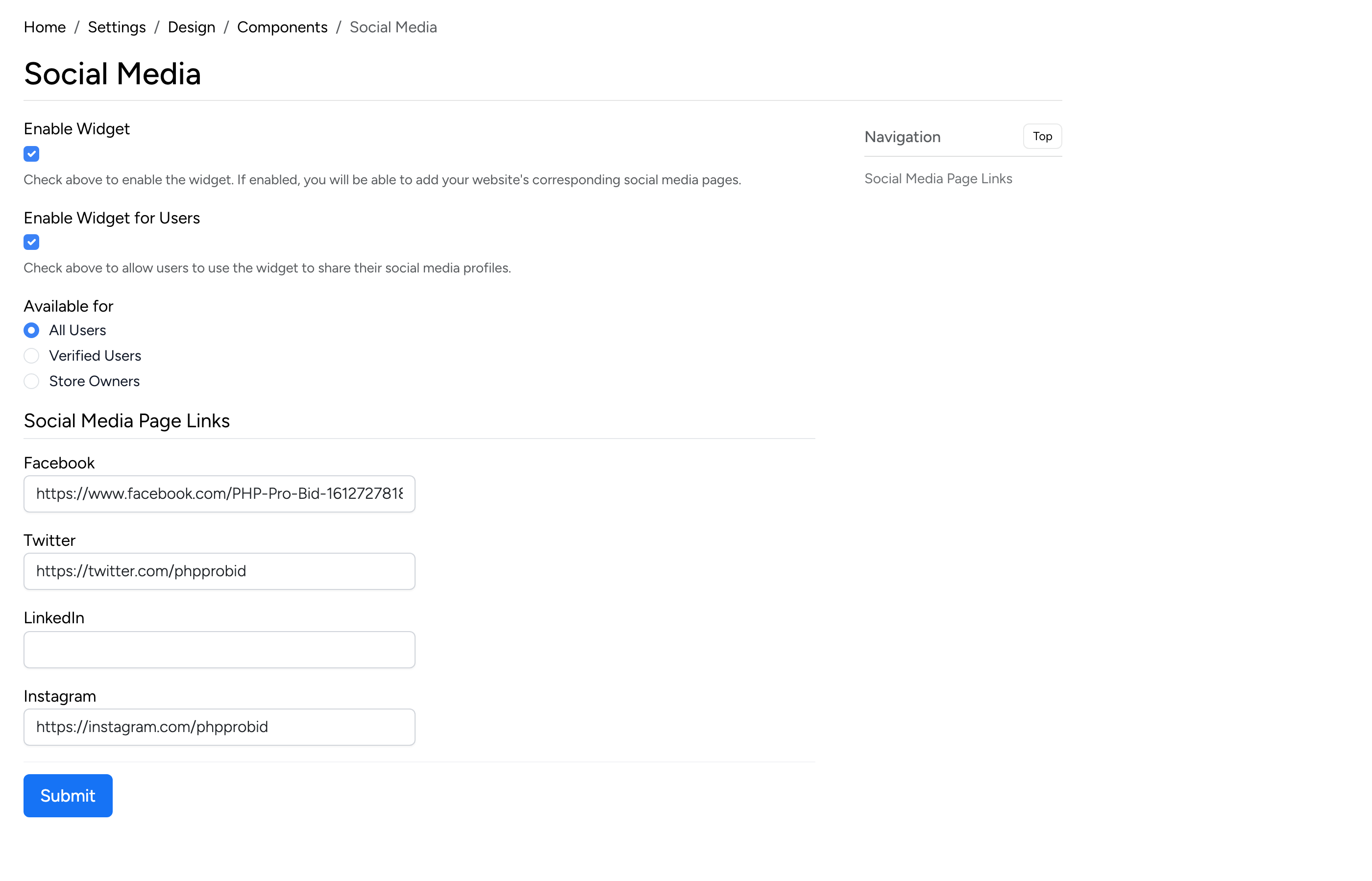
- Enable Widget — enables social media profile links on the site.
- Enable Widget for Users — when checked, sellers can add their own social media links to their profile or store.
- Available for — restrict social media profiles to all users, verified users only, or store owners only.
- Facebook / Twitter / LinkedIn / Instagram — enter the site’s social media profile URLs.
Cookie Usage
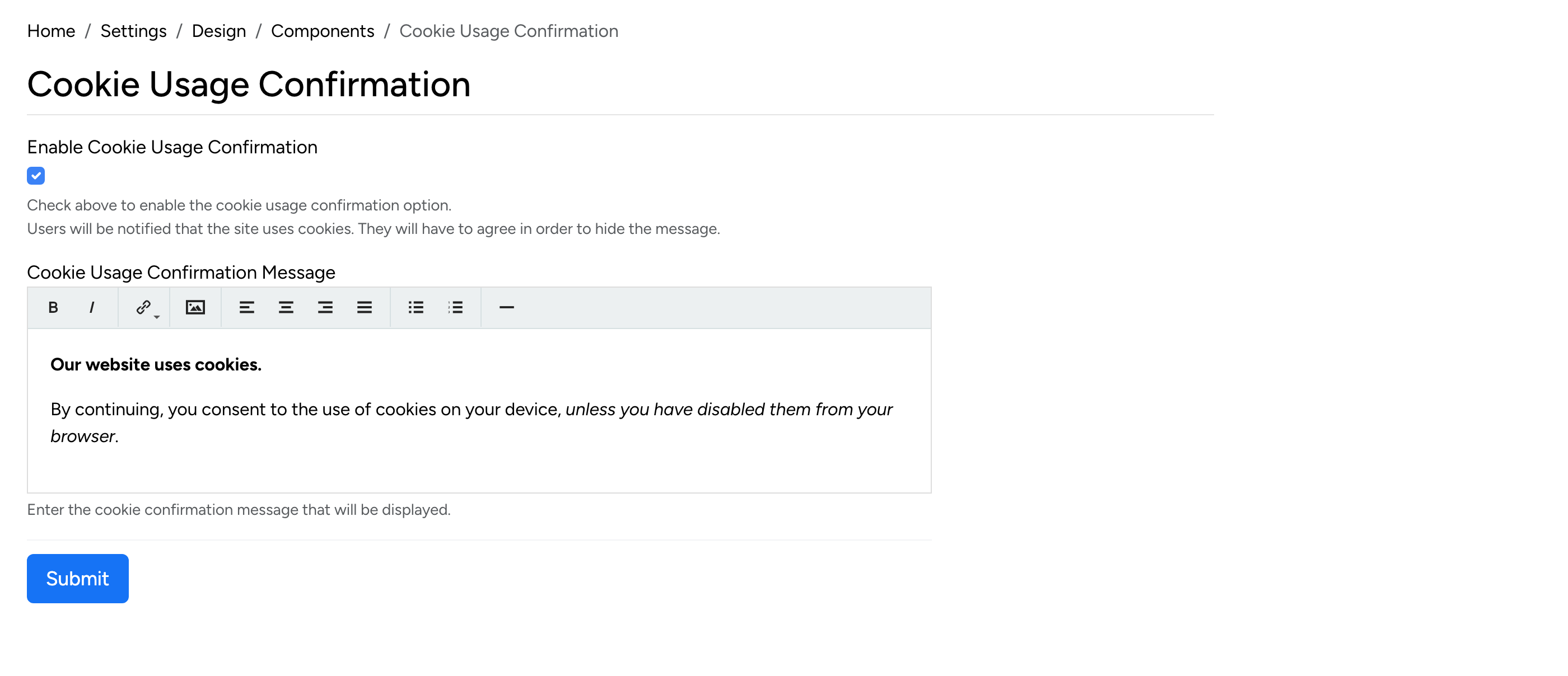
- Enable Cookie Usage Confirmation — when checked, a cookie consent banner is displayed to visitors on their first visit.
- Cookie Usage Confirmation Message — customize the text shown in the cookie consent banner.
Maintenance Mode
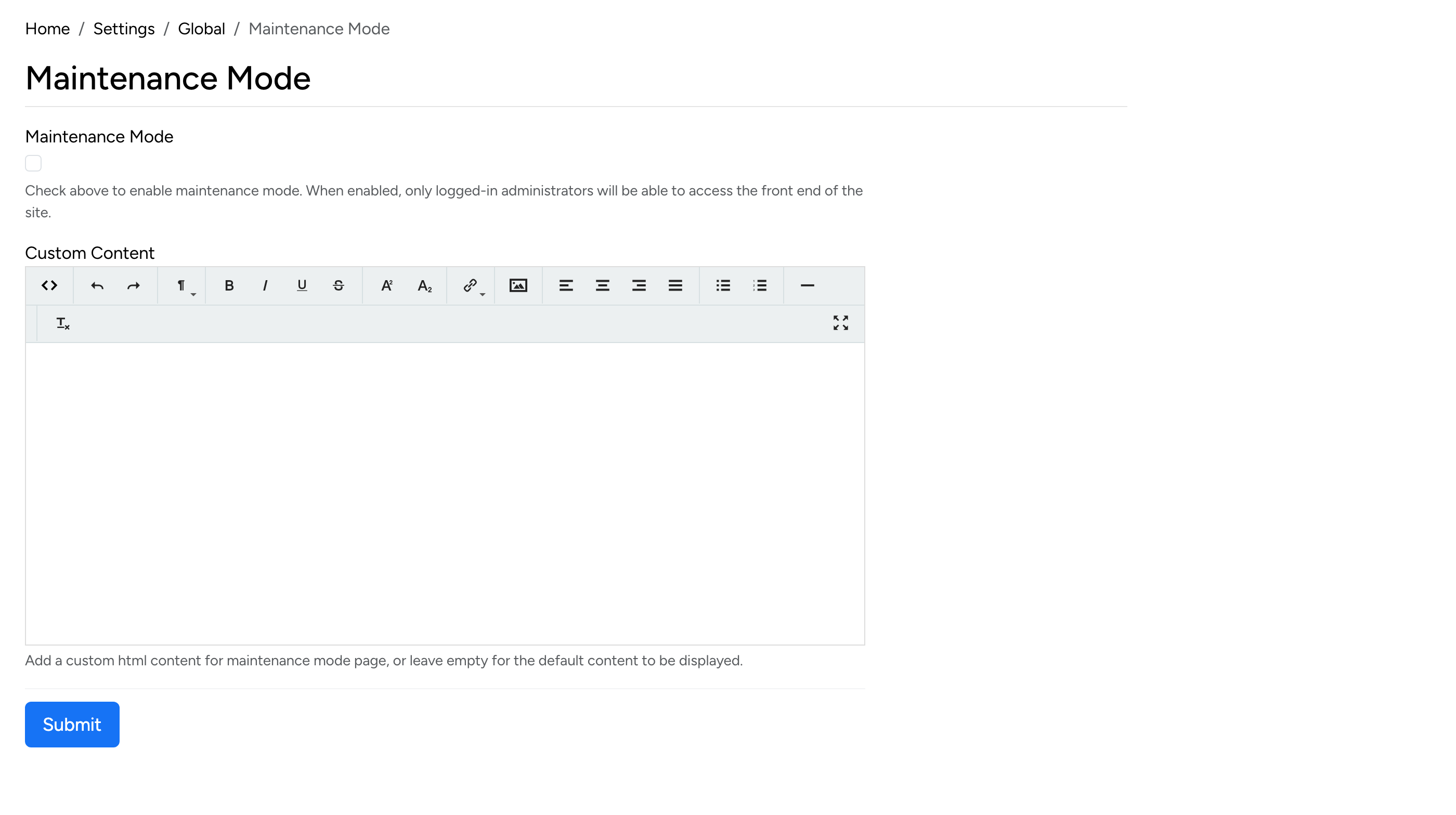
- Maintenance Mode — when enabled, the site shows a maintenance page to all visitors. Only administrators can access the site while maintenance mode is active.
- Custom Content — use the editor to create a custom maintenance page message (e.g. expected downtime, contact information).