Messaging
Overview
The Messaging module allows buyers, sellers, and administrators to communicate through the site. Users can ask presale questions on listings, exchange messages after a sale, and report abuse. With email notifications enabled, users receive an email whenever a new message arrives.
Presale Questions
Buyers can contact sellers directly from a listing page using the Questions & Answers tab. There are two types of questions:
- Private questions — visible only to the buyer and seller. Always available when messaging is enabled.
- Public questions — visible to all visitors on the listing page. Must be enabled by the admin and accepted by the seller in their Global Settings.
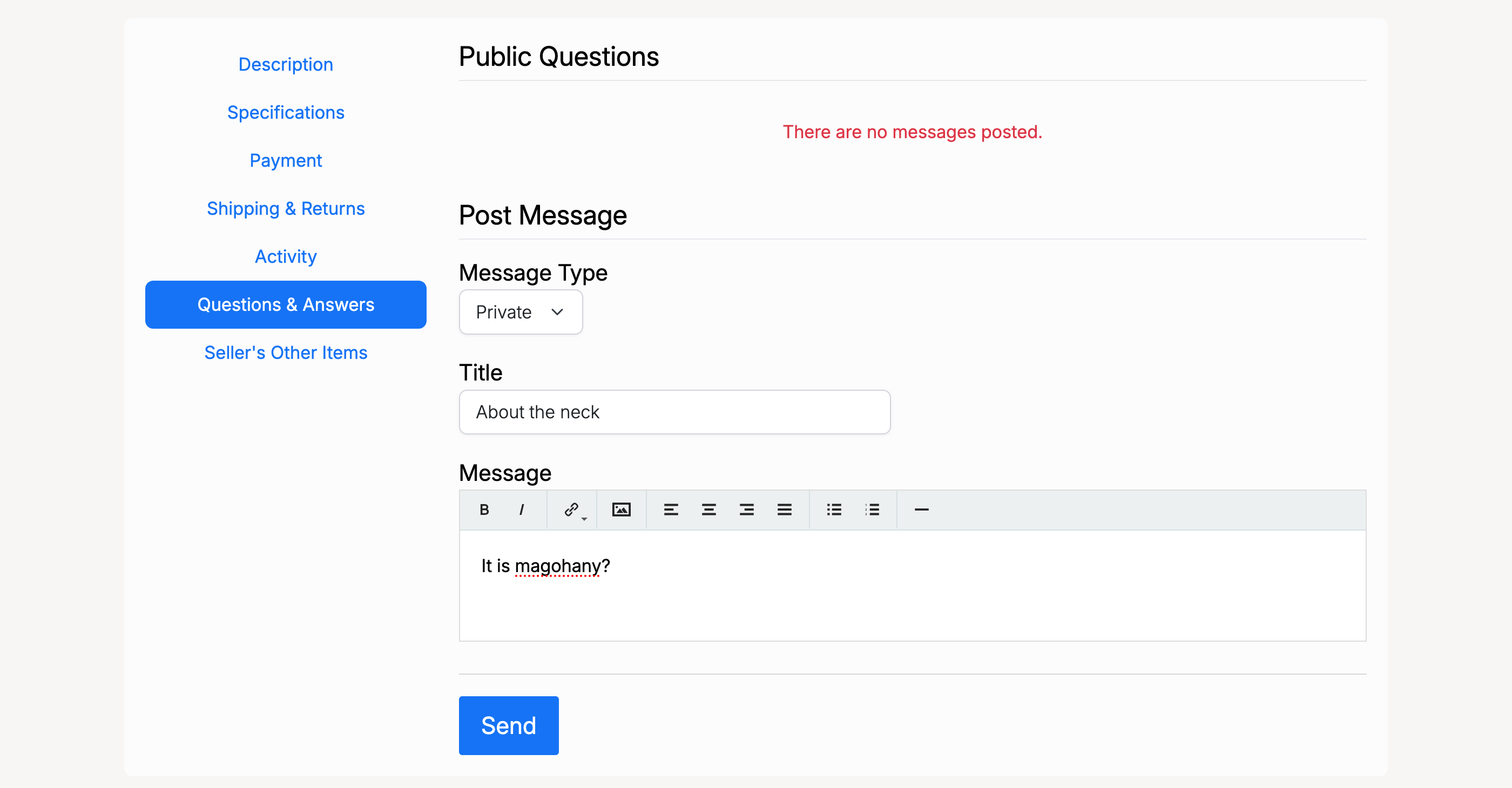
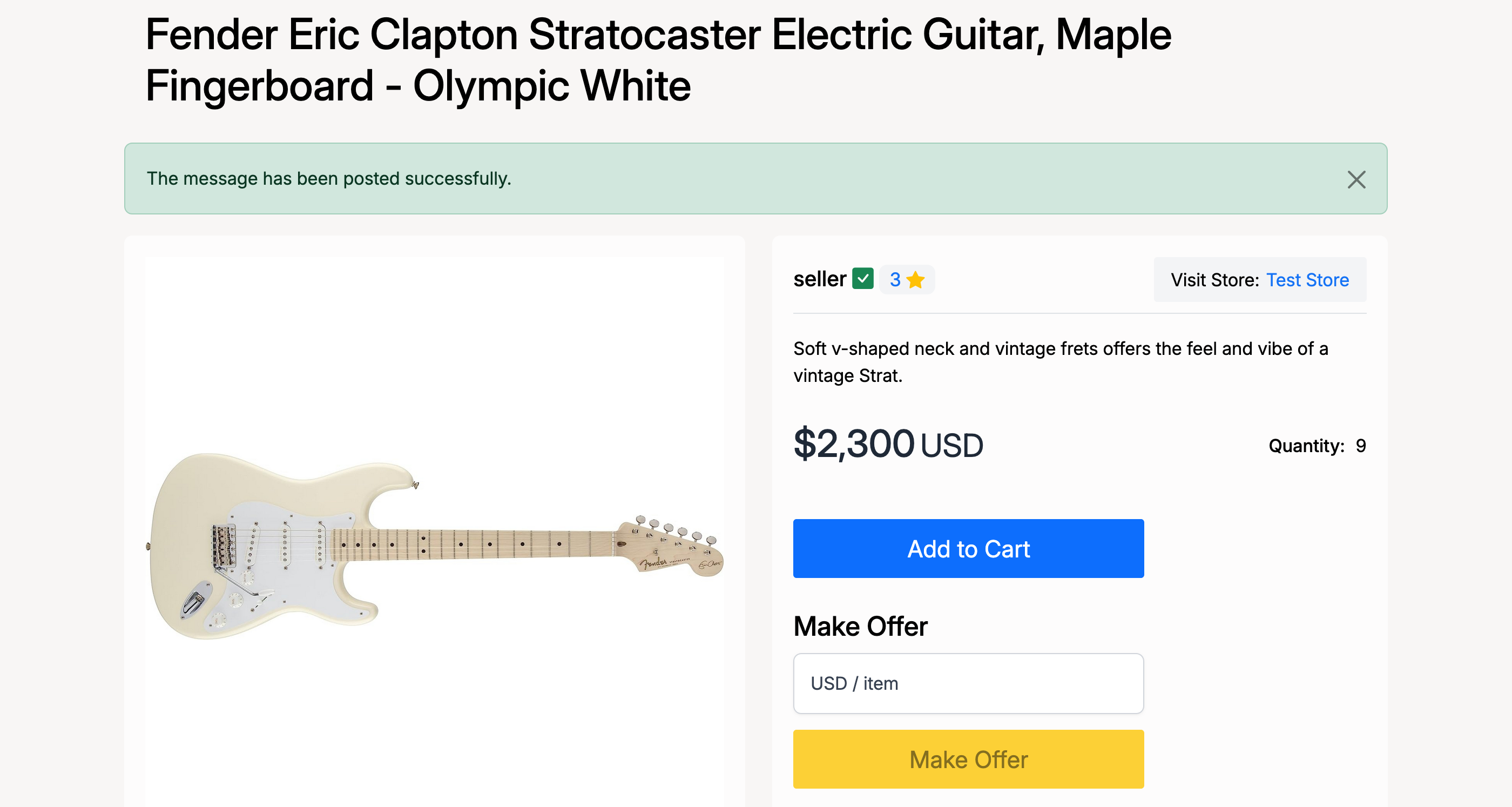
Select the Message Type (Private or Public), enter a title and your question, then click Send. A confirmation message appears at the top of the listing page.
Inbox & Conversations
All messages are available in the user's inbox at Members Area → Messages → Inbox.
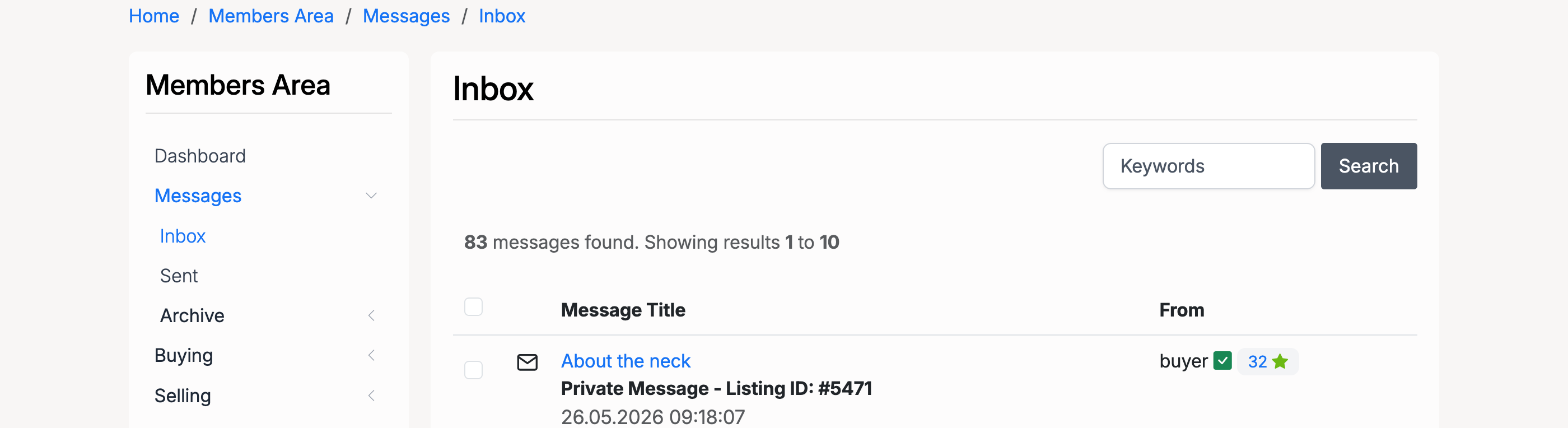
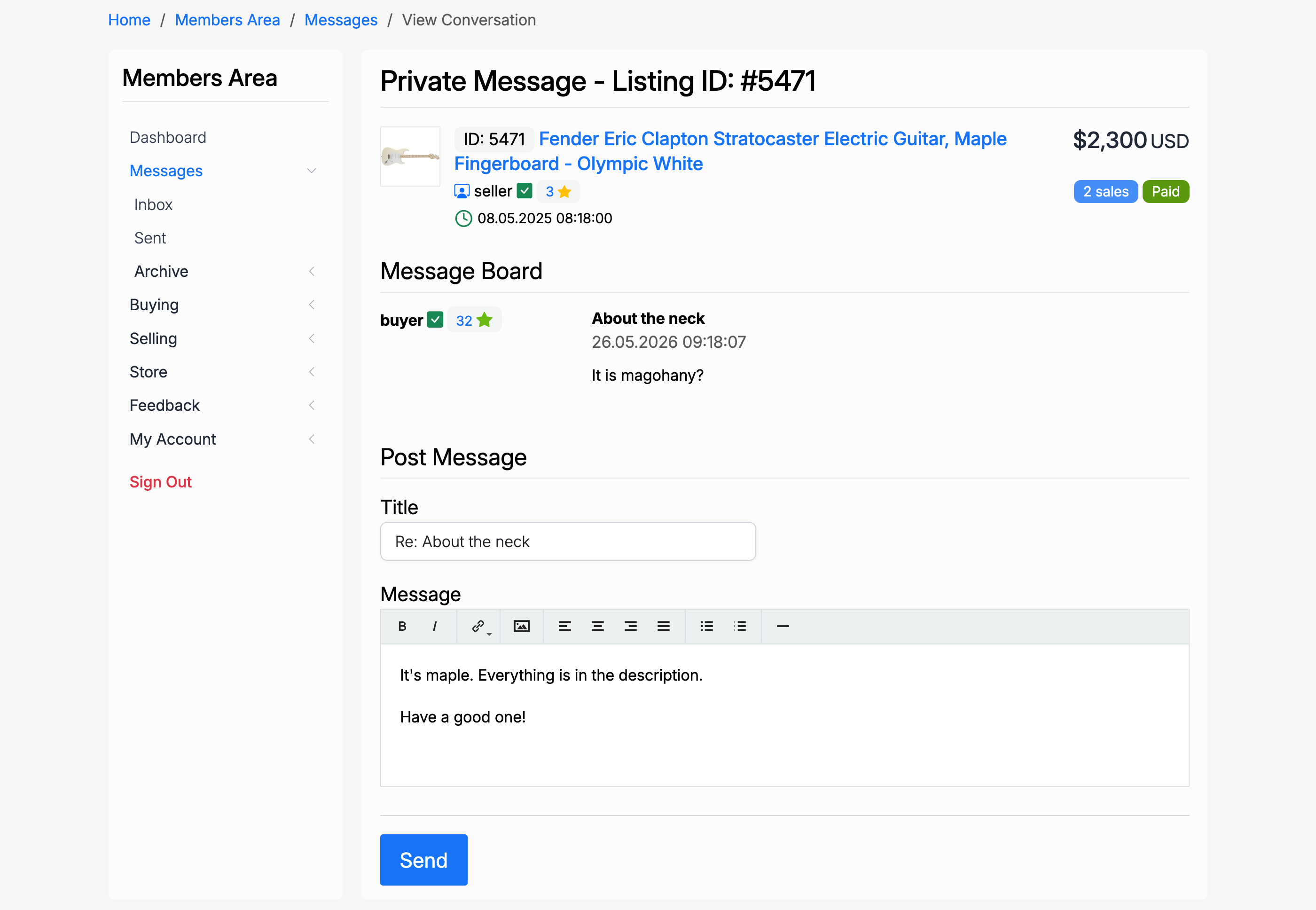
Click a message title to open the conversation. The conversation view shows the full thread with the listing details at the top, followed by the message exchange and a reply form.
Post-Sale Communication
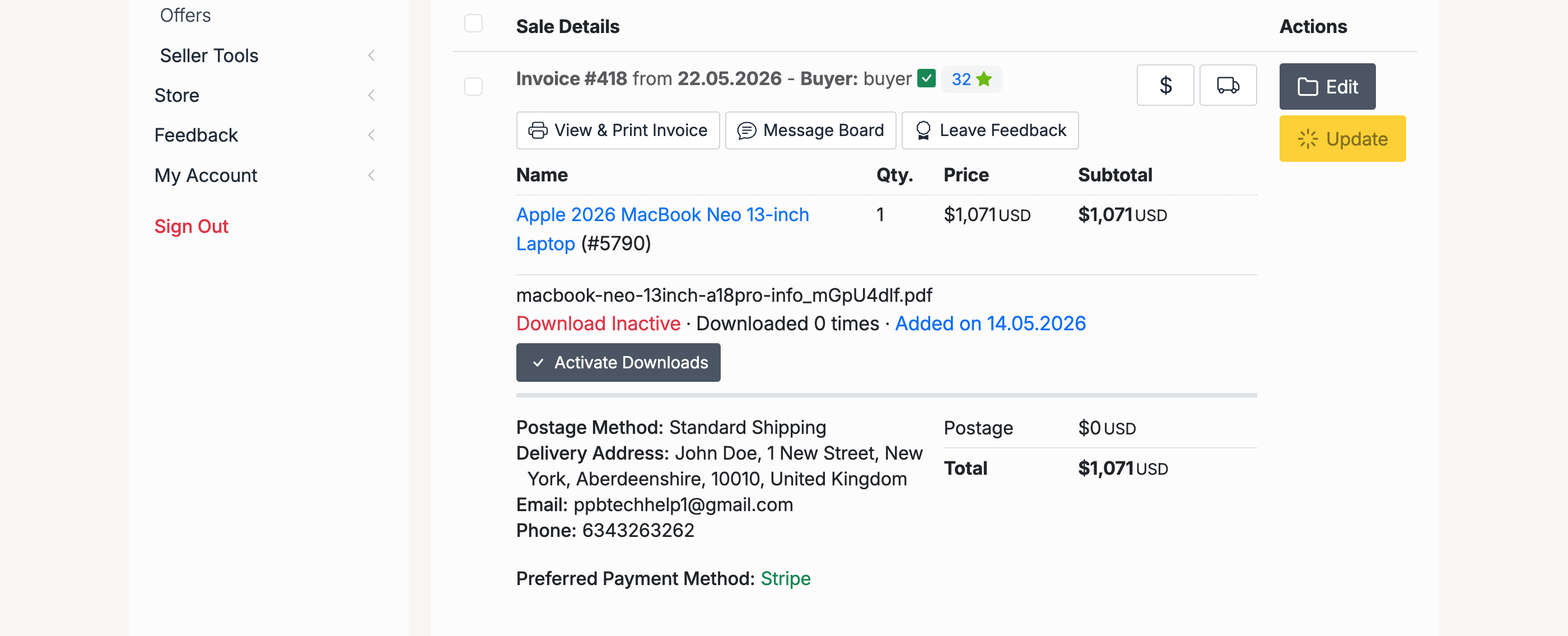
After a sale is completed, sellers and buyers can continue to communicate through the Message Board on each invoice. Click the Message Board button on the sale details page.
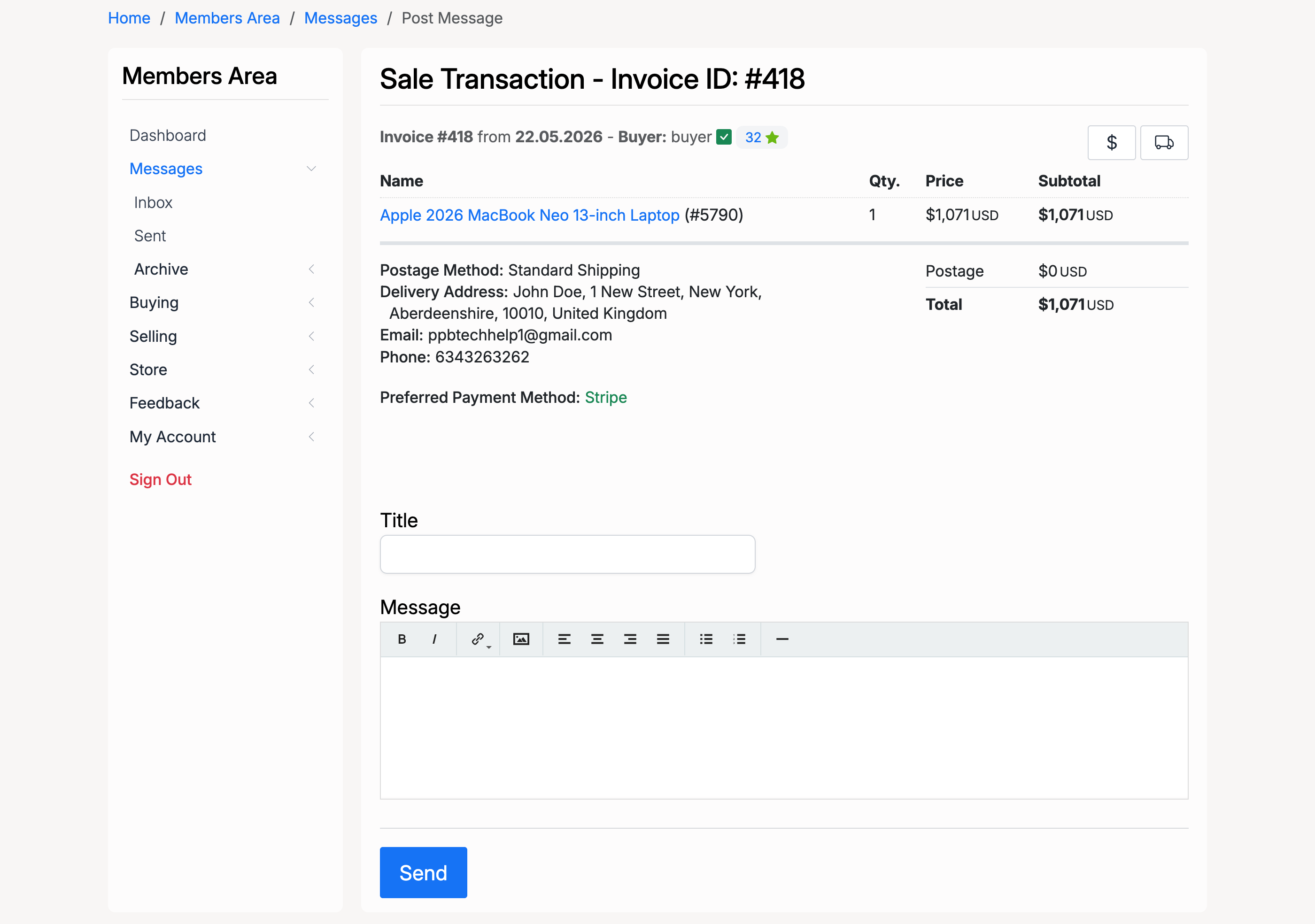
The post-sale message form shows the invoice details and a compose area for sending messages to the other party.
Email Notifications
Users can manage which email notifications they receive from Members Area → My Account → Email Notifications. The available notification categories include:
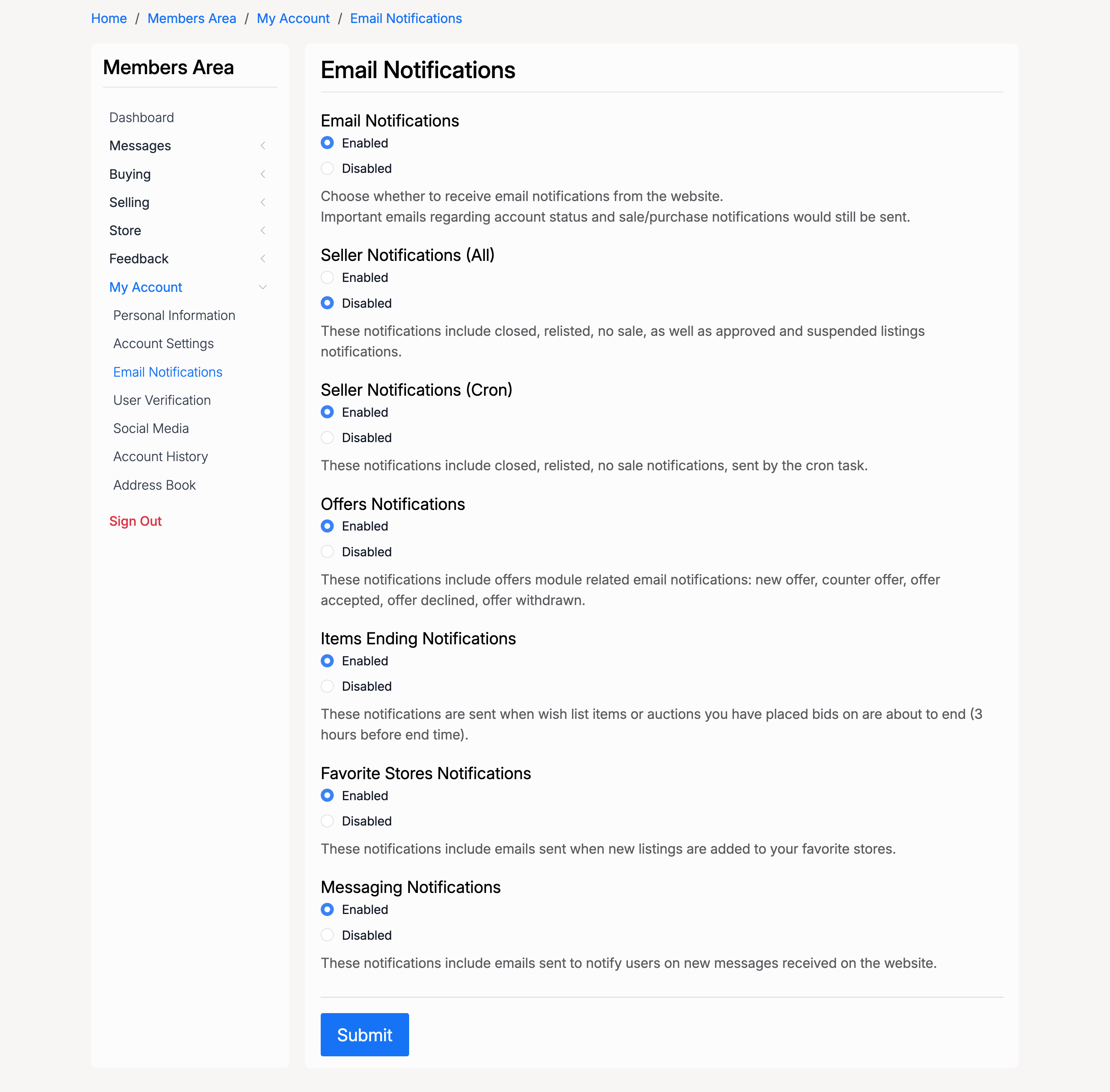
- Email Notifications — master toggle for receiving email notifications from the site. Important emails regarding account status and sale/purchase notifications are always sent regardless of this setting.
- Seller Notifications (All) — closed, relisted, no sale, approved, and suspended listing notifications.
- Seller Notifications (Cron) — closed, relisted, and no sale notifications sent by the cron task.
- Offers Notifications — new offer, counter offer, offer accepted, offer declined, and offer withdrawn notifications.
- Items Ending Notifications — sent when wish list items or auctions you have bid on are about to end.
- Favorite Stores Notifications — sent when new listings are added to your favourite stores.
- Messaging Notifications — sent when a new message is received on the site.
Admin: Messaging Settings
Found at Admin Control Panel → Users → Settings → Users Messaging. These settings control the messaging module at the site level.
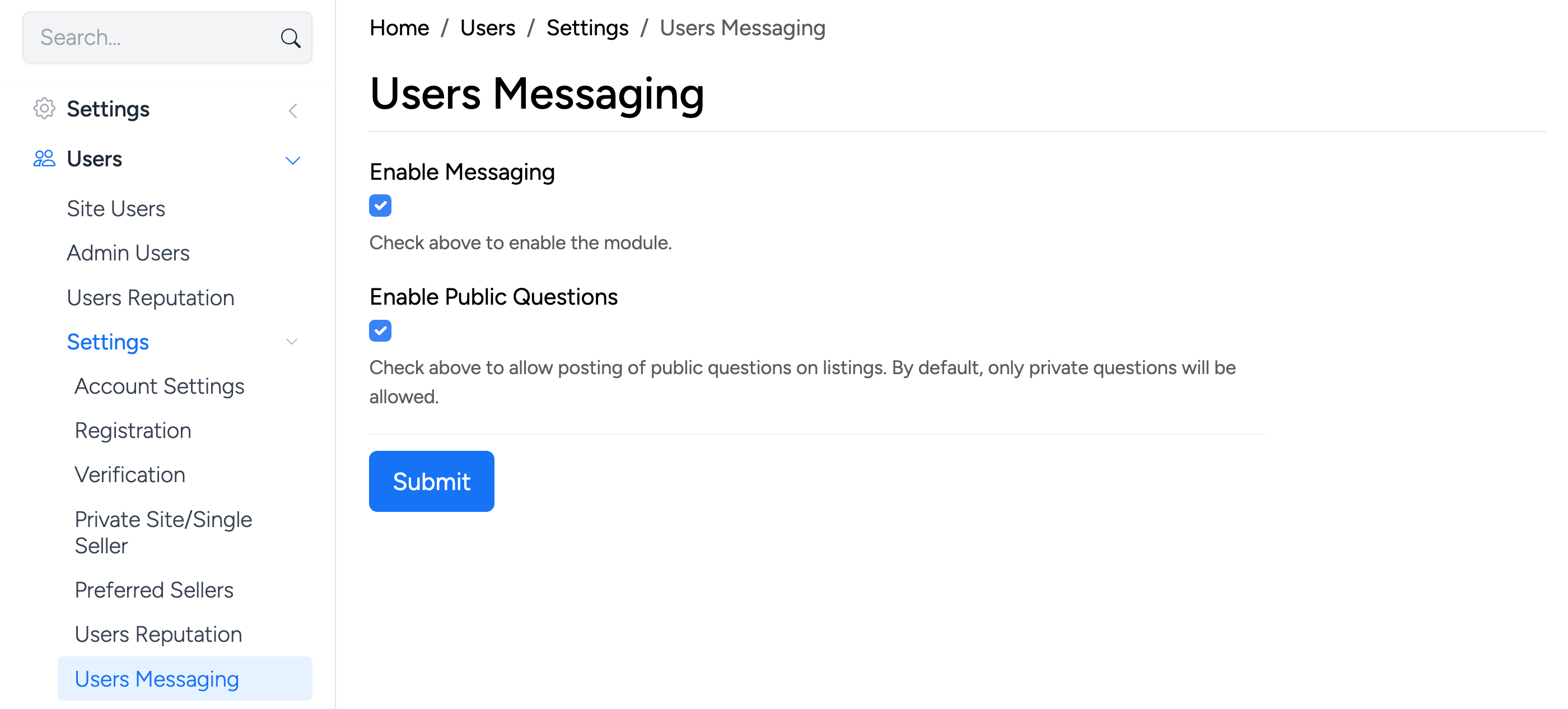
- Enable Messaging — check to enable the messaging module. When disabled, users cannot send or receive messages through the site.
- Enable Public Questions — allow posting of public questions on listings. By default, only private questions are permitted.
Admin: Messaging Management
Found at Admin Control Panel → Tools → Messaging. Administrators can view, search, and manage all messages sent through the site.
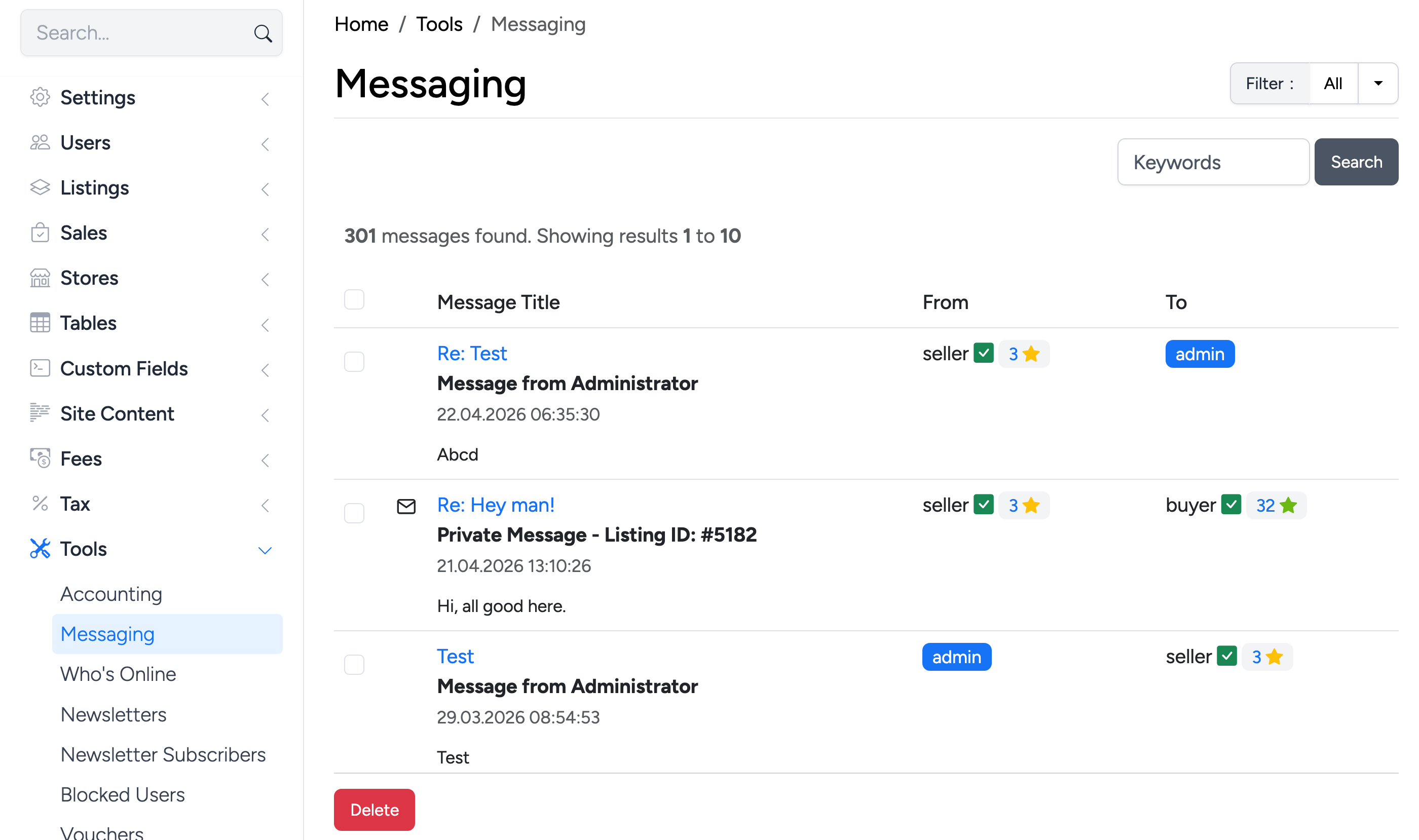
The message list shows the title, preview, sender, and recipient for each conversation. Use the Filter dropdown and Search field to find specific messages.
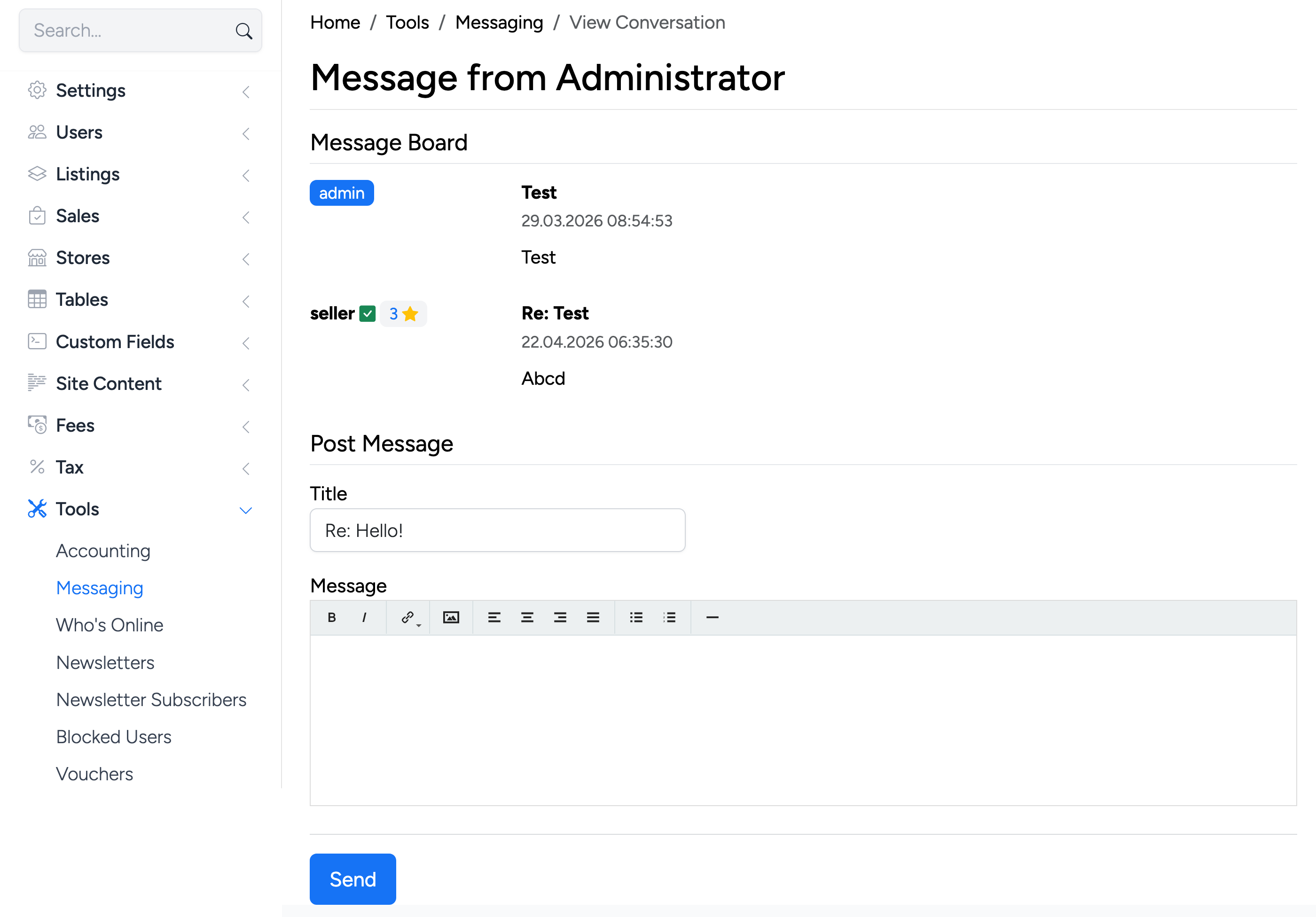
Click a message title to open the full conversation thread. From there, administrators can read the entire exchange and post a reply.
Admin: Message User
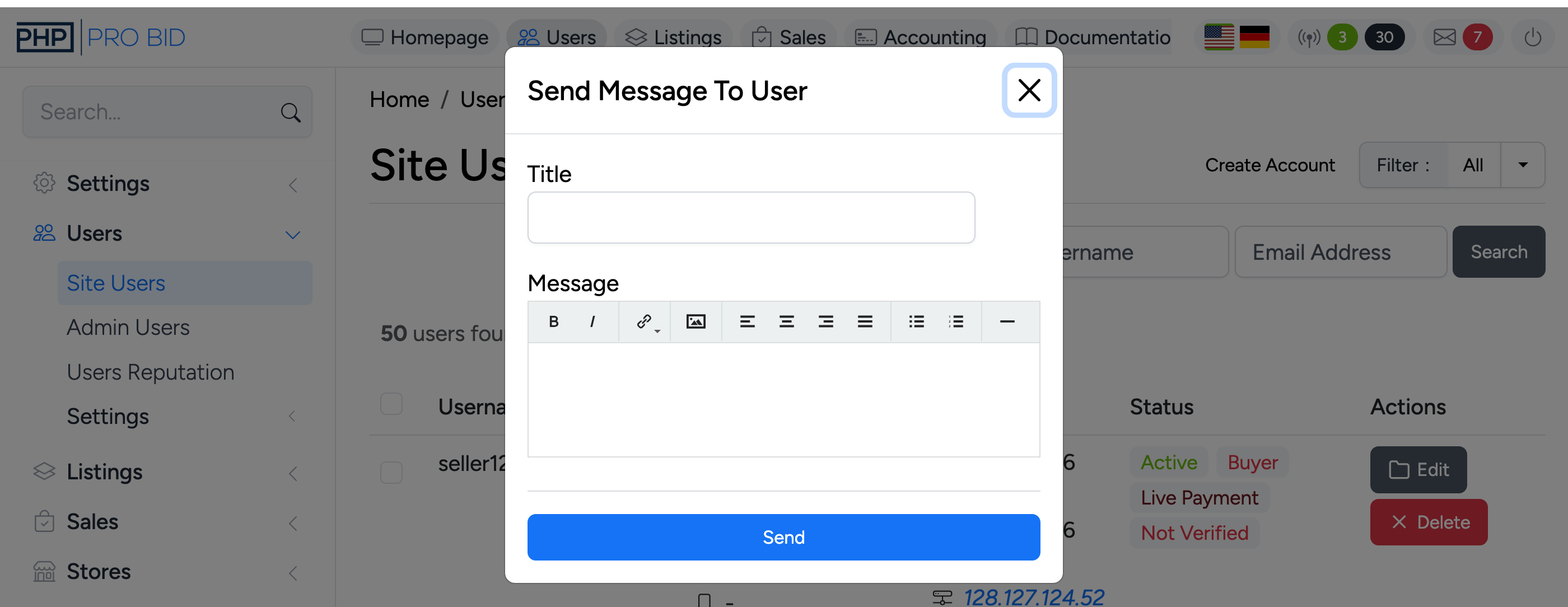
Administrators can send messages directly to any registered user from Admin Control Panel → Users → Site Users. Expand a user's details and click Message User.
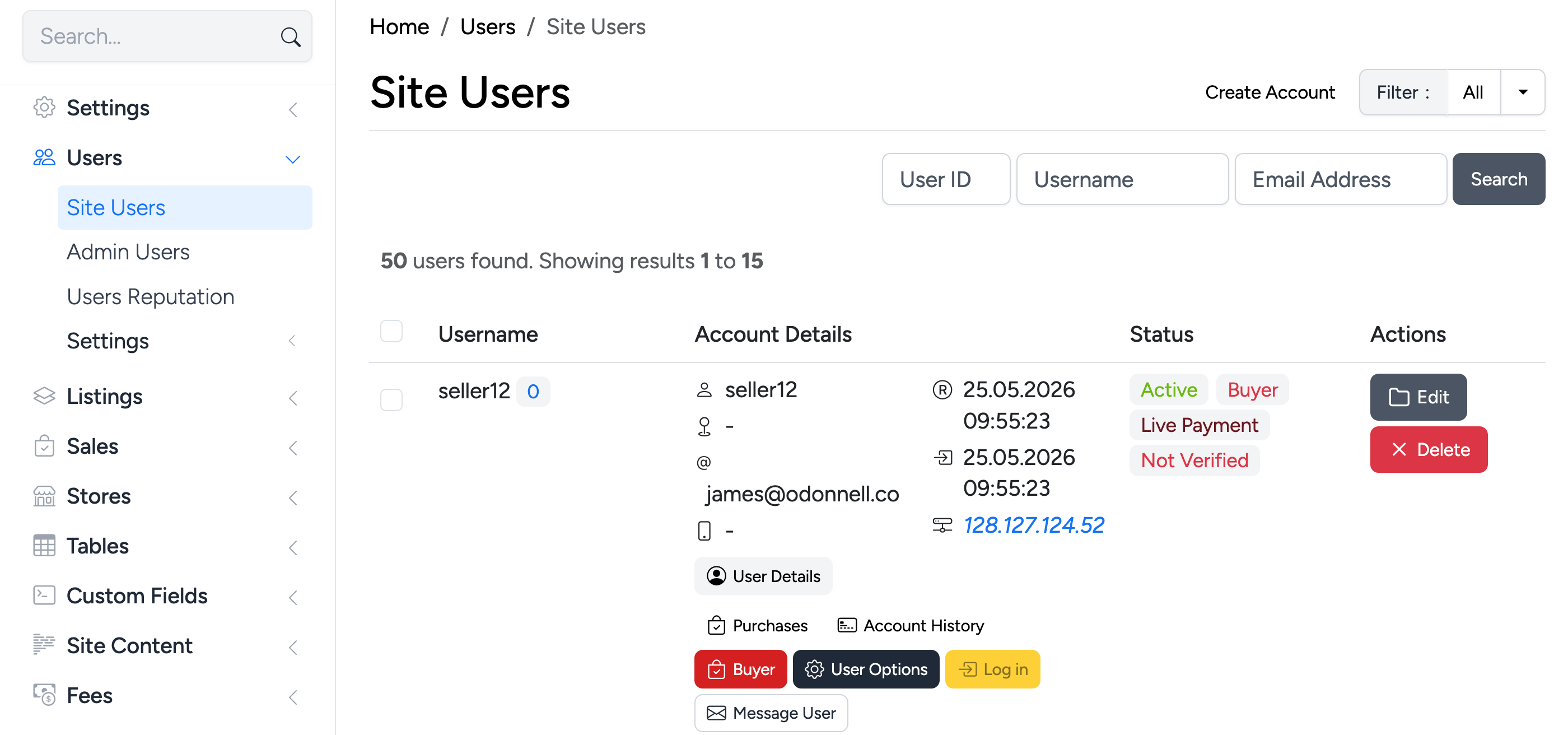
A modal opens with Title and Message fields. The message is delivered to the user's inbox and, if messaging notifications are enabled, an email notification is sent.