
Refund Requests
Overview
When a sale does not complete (e.g. the buyer does not pay), sellers can request a refund for the Sale Transaction Fee that was charged. The administrator reviews the request and can approve or decline it.
Approved refunds are credited back to the seller’s account balance as a Credit transaction. This feature must be enabled by the site administrator before sellers can submit requests.
Requesting a Refund
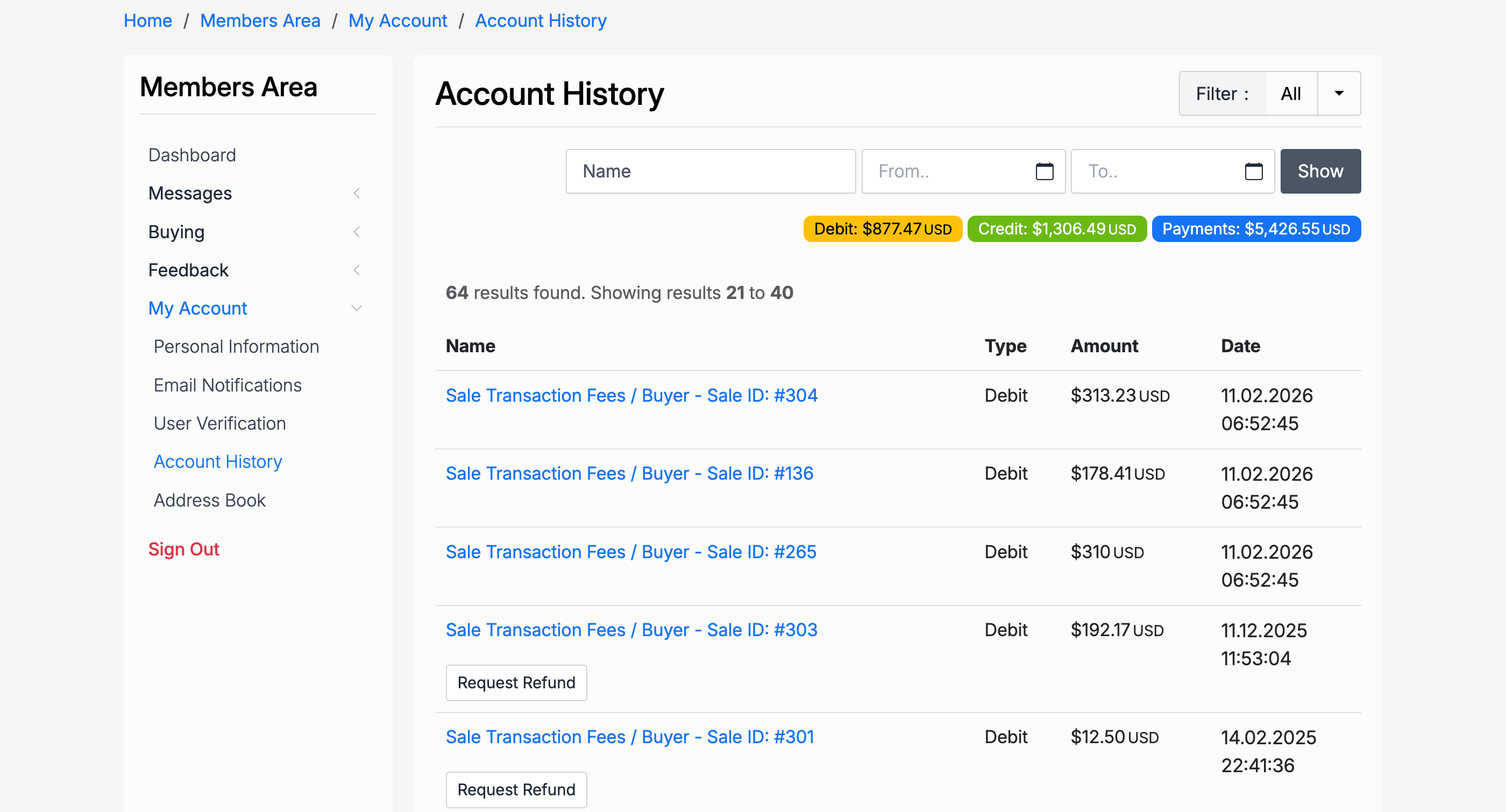
To request a refund, go to Members Area → My Account → Account History. Find the sale transaction fee you want to refund and click the Request Refund button next to it.
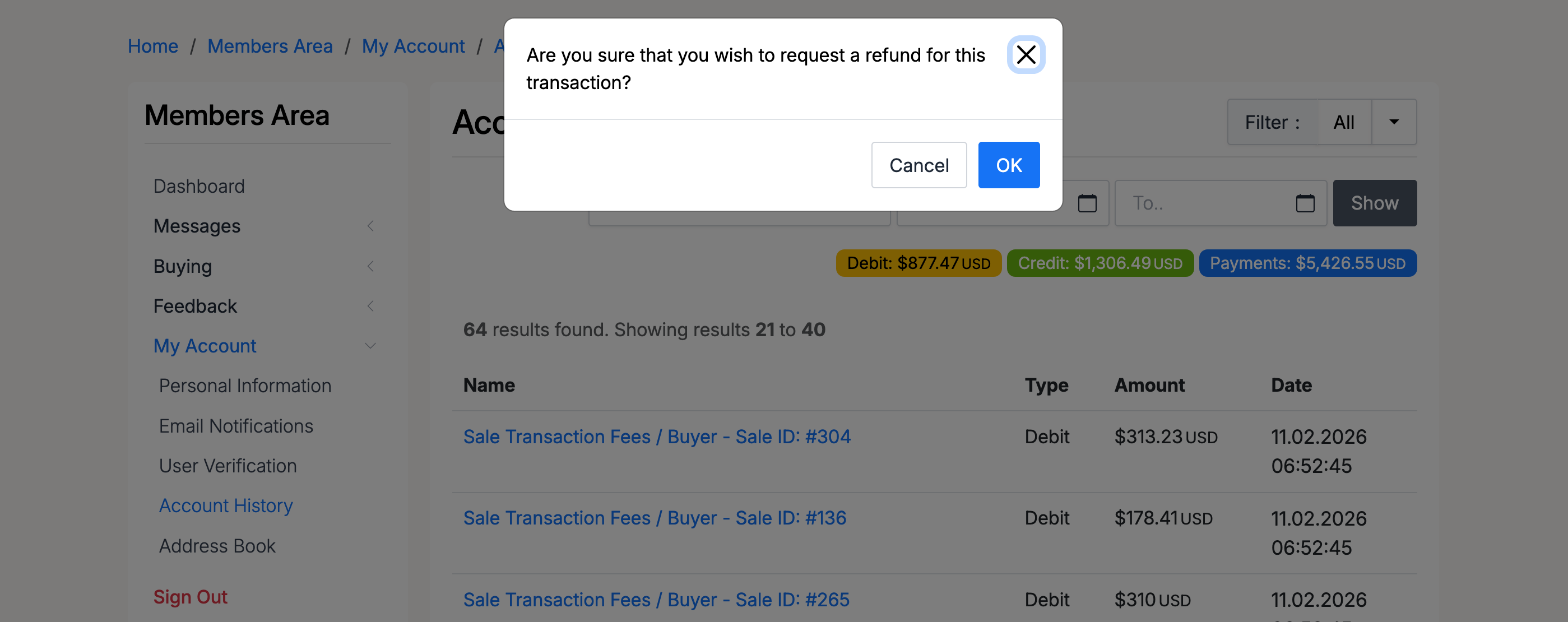
A confirmation dialog appears. Click OK to submit your request or Cancel to go back.
Refund Status
After submitting, the refund request is sent to the administrator for review. The transaction in your Account History will show a pending refund status until the administrator takes action.
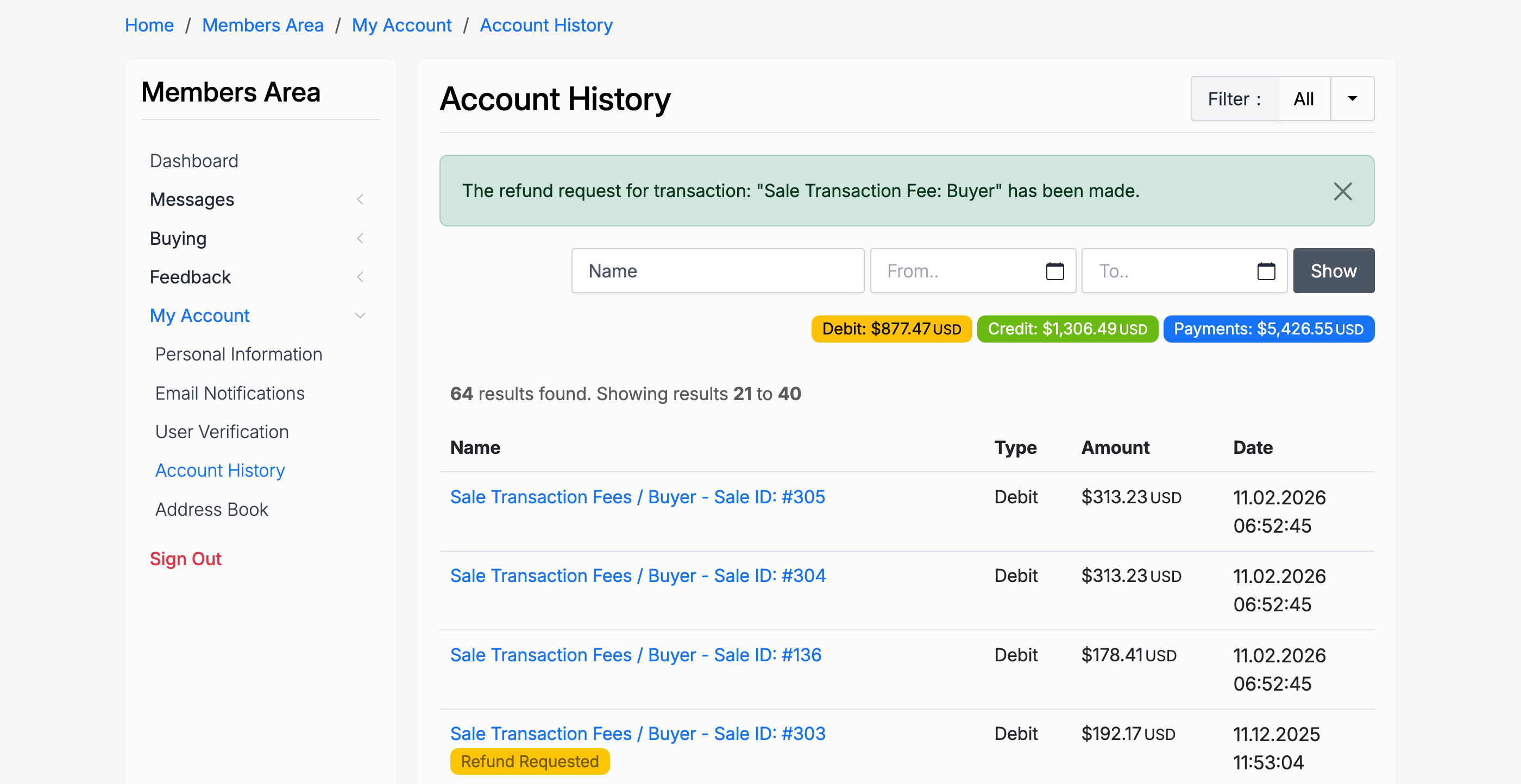
You will be notified of the outcome. If approved, a Credit entry appears in your Account History for the refunded amount.
Admin — Refund Management
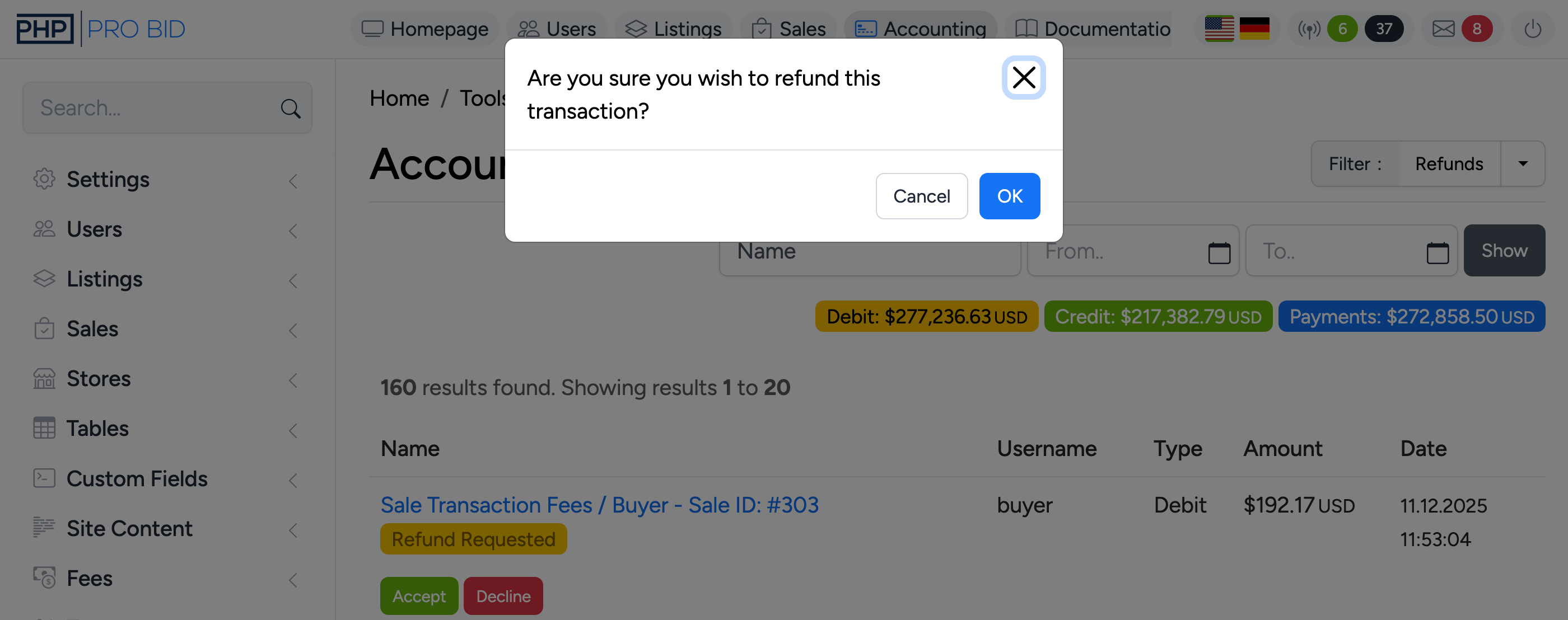
Administrators manage refund requests from Admin Control Panel → Tools → Accounting. Refund requests appear in the transaction list with a pending status.
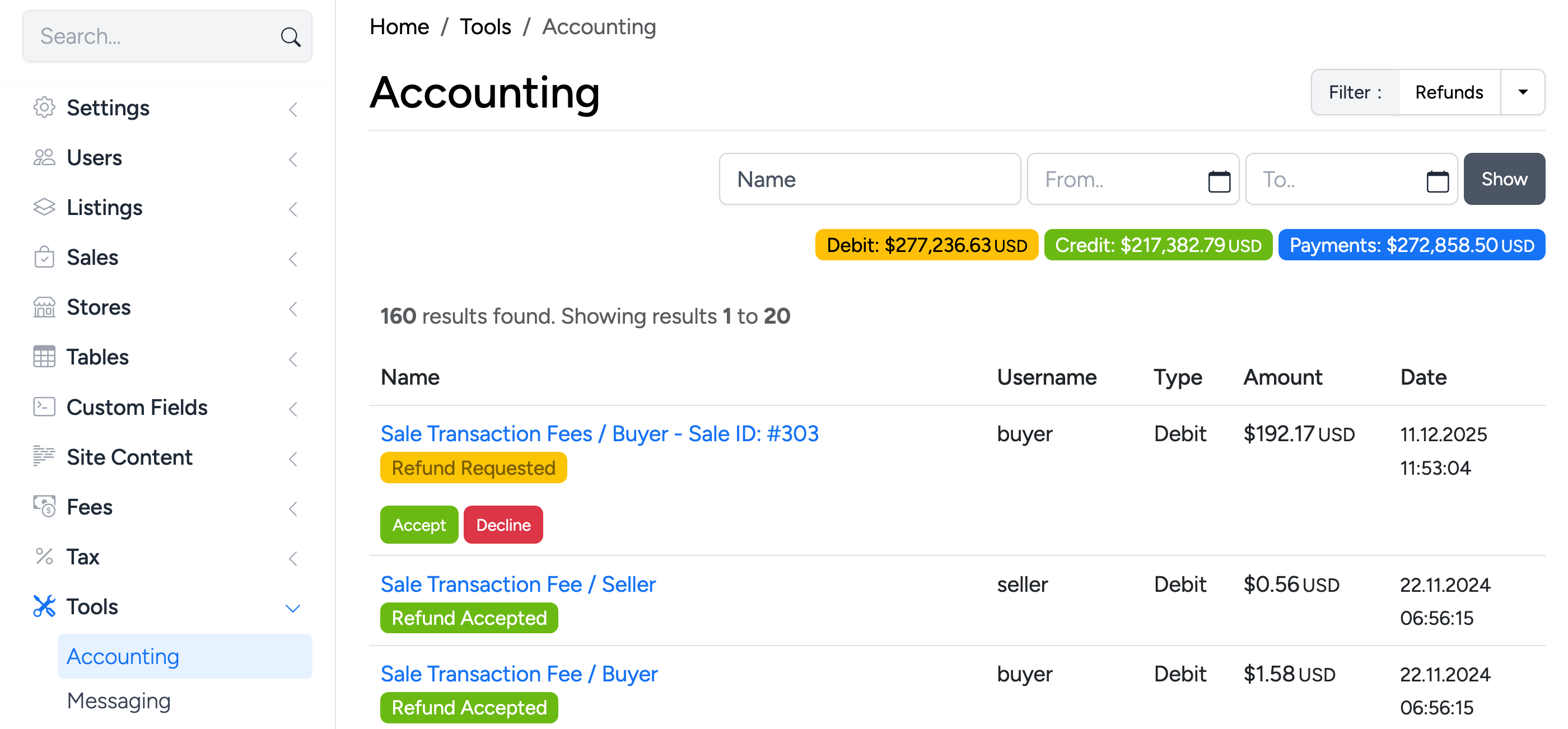
Click on the pending refund to review it. The administrator can:
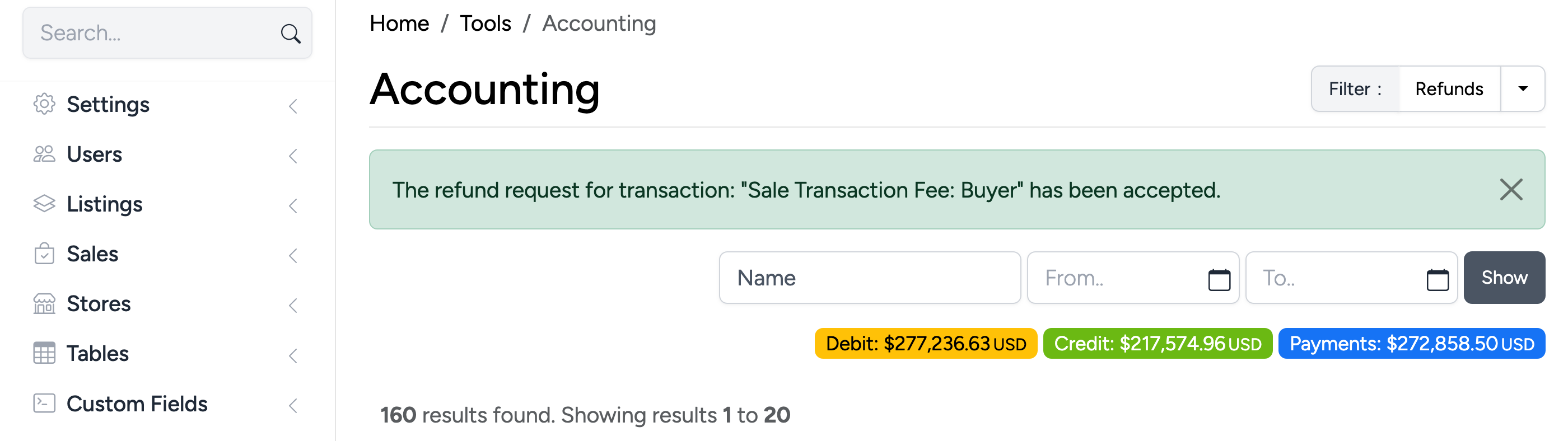
- Accept — the refunded amount is credited back to the seller’s account balance. The transaction type changes to Credit.
- Decline — the refund request is rejected and the seller is notified. The original debit remains on their account.
After a refund is accepted, the credit transaction appears in the Accounting list.
Enable Refunds
To enable refund requests, go to Admin Control Panel → Settings → Listings → Auctions & Products and enable Sale Transaction Fee Refunds.
You can also set an interval (in days) during which refund requests are accepted after a sale. Once the interval expires, the seller can no longer request a refund for that transaction.