
Place a Bid
How Bidding Works
Auction listings allow buyers to compete by placing bids. The highest bid when the auction ends wins the item. Each new bid must meet or exceed the minimum bid shown on the listing page.
The listing page displays the current highest bid, the number of bids placed, the minimum bid accepted, time remaining, and whether the reserve price (if set) has been met.
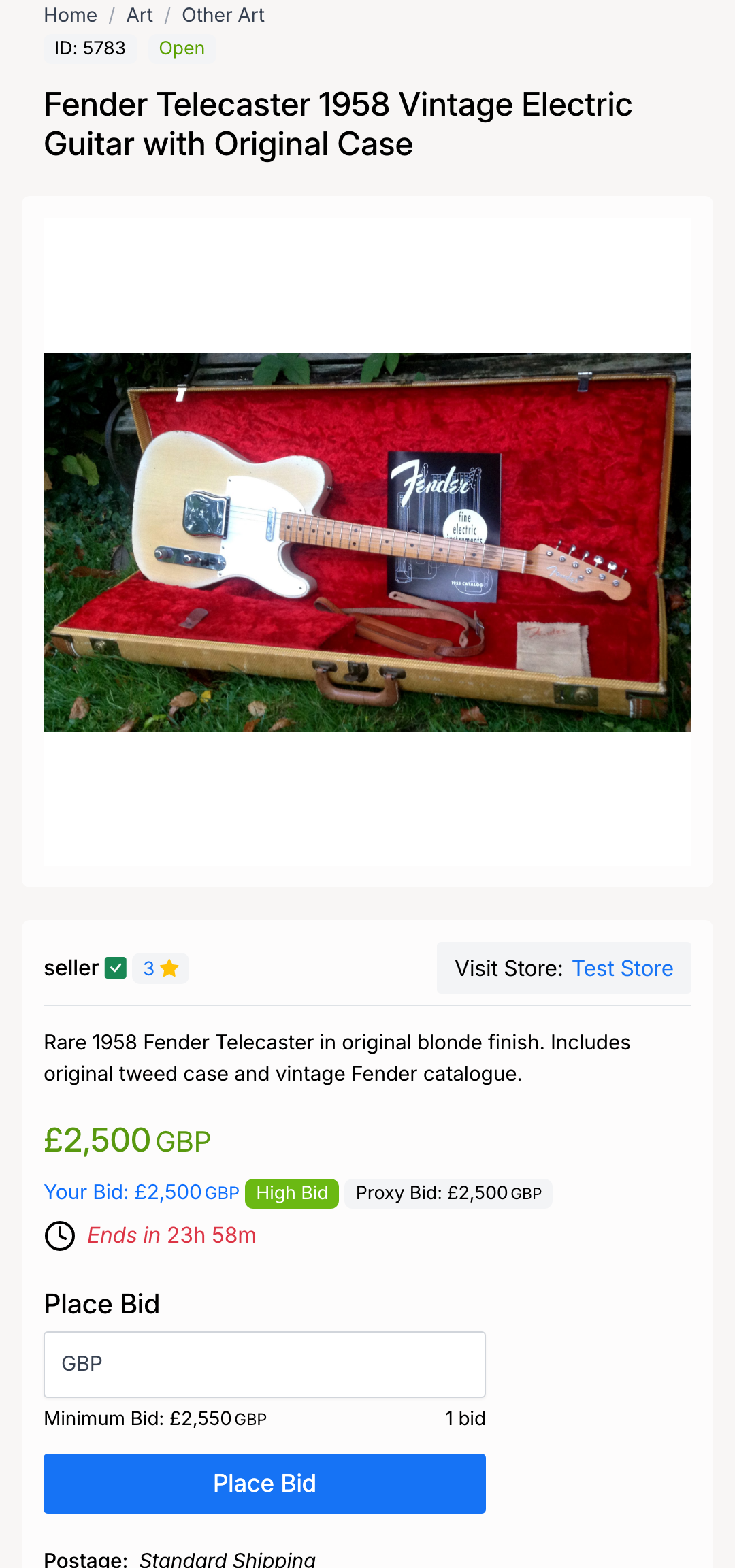
The listing page shows:
- Item image and title — the product being auctioned.
- Current price — the leading bid amount (£2,500 GBP in this example).
- Your bid status — if you have bid, shows your bid amount and whether you hold the High Bid or are Outbid. Also shows your proxy bid amount.
- Time remaining — countdown until the auction closes.
- Place Bid field — enter your bid amount here. The minimum accepted bid and total number of bids are shown below the field.
- Make Offer — an alternative to bidding (see Make an Offer).
Placing a Bid
To place a bid on an auction:
- Open the auction listing page.
- Enter your bid amount in the Place Bid field. It must be at least the minimum bid shown.
- Click Place Bid.
- A confirmation popup appears showing the item, your bid amount, and the current minimum bid. Review the details and click Place Bid to confirm.
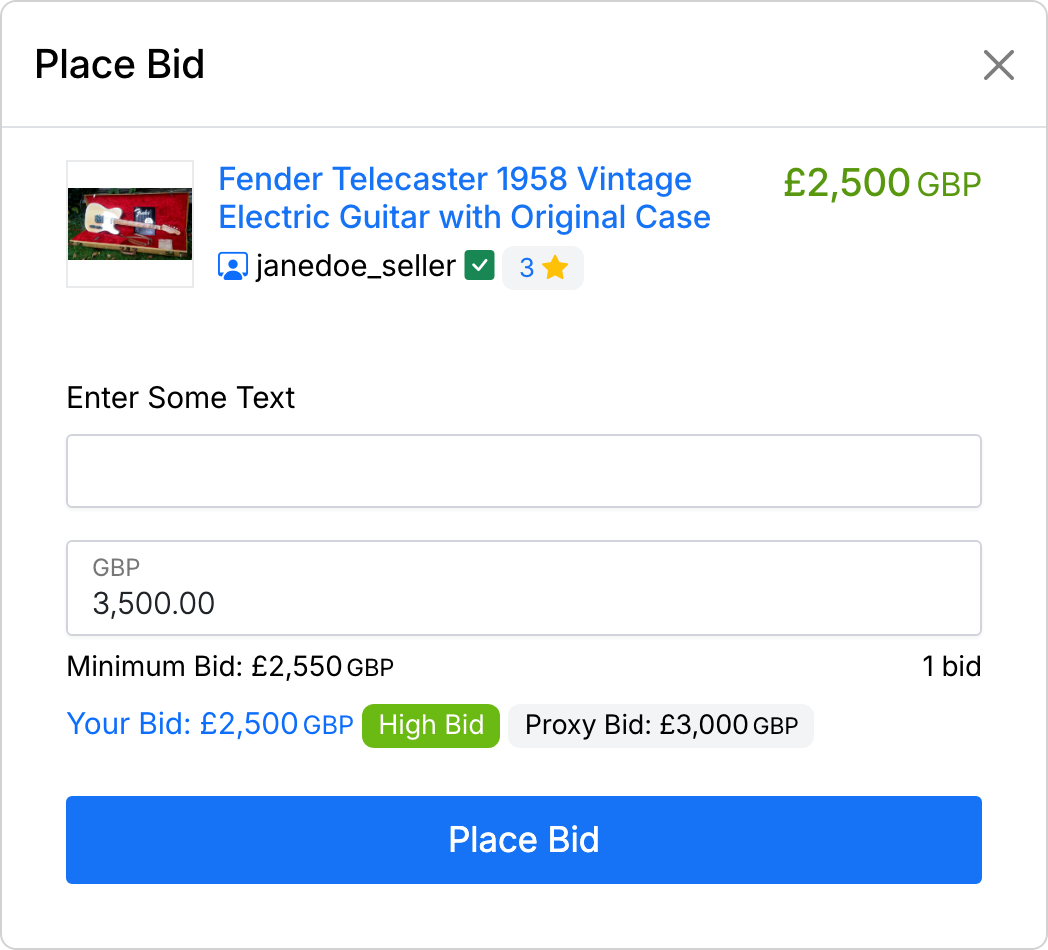
The confirmation popup shows:
- Item thumbnail and title — so you can verify you are bidding on the right listing.
- Current price — the listing price at the time of your bid.
- Your bid amount — the amount you entered.
- Minimum bid — the lowest bid currently accepted.
- Place Bid button — click to confirm and submit your bid.
Bid Confirmation
After you confirm your bid, a success message appears in the same popup telling you whether your bid was posted successfully and whether you are the highest bidder.
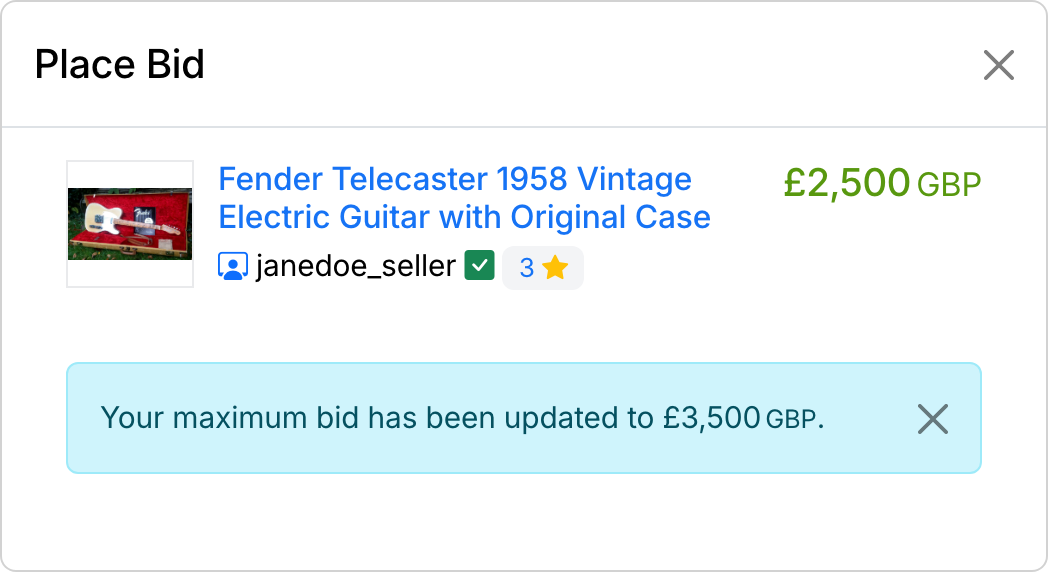
If your bid is the highest, you become the leading bidder. If another buyer has set a higher proxy bid, you may be outbid immediately — in that case the message will reflect this.
Bid History
Every auction displays a Bids tab on the listing page showing all bids placed, from most recent to oldest. Each entry shows:
- Bidder — the username of the person who placed the bid.
- Amount — the bid amount.
- Date — when the bid was placed.
The bid history is visible to all users, so you can see how competitive an auction is before deciding to bid.
Being Outbid
If another buyer places a higher bid, your status on the listing page changes to Outbid. A notification email is sent each time you are outbid, so you can decide whether to bid again.
You can place a new bid at any time before the auction ends, as long as your new bid meets the updated minimum.
Reserve Price
Some auctions have a reserve price — a hidden minimum that must be met for the sale to go through. If the reserve is not met by the end of the auction:
- The listing shows that the reserve price has not been met.
- The item is not sold, even if there are bids.
- The seller can choose to relist the item.
Once bidding reaches or exceeds the reserve price, the listing will indicate that the reserve has been met.
Your Current Bids
To see all auctions you have bid on, go to Members Area → Buying → Current Bids.
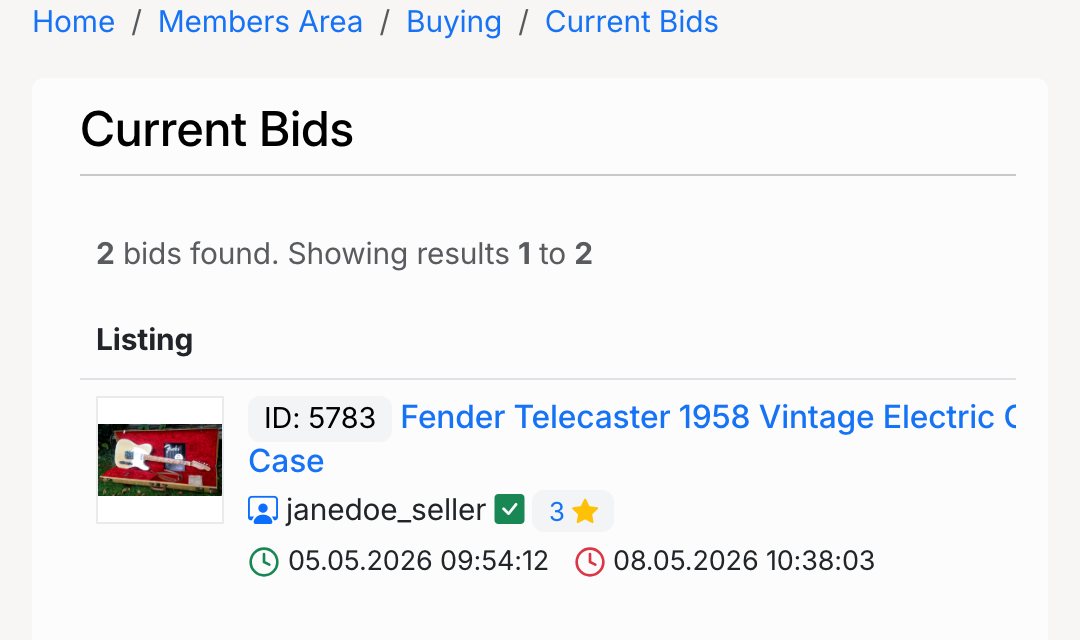
The Current Bids page shows:
- Listing title — links to the auction listing.
- Seller — the seller’s username.
- Bid date — when you placed your bid.
- End date — when the auction closes.