
Custom Fields
Overview
Custom fields let administrators add extra form elements to listings, user profiles, events, bids, purchases, offers, and the shopping cart. For example, you could add a “Waist” size selector to clothing listings or a “Company Name” text field to user registration.
Custom fields are managed at Admin → Custom Fields → Browse.
Browse Custom Fields
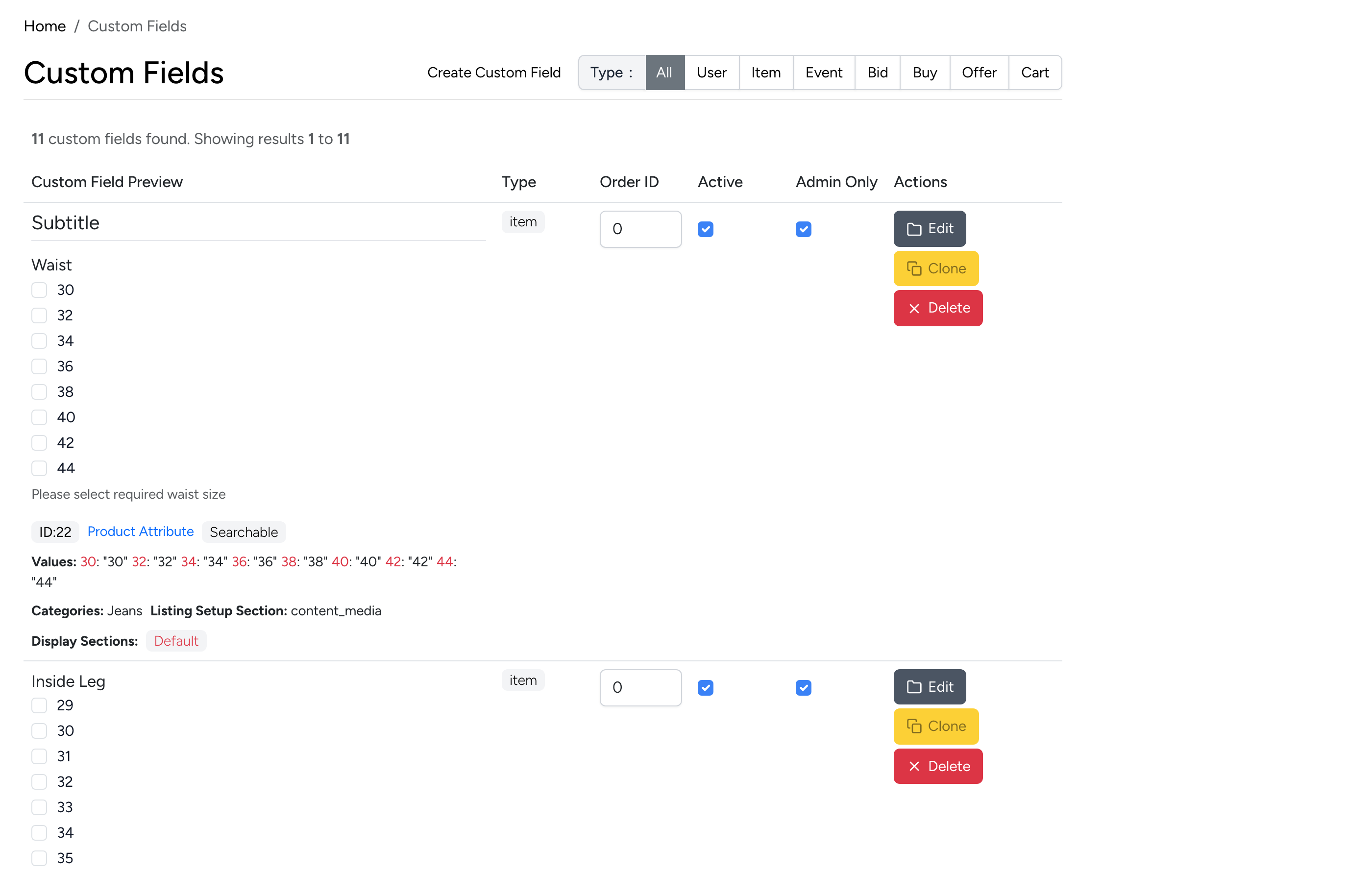
The browse page lists all custom fields with a live preview of how they appear on the form. Use the type tabs to filter by where the field is used:
- User — appears on the registration or profile form.
- Item — appears on the listing setup form.
- Event — appears on the event creation form.
- Bid, Buy, Offer, Cart — appears during the respective purchase flow.
Each field shows its type, order ID (controls display order), whether it is active, whether it is admin-only, and actions to edit, clone, or delete.
Click Create Custom Field to add a new field, or Edit on an existing one to modify it.
Type & Html Element
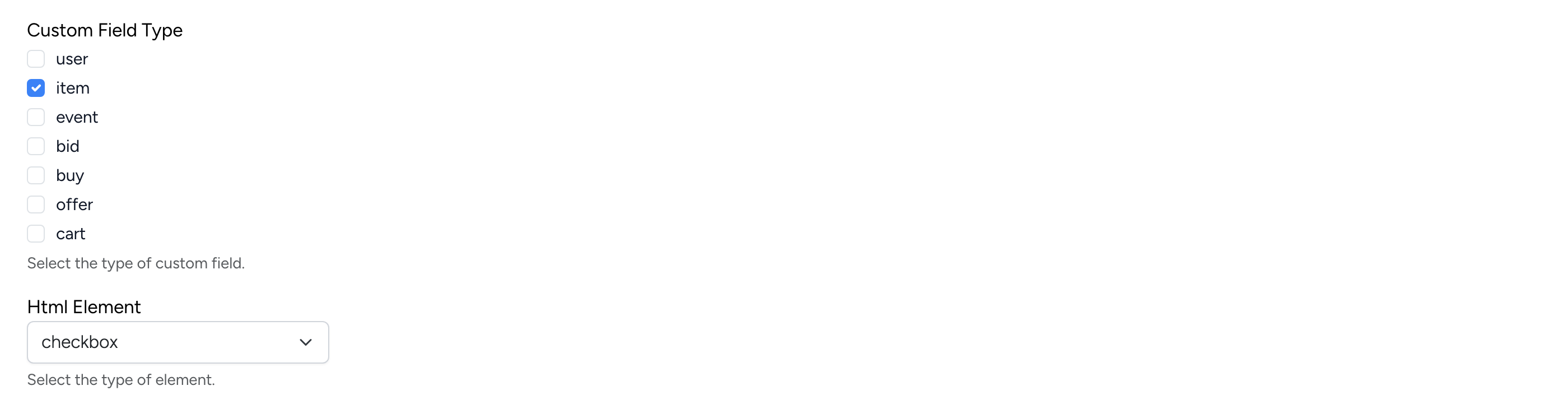
- Custom Field Type — select where the field appears. A single field can apply to multiple types by checking more than one box (e.g. both “item” and “event”).
- Html Element — the form element type. Available options include text input, textarea, select dropdown, checkbox, radio buttons, and date picker.
Labels & Attributes
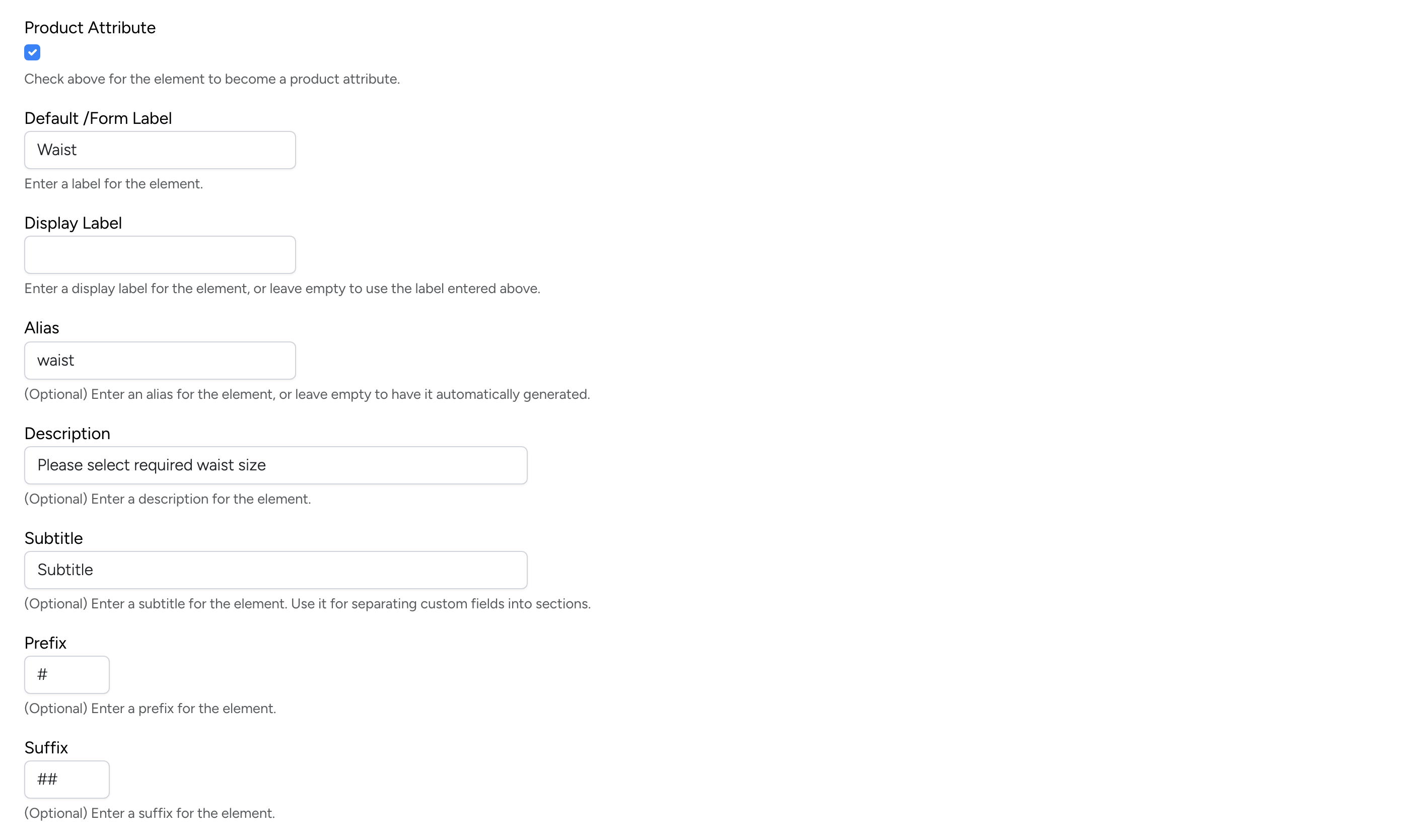
- Product Attribute — when checked, the field becomes a searchable product attribute that buyers can filter by in search results.
- Default / Form Label — the label shown next to the field on the form (e.g. “Waist”).
- Display Label — an optional alternative label for the listing detail page. Leave blank to use the form label.
- Alias — a URL-friendly identifier used internally. Generated automatically from the label if left blank.
- Description — help text shown below the field to guide the user (e.g. “Please select required waist size”).
- Subtitle — an optional subtitle used to visually separate custom fields into sections on the form.
- Prefix / Suffix — optional text displayed before or after the field value (e.g. a “#” prefix or “cm” suffix).
Select Categories

- Select Categories — restrict the field to specific categories. The field will only appear when a seller lists in one of the selected categories. Leave empty to show the field in all categories.
Options
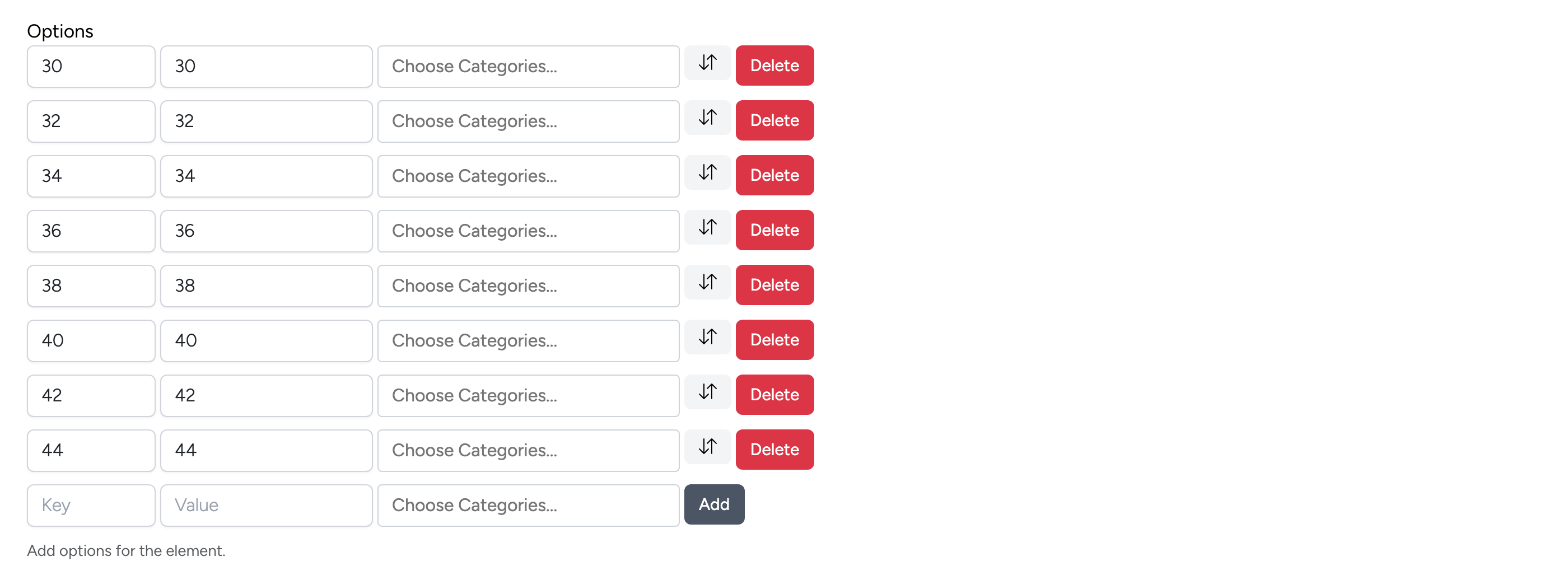
For select, checkbox, and radio fields, you define the available options here. Each option has:
- Key — the value stored in the database.
- Value — the label shown to the user on the form.
- Choose Categories — optionally restrict individual options to specific categories.
Use the drag handle to reorder options, or click Delete to remove one. Click Add to create a new option row.
Listing Setup Section

- Listing Setup Section — choose which step of the listing setup process the field appears on (e.g. Content & Media, Pricing, Delivery).
- Display Sections — optionally enter section IDs to control where the field value is displayed on the listing detail page. Fields with no section ID set will appear in the Specifications tab by default.
Searchable & Range
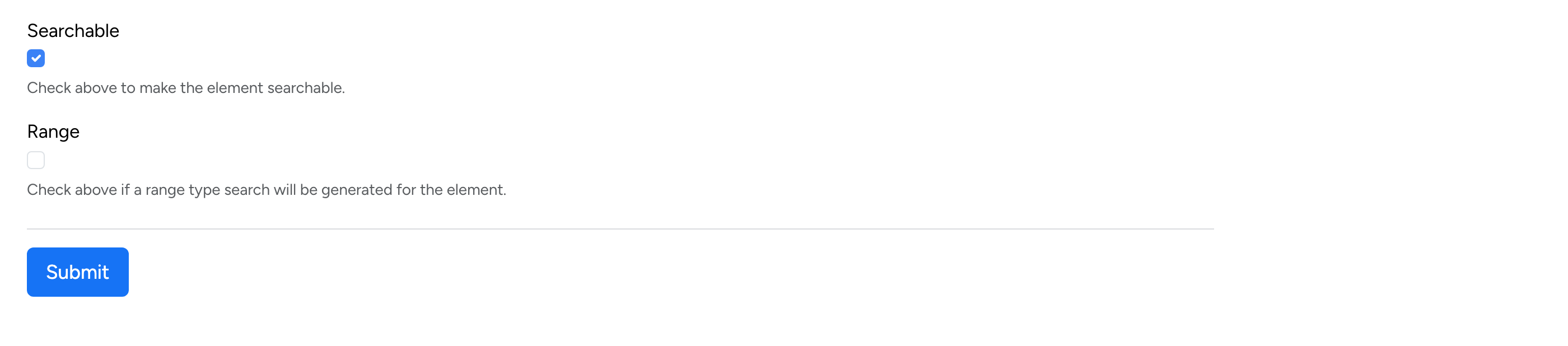
- Searchable — when checked, the field appears as a filter option in the site’s search and browse pages, allowing buyers to narrow results by this field.
- Range — when checked, the search filter uses a range input (min/max) instead of an exact match. Useful for numeric fields like size, weight, or year.
Seller View
When a seller creates a listing in a category that has custom fields assigned, the fields appear automatically on the listing setup form in the section configured by the admin.