
Media & Digital Downloads
Overview
Beyond images, PHP Pro Bid lets sellers attach videos, embed external media, and offer digital download files with their listings. Videos and embeds appear on the listing page alongside photos, while digital downloads are delivered to the buyer after purchase.
Uploading Videos
On the Content & Media tab, scroll past the image upload area to find the media section. Click Select Video to upload a video file from your device:
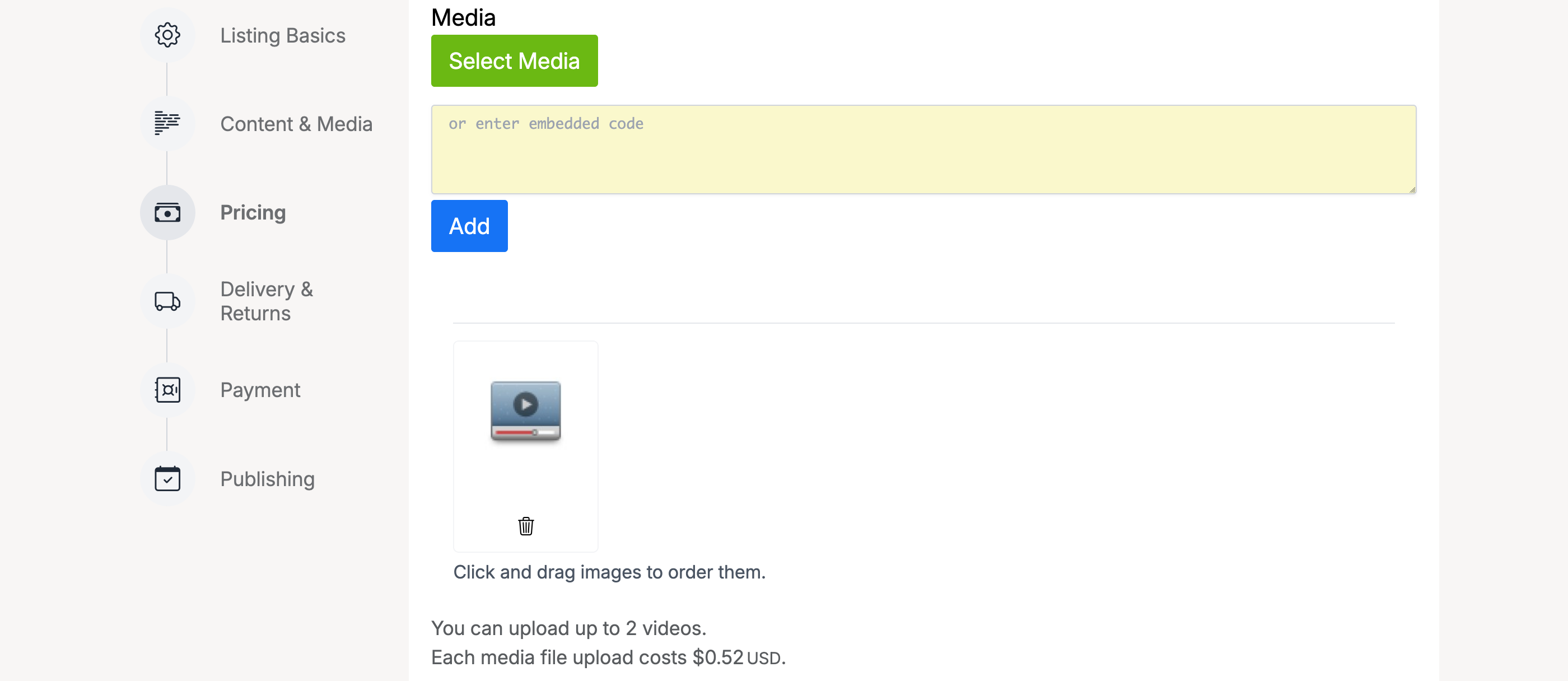
The page shows the number of videos allowed and the maximum file size. Uploaded videos are converted and played directly on the listing page.
Embedded Media
If the administrator has enabled embedded code, you can paste an embed snippet (for example from YouTube) into the Embed Code field instead of uploading a file:
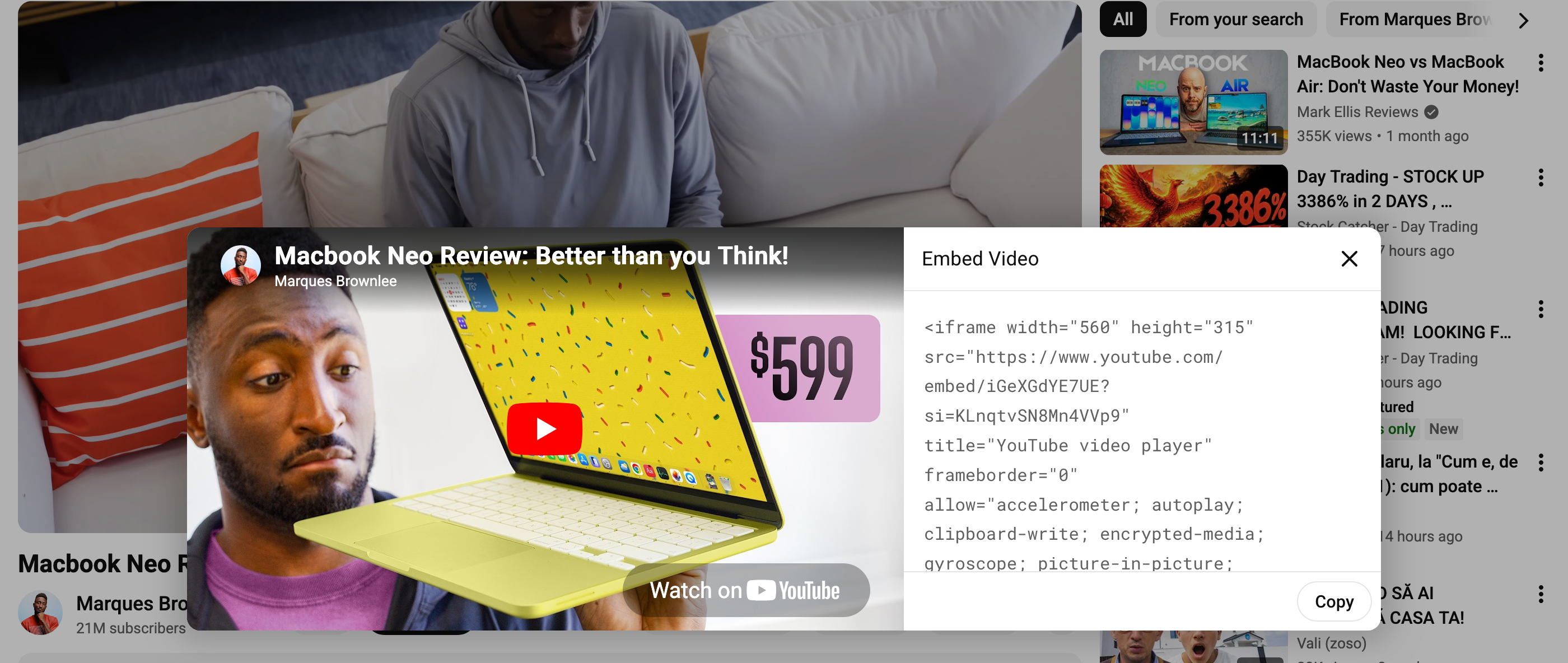
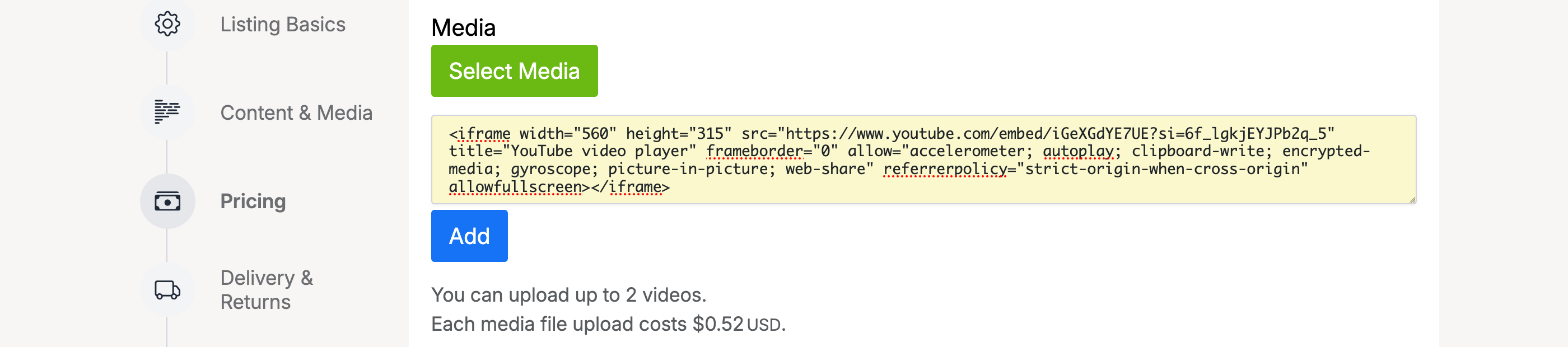
Copy the embed code from the video platform and paste it into the field on the listing form:
Digital Downloads
To sell a digital file (PDF, ZIP, software, etc.), scroll to the Digital Downloads section on the Content & Media tab and upload your file:
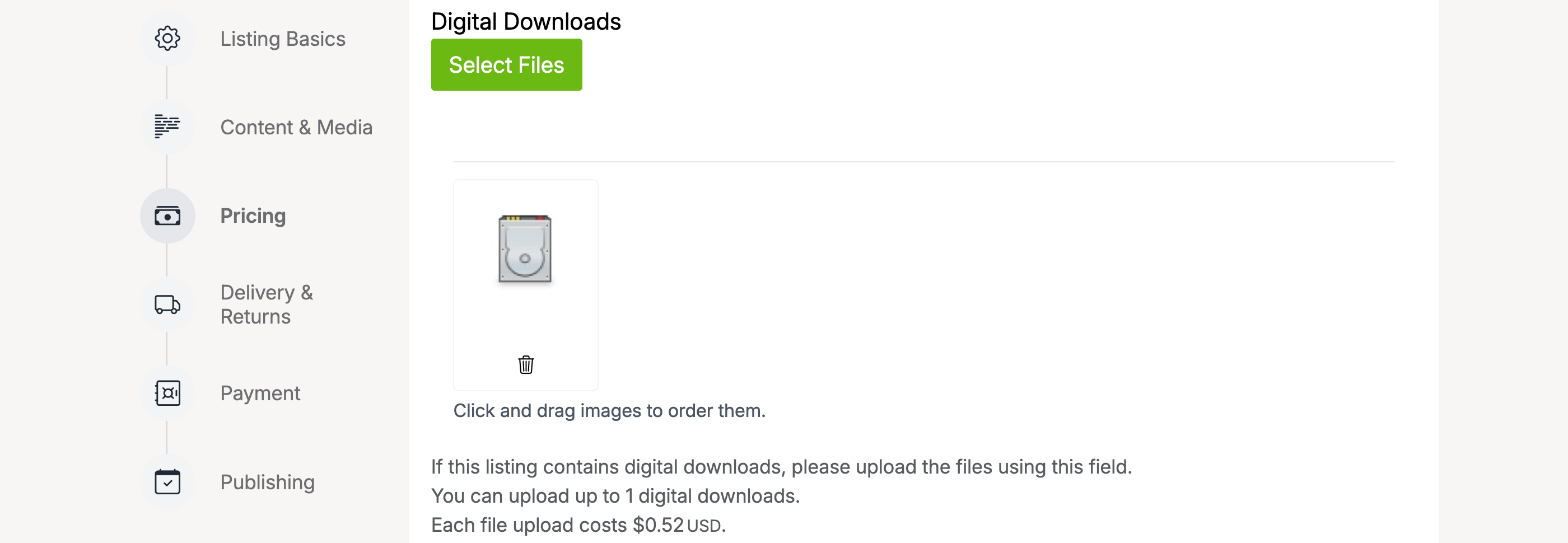
Digital download files are stored securely on the server. Buyers cannot access the file until the seller activates the download after payment.
Activating Downloads
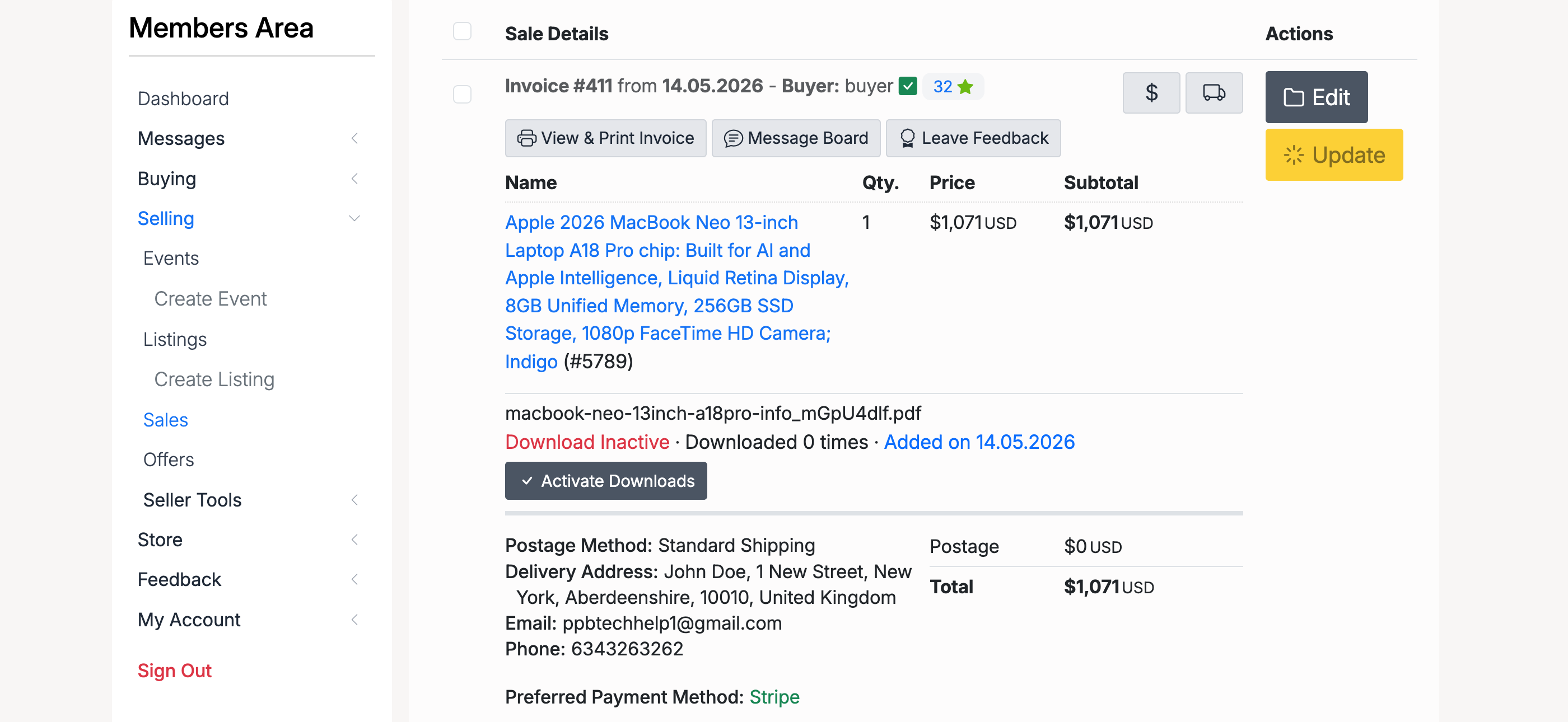
After a buyer completes payment, the seller must activate the download from their Sales page. Click the Activate Downloads button next to the sale:
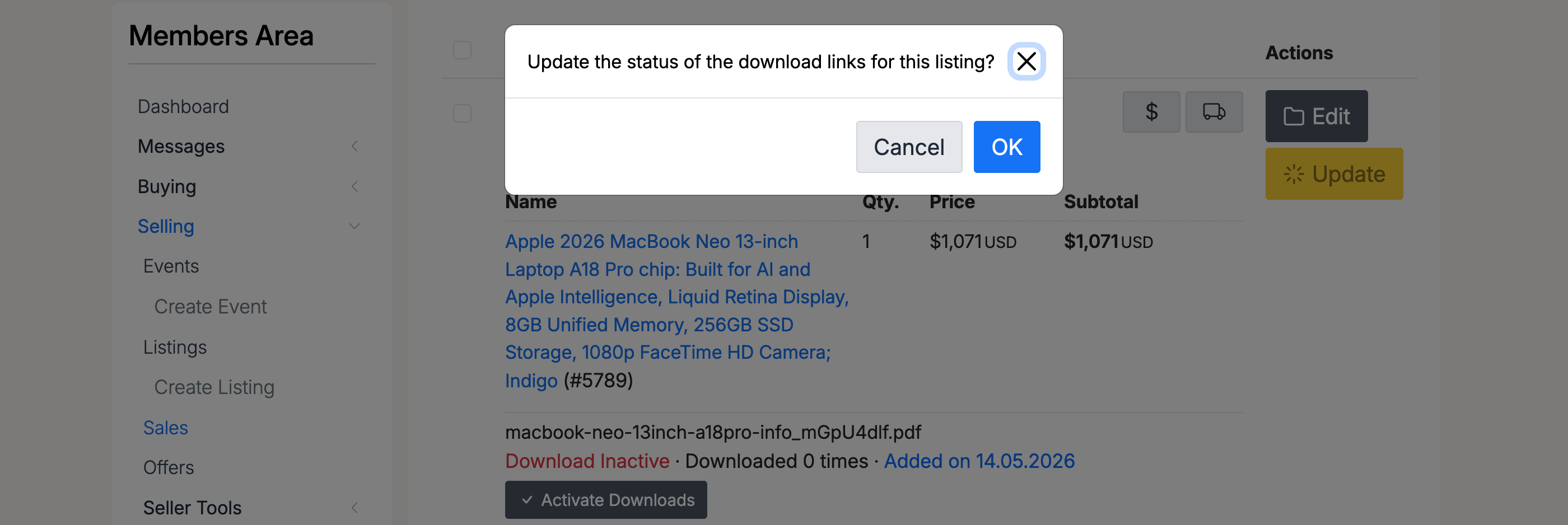
A confirmation dialog appears. Click OK to activate:
Downloading Files
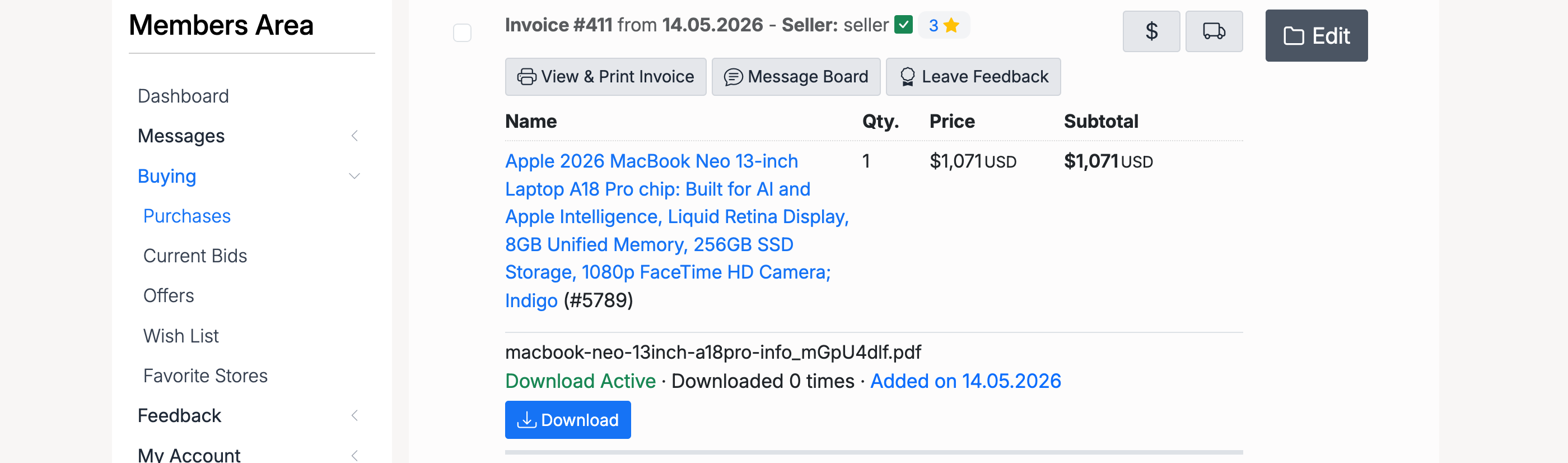
Once activated, the buyer can download the file from their Purchases page by clicking the Download button:
Admin Settings — Media Uploads
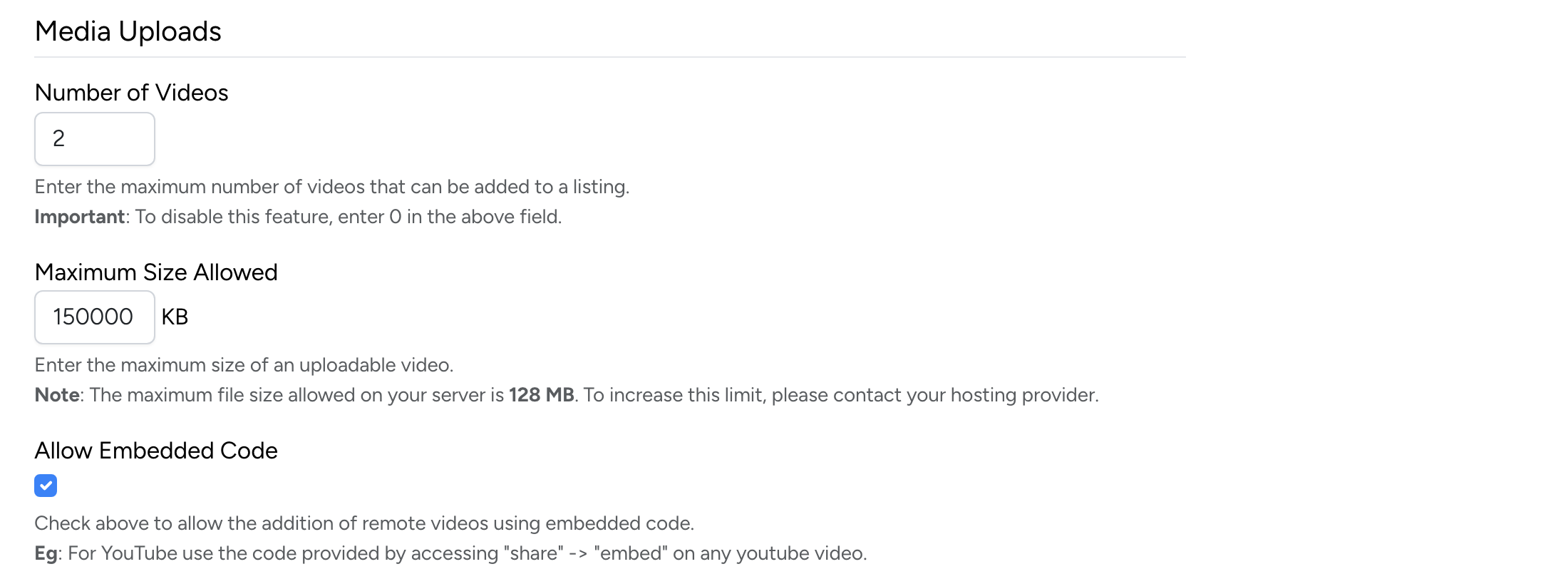
Media upload settings are managed at Admin → Listings → Settings → Listing Setup:
Number of Videos

- Number of Videos — the maximum number of video files a seller can upload per listing
Maximum Size Allowed

- Maximum Size Allowed — the maximum file size for each uploaded video (in KB). The note below the field shows the server’s own upload limit
Allow Embedded Code

- Allow Embedded Code — when checked, sellers can paste embed snippets (e.g. YouTube iframe code) instead of uploading video files
Admin Settings — Digital Downloads
Digital download settings are on the same page, in the Digital Downloads section:
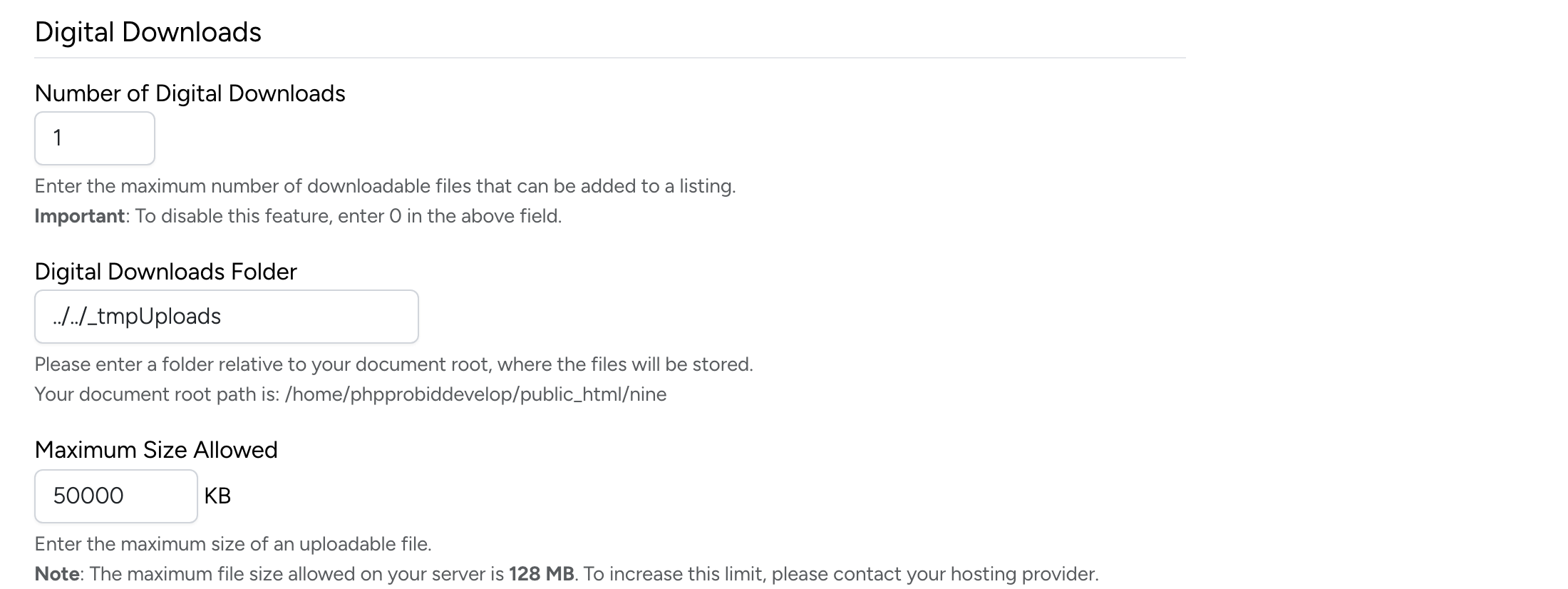
Number of Digital Downloads

- Number of Digital Downloads — the maximum number of download files a seller can attach per listing
Digital Downloads Folder

- Digital Downloads Folder — the server directory where uploaded download files are stored. This folder should be outside the web root for security
Maximum Size Allowed

- Maximum Size Allowed — the maximum file size for each digital download (in KB). The note below the field shows the server’s own upload limit