
Global Settings
Overview
Global Settings let sellers configure default behaviors that apply across all their listings. Access this page at Selling → Tools → Global Settings.
Accept Public Questions

- Accept Public Questions — when set to Yes, buyers can post public questions on your listings. When set to No, only private messages are allowed
Products Quantity Display

- Numbers — show the exact stock count on your listings (e.g. “5 available”)
- Text — show a descriptive label instead of the exact number
When Text is selected, an additional field appears:

- Low Stock Threshold — when stock drops to this number or below, listings display “Low Stock” instead of “In Stock”
Quantity when Relisting Products

- Reset Quantity — when a listing is relisted, the quantity resets to the original amount
- Keep Remaining Quantity — the relisted listing keeps whatever quantity was left when it expired
Enable Tax

- Enable Tax — when checked, tax is applied to your listings
- Tax Types — select which tax types apply to your listings. Tax types are configured by the site admin
Visitors Counter

- Enable — display a visitor count on your listings
- Disable — hide the visitor count
Hide Sales History

- Hide Sales History — when checked, the sales history tab is hidden on your listings
Display “Listing watched by” Box

- Display “Listing watched by” Box — when checked, listings show how many users are watching the item
Limit Number of Bids / Offers

- Limit Number of Bids / Offers per User — set the maximum number of bids or offers a single user can place on your listings. Leave empty or set to 0 for no limit
Show Offer Ranges

- Show Offer Ranges — when checked, buyers can see the acceptable offer range on Make Offer listings
Automatic Download Links Activation

- Yes — download links for digital products are sent to the buyer automatically after payment
- No — the seller must manually activate download links for each sale
Vacation Mode
When unchecked, your store operates normally:

When checked, additional fields appear:
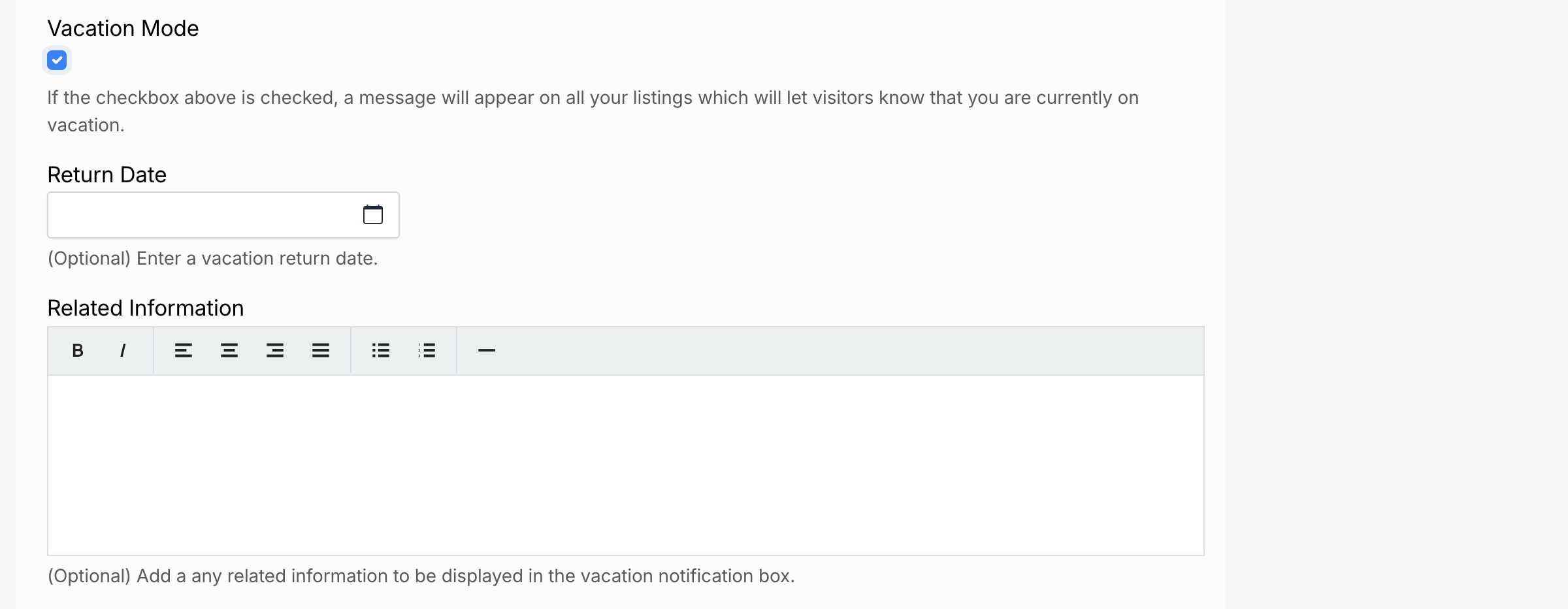
- Vacation Mode — when checked, a notice is displayed on your store and listings informing buyers that you are away
- Return Date — the date you plan to return. Displayed to buyers on your store
- Related Information — an optional message with any additional details for buyers while you are away
Invoices Settings
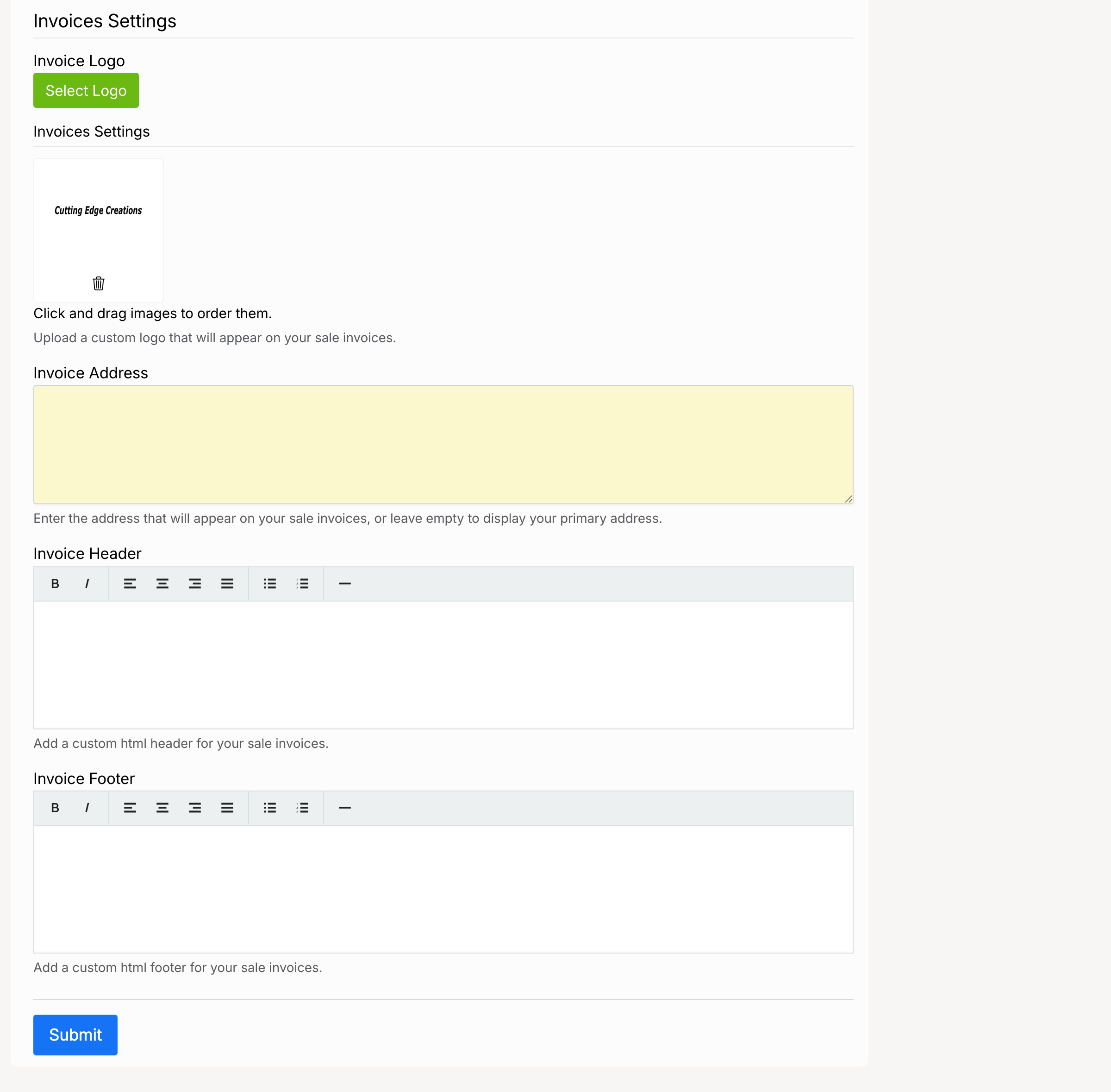
- Logo — upload a logo to appear on your invoices
- Address — your business address, printed on invoices
- Header — custom text displayed at the top of each invoice
- Footer — custom text displayed at the bottom of each invoice