
Listing Images
Overview
Images are the most important part of a listing. Buyers rely on photos to judge condition, size, and authenticity, and listings with clear images attract more bids and sales. PHP Pro Bid supports multiple images per listing with drag-and-drop uploading and reordering.
Uploading Images
When creating or editing a listing, go to the Content & Media tab. Click Select Images to choose files from your device, or drag and drop them directly onto the upload area:
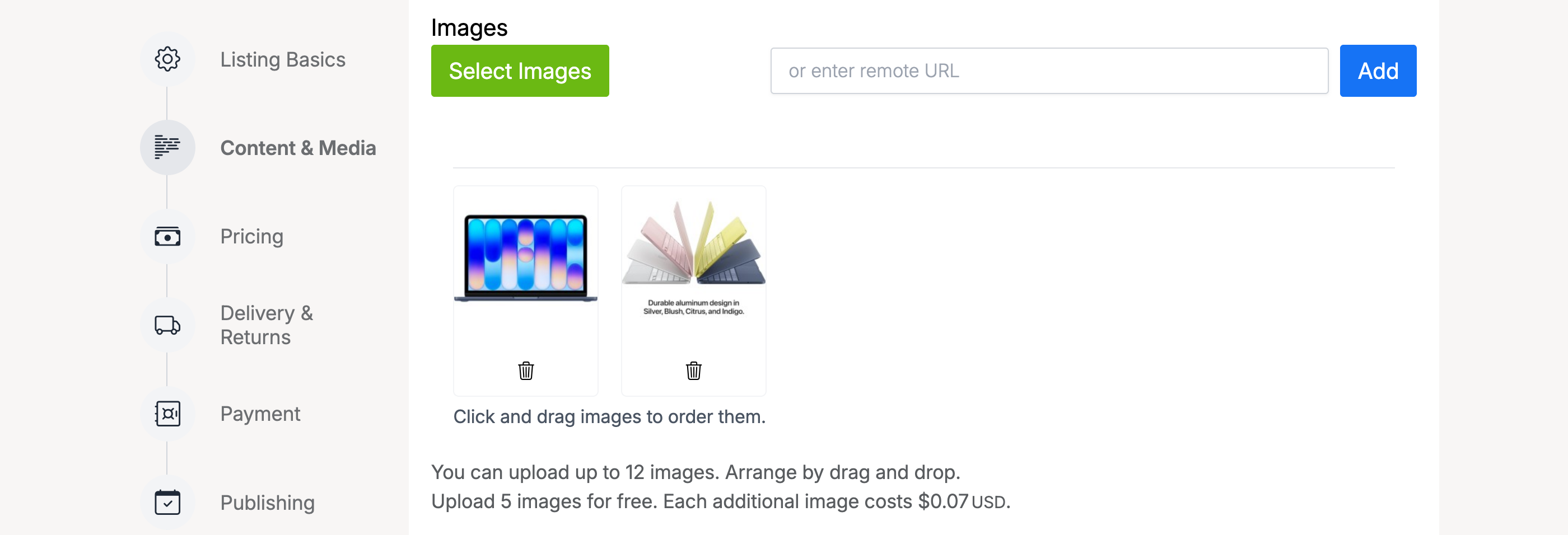
The page shows how many images you can upload and whether there is a per-image fee. In the example above, the first 5 images are free and each additional image costs $0.07.
Remote Images
If the administrator has enabled remote images, you can paste a URL into the text field next to the upload button and click Add. The image is linked directly from the external server rather than uploaded to the site.
Reordering
The first image in the list becomes the listing’s main image — the one shown in search results and on the listing card. To change the order, click and drag the thumbnails into the position you want. The trash icon below each image removes it from the listing.
Admin Settings
Image settings are managed at Admin → Listings → Settings → Listing Setup:
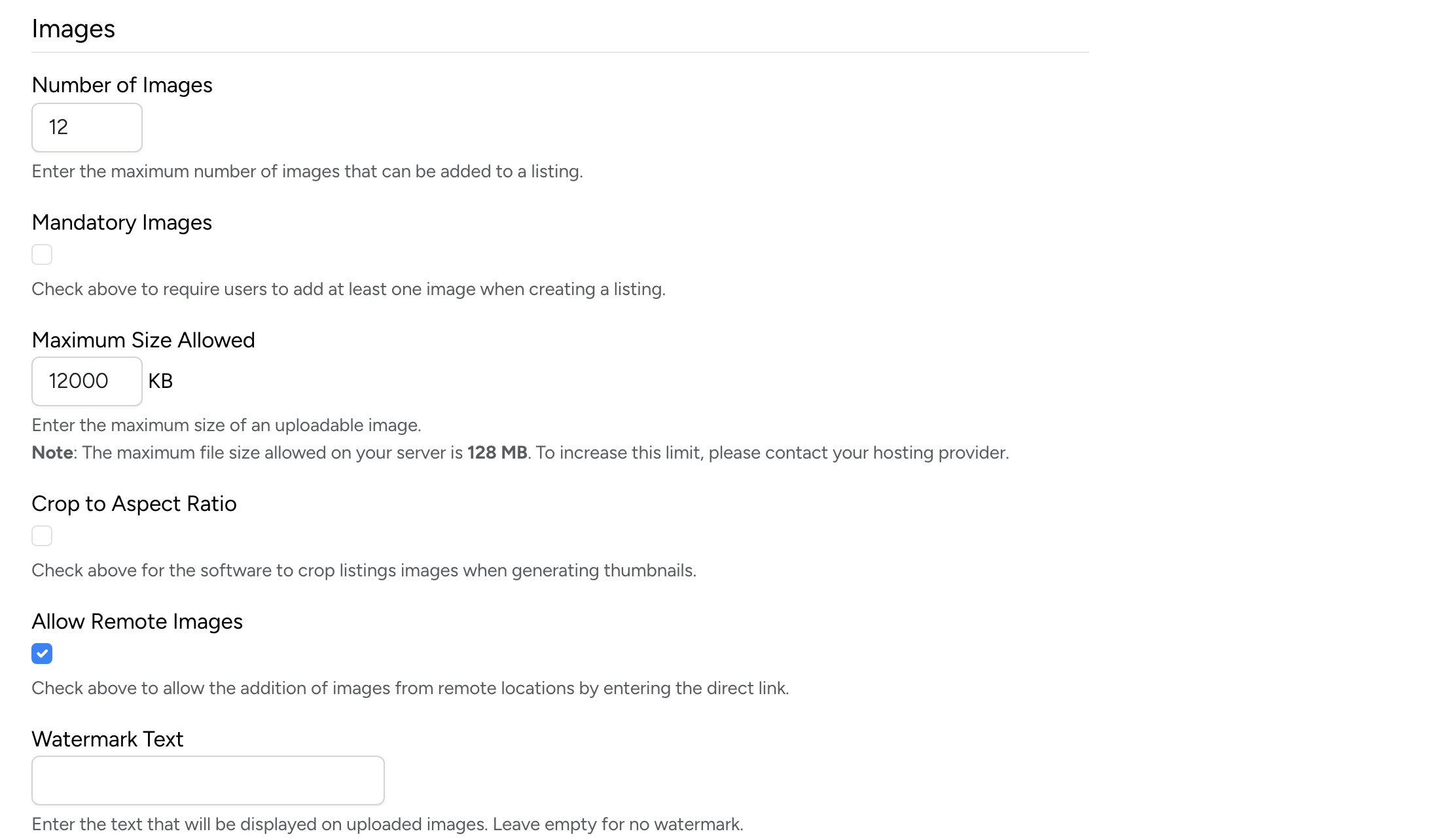
Number of Images

- Number of Images — the maximum number of images a seller can upload per listing
Mandatory Images

- Mandatory Images — when checked, sellers must upload at least one image to create a listing
Maximum Size Allowed

- Maximum Size Allowed — the maximum file size for each uploaded image (in KB). The note below the field shows the server’s own upload limit
Crop to Aspect Ratio

- Crop to Aspect Ratio — automatically crop uploaded images to a consistent aspect ratio when generating thumbnails
Allow Remote Images

- Allow Remote Images — when checked, sellers can link to images hosted on external servers instead of uploading them
Watermark Text

- Watermark Text — text overlaid on uploaded images to discourage unauthorised use. Leave empty to disable watermarking