
Password & Security
Keep your account secure by using a strong, unique password. This page explains how to change your password, what strength rules the site enforces, and how to recover access if you forget your password.
Changing Your Password
You can update your password at any time from the Personal Information page in the Members Area.
- Log in and click your username in the top-right corner, then select Members Area.
- Navigate to My Account → Personal Information.
- Scroll down to the Password and Confirm Password fields.
- Enter your new password in both fields.
- Click Submit to save your changes.
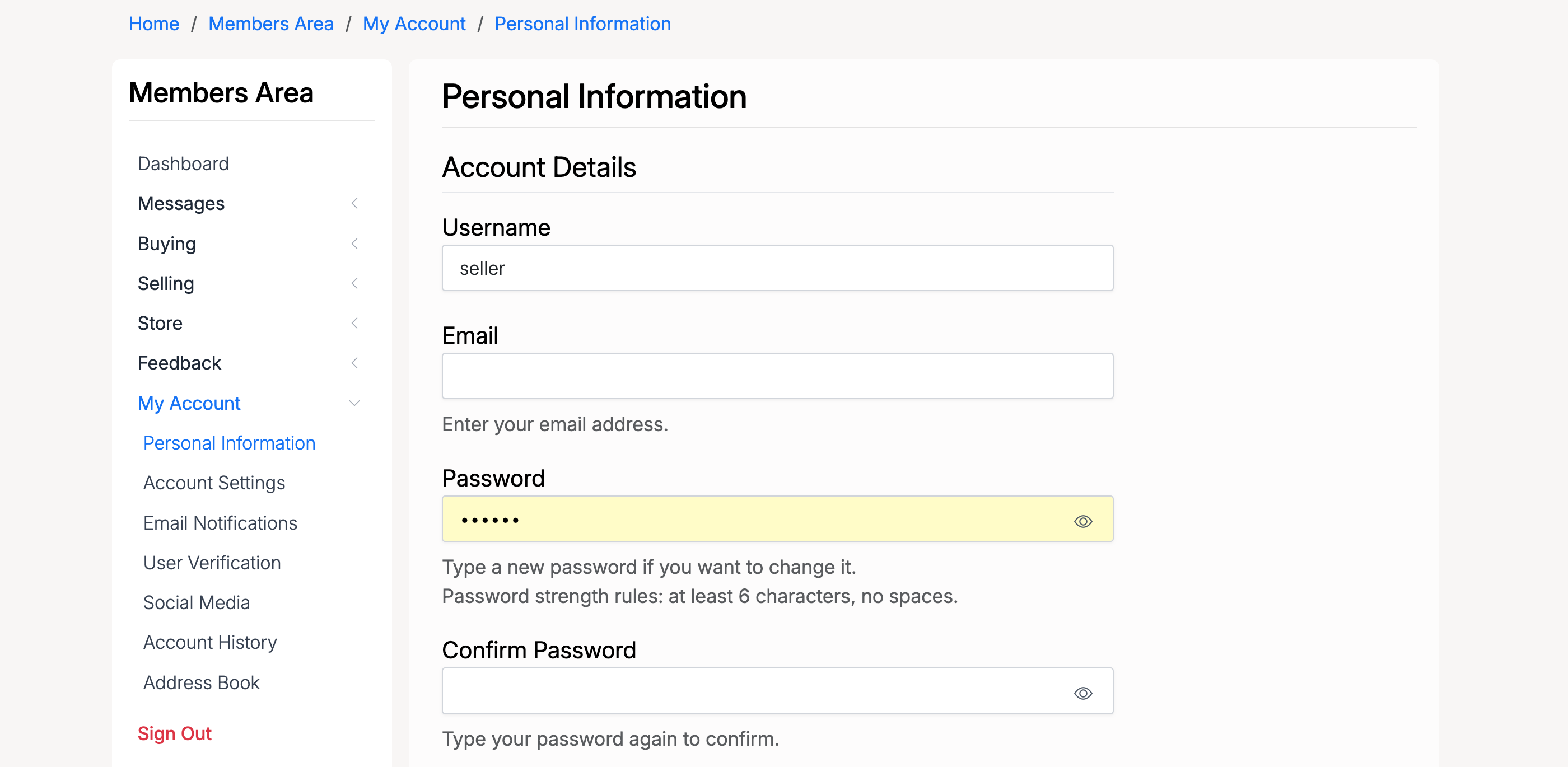
The screenshot above shows the password section of the Personal Information page:
- Password — enter your new password. The eye icon toggles visibility. Leave blank to keep your current password.
- A hint line displays the active strength rules (e.g. "at least 6 characters, no spaces").
- Confirm Password — re-enter the same password to confirm.
Password Requirements
The site administrator configures the minimum password strength rules. Depending on how the site is set up, your password may need to meet one or more of the following requirements:
If your chosen password does not meet the active requirements, the form will display an error message telling you exactly which rule was not satisfied. These rules are enforced on both the registration form and the Personal Information page.
!, @, or #.
Forgot Password
If you have forgotten your password, you can request a reset link from the Sign In page.
- Go to the Sign In page.
- Click the Forgot Password link below the login form.
- Enter the email address associated with your account and submit.
- Check your email for a password reset link. Click the link to set a new password.
Security Tips
- Use a unique password for this site — do not reuse passwords from other services.
- A password manager (such as 1Password, Bitwarden, or the built-in browser manager) makes it easy to use long, unique passwords without memorising them.
- Never share your password with anyone. Site administrators can access your account for support purposes and will never ask for your password.
- If you suspect your account has been compromised, change your password immediately and contact the site administrator.
Admin Settings
Administrators configure password strength requirements from Admin Control Panel → Settings → Users → Registration, under the Password Strength Configuration section.
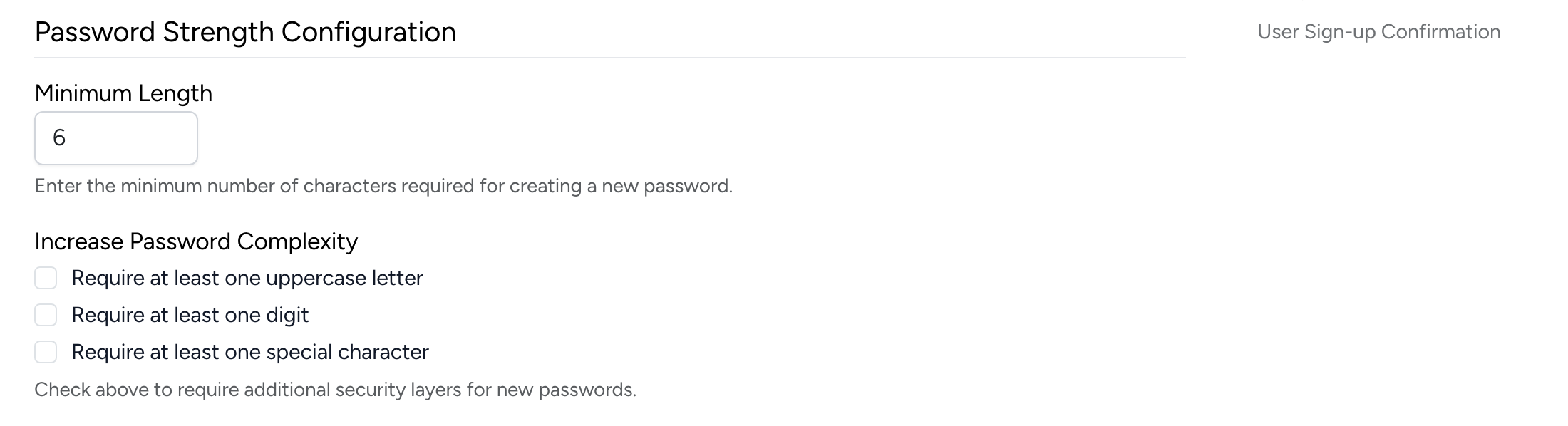
The screenshot above shows the Password Strength Configuration panel with the following options:
Minimum Length
Sets the fewest number of characters allowed for any password. The default is 6. Users will see this requirement displayed as a hint below the password field (e.g. "at least 6 characters, no spaces").
Increase Password Complexity
Three optional checkboxes that enforce additional character requirements:
- Require at least one uppercase letter — the password must contain at least one A–Z character.
- Require at least one digit — the password must contain at least one 0–9 character.
- Require at least one special character — the password must contain at least one
non-alphanumeric character (e.g.
!,@,#,$).
These rules apply to all password fields across the site: registration, personal information updates, and password resets. The hint text shown to users updates automatically to reflect whichever rules are active.