
Listing Drafts
Overview
If you are not ready to publish a listing, you can save it as a draft and come back to it later. Drafts are stored in your account and do not appear on the site until you choose to list them. No listing fees are charged until the draft is published.
Saving a Draft
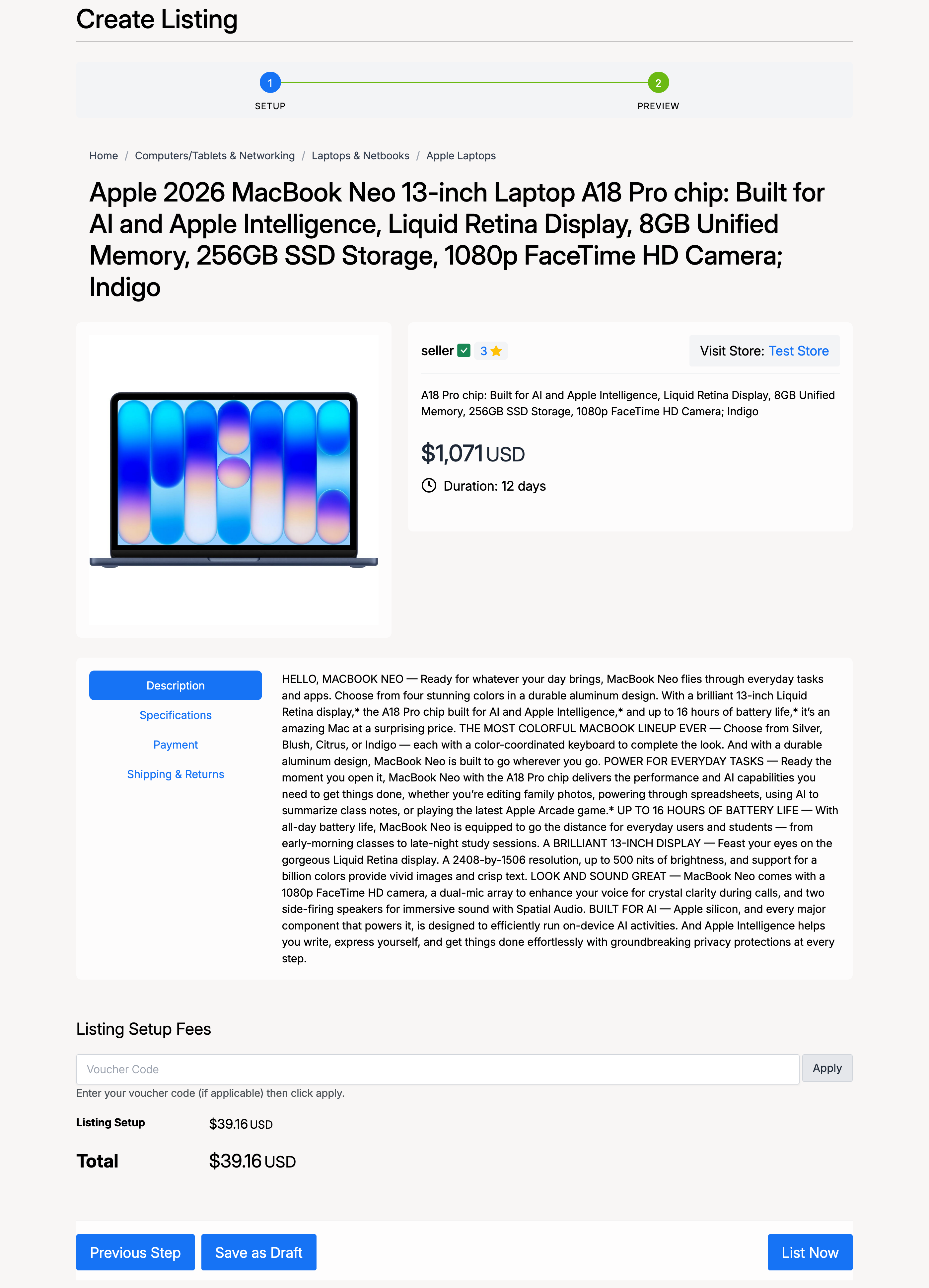
When creating a listing, complete as much of the form as you like, then click Previous Step or go through to the Preview page. At the bottom of the preview page, click Save as Draft instead of List Now:
Draft Confirmation
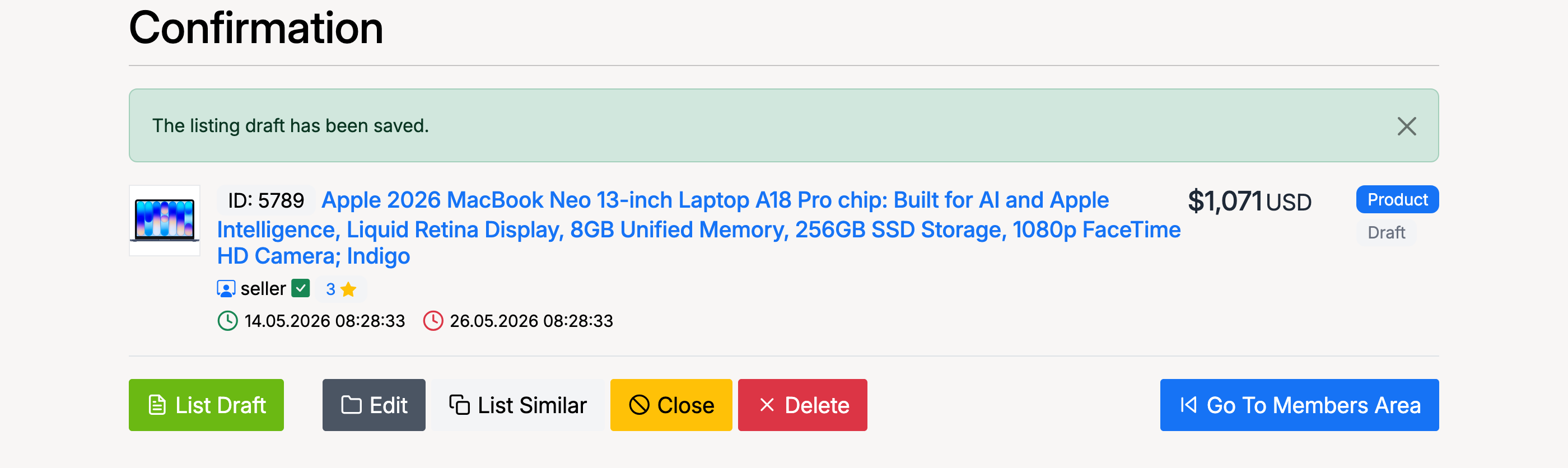
After saving, a confirmation page appears with a green banner confirming that the draft has been saved. From here you can:
- List Draft — publish the listing immediately
- Edit — go back and make changes
- List Similar — create a new listing pre-filled with the same details
- Close — keep the draft saved but return to your account
- Delete — permanently remove the draft
Managing Drafts
To view all your saved drafts, go to Members Area → Selling → Listings and set the Status filter to Drafts:
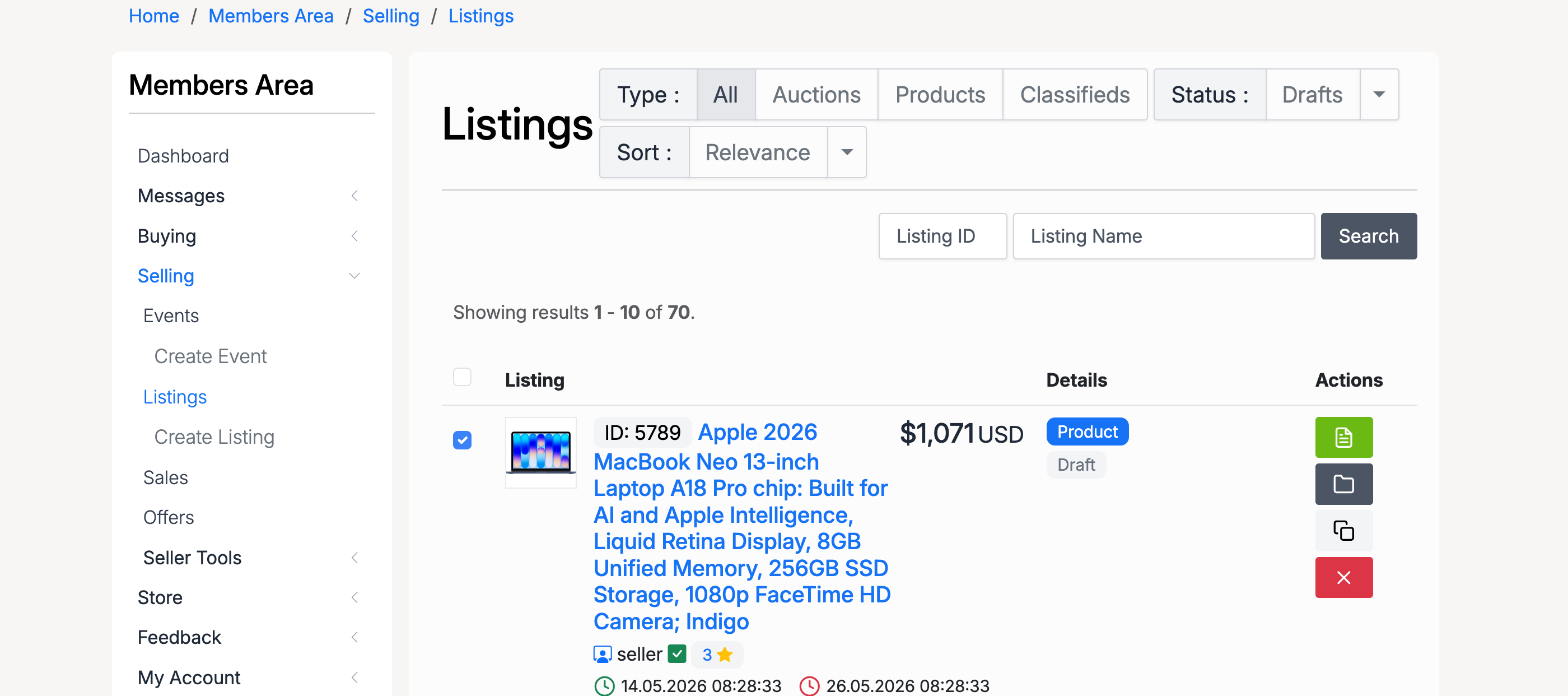
Each draft shows the same information as a published listing — ID, title, price, type, and dates. Use the action buttons on the right to edit, list, or delete individual drafts.