
Create an Auction
Overview
To create an auction listing, go to Sell in the main navigation (or navigate to
/sell). The listing creation form is a two-step process — Setup then
Preview — with the setup form organised into six sections accessible from a sidebar:
- Listing Basics — listing type, category, and custom fields.
- Content & Media — title, description, images, video, and digital downloads.
- Pricing — currency, start price, reserve, buy out, offers, bid increments, and tax.
- Delivery & Returns — location, shipping, insurance, and return policy.
- Payment — accepted payment methods.
- Publishing — start/end time, duration, featured options, and auto relist.
After completing the form, click Next Step to preview the listing, then confirm to publish it.
Listing Basics
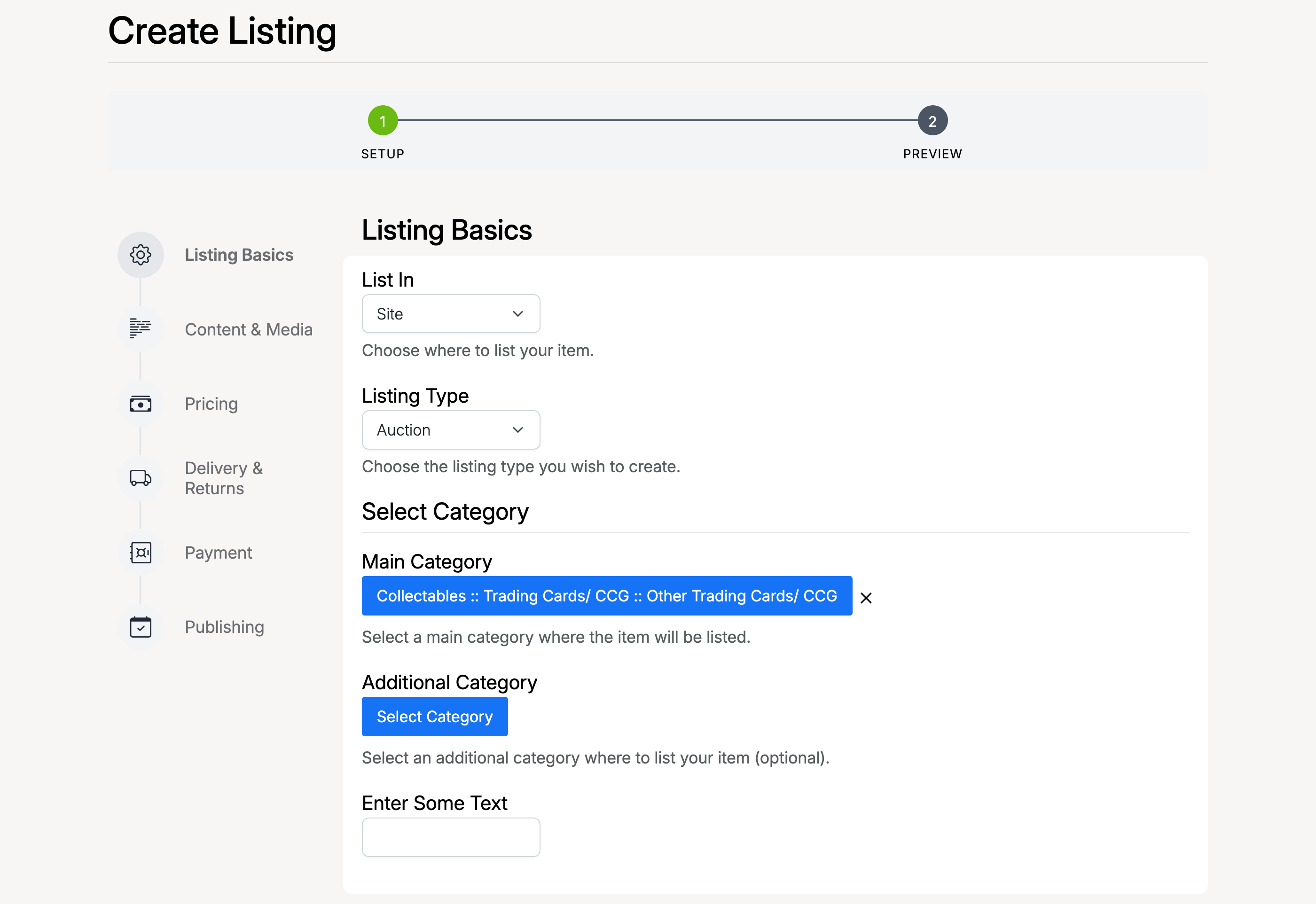
The Listing Basics section sets the foundation for your auction:
- List In — choose where the listing appears: Site (main marketplace), Store (your personal store), or Both.
- Listing Type — select Auction to create a timed auction. Other options are Product (fixed price) and Classified.
- Main Category — click Select Category to open the category picker. Categories are nested — select a parent category, then drill down into subcategories until you reach the most specific match for your item. The selected path is shown as a breadcrumb (e.g. “Collectables :: Vintage/ Retro :: 1960s”).
- Additional Category — optionally list the item in a second category for broader visibility. This feature can be enabled or disabled by the site admin.
- Custom Fields — depending on the category you select, additional fields may appear (e.g. condition, brand, model). These are configured by the admin per category.
Content & Media
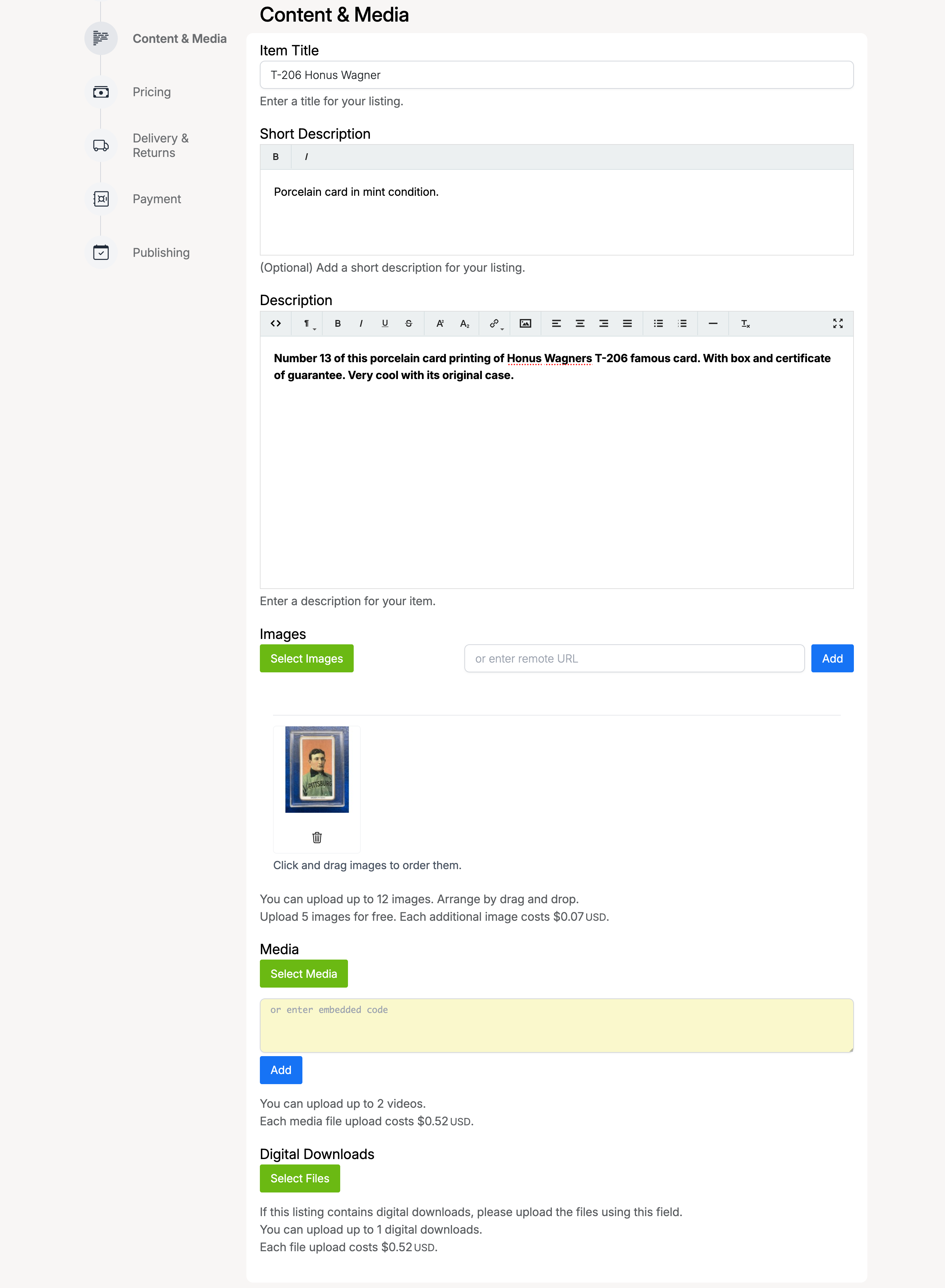
This section is where you describe your item and upload photos:
- Item Title — a clear, descriptive title for your listing. The maximum character length is set by the admin.
- Short Description — a brief summary shown in search results and category listings. A fee may apply. This field only appears if enabled by the admin.
- Description — the full listing description. Uses a rich text editor with formatting options: bold, italic, headings, lists, links, images, and more.
- Images — upload product photos by clicking Select Images or entering a remote URL. Drag and drop to reorder. The first image becomes the listing thumbnail. The admin sets the maximum number of images and file size limit. A number of free uploads may be included, with a per-image fee for additional uploads.
- Media — upload video files or paste embedded code (e.g. YouTube). A fee may apply per upload.
- Digital Downloads — attach downloadable files if the listing includes digital content. A fee may apply per file.
Pricing
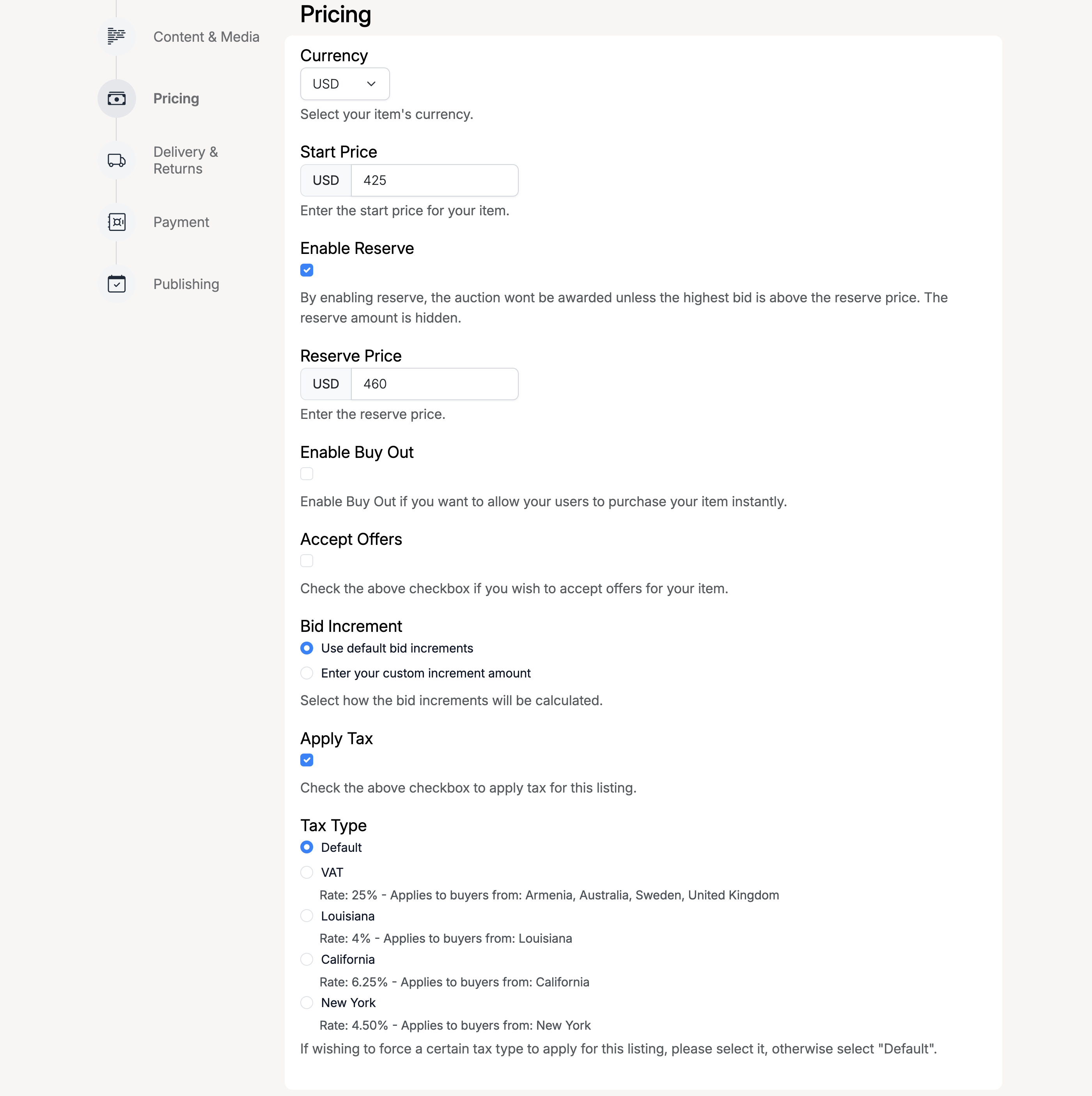
The Pricing section controls how bidding works on your auction:
- Currency — the monetary unit for the auction (e.g. GBP, USD, EUR). Choose from the currencies enabled on the site.
- Start Price — the opening bid amount. This is the minimum a buyer can bid.
- Enable Reserve — check this to set a hidden minimum price. The auction will not result in a sale unless bidding reaches or exceeds the reserve. Buyers can see whether the reserve has been met, but not the amount.
- Reserve Price — the hidden minimum amount (only visible to you).
- Enable Buy Out — allows buyers to purchase the item immediately at a fixed price, bypassing the auction.
- Buy Out Price — the instant-purchase price.
- Accept Offers — check this to let buyers submit offers. When enabled, you can set a Minimum Offer Range and Maximum Offer Range to control the price range buyers can offer. See Make an Offer for details.
- Bid Increment — controls the minimum amount each new bid must exceed the current high bid. Choose Use default bid increments (site-wide rules set by the admin) or Enter your custom increment amount to set a fixed increment. See Bid Increments for details.
- Apply Tax — check this to apply tax to the final sale.
- Tax Type — when tax is enabled, select which tax type applies. Options include Default, VAT, and region-specific rates (e.g. Louisiana, California, New York). Each tax type shows its rate and which buyer locations it applies to.
Delivery & Returns
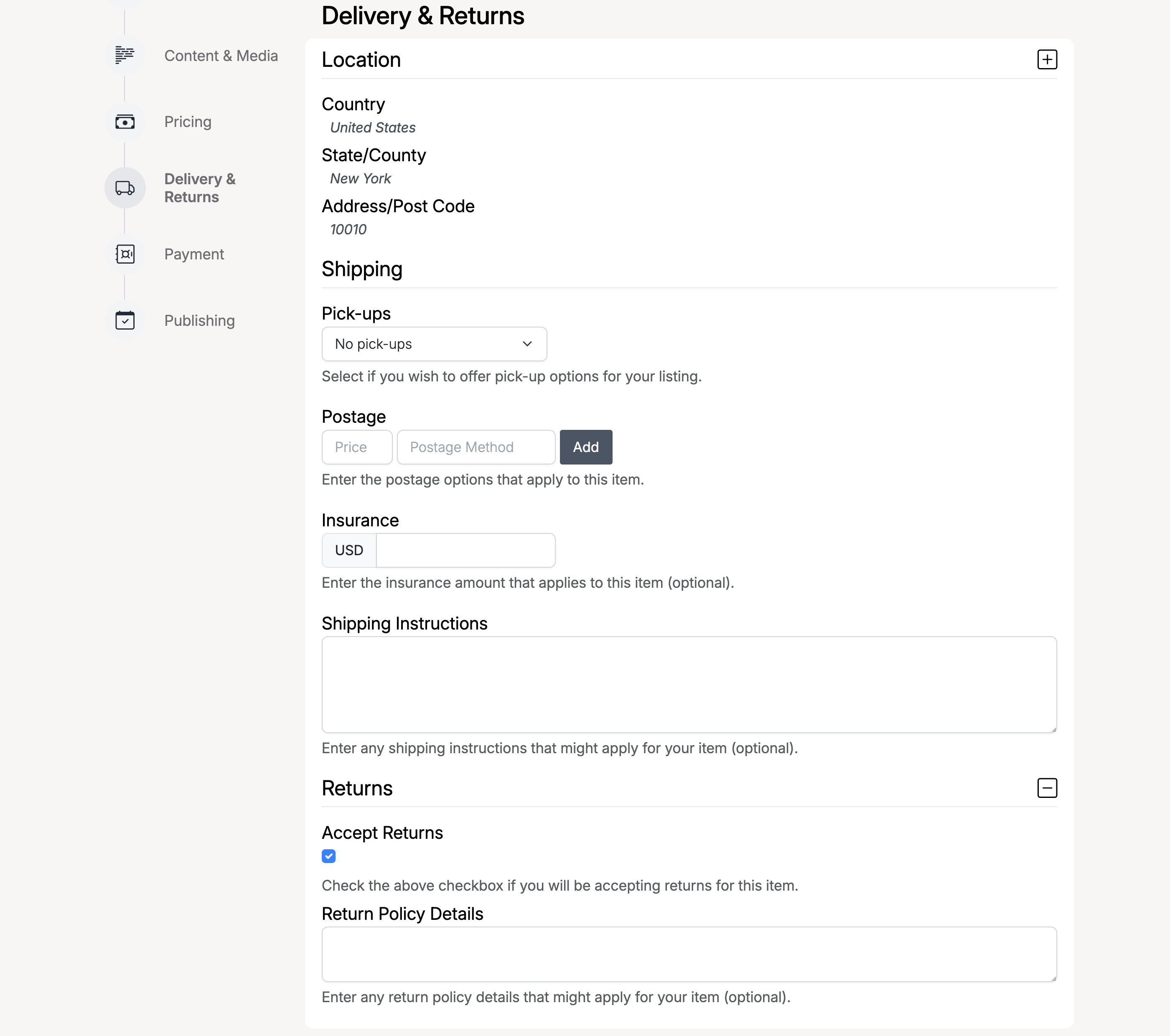
Configure how the item will be shipped and whether returns are accepted:
Location
- Country — the country the item ships from.
- State/County — the state or region (options update based on the country selected).
- Address/Post Code — the postal code of the item’s location.
Shipping
- Pick-ups — select No pick-ups, Buyer can pick-up, or Buyer must pick-up.
- Postage — add shipping options with a price and method name. Click Add to include multiple postage options.
- Insurance — an optional insurance amount added to shipping.
- Shipping Instructions — free-text field for additional shipping details, handling times, or special requirements.
Returns
- Accept Returns — check this to indicate you accept returns.
- Return Policy Details — describe the return window, conditions, and who pays return shipping.
Payment
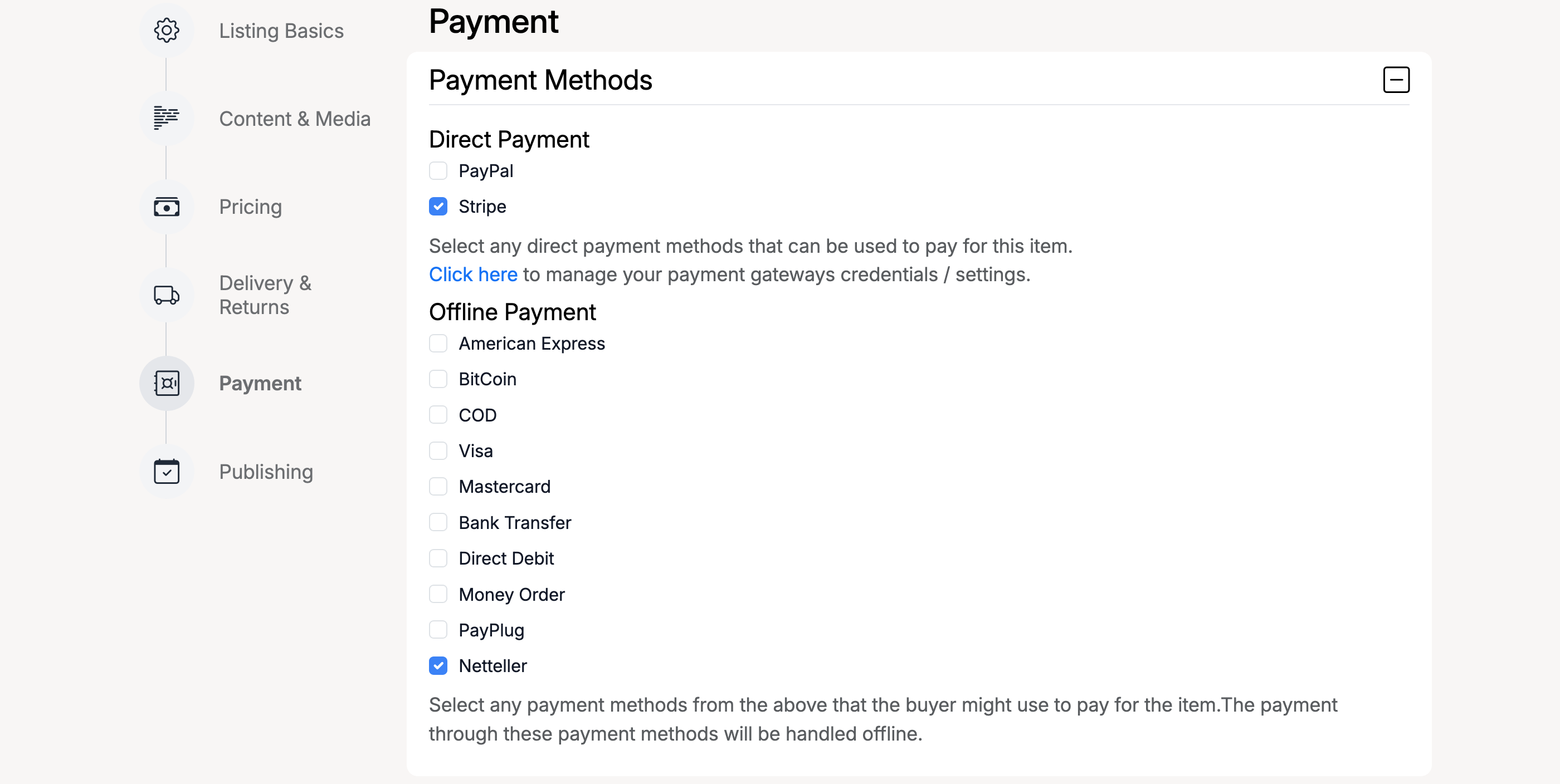
Select the payment methods you accept for this listing:
- Direct Payment — online payment processors such as Stripe. You must have your payment gateway credentials configured in your account settings before a direct payment method appears here.
- Offline Payment — manual payment methods. Check the ones you accept, such as American Express, BitCoin, COD, Visa, Mastercard, Bank Transfer, Direct Debit, Money Order, PayPlug, or Netteller. These are configured by the site admin.
Publishing
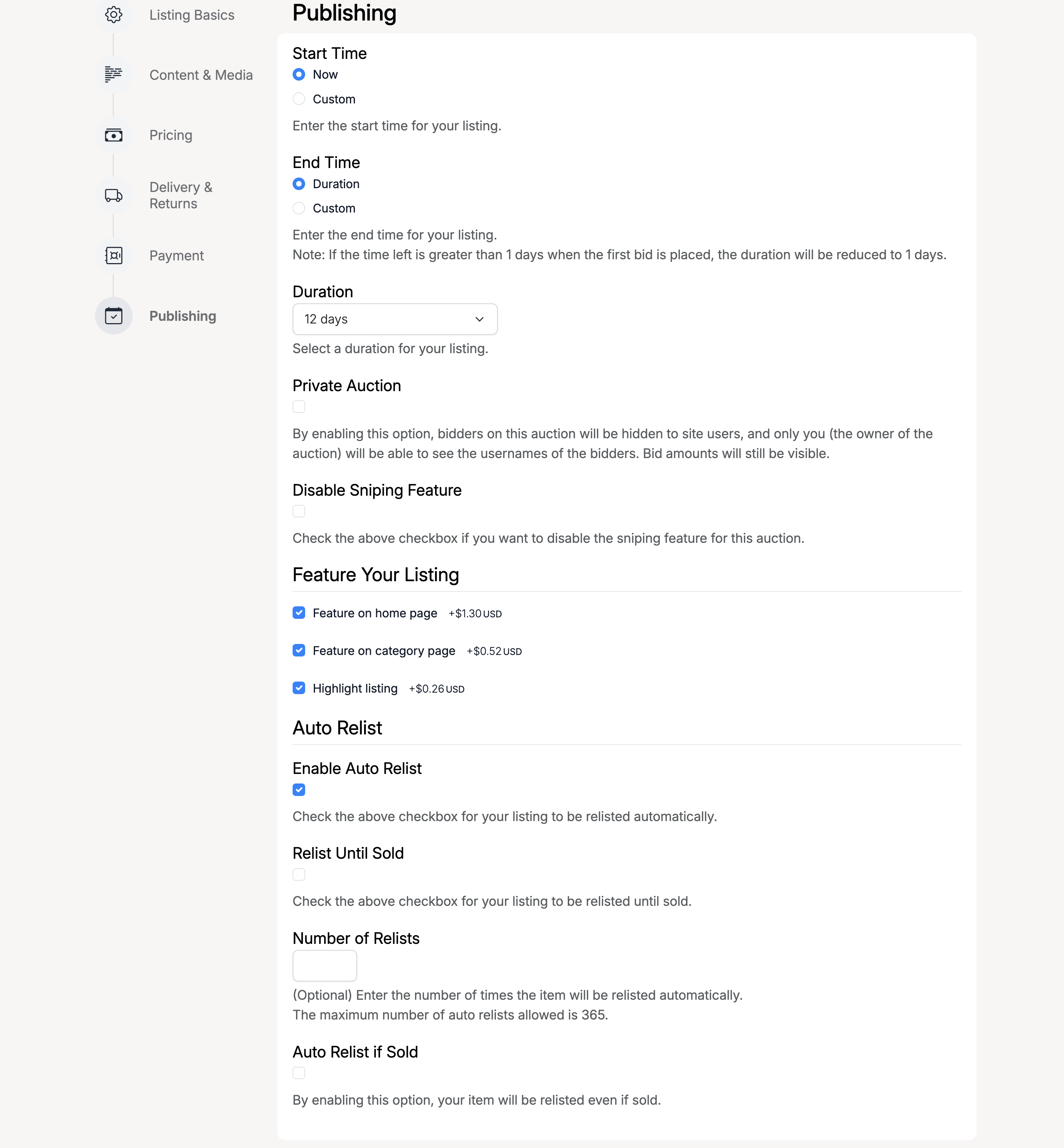
Control when and how the auction goes live:
Start & End Time
- Start Time — choose Now to publish immediately, or Custom to schedule a future start date and time.
- End Time — choose Duration and select from preset durations (1 to 60 days), or Custom to set a specific end date and time. Note: if the remaining time is greater than 1 day when the first bid is placed, the duration will be reduced to 1 day.
- Duration — when using a preset duration, select from options such as 1, 2, 3, 5, 7, 10, 12, 15, or 60 days.
Auction Options
- Private Auction — when enabled, bidder usernames are hidden from other site users. Only you (the auction owner) can see who bid. Bid amounts remain visible.
- Disable Sniping Feature — check this to disable the automatic auction extension that activates when a bid is placed near the end. See Auction Sniping for details.
Feature Your Listing
Promotional options to increase visibility (fees shown next to each option):
- Feature on home page — the listing appears in the featured section on the homepage.
- Feature on category page — the listing is highlighted in category browse pages.
- Highlight listing — the listing gets a visual highlight in search results and browse views.
Auto Relist
- Enable Auto Relist — automatically relist the item when the auction ends without a sale.
- Relist Until Sold — keep relisting until the item sells.
- Number of Relists — set a maximum number of automatic relists (up to 365).
- Auto Relist if Sold — relist even after a successful sale (useful for items with multiple stock).
Preview & Listing
After completing all sections, click Next Step at the bottom of the form. If any required fields are missing, the form will display an error message at the top and highlight the affected sections with a red badge in the sidebar.
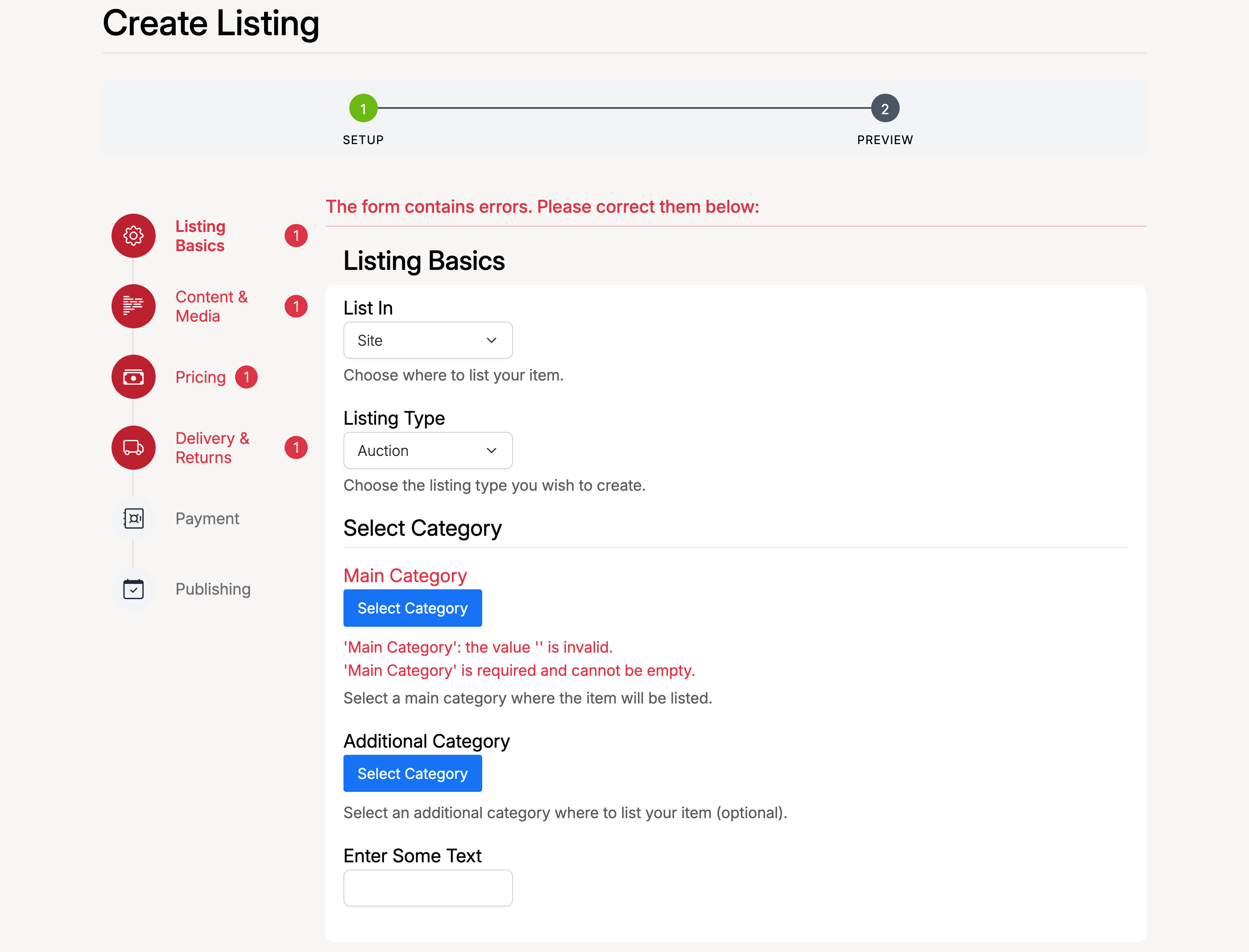
Once all required fields are filled in, clicking Next Step takes you to the Preview page where you can review the full listing before it goes live.
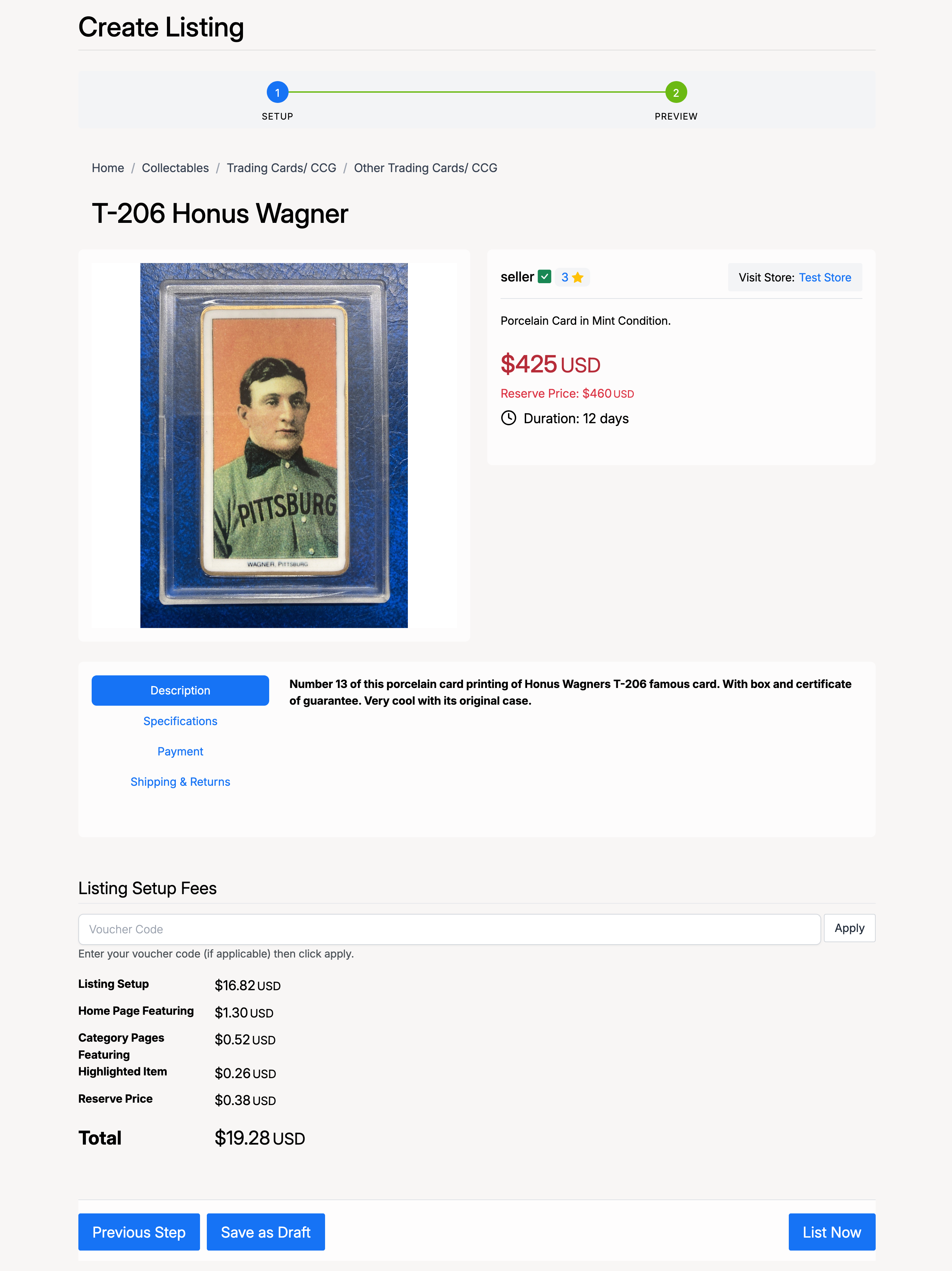
The preview page shows your complete listing as buyers will see it — title, images, description, price, reserve, and duration. Below the preview, the Listing Setup Fees table breaks down any applicable charges:
- Listing Setup — the base fee for creating a listing.
- Home Page Featuring — fee for featuring on the homepage.
- Category Pages Featuring — fee for featuring in category pages.
- Highlighting — fee for visual highlight in search results.
- Reserve Price — fee for setting a reserve price.
- Make Offer — fee for enabling the offer feature.
You can enter a Voucher Code to apply a discount to the total fees.
At the bottom of the preview, three options are available:
- Previous Step — go back to the setup form to make changes.
- Save as Draft — save the listing without publishing it. You can return to it later from your selling area.
- List Now — publish the auction. If listing fees apply, you will be directed to the payment page.
Confirmation
After payment is processed (or if no fees apply), the confirmation page is shown with the listing details, status badges, and action buttons.
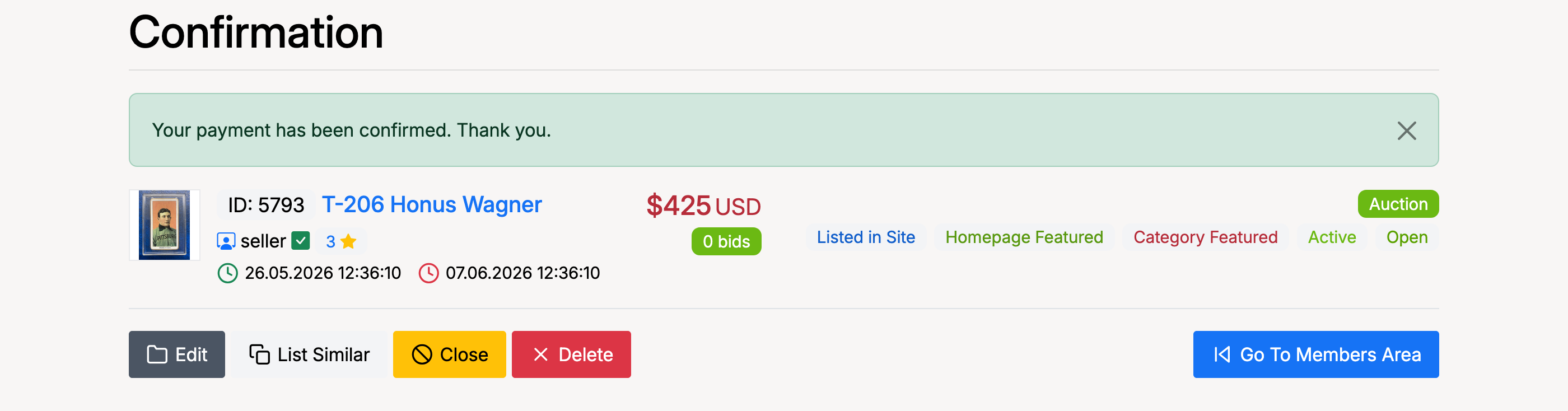
From here you can Edit the listing, List Similar to create a new listing based on this one, Close the auction early, or Delete it. Click Go To Members Area to return to your selling dashboard.