
Postage Setup
Overview
Postage Setup lets sellers configure how shipping costs are calculated and which locations they ship to. Access it at Selling → Seller Tools → Postage Setup.
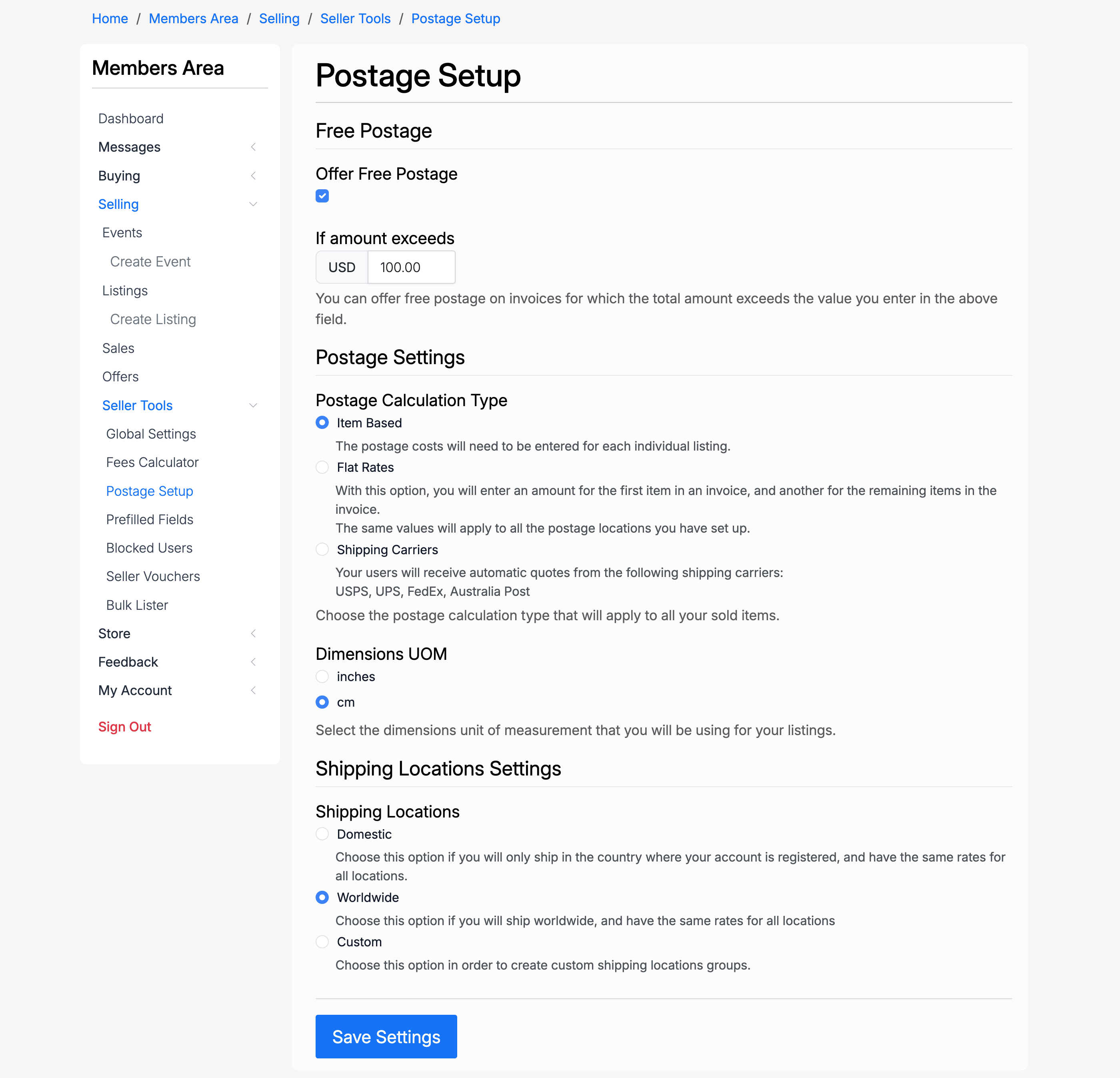
Free Postage

- Offer Free Postage — check this to offer free postage on qualifying invoices
- If amount exceeds — set the minimum invoice total required to qualify for free postage. Leave at zero to offer free postage on all orders
Postage Calculation Type
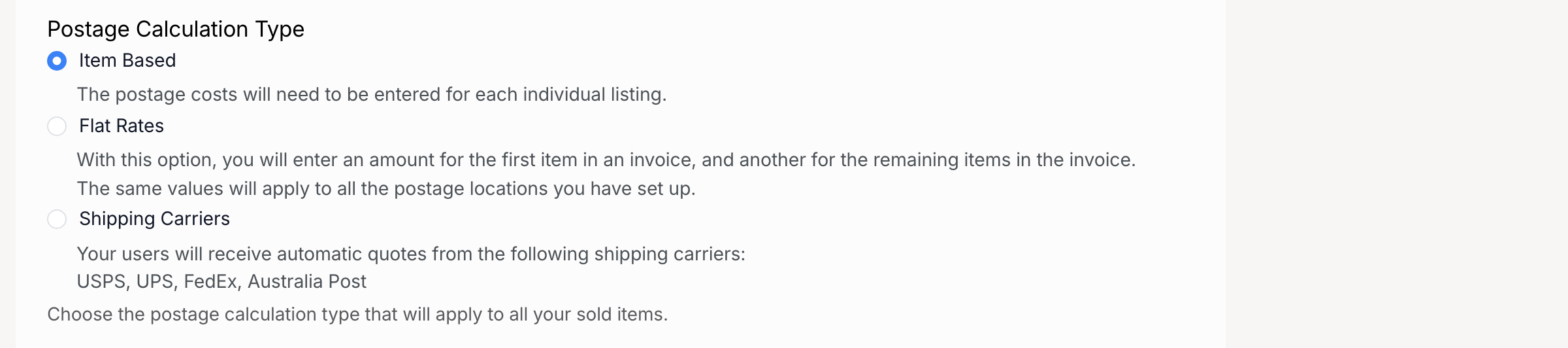
Choose how postage costs are calculated for your sold items:
- Item Based — postage costs are entered individually for each listing
- Flat Rates — a single rate is applied to the first item in an invoice, with a separate rate for additional items. The same rates apply to all postage locations you have set up
- Shipping Carriers — buyers receive automatic quotes from enabled shipping carriers (USPS, UPS, FedEx, Australia Post)
Flat Rates
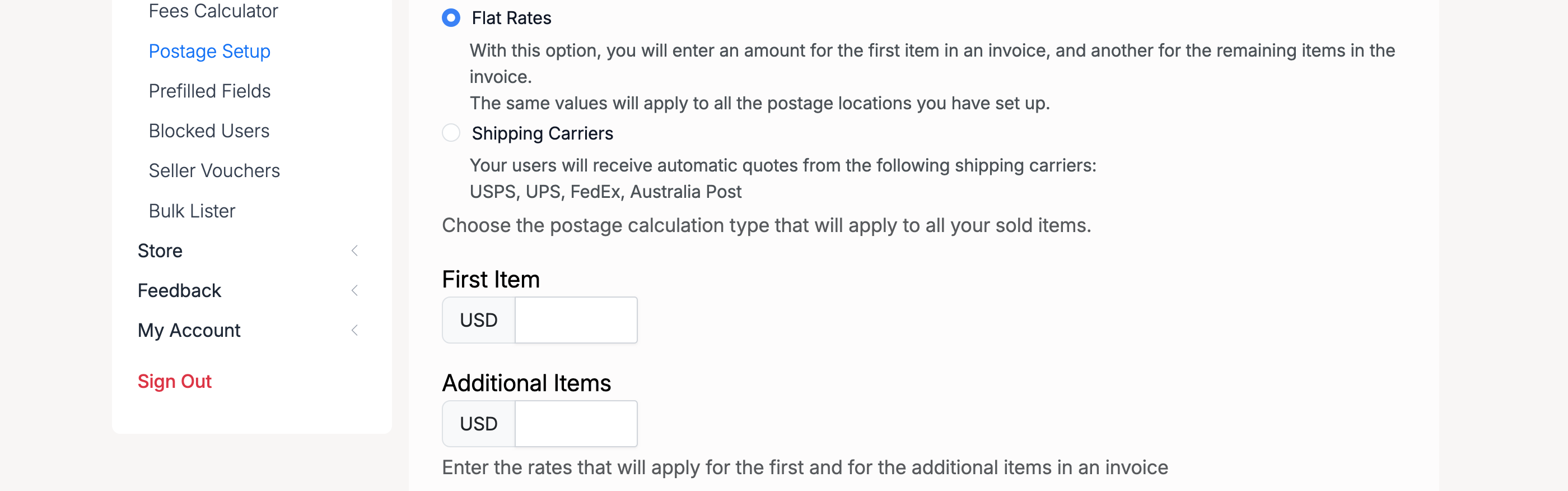
When Flat Rates is selected as the calculation type, two additional fields appear:
- First Item — the postage cost for the first item in an invoice
- Additional Items — the postage cost for each subsequent item in the same invoice
Shipping Carriers
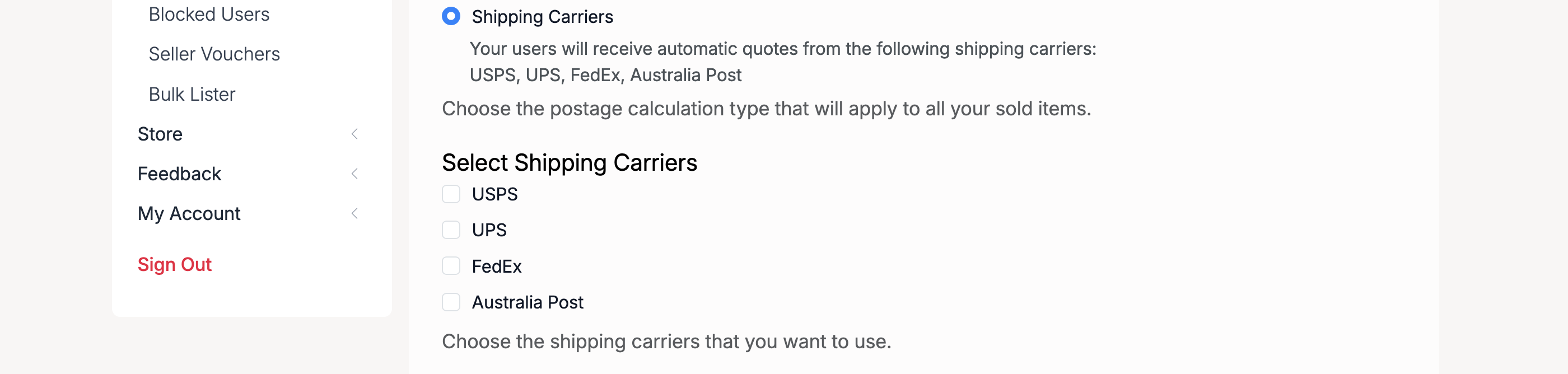
When Shipping Carriers is selected as the calculation type, a carrier selection panel appears:
- USPS — United States Postal Service
- UPS — United Parcel Service
- FedEx — FedEx shipping rates
- Australia Post — Australia Post shipping rates
Check the carriers you want to enable. Buyers will see real-time quotes from all selected carriers at checkout.
Dimensions UOM

- inches — use imperial measurements for item dimensions
- cm — use metric measurements for item dimensions
This setting determines the unit of measurement used when entering dimensions for your listings.
Shipping Locations
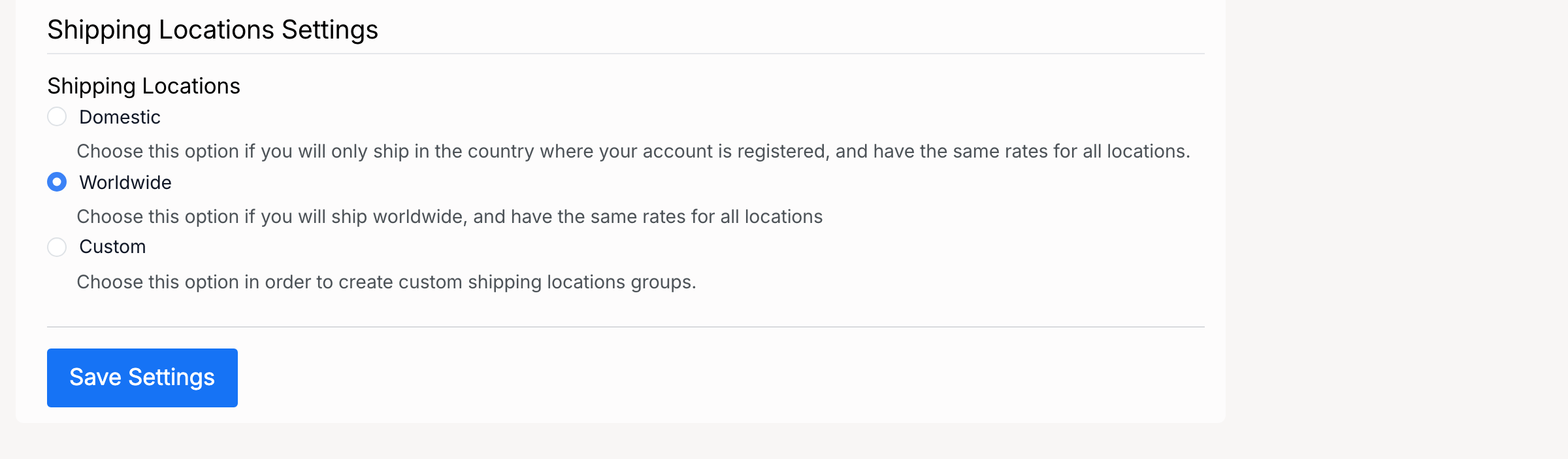
- Domestic — ship only within the country where your account is registered. The same rates apply to all domestic locations
- Worldwide — ship to all countries. The same rates apply to all locations
- Custom — create custom shipping location groups with different rates per group
Location Groups
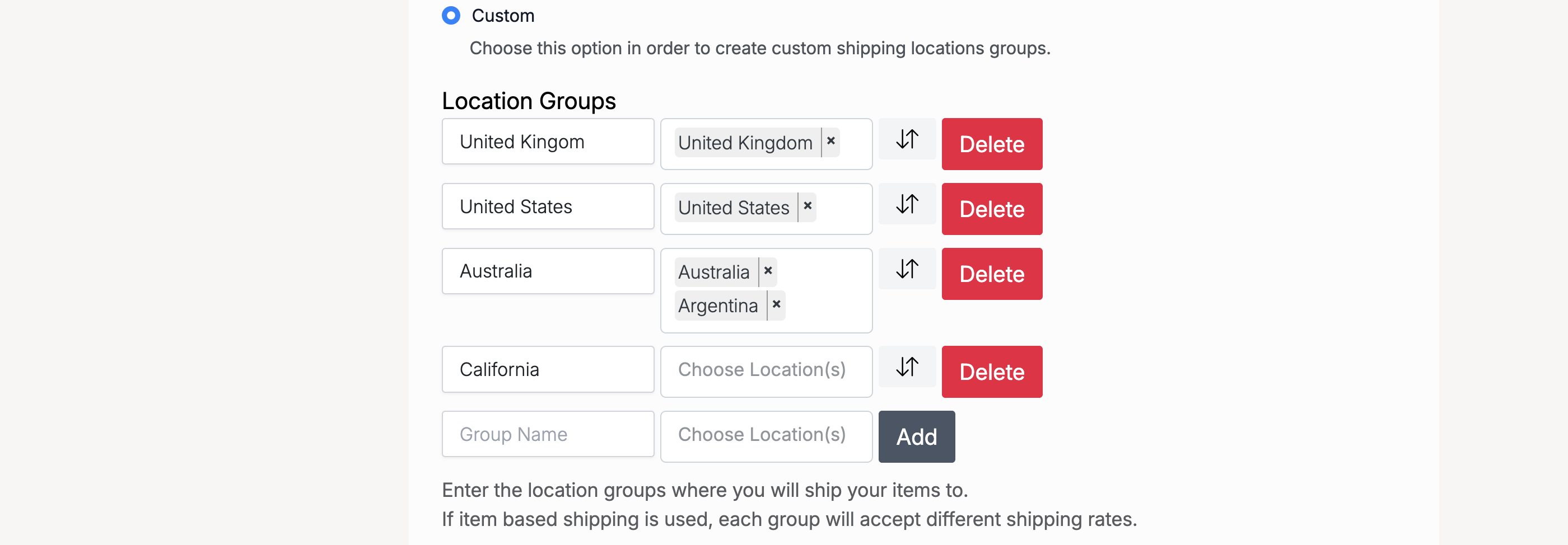
When Custom is selected as the shipping location, the Location Groups panel appears. Each group can contain one or more countries, and when item-based shipping is used, each group will have its own shipping rates.
- Group Name — a label for the location group (e.g. a country or region name)
- Choose Location(s) — select one or more countries to include in the group
- Add — create a new location group
- Delete — remove an existing group
Admin: Shipping Settings
Found at Admin Control Panel → Listings → Settings → Shipping Settings. These settings control the shipping module at the site level.
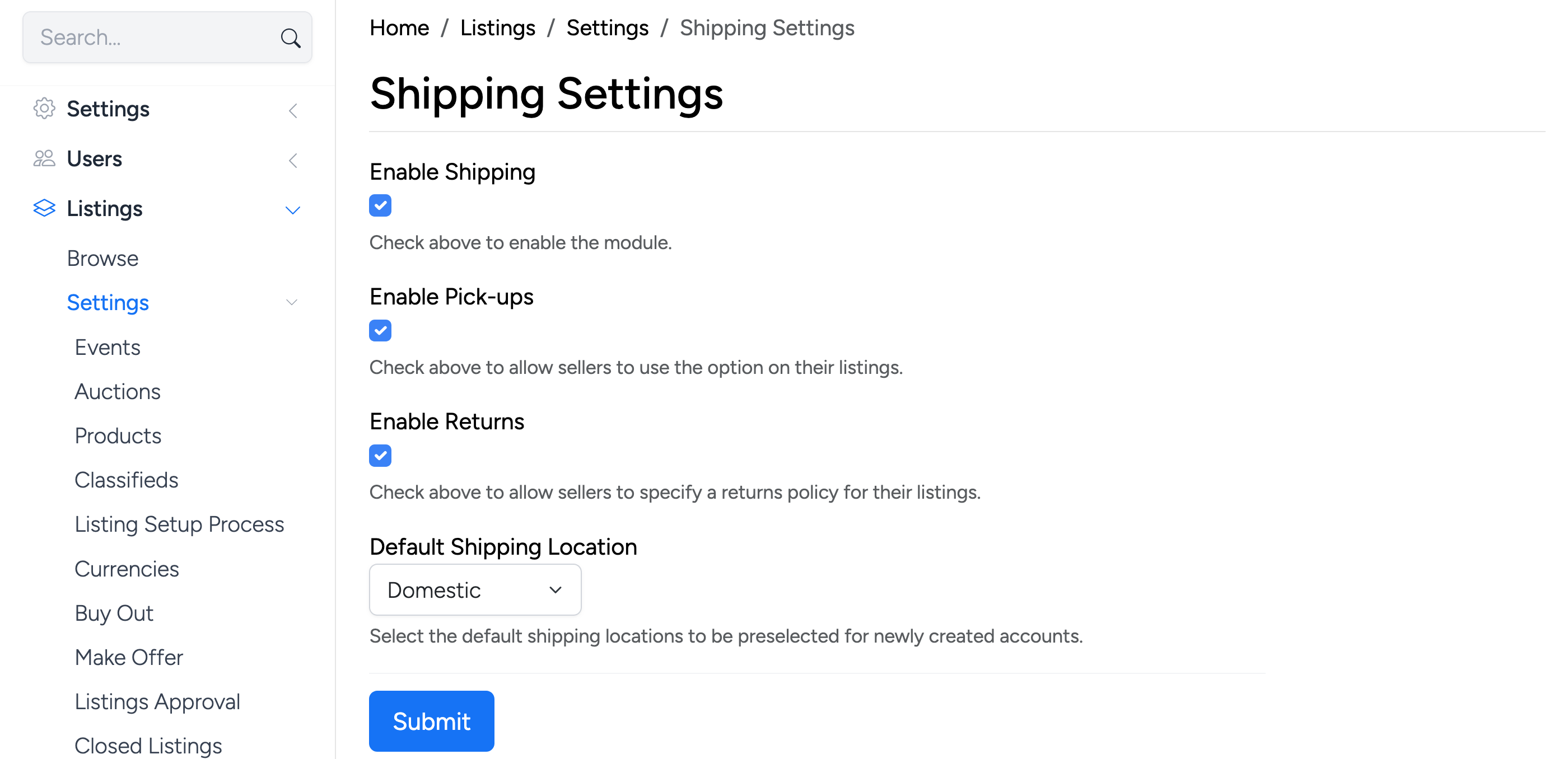
- Enable Shipping — check to enable the shipping module site-wide. When disabled, no shipping options appear for sellers or buyers.
- Enable Pick-ups — allow sellers to offer a local pick-up option on their listings.
- Enable Returns — allow sellers to specify a returns policy for their listings.
- Default Shipping Location — the default shipping location pre-selected for newly created seller accounts (Domestic or Worldwide).