
Publish & Manage Events
Publish Preview
When your lots are ready, click Publish on the Manage Event page. This opens the Publish Auction Event screen where you can review the event details and all lots before going live.
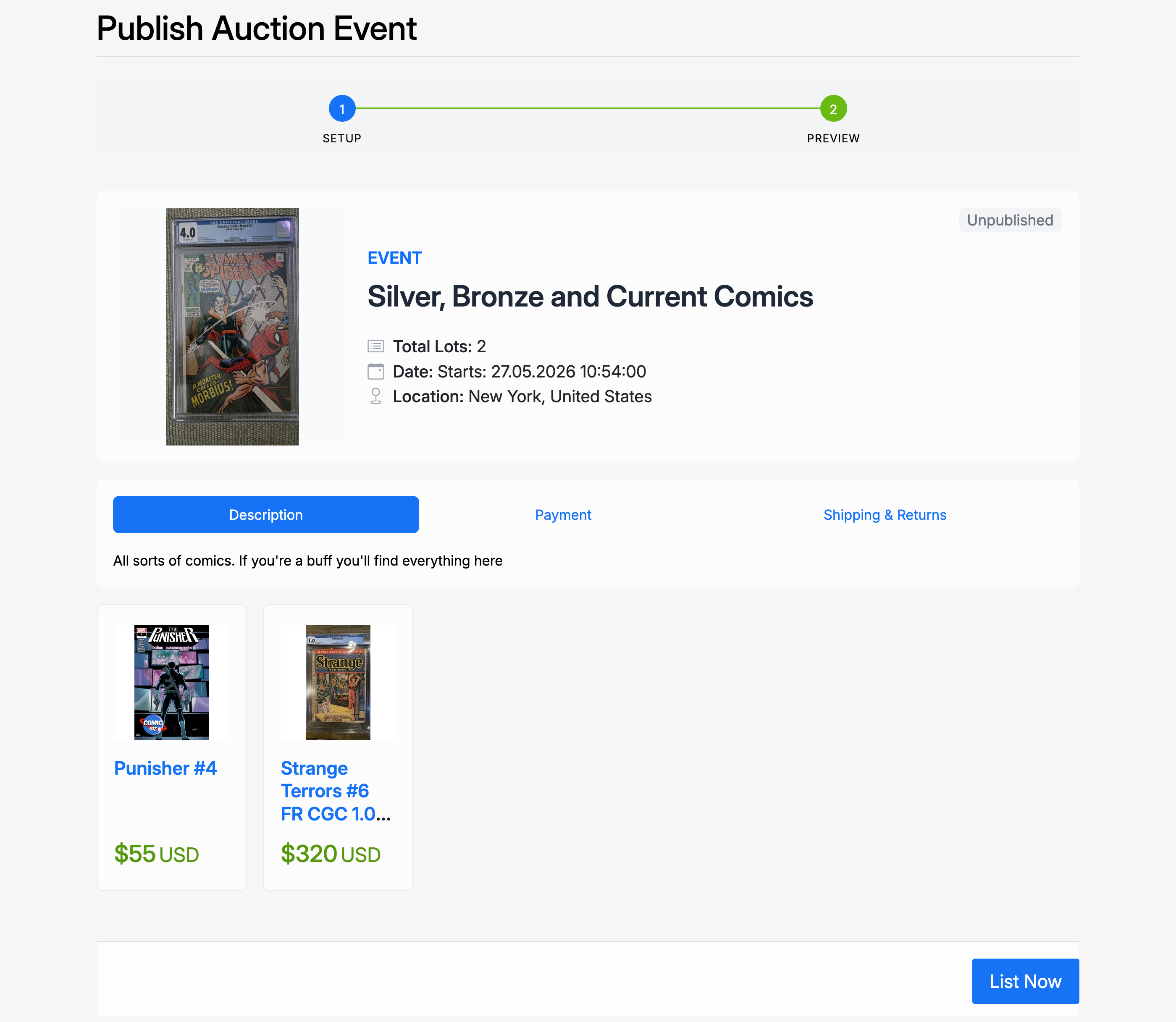
The preview shows the event summary (title, lot count, dates, location), the Description, Payment, and Shipping & Returns tabs, and thumbnails of all lots with their prices. Click List Now to proceed.
Fee Payment
If listing setup fees apply, you are taken to the payment page. This shows the combined fees for all lots in the event.
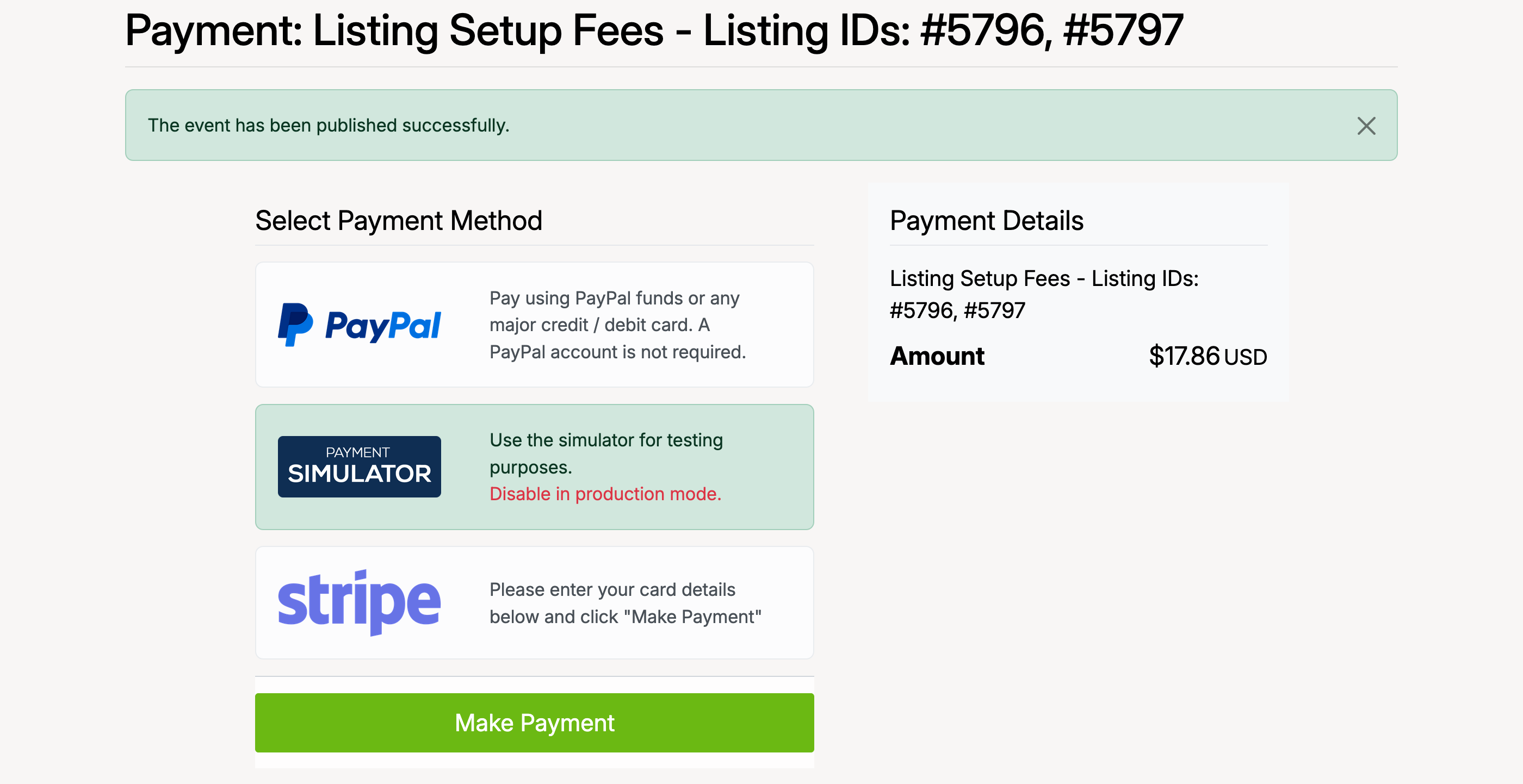
Select a payment method and click Make Payment to complete the listing fees. The available gateways depend on how the site administrator has configured payments.
Event Published
After payment is confirmed, the event status changes to Active and Scheduled. The Manage Event page reflects the updated status and lot count.
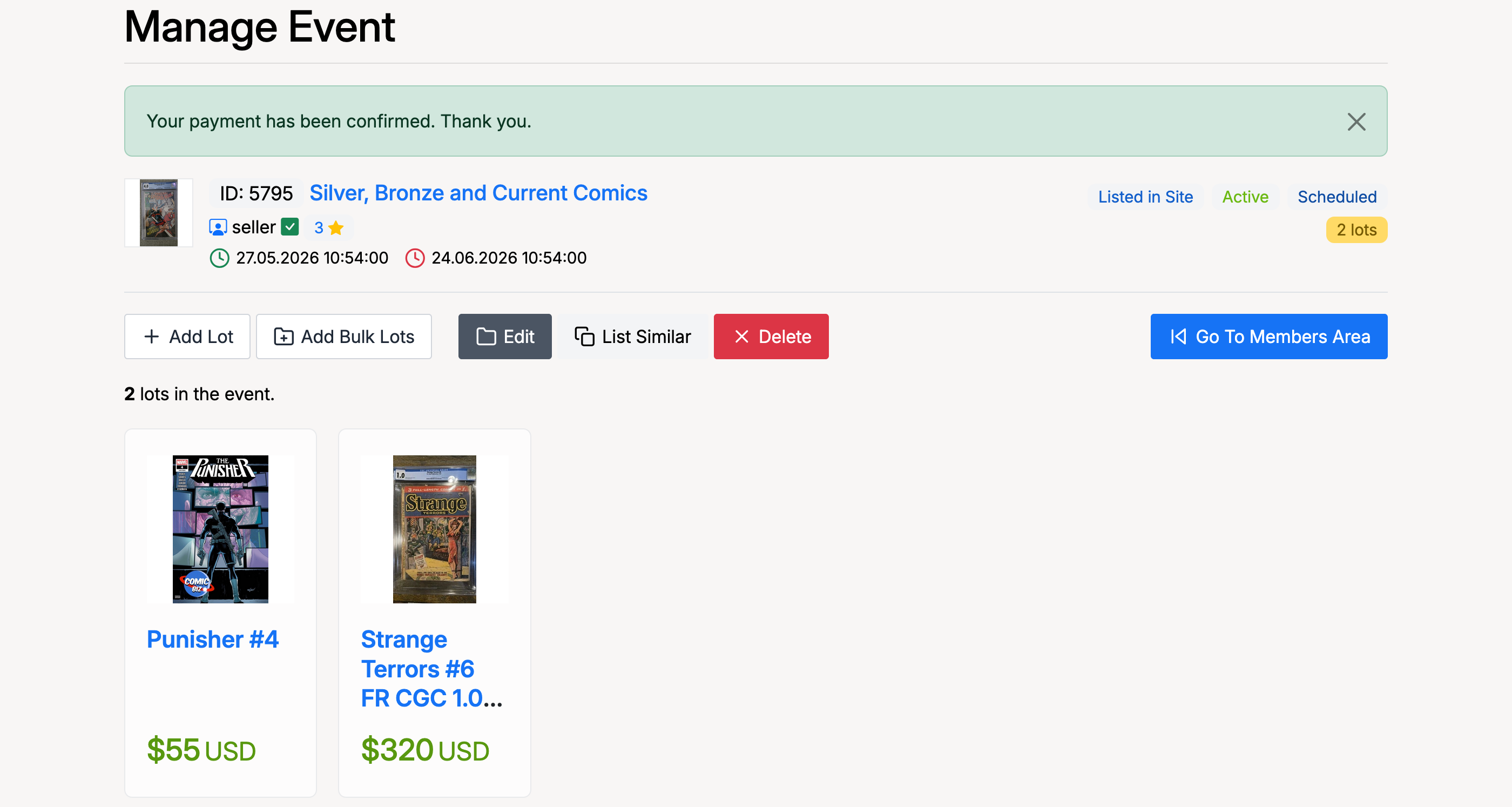
From here you can continue to add lots, edit the event, or delete it. The event will go live automatically at the scheduled start time.
Events List
All your events are listed under Members Area → Selling → Events. You can filter by status (Scheduled, Active, Closed) and search by Event ID or Event Name.
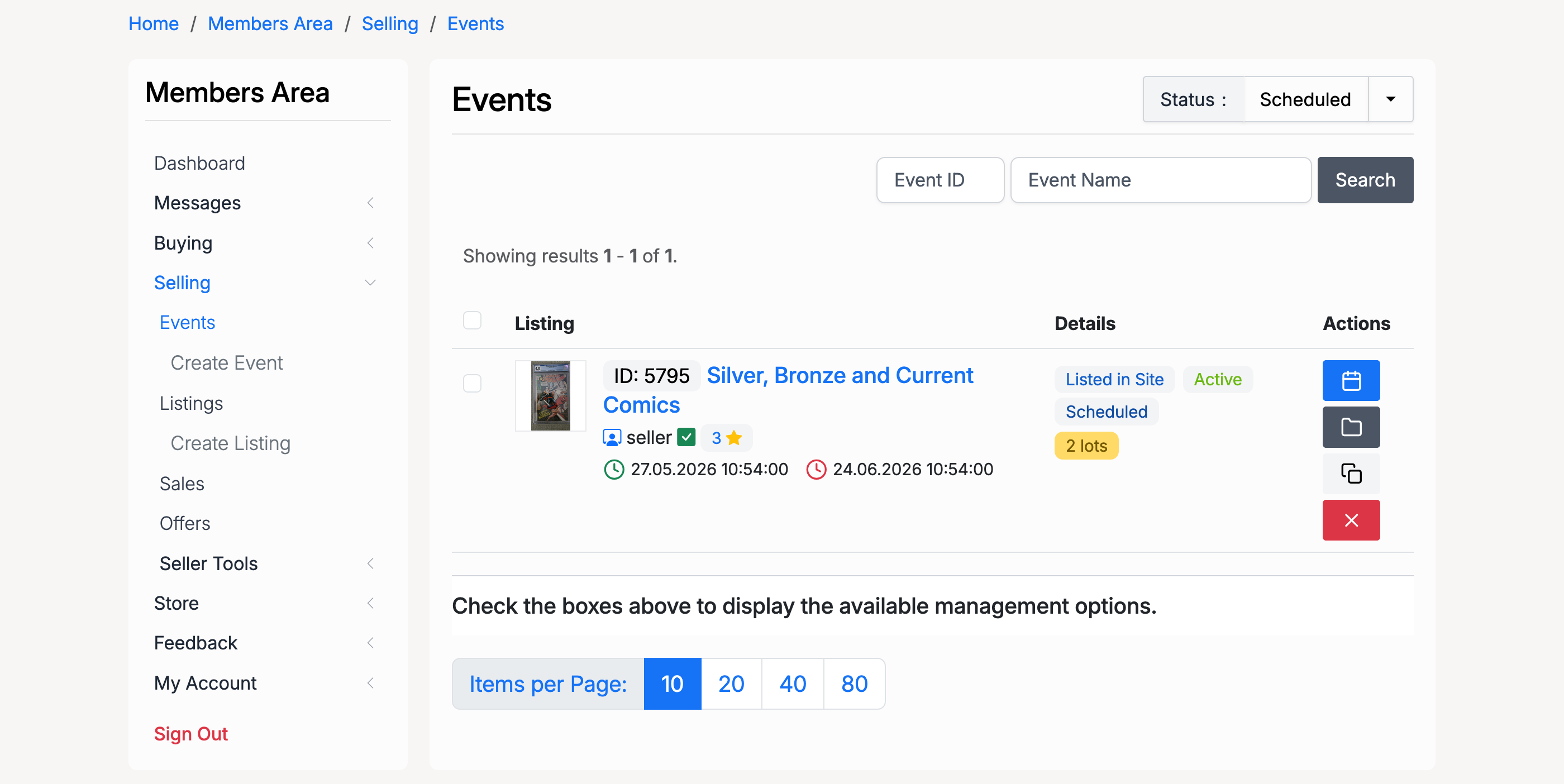
Each event shows its listing details, status (Listed in Site, Active, Scheduled), date range, lot count, and action buttons for editing or managing the event.