
Direct Payment
Overview
When creating a listing, sellers choose which payment methods buyers can use to pay for the item. The Payment tab in the listing setup process lets you enable both direct (online) and offline payment methods on a per-listing basis.
Direct payment methods process the transaction online through a payment gateway (e.g. PayPal, Stripe). Offline payment methods indicate that the buyer and seller will arrange payment outside the platform (e.g. bank transfer, cash on delivery).
Payment Tab
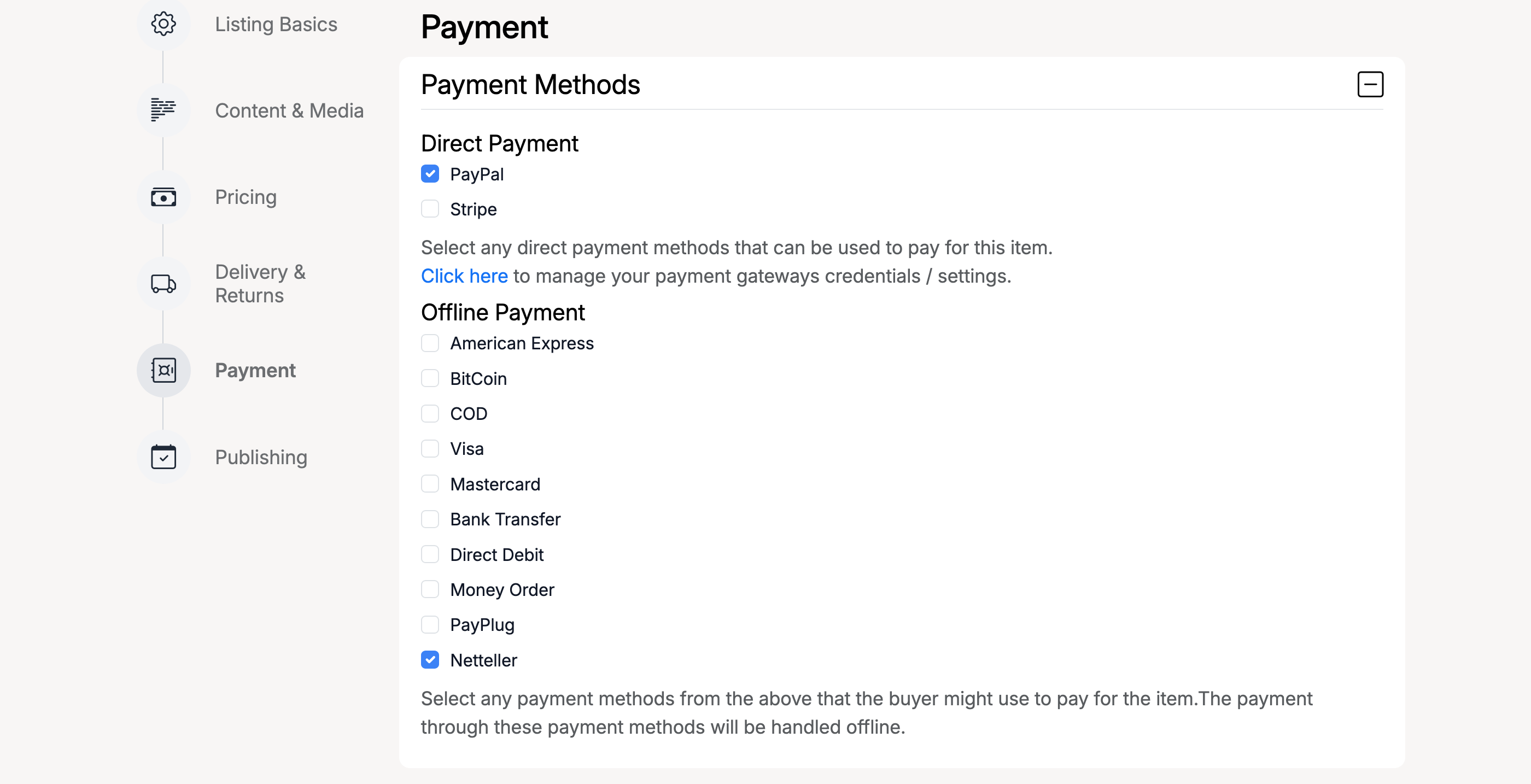
The Payment tab appears in the listing creation wizard, after Delivery & Returns. It is split into two sections: Direct Payment and Offline Payment.
Direct Payment Methods
Direct payment methods process payments online at checkout. Tick the checkboxes next to the gateways you want to accept for this listing.
- PayPal — buyers pay via their PayPal account or credit card through PayPal.
- Stripe — buyers pay by credit or debit card directly on the site.
The available direct payment methods depend on which gateways the site administrator has enabled. If a gateway is not enabled site-wide, it will not appear here.
Below the checkboxes, a link reads “Click here to manage your payment gateways credentials / settings”. This opens a modal where you can enter your own gateway API keys so that payments go directly to your account rather than through the site owner.
Offline Payment Methods
Offline payment methods are handled outside the platform. Ticking these tells the buyer that you accept these forms of payment, but no online transaction is processed.
Common offline payment options include:
- Bank Transfer — buyer sends payment directly to the seller’s bank account.
- COD (Cash on Delivery) — buyer pays when the item is delivered.
- Money Order — buyer sends a money order by post.
- Credit card brands (Visa, Mastercard, American Express) — indicates the seller accepts these cards through their own terminal or arrangement.
The list of offline payment methods is configured by the site administrator.
Gateway Settings
Clicking the “Click here to manage your payment gateways credentials / settings” link on the Payment tab opens the Direct Payment Gateways Settings modal.
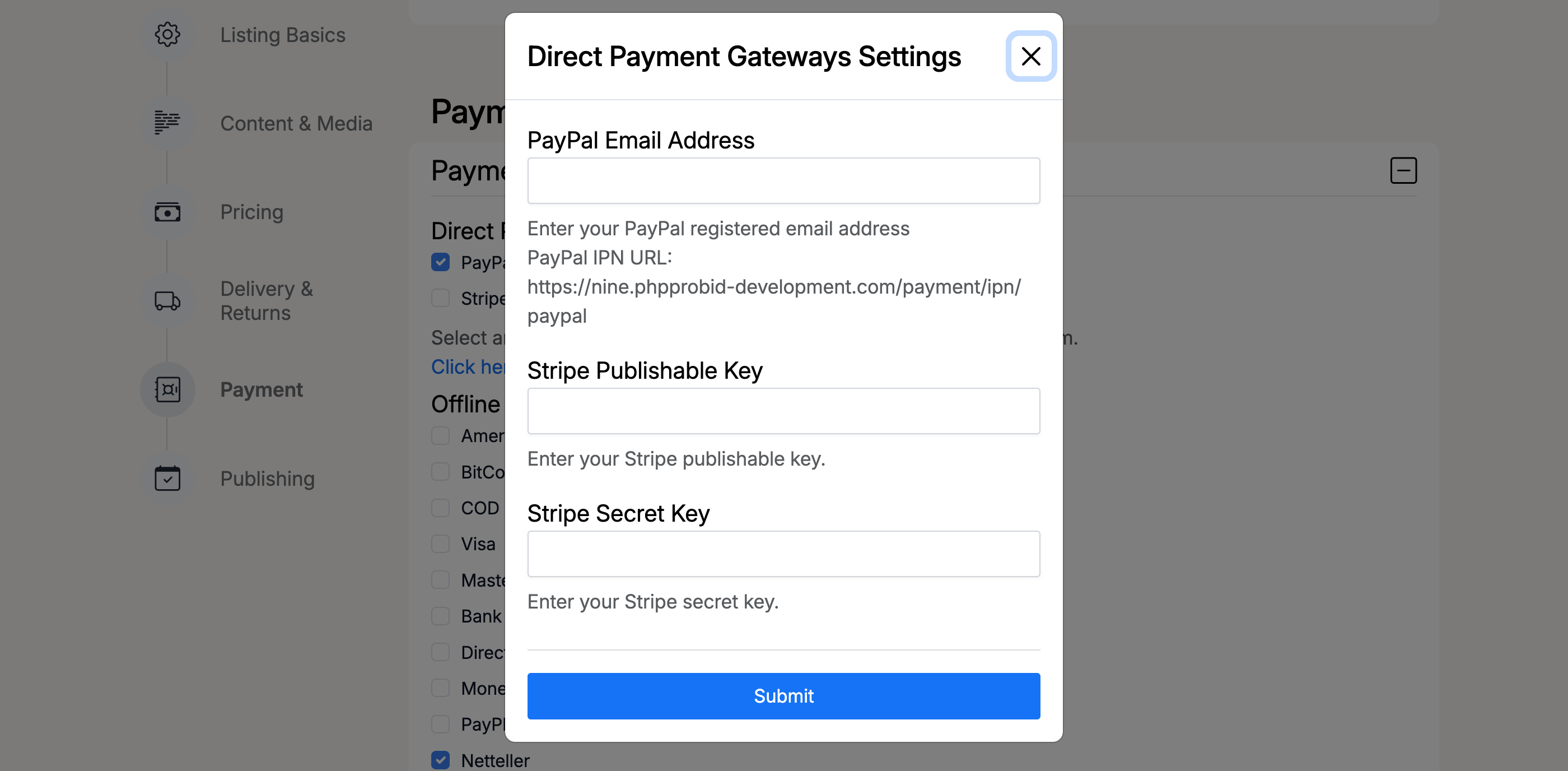
The modal lets you enter your own credentials for each direct payment gateway:
- PayPal Email Address — the email linked to your PayPal business account. A PayPal IPN URL is also displayed for notification setup.
- Stripe Publishable Key — your Stripe publishable API key.
- Stripe Secret Key — your Stripe secret API key.
Click Submit to save your credentials. When set, payments for your listings are processed through your own gateway account.