
Browse Categories
Overview
PHP Pro Bid organises listings into categories and sub-categories. The main navigation and homepage display top-level categories. Click any category to see all listings within it.
- Click Categories in the main navigation, or select a category tile on the homepage.
- On the category page you will see the total result count and a grid of listings.
- Use the sub-category list in the filter panel to drill down further.
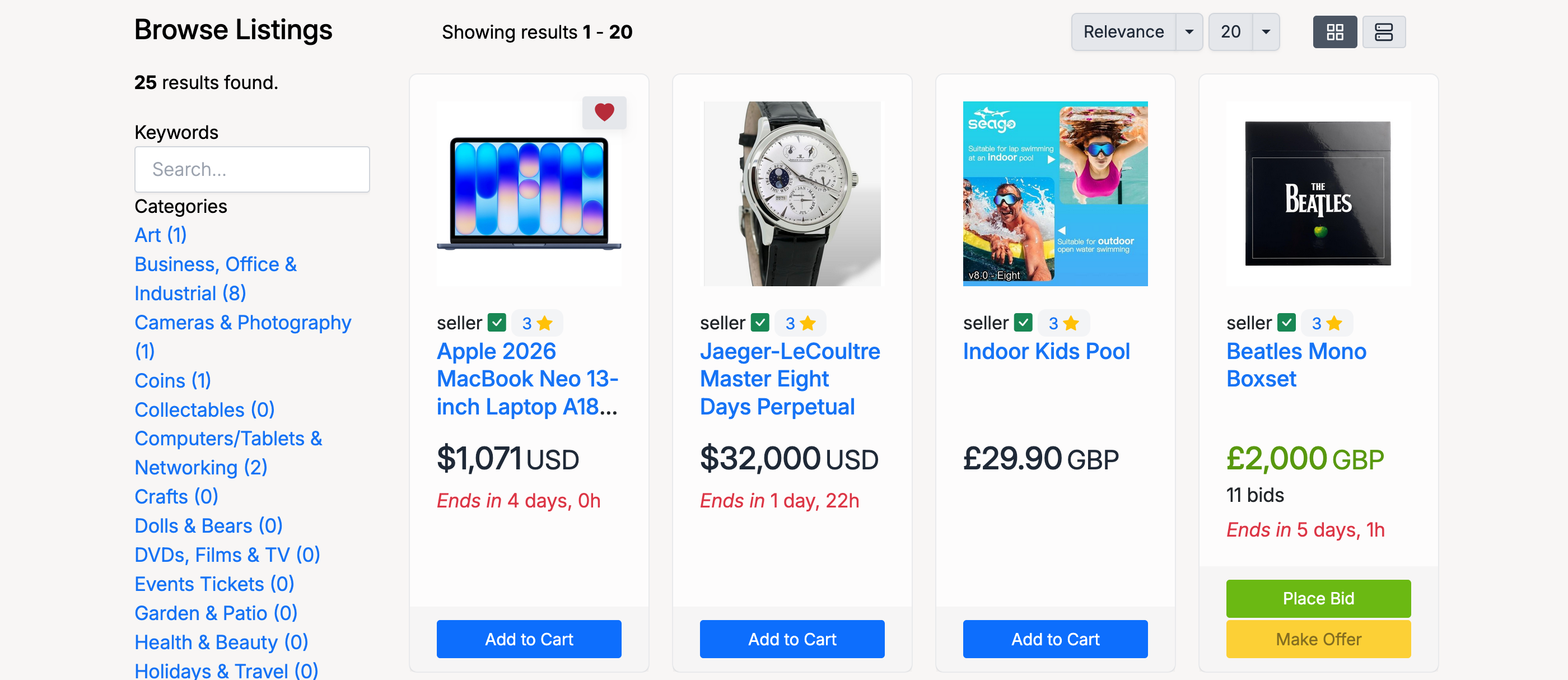
The screenshot above shows a category browse page with:
- Breadcrumb — shows your position in the category tree (e.g. Home / Business, Office & Industrial).
- Result count — total number of listings in this category.
- Grid / List toggle — switch between card grid and list view (top-right icons).
- Listing cards — each card shows the item image, seller name, title, price, and action buttons.
To view all categories at once, click All Categories in the navigation. This shows every top-level category with its sub-categories and listing counts.
Filters
The filter panel lets you narrow results. On desktop the filters appear as a sidebar; on mobile they collapse into an expandable panel.
- Keywords — search within the current results.
- Categories — drill into a sub-category or switch categories. A Reset link returns to the parent category.
- Price — set a minimum and/or maximum price range.
- Show Only — checkboxes for Returns Accepted, Offers Accepted, and Sold Items.
- Format — filter by listing type: Auction, Product, or Classified.
- Location — filter by the seller's country.
List and Grid View
Browse pages offer two display modes, toggled with the icons in the top-right corner of the results area:
- Grid view — displays listings as cards in a multi-column layout. Best for visual browsing.
- List view — displays listings in a single-column list with more detail per item. Better for comparing prices and descriptions.
Your view preference is remembered as you navigate between pages.
Admin Settings
Configure browse page layout from Admin Control Panel → Settings → Design → Pages → Browse.
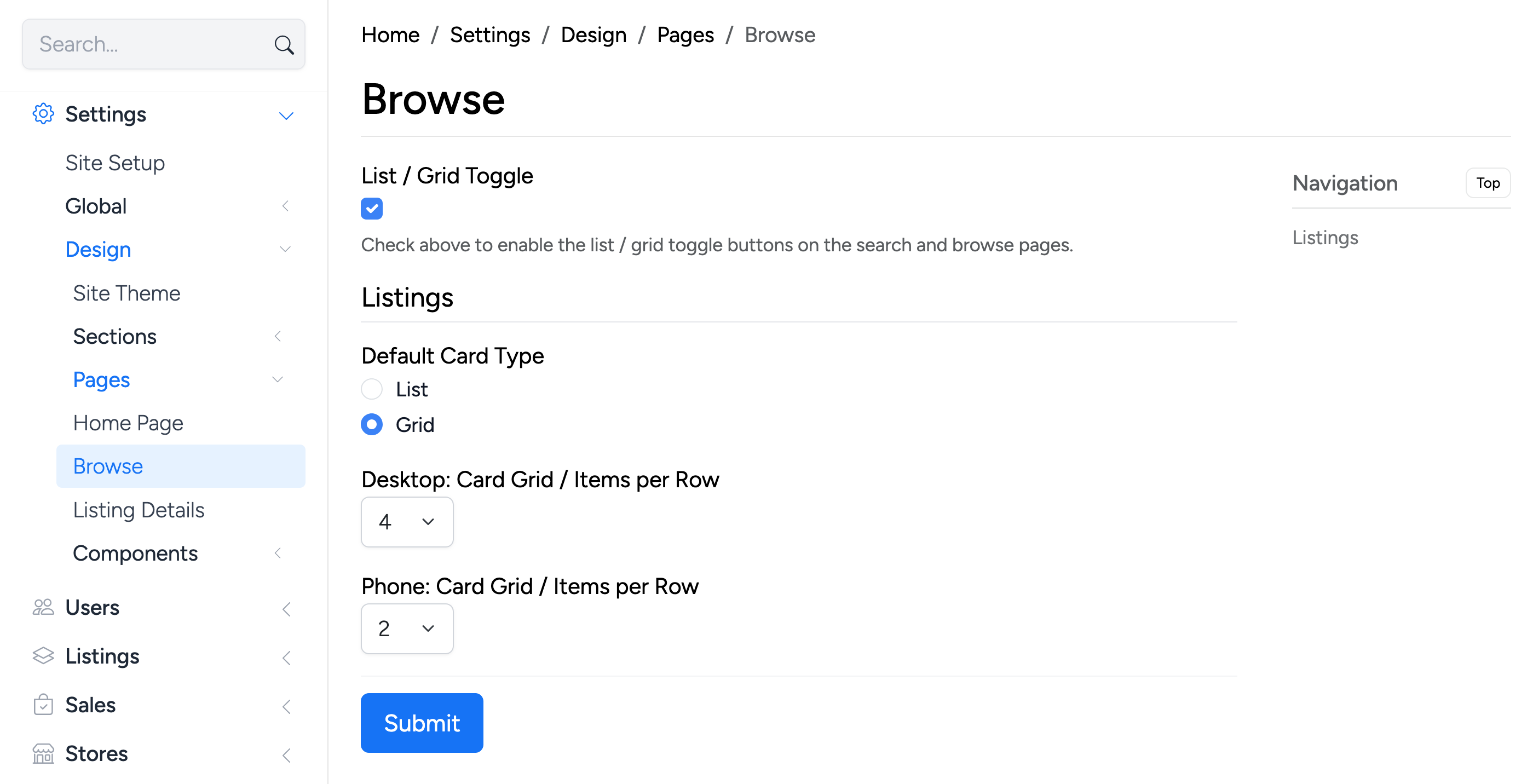
- List / Grid Toggle — enable or disable the list/grid toggle buttons on search and browse pages. When disabled, all users see the default card type only.
- Default Card Type — choose whether listings display in List or Grid view by default.
- Desktop: Card Grid / Items per Row — number of listing cards per row on desktop screens (1–6).
- Phone: Card Grid / Items per Row — number of listing cards per row on mobile screens (1–3).