
Seller Vouchers
Overview
Seller Vouchers let sellers create discount codes that buyers can apply at checkout. Vouchers can offer percentage or fixed-amount reductions, with optional expiration dates, usage limits, and listing restrictions. Access this page at Selling → Seller Tools → Seller Vouchers.
Create Voucher
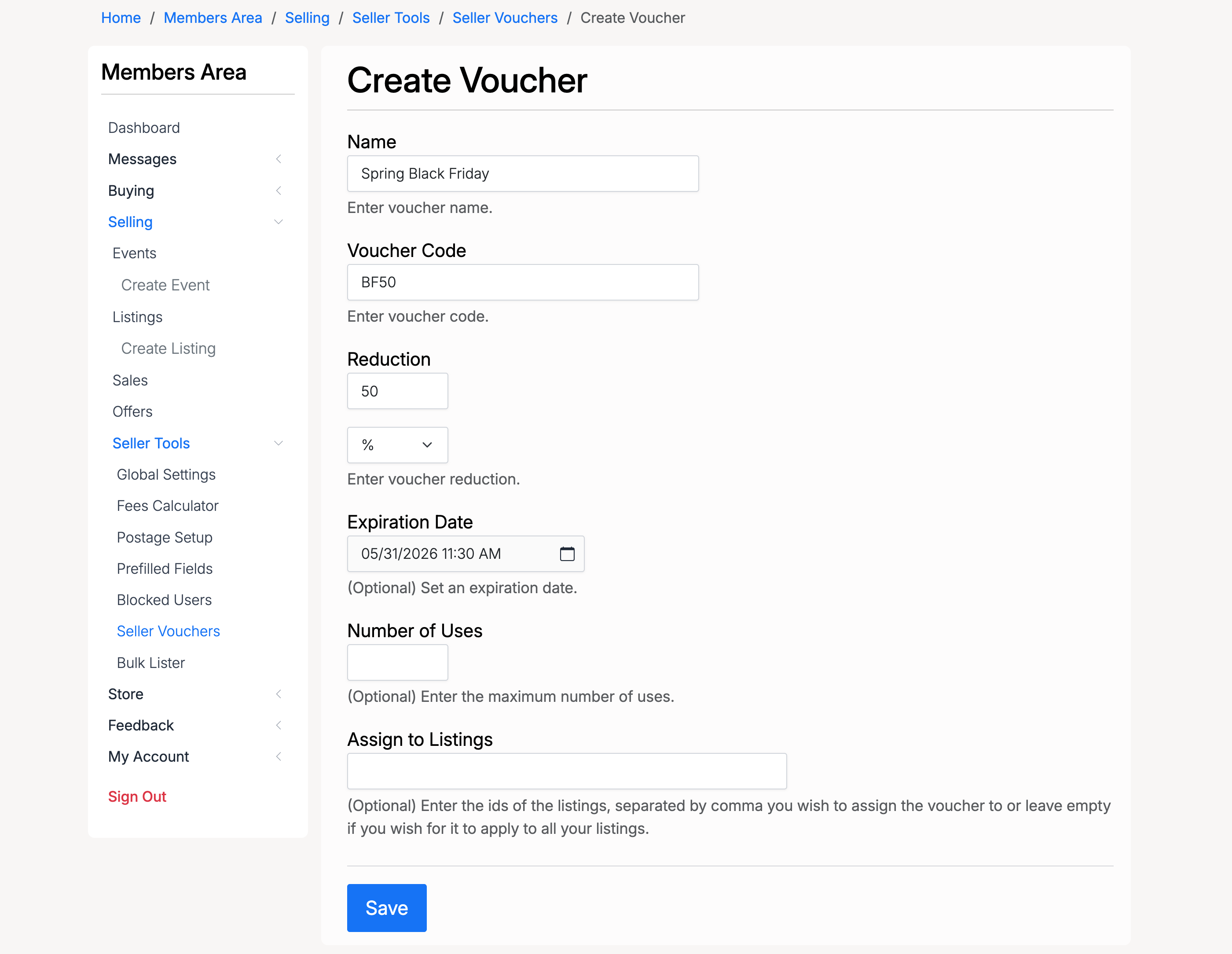
Click Create Voucher to open the voucher form:
- Name — a descriptive name for the voucher (e.g. “Spring Black Friday”)
- Voucher Code — the code buyers enter at checkout to apply the discount
- Reduction — the discount amount. Use the dropdown to choose between a percentage (%) or a fixed currency amount
- Expiration Date — (optional) the date and time when the voucher expires
- Number of Uses — (optional) the maximum number of times the voucher can be redeemed. Leave empty for unlimited uses
- Assign to Listings — (optional) enter listing IDs separated by commas to restrict the voucher to specific listings. Leave empty to apply the voucher to all your listings
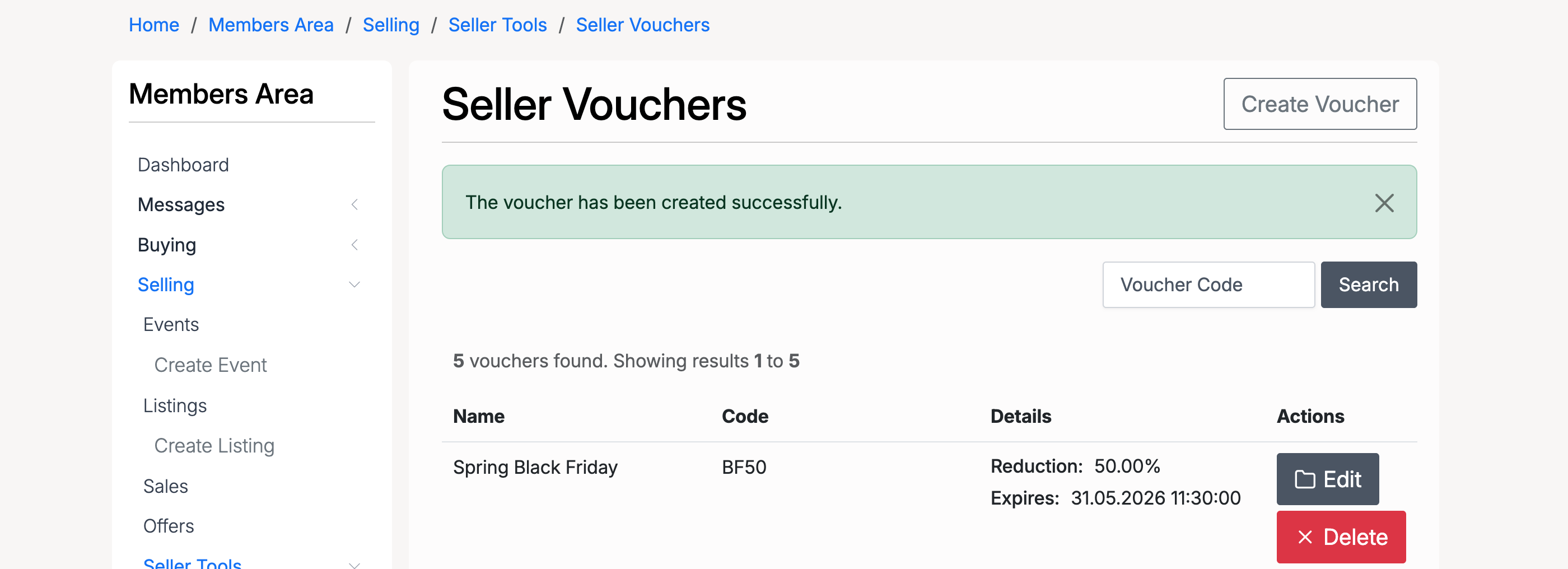
After saving, a confirmation message appears and the new voucher is added to the list:
Vouchers List
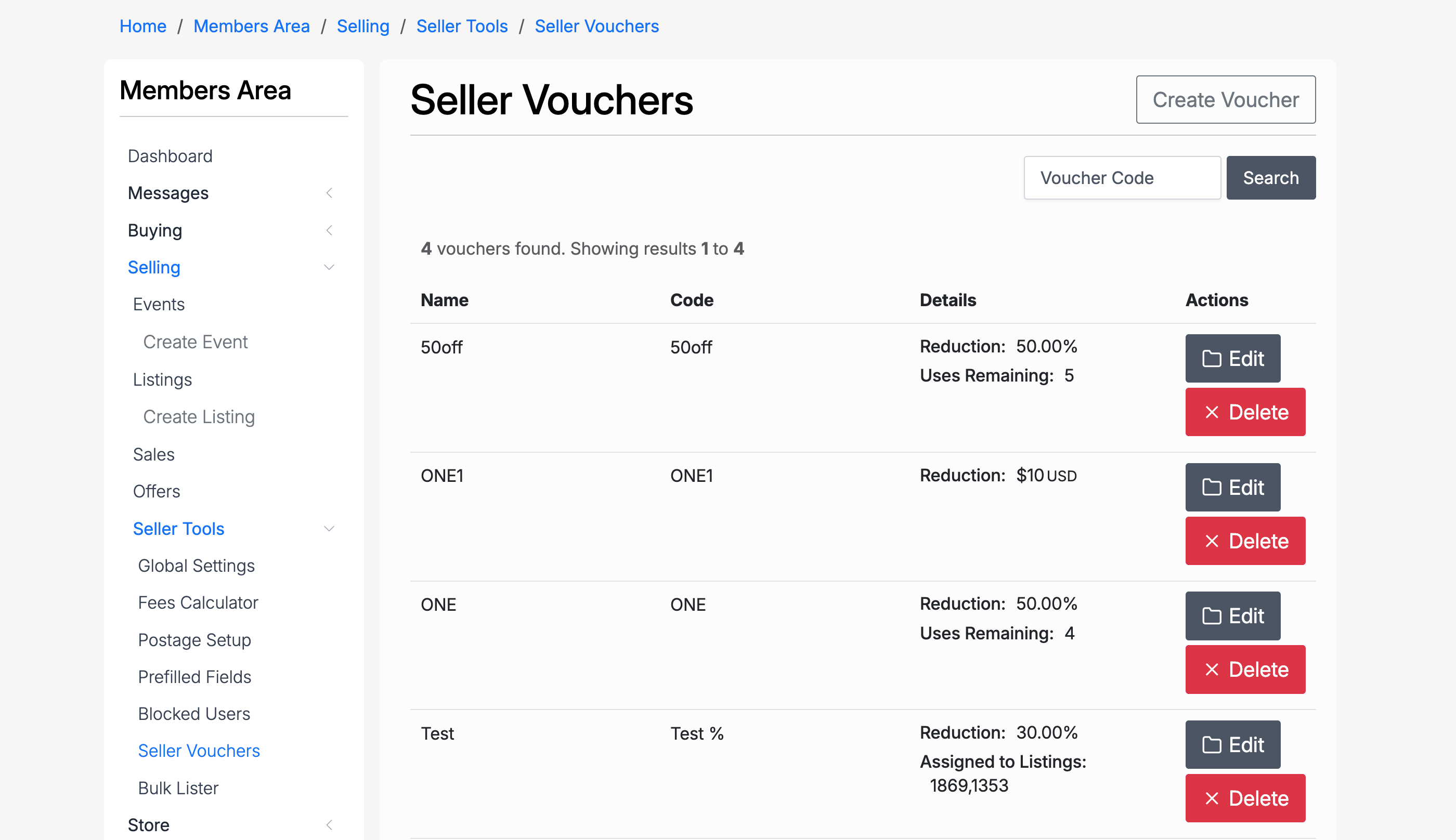
The vouchers list shows all your active vouchers with the following details:
- Name — the voucher name
- Code — the voucher code buyers use at checkout
- Details — the reduction amount (percentage or fixed), expiration date, remaining uses, and assigned listings if applicable
- Edit — modify the voucher settings
- Delete — remove the voucher
Use the search field to find a voucher by its code.
Admin — Create Voucher
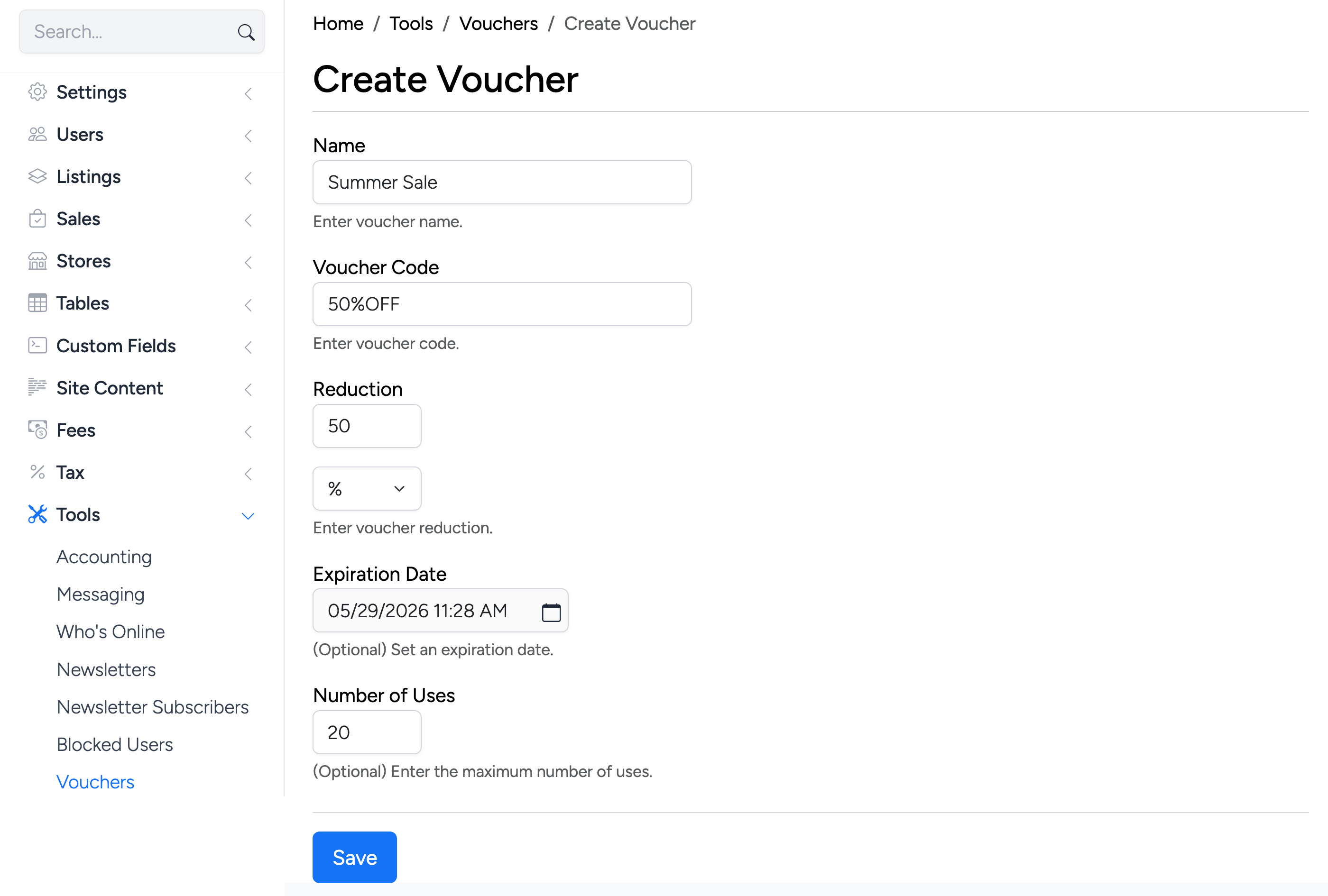
Administrators can create site-wide vouchers from the admin panel at Tools → Vouchers. The admin form has the same fields as the seller form, except the Assign to Listings option is not available — admin vouchers apply site-wide.
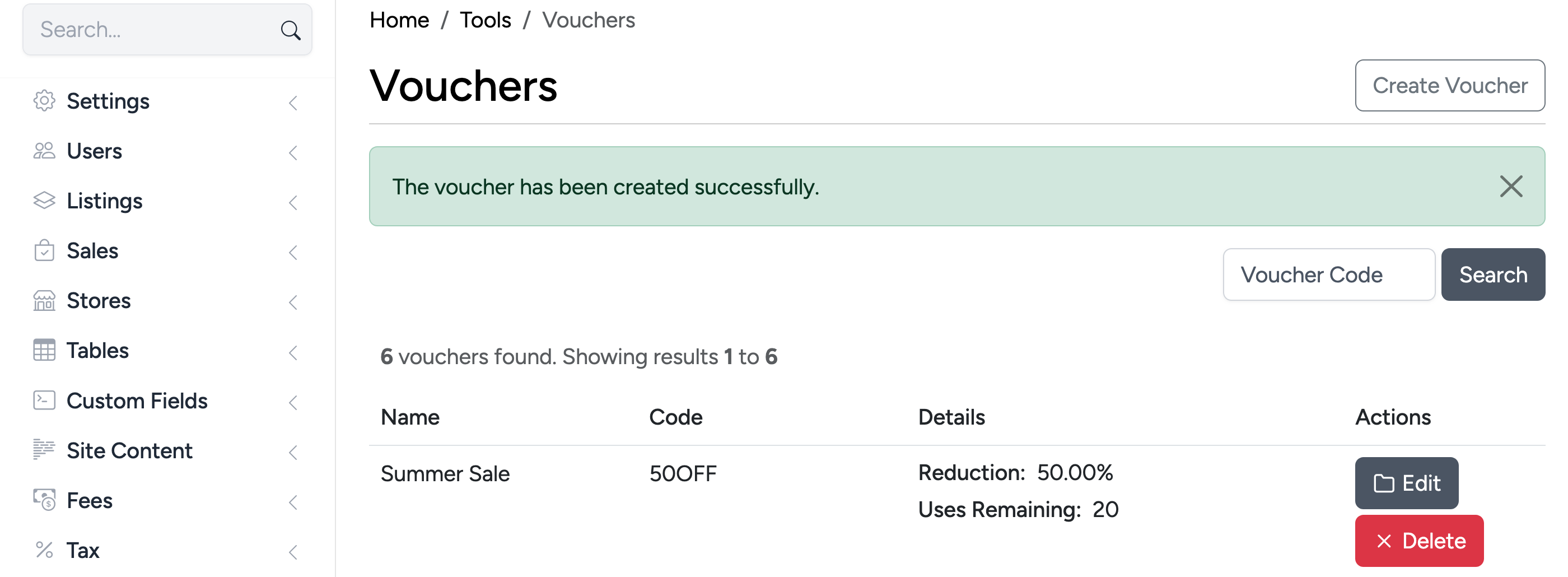
After saving, a confirmation message appears and the voucher is added to the admin list:
Admin — Vouchers List
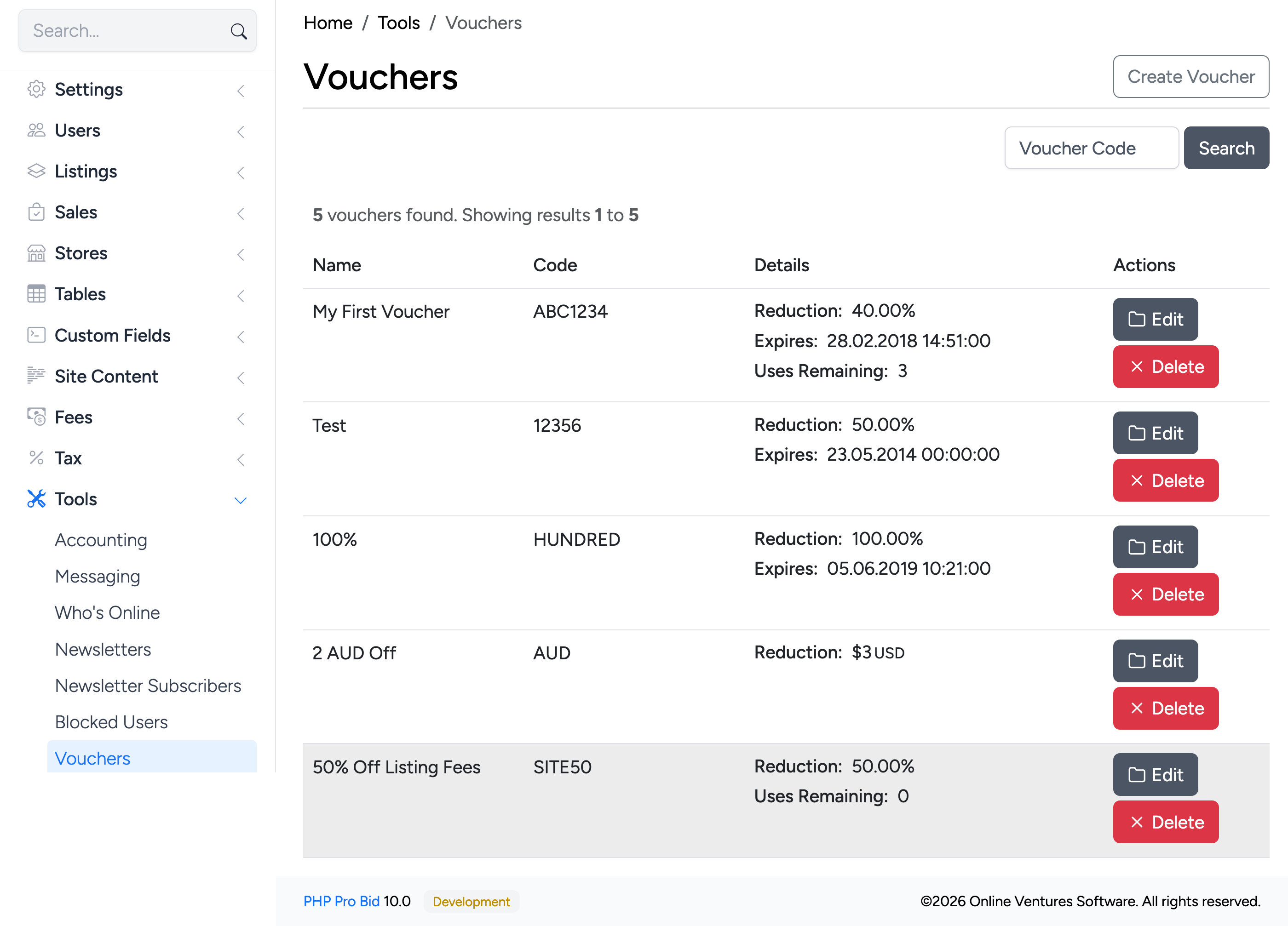
The admin vouchers list displays all site-wide vouchers. The layout is the same as the seller list, with each voucher showing its name, code, reduction details, expiration date, and remaining uses.