
Invoices
Overview
Invoices are generated automatically after a purchase is completed. Each invoice includes the item name and ID, quantity, price, postage method and cost, delivery address, and the invoice total. Both buyers and sellers can view and print invoices from their Members Area.
Administrators can customise the appearance and content of invoices — including the logo, address, header, footer, and totals format — from the admin panel at Settings → Users → Site Invoices Settings. A separate setting under Settings → Sales → Sale Invoices Settings controls whether buyers and sellers can mark invoices as deleted.
Invoice View
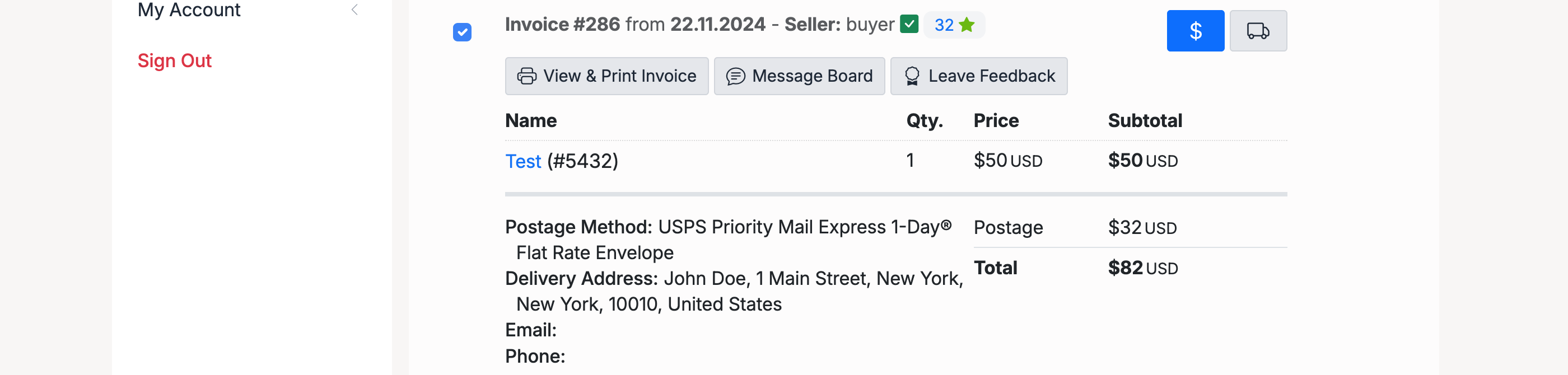
Buyers view their invoices at Buying → Purchases. Each invoice shows:
- Invoice number and date — a unique reference and the date the sale was created
- Seller name — with a link to the seller’s profile and reputation score
- Item details — the item name (linked to the listing), quantity, unit price, and subtotal
- Postage — the shipping method, carrier, and postage cost
- Delivery address — the buyer’s shipping address for this order
- Total — the combined item and postage cost
The action buttons at the top of each invoice give quick access to:
- View & Print Invoice — opens a printer-friendly version of the invoice
- Message Board — opens the messaging thread between buyer and seller for this transaction
- Leave Feedback — submit a reputation rating for the transaction
Seller — Custom Invoice Content

Sellers can add custom text to their sale invoices. This field is found at My Account → Account Settings, under the Additional Information section.
Use this field to include payment instructions, return policies, thank-you messages, or any other information you want buyers to see on every invoice from your store. The content appears on all invoices generated for your sales. Leave it empty if you don’t need custom content.
Admin — Invoice Totals Format

Controls how the totals section is displayed on invoices. Found at Settings → Users → Site Invoices Settings.
- Default (Multiple Rows) — breaks the total into separate lines for subtotal, postage, tax, and grand total
- Alternate (Single Row) — displays the total as a single combined amount
Admin — Invoice Logo

Upload a custom logo that appears at the top of all site invoices. If left empty, the site logo is used by default.
Admin — Invoice Address

Enter the business address that appears on all site invoices. This is typically your company’s registered address, including street, city, postcode, and country.
Admin — Invoice Header
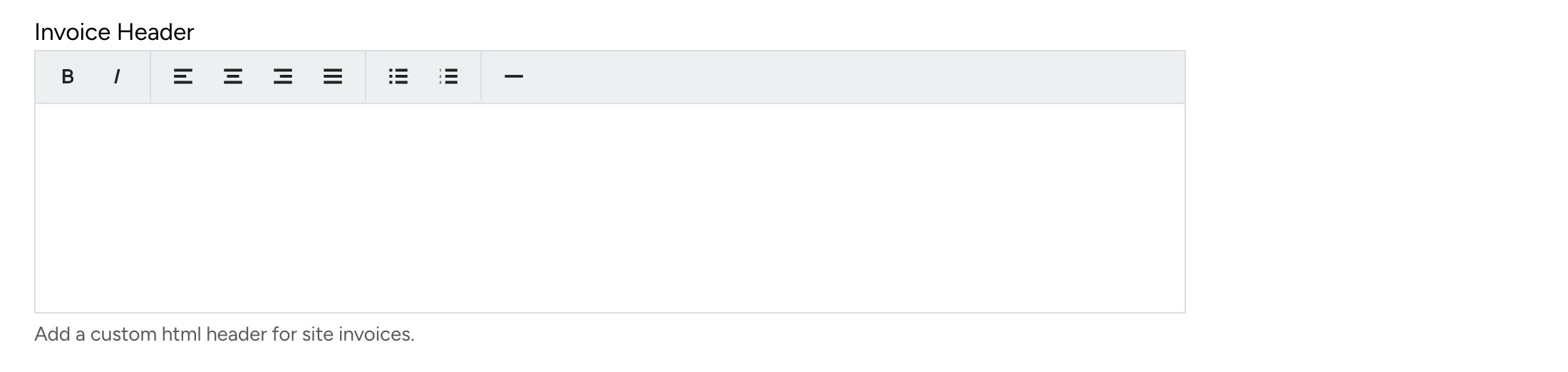
Add a custom HTML header that appears at the top of every site invoice, below the logo. Use the rich text editor to format the content — this is useful for adding registration numbers, VAT details, legal disclaimers, or branding elements.
Admin — Invoice Footer
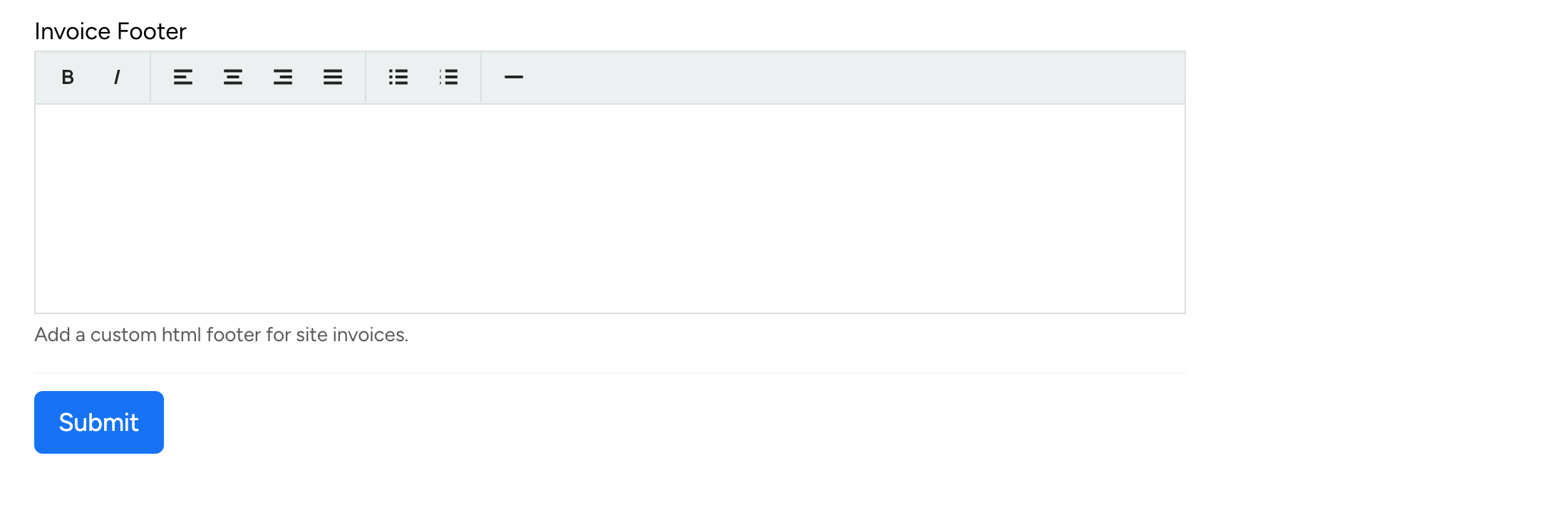
Add a custom HTML footer that appears at the bottom of every site invoice. Common uses include terms and conditions, refund policies, payment deadlines, or contact details for your support team.
Admin — Sale Invoices Deletion

Found at Settings → Sales → Sale Invoices Settings. When enabled, buyers and sellers can mark sale invoices as deleted from their Members Area. This hides the invoice from their view but does not permanently remove it — only administrators can delete invoices from the database.
Admin — Phone Numbers on Invoices
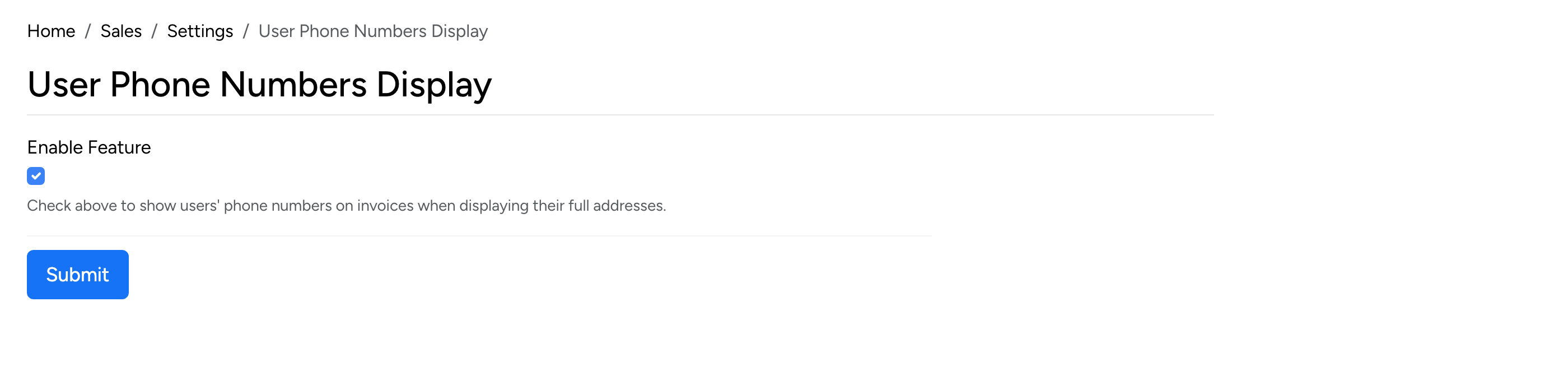
Found at Settings → Sales → User Phone Numbers Display. When enabled, users’ phone numbers are included on invoices when displaying their full addresses.