
Stores
Overview
Stores let sellers create their own branded storefront within the site. A store gives sellers a dedicated page with a custom name, logo, description, and optional pages for shipping info and company policies. Stores require a subscription, which determines how many listings the seller can have in their store. Access it at Store → Store Setup in the members area.
Store Settings
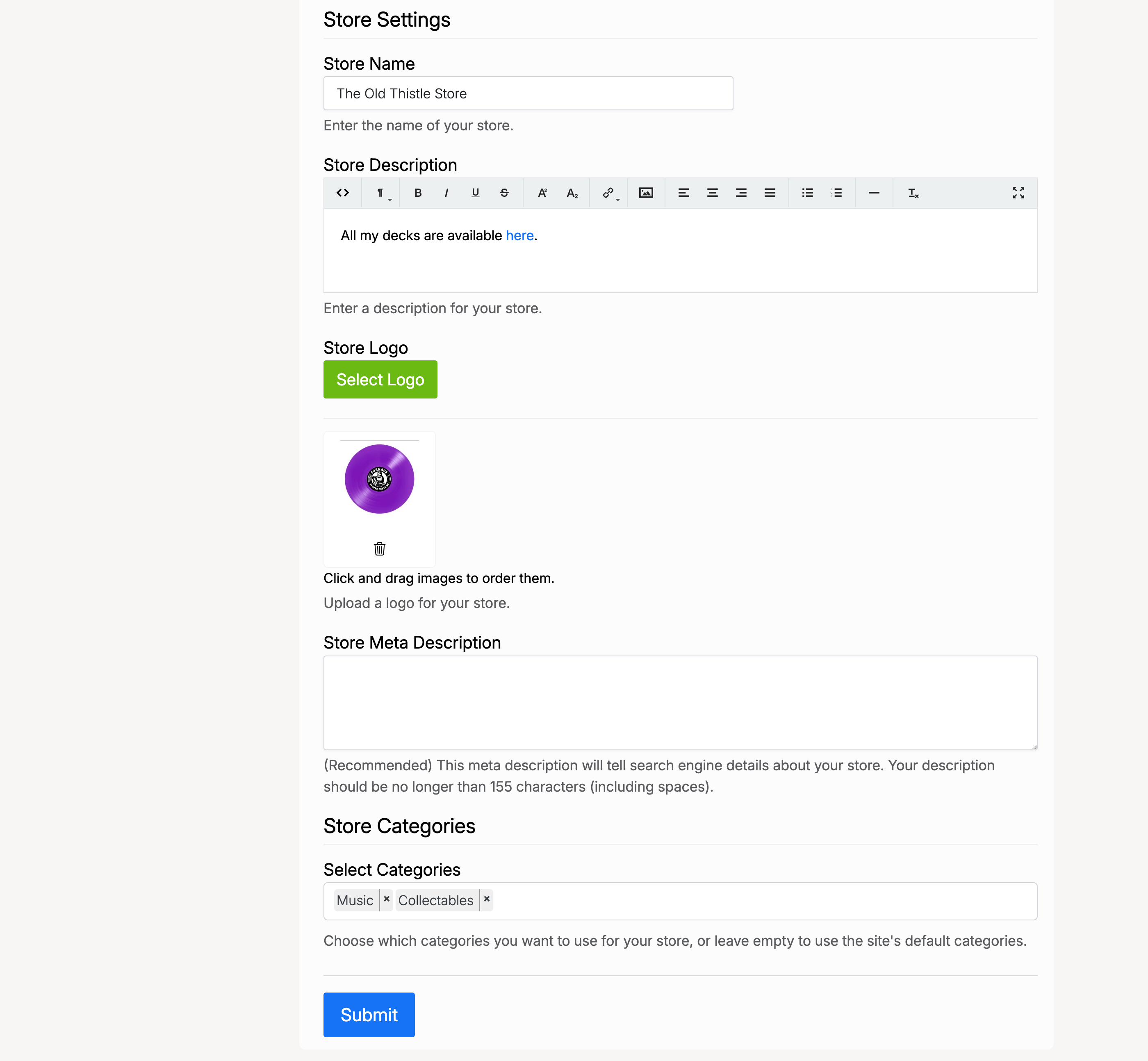
- Store Name — the name displayed on the storefront and in store listings
- Store Description — a rich-text description of the store, visible on the store page
- Store Logo — upload a logo image for the store
- Store Meta Description — a short description for search engine indexing, recommended to be no longer than 155 characters
- Store Categories — select which categories the store will appear under. Leave empty to use the site’s default categories
Subscriptions
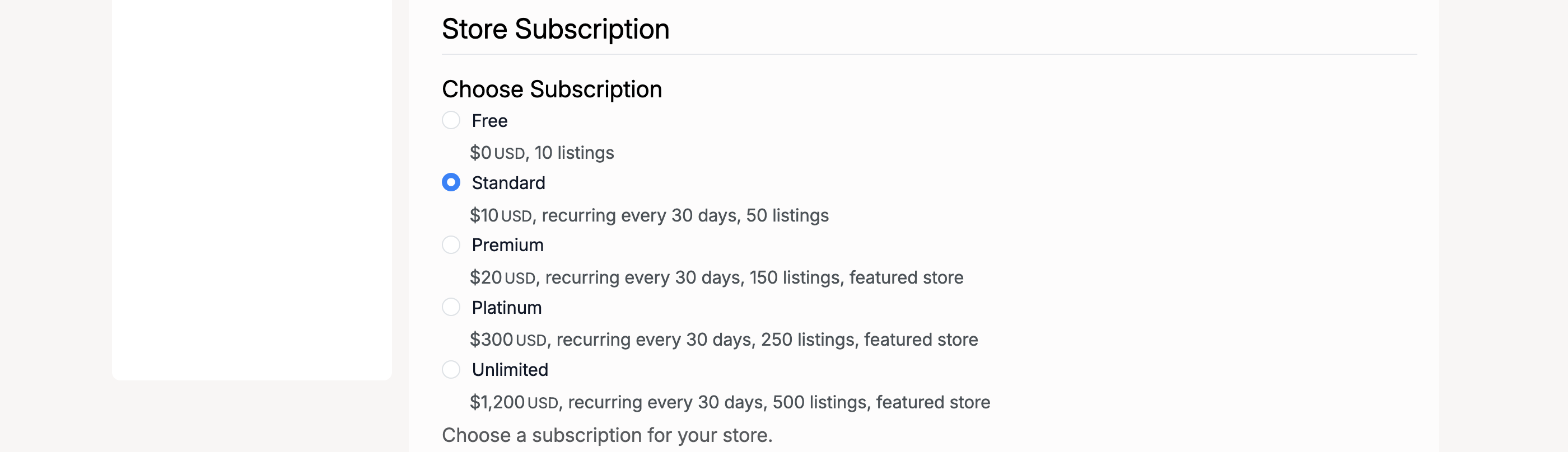
Before a store can go live, the seller must choose a subscription plan. Each plan defines the number of listings allowed and the recurring cost. The available plans and their terms are configured by the site administrator.
- Free — a limited plan with no recurring cost
- Standard / Premium / Platinum / Unlimited — paid plans with increasing listing allowances and optional featured store placement
Store Status
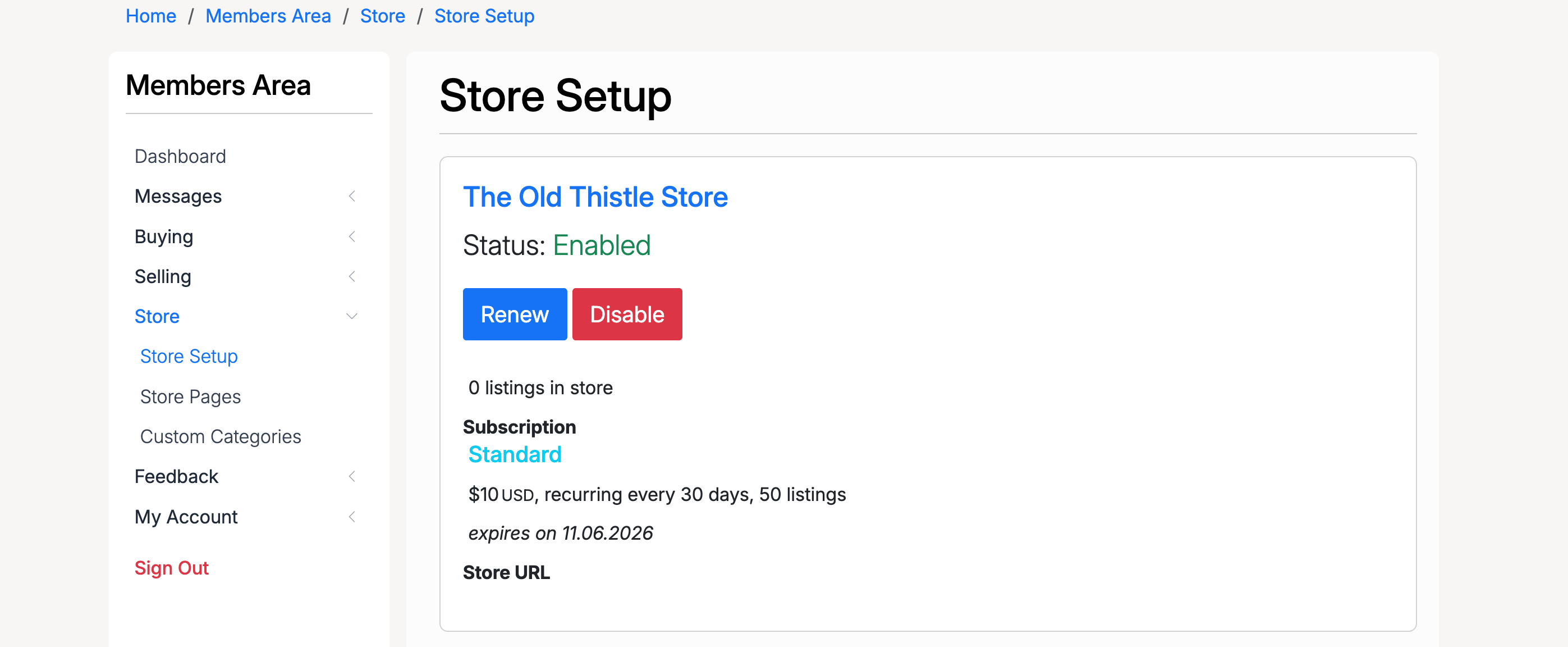
Once a subscription is active, the Store Setup page shows the current store status:
- Status — whether the store is currently enabled or disabled
- Renew — renew the subscription before it expires
- Disable — temporarily disable the store. A disabled store can be re-enabled at any time
- Subscription — the current plan name, cost, billing cycle, and expiration date
- Store URL — the public URL of the store
Store Pages
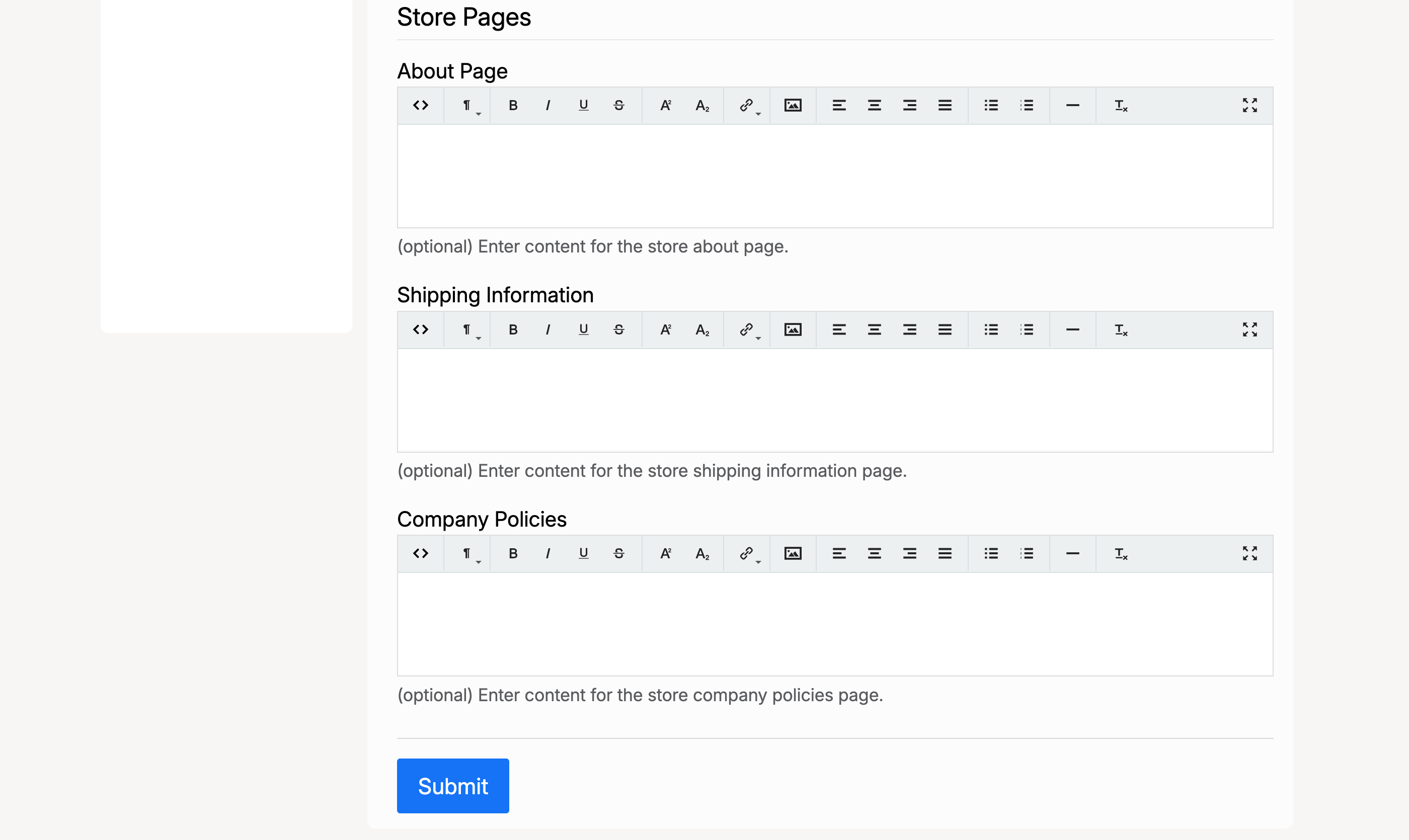
Store Pages let sellers add optional content pages to their store. Each page has a rich-text editor:
- About Page — a detailed description of the store and the business behind it
- Shipping Information — shipping methods, delivery times, return policies, and related information
- Company Policies — terms of service, privacy policy, refund policy, and other legal information
Custom Categories
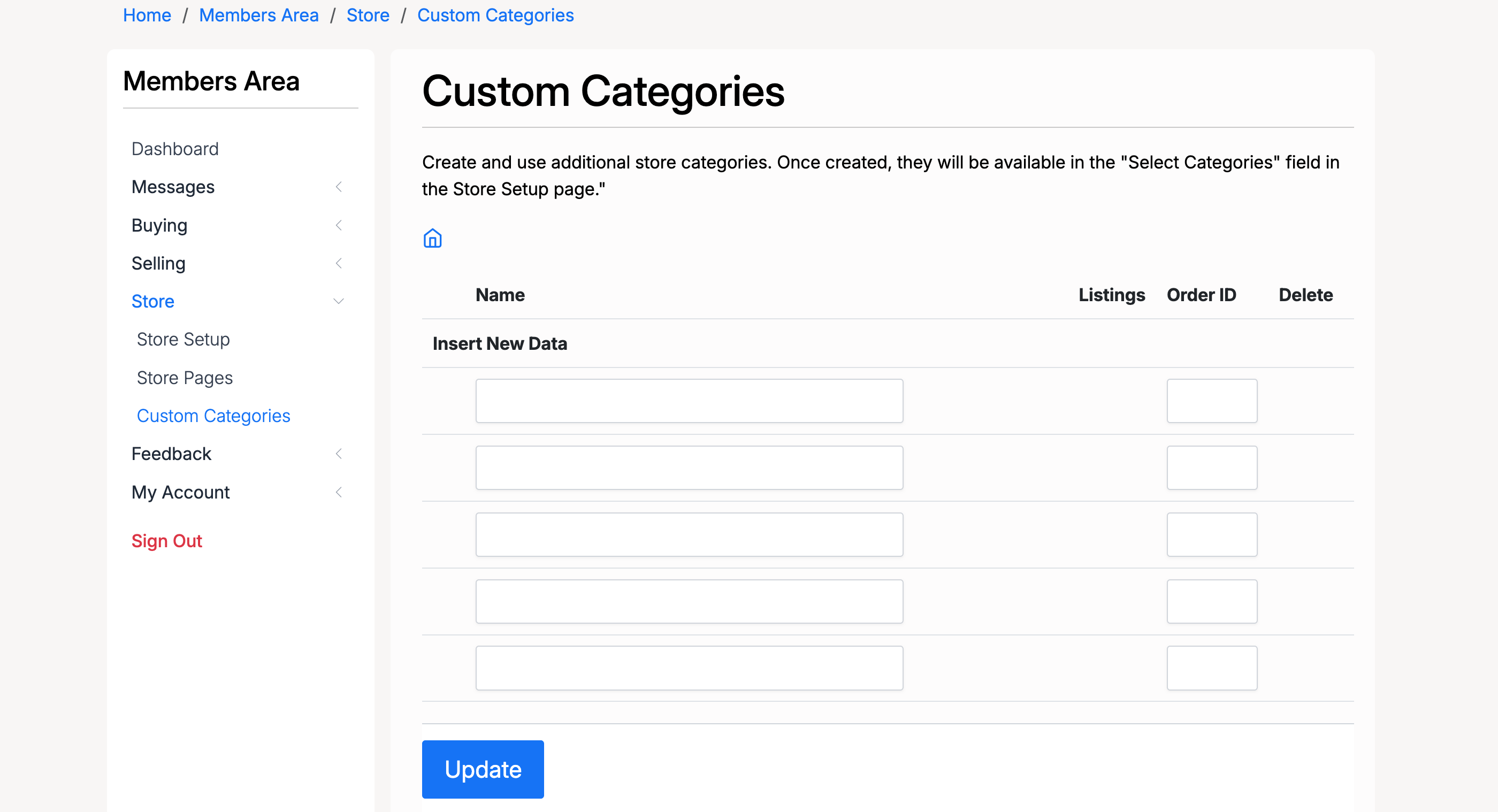
Sellers can create custom categories specific to their store. Once created, custom categories become available in the Select Categories field on the Store Setup page.
- Name — the category name
- Order ID — the display order of the category in the store
- Listings — the number of listings assigned to this category
- Delete — remove the category
Admin — Settings
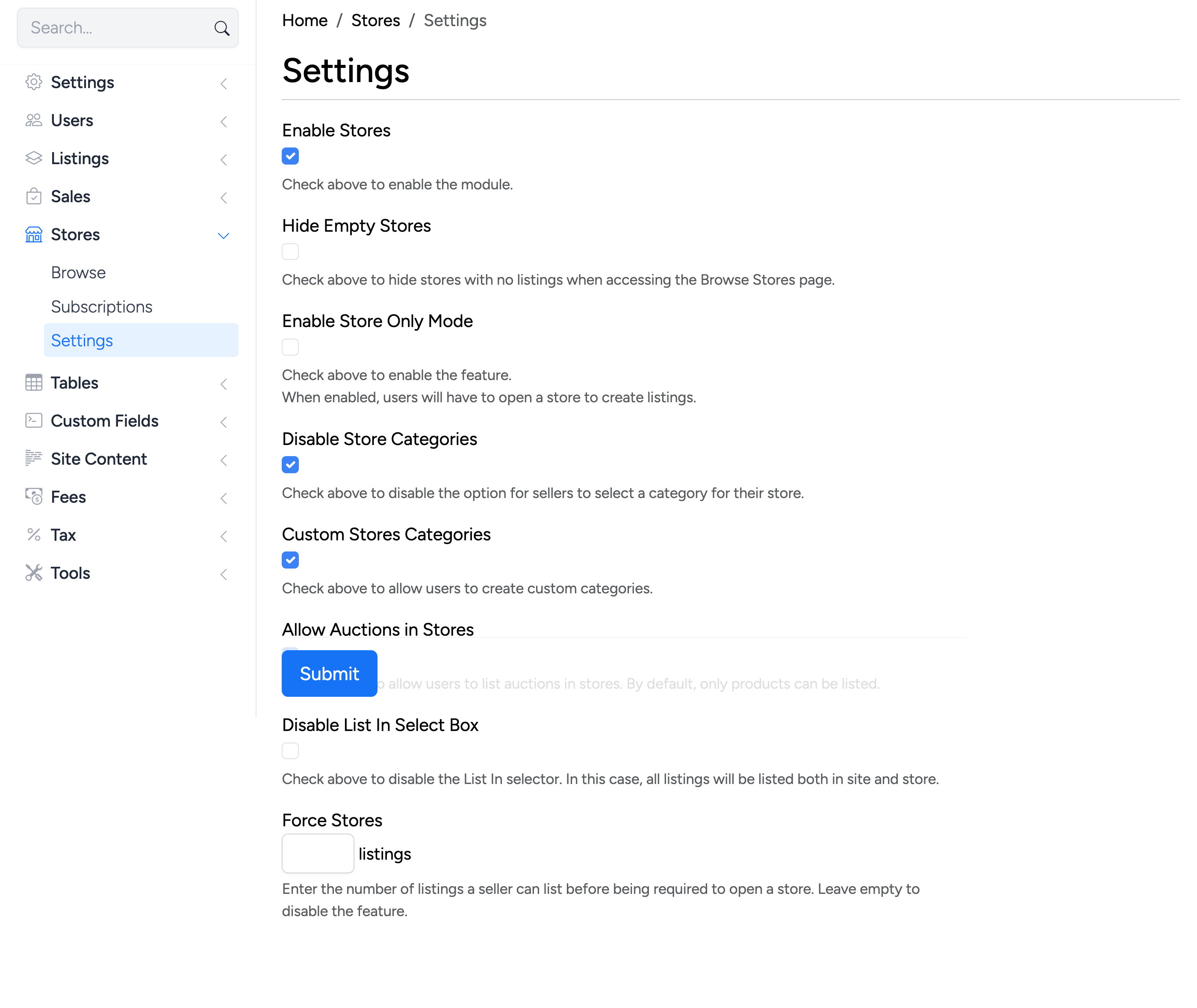
Administrators configure the stores module at Stores → Settings in the admin panel:
- Enable Stores — activate the stores module. Only products can be listed in stores
- Hide Empty Stores — hide stores with no listings from the Browse Stores page
- Enable Store Only Mode — when enabled, sellers must open a store before they can create listings
- Disable Store Categories — remove the option for sellers to select a category for their store
- Custom Stores Categories — allow sellers to create custom categories within their stores
- Allow Auctions in Stores — by default, only products can be listed in stores. Enable this to allow auction listings as well
- Disable List In Select Box — when enabled, all listings are automatically listed in both site and store
- Force Stores — set the number of listings a seller can create before being required to open a store. Leave empty to disable
Admin — Subscriptions
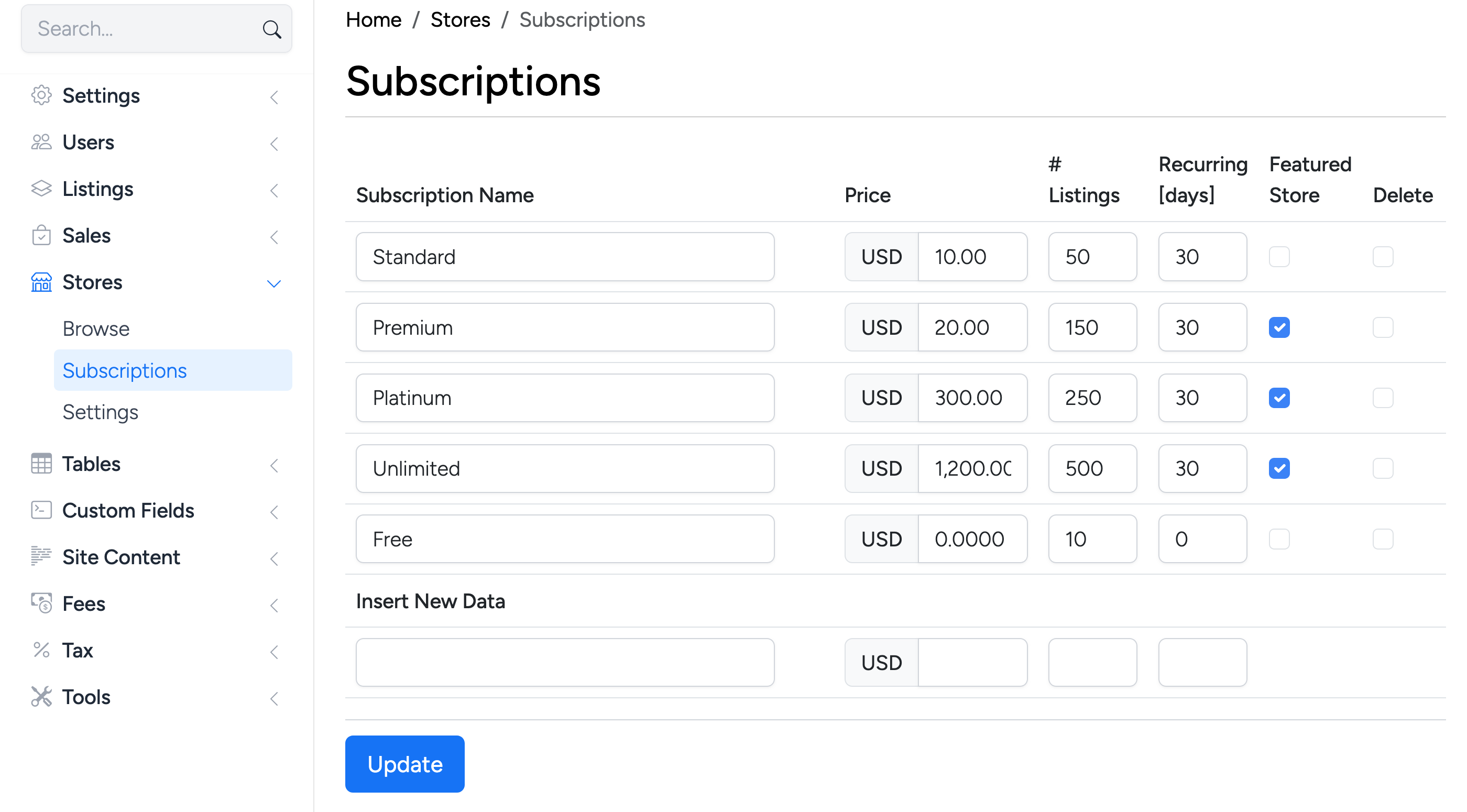
Administrators manage subscription plans at Stores → Subscriptions:
- Subscription Name — the plan name displayed to sellers
- Price — the subscription cost
- # Listings — the maximum number of listings allowed for this plan
- Recurring [days] — the billing cycle in days. Enter 0 for a one-time fee
- Featured Store — when checked, stores on this plan are featured on the Browse Stores page
Use the Insert New Data row at the bottom to add new subscription plans.
Admin — Browse Stores
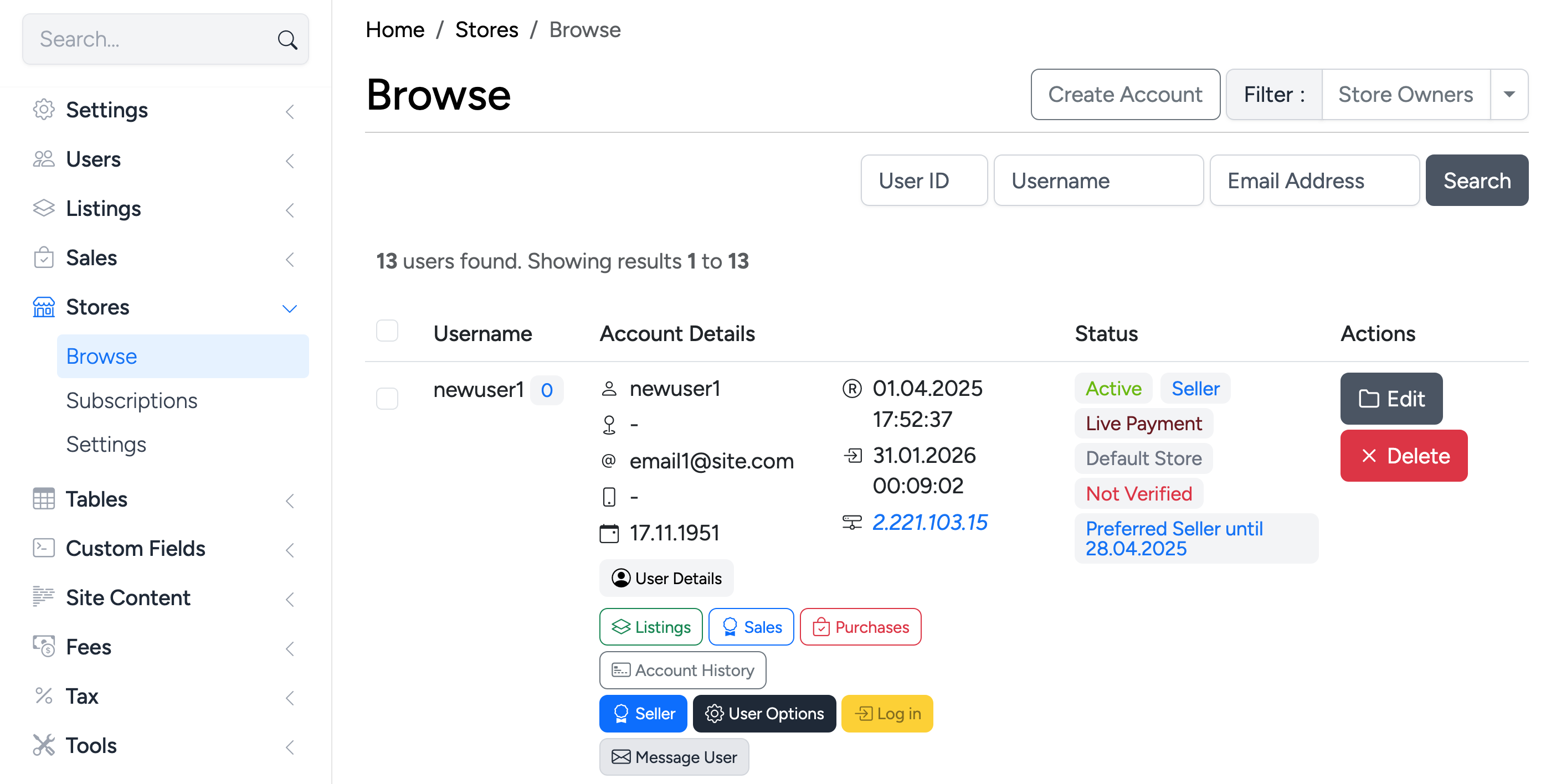
Administrators can view and manage all stores at Stores → Browse. The page lists store owners with their account details, store status, and quick action links to view listings, sales, purchases, and account history.