
Upgrade
Already running an older version of PHP Pro Bid? This guide upgrades your existing installation to v10. You'll replace the program files with the new ones, then run a short database upgrade wizard that brings your data up to the latest version. Your listings, users, settings and content are preserved.
Back up first
Before you change anything, take a full backup — both the files on your server and the database. An upgrade rarely goes wrong, but a backup means you can always roll back if something on your particular setup needs attention.
Download & upload the files
- Download the V10 Kit from the client area.
- Unzip it, then upload the files to your server with an FTP tool, overwriting the previous files. Your configuration files keep your existing settings, so the site stays connected to its database.
Run the database upgrade
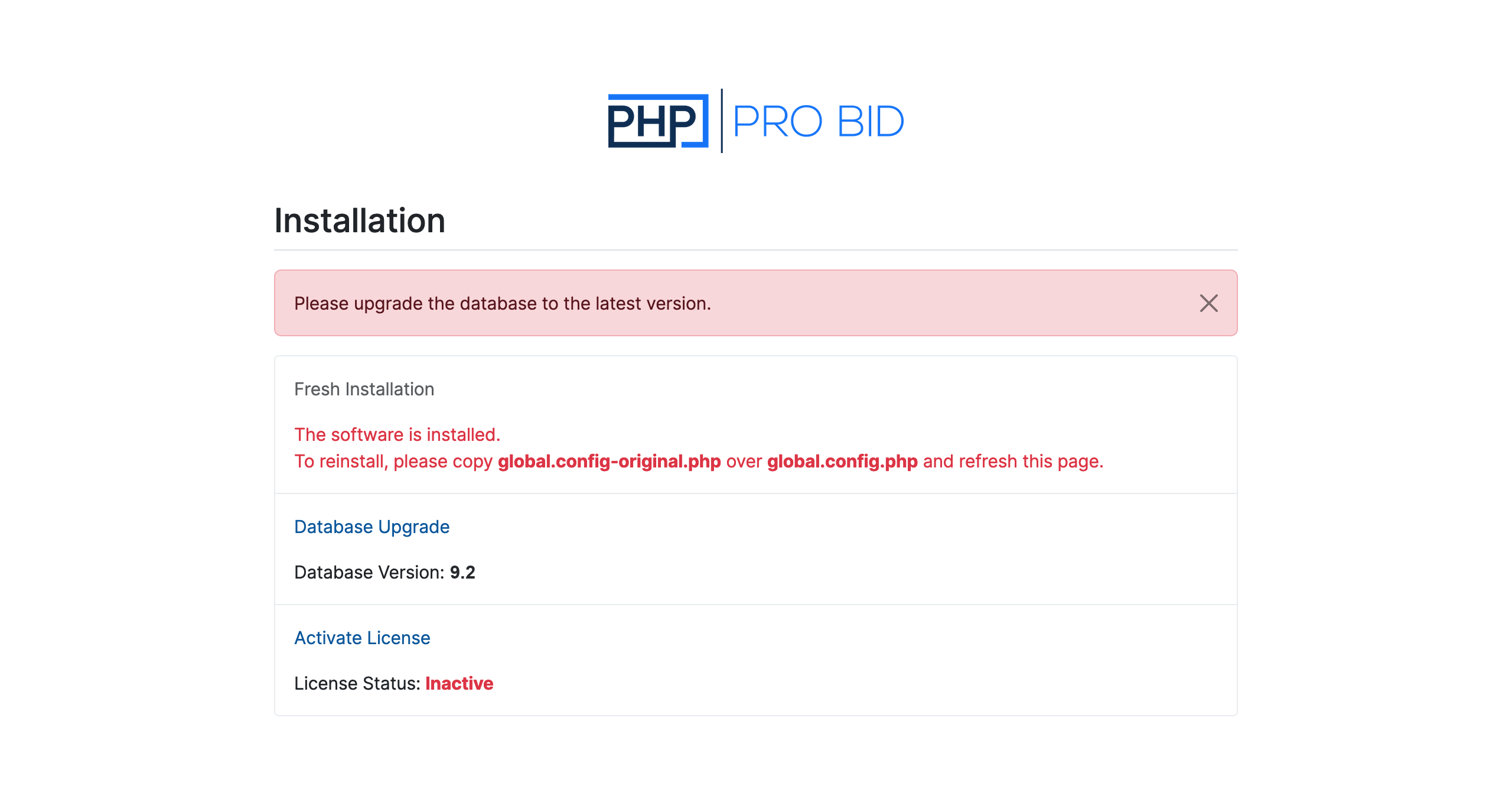
Open www.yoursite.com/install/upgrade in your browser. You'll land on a status page showing your
current database version and license status, with a prompt to upgrade the database to the latest version. Click
Database Upgrade to begin.
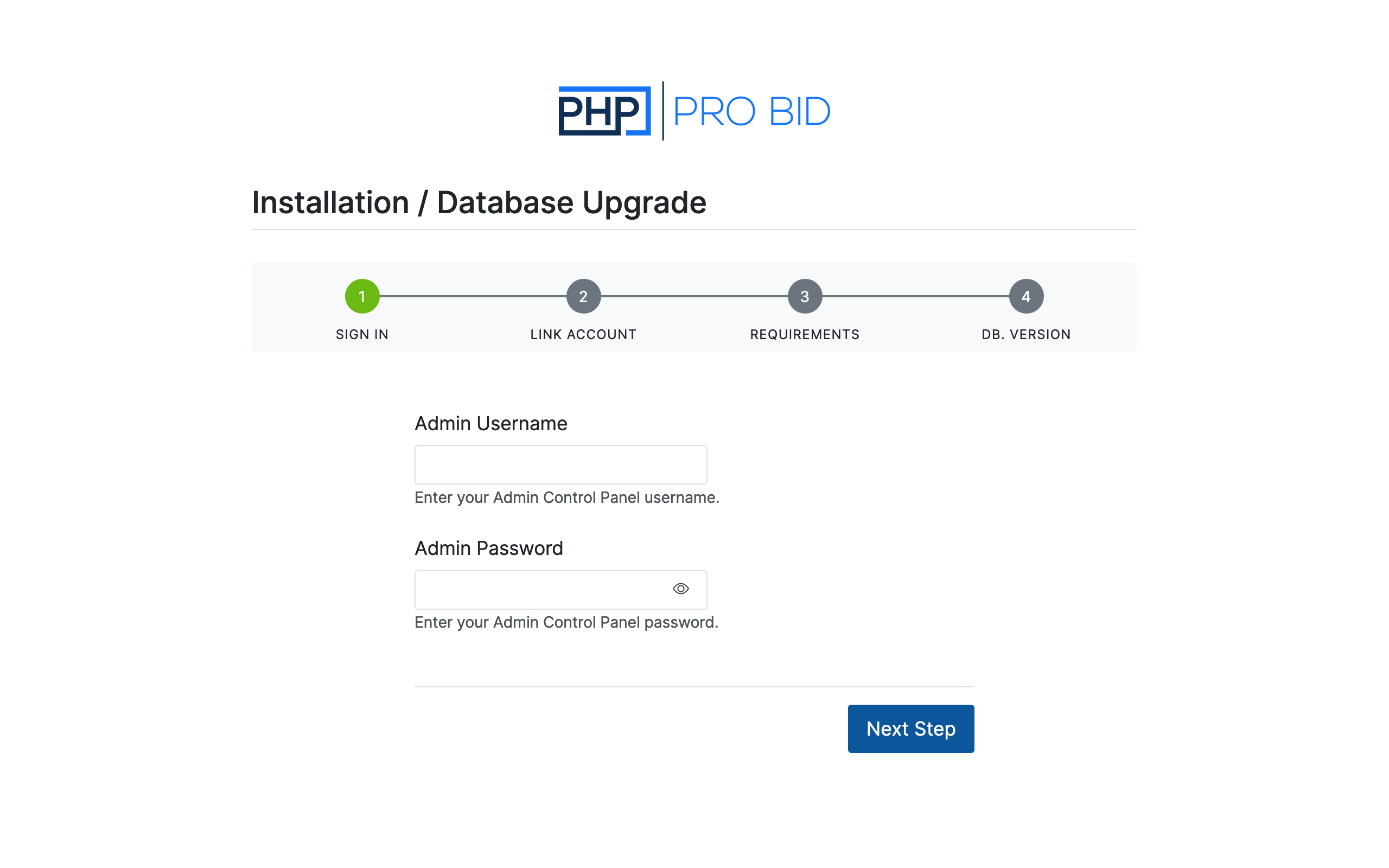
Step 1 — Sign In
Enter your Admin Control Panel username and password. This confirms you're the site administrator before any changes are made to the database. Click Next Step.
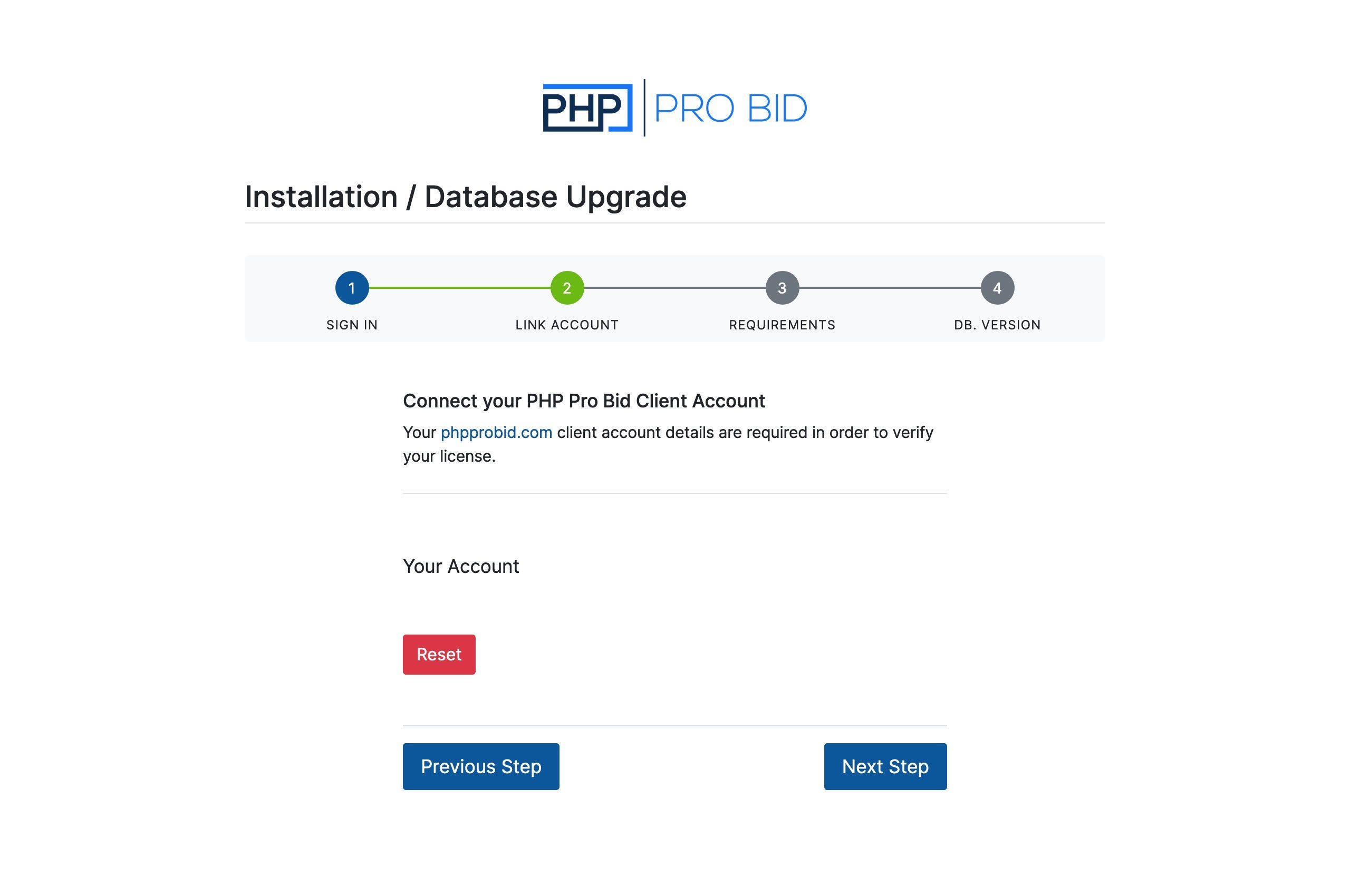
Step 2 — Link Account
Connect your phpprobid.com client account so the installer can verify your existing license. As with a fresh install, your account details are used only to check the license — your password is not stored on your installation. Click Next Step.
Step 3 — Requirements
The installer checks your server against the requirements for v10 — PHP, MySQL/MariaDB, the ionCube Loaders, and the writable files and folders it needs. This is the same check as a fresh install. If everything passes, continue to the next step; if something fails, fix it on your server (or ask your host) and refresh.
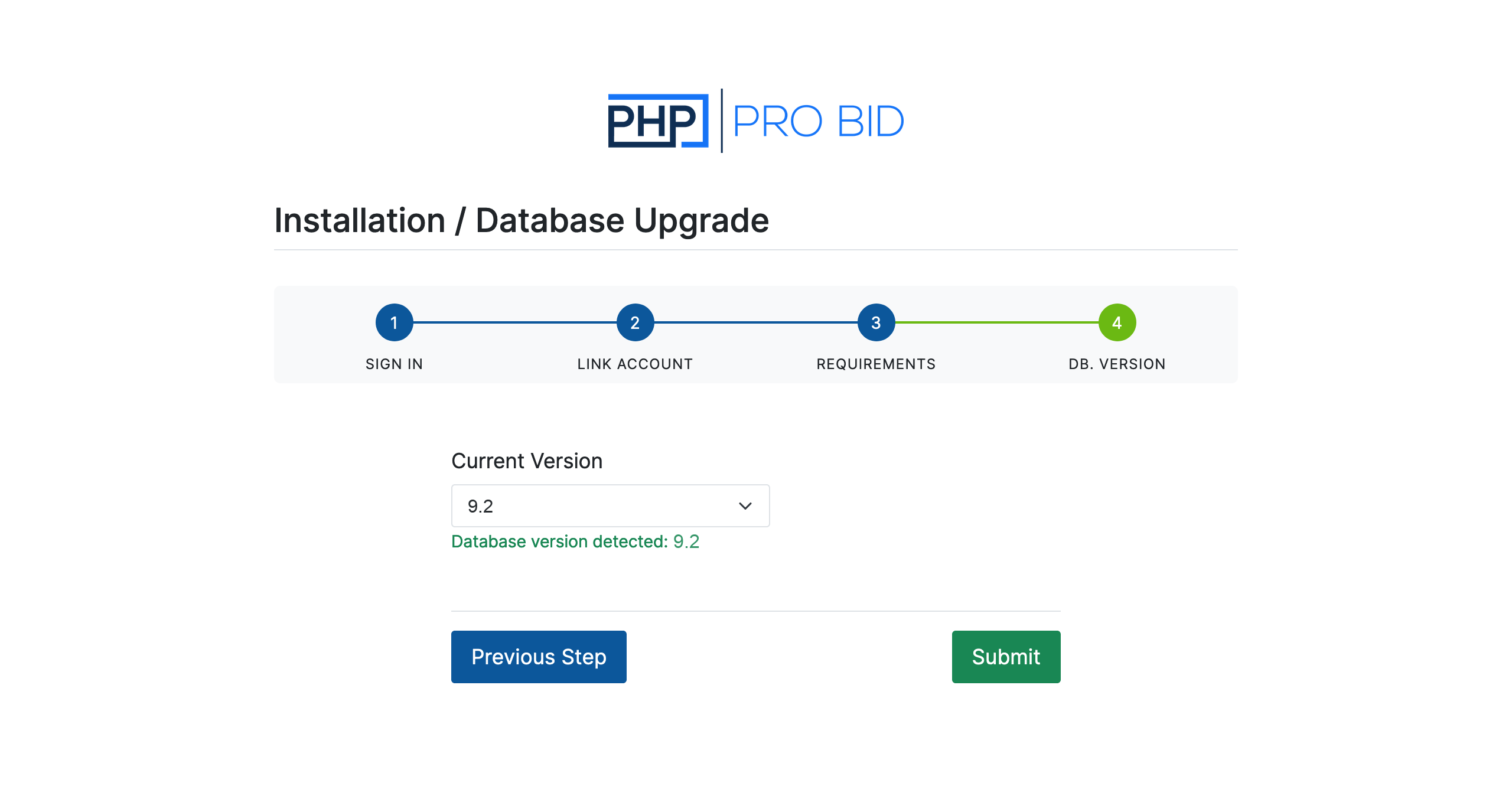
Step 4 — DB Version
The installer detects the version your database is currently on and shows it here. You don't normally need to change anything — just confirm the detected version and click Submit to run the upgrade.
Finishing up
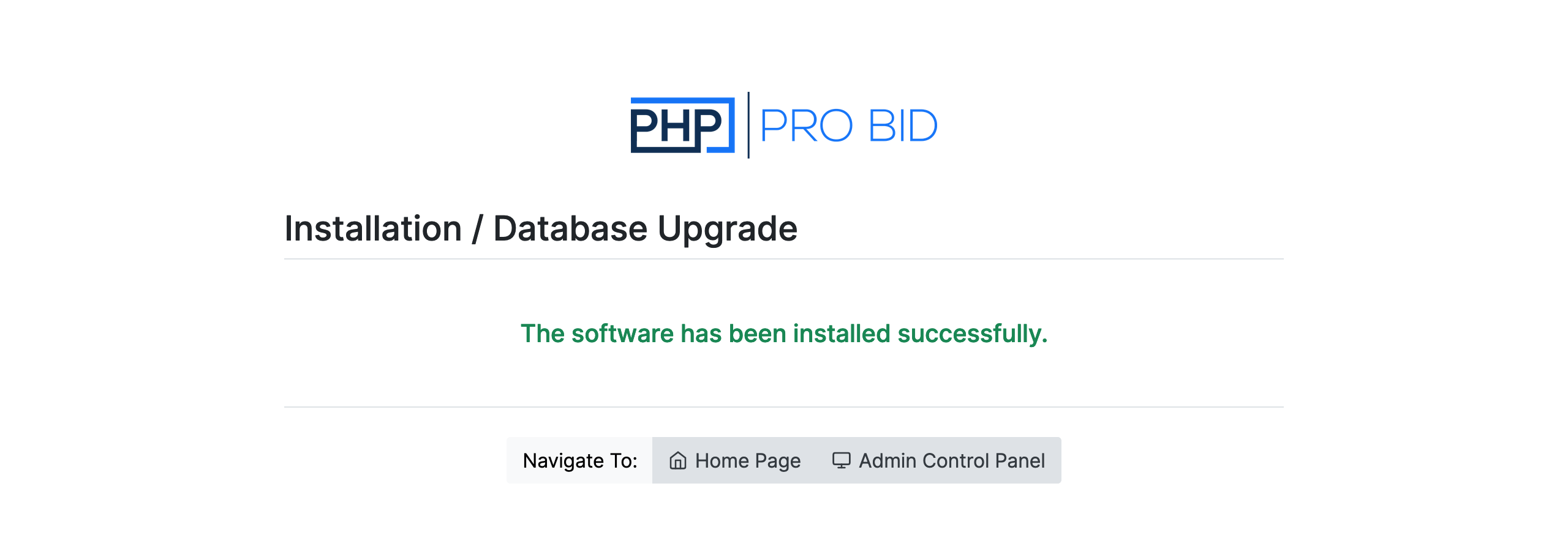
When the upgrade completes, you'll see the confirmation screen. Your installation is now on v10 — head to your Home Page or the Admin Control Panel to carry on.
Security tip: once the upgrade is done, delete the install/ folder from your server
so the installer can't be run again.