
Custom Start & End Times
Overview
By default, a listing starts immediately when published and runs for the duration selected by the seller. Custom start and end times let sellers schedule a listing to go live at a future date or set a specific closing date and time instead of relying on a duration countdown.
Setting Custom Times
When creating or editing a listing, go to the Publishing tab. If the administrator has enabled custom times, you will see Start Time and End Time options with a Custom radio button and a date/time picker:
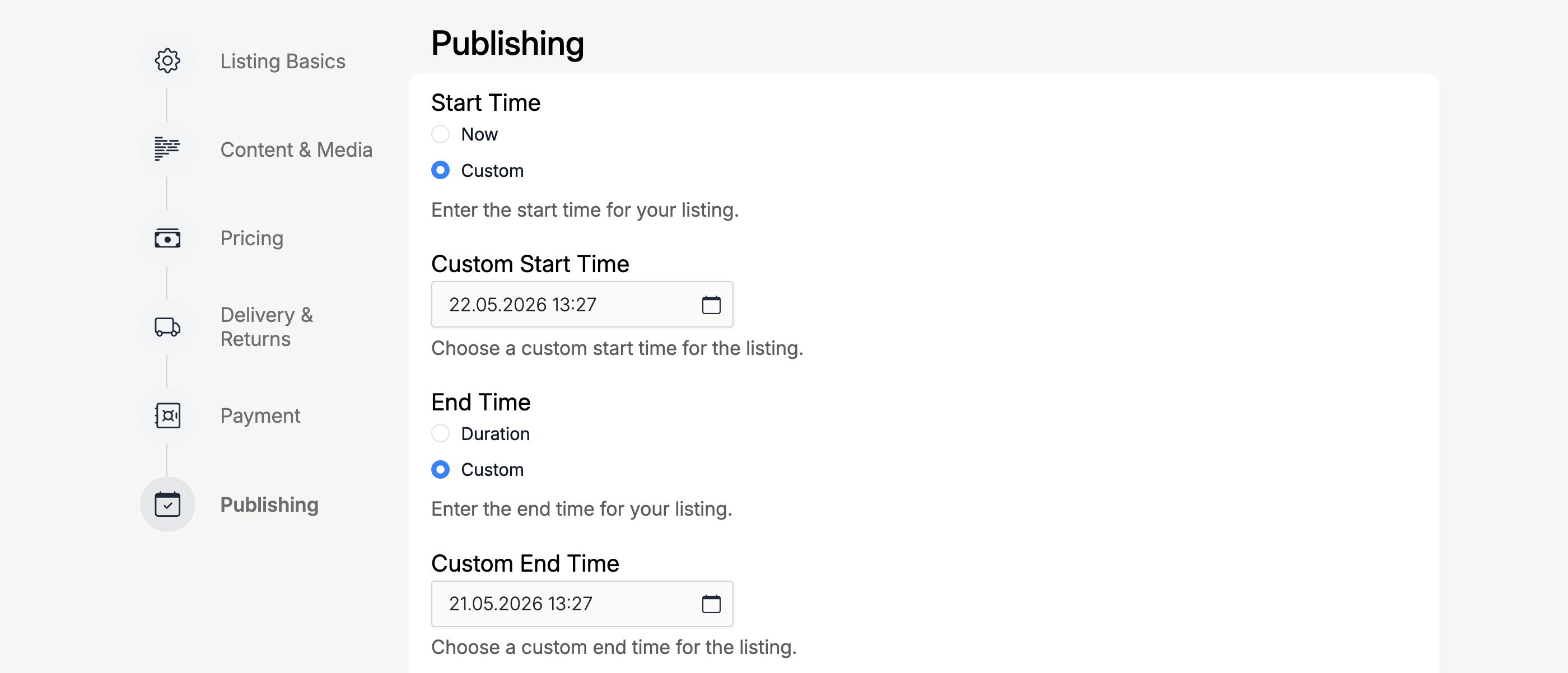
- Start Time — choose Now to publish immediately, or Custom to pick a future date and time
- End Time — choose Duration to use a countdown from the start time, or Custom to set an exact closing date and time
Custom start times are useful for coordinating launches across multiple listings or timed events. Custom end times let you align a listing’s close with a real-world deadline.
Admin Settings
Custom time settings are managed at Admin → Listings → Settings → Listing Setup:

Enable Custom Start Time

- Enable Custom Start Time — when checked, sellers can schedule a listing to start at a future date and time instead of going live immediately
Enable Custom End Time

- Enable Custom End Time — when checked, sellers can set a specific closing date and time instead of using a duration countdown