
Wish List
Overview
The wish list lets buyers save listings they are interested in for later. It works as a simple bookmarking tool — save items you might want to purchase or bid on in the future and come back to them when you are ready.
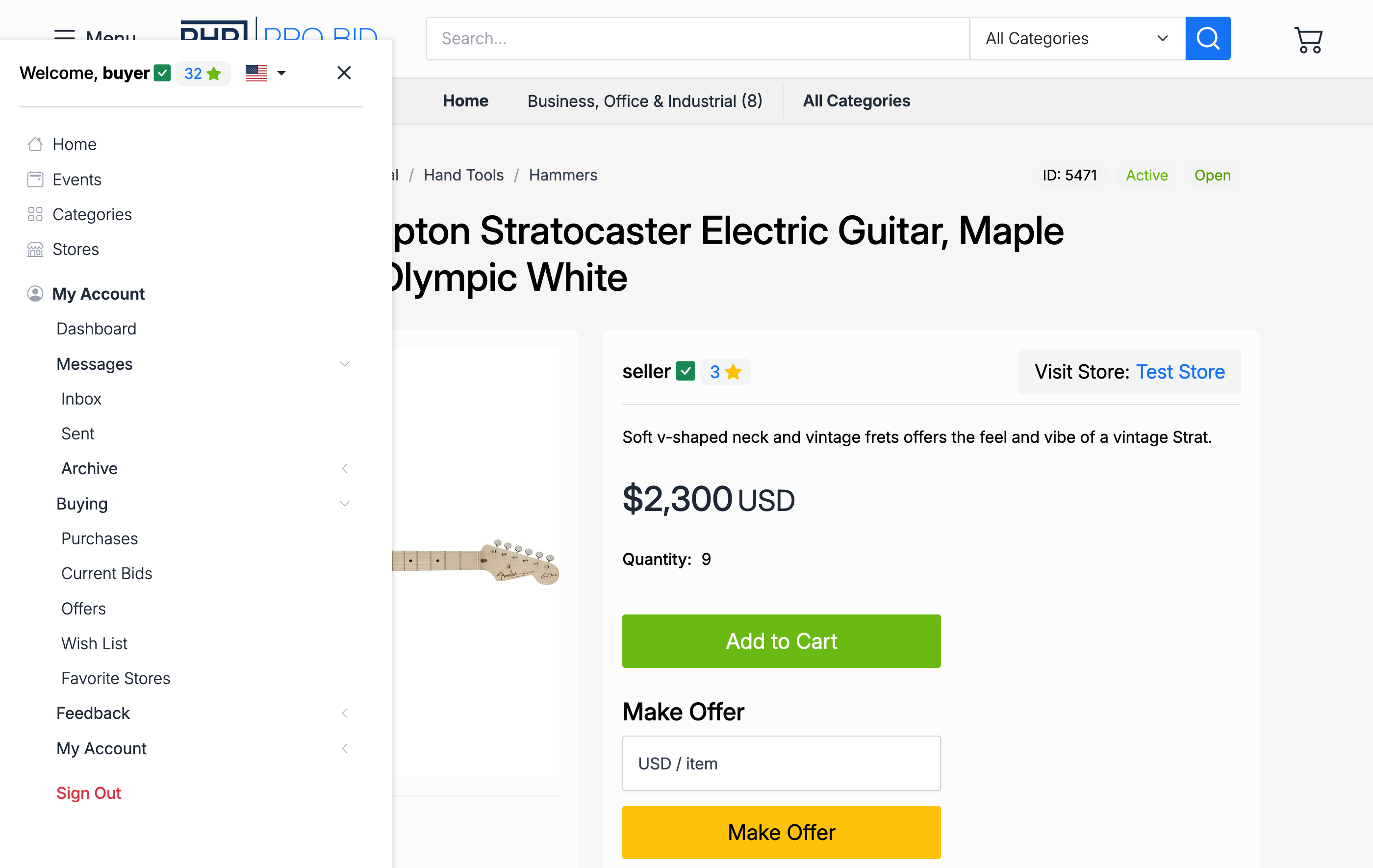
Wish list items are accessible from Members Area → Buying → Wish List in the sidebar navigation.
Adding Items
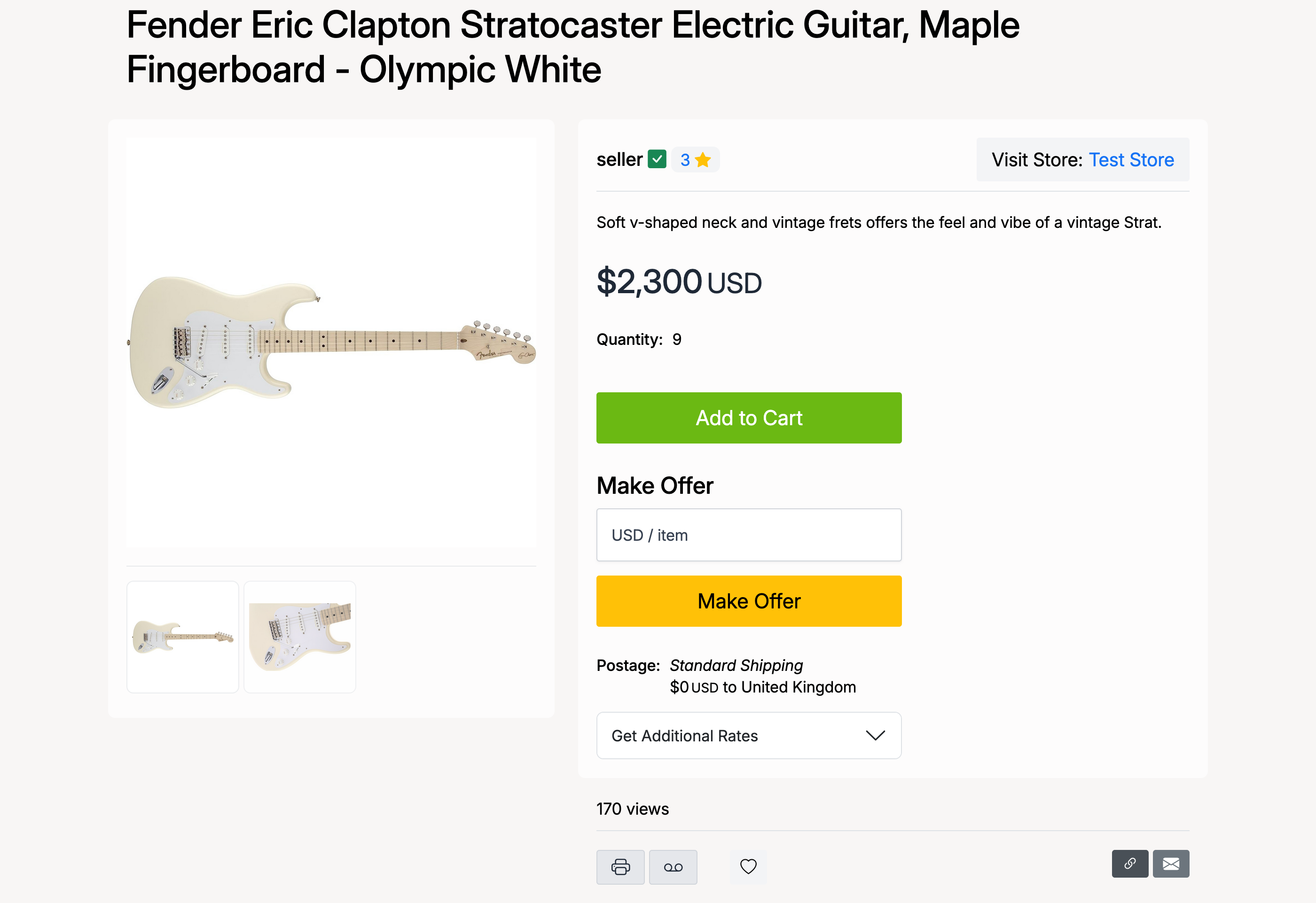
On any listing page, click the heart icon at the bottom of the listing details to add it to your wish list:
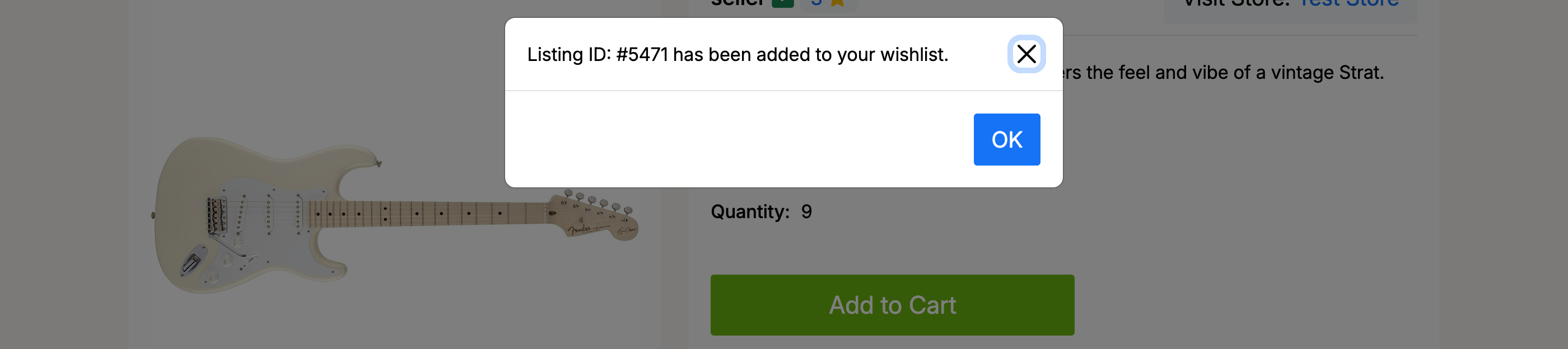
A confirmation dialog confirms the item has been added:
Wish List Page
To view your saved items, open the sidebar menu and navigate to Buying → Wish List:
The wish list page displays all your saved listings as cards with the item image, seller, title, price, and quick action buttons:
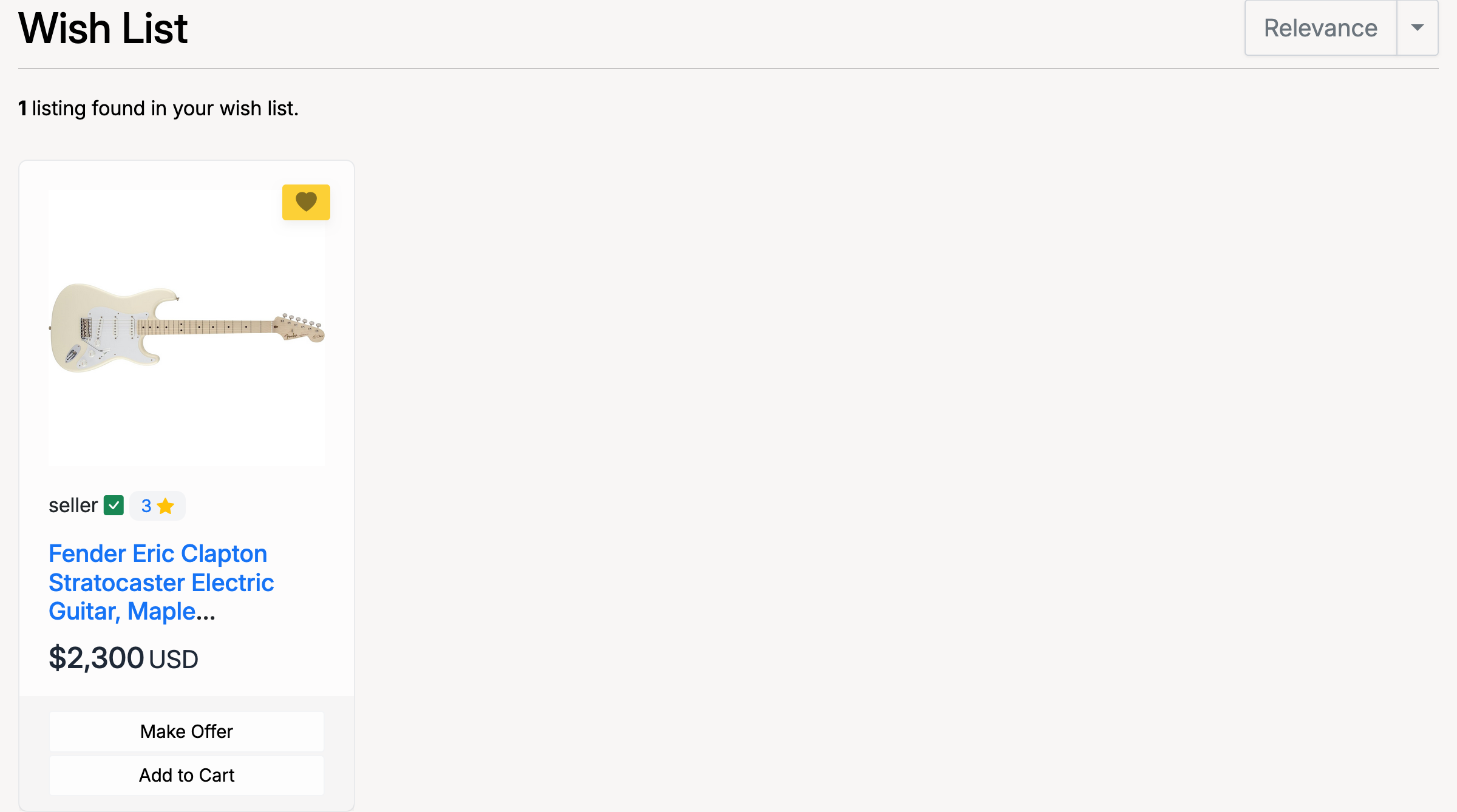
From the wish list you can:
- Click the listing title — go to the full listing page
- Make Offer — submit an offer on the item (if the seller accepts offers)
- Add to Cart — add the item directly to your shopping cart (product listings only)
- Remove — click the heart icon on the card to remove the item from your wish list
Admin Settings
Wish list settings are found at Admin → Listings → Settings → Wish List.
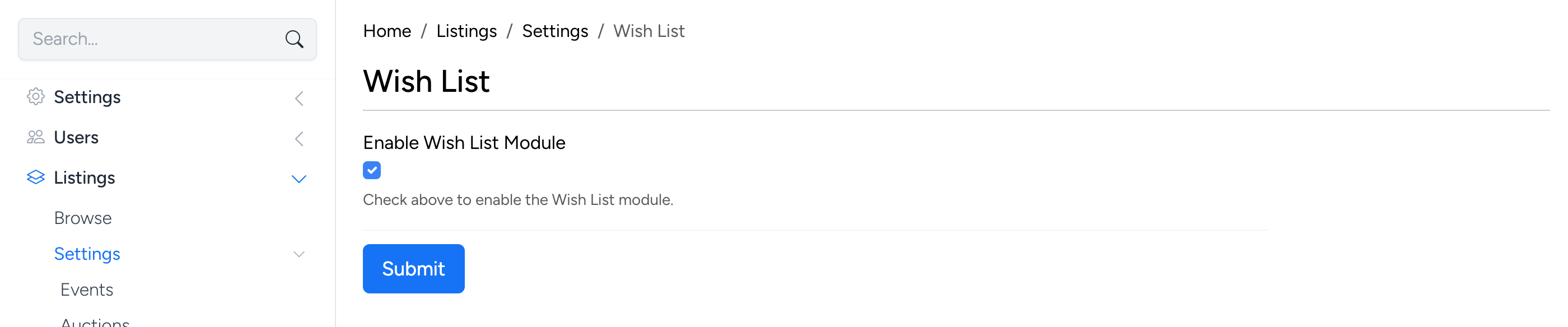
Enable Wish List Module

- Enable Wish List Module — the master switch for the wish list feature. When checked, buyers can save listings to their wish list using the heart icon on listing pages. When unchecked, the wish list feature is hidden from the site entirely.