
Signup Confirmation
The site administrator chooses how new accounts are activated after registration. There are three modes. Which one applies to you depends on how the site is configured.
No Confirmation Required
Accounts are activated immediately. You can log in right after registering —
no email needed.
Email Address Confirmation
A confirmation link is sent to your email. You must click it before your
account becomes active.
Admin Approval
You confirm your email address first, then an administrator manually reviews
and activates your account.
Email Address Confirmation
After submitting the registration form a confirmation email is sent immediately to the address you provided. The email contains an activation link that is valid for 24 hours.
- Submit the registration form.
- Check your inbox for the confirmation email — also check your spam or junk folder if it doesn't arrive within a few minutes.
- Click the activation link inside the email.
- Your account is now active. Log in with your username and password.
Resend Confirmation Email
If you did not receive the email or the link has expired, you can request a new one.
- Go to the Sign In page and click Resend Confirmation Email, or go directly
to
/sign-up/resend-confirmation. - Enter the email address you registered with and click Submit.
- A new confirmation email will be sent if that address matches an unconfirmed account.
- Click the new link within 24 hours.
If no email arrives after a resend, double-check the address you used when registering. If there was a typo, you will need to register again with the correct address.
Admin Approval
When Admin Approval is enabled, your account goes through two steps before you can log in:
- Confirm your email address by clicking the link in the registration email (same as Email Address Confirmation above).
- Wait for the site administrator to review and manually activate your account from the Users management page.
- You will receive a notification email once your account has been approved.
Admin Approval is typically used on private or invite-only sites. If your account is stuck after confirming your email, contact the site administrator.
Admin Settings
Administrators configure the signup confirmation mode from Admin Control Panel → Settings → Users → Registration, under the User Sign-up Confirmation heading.
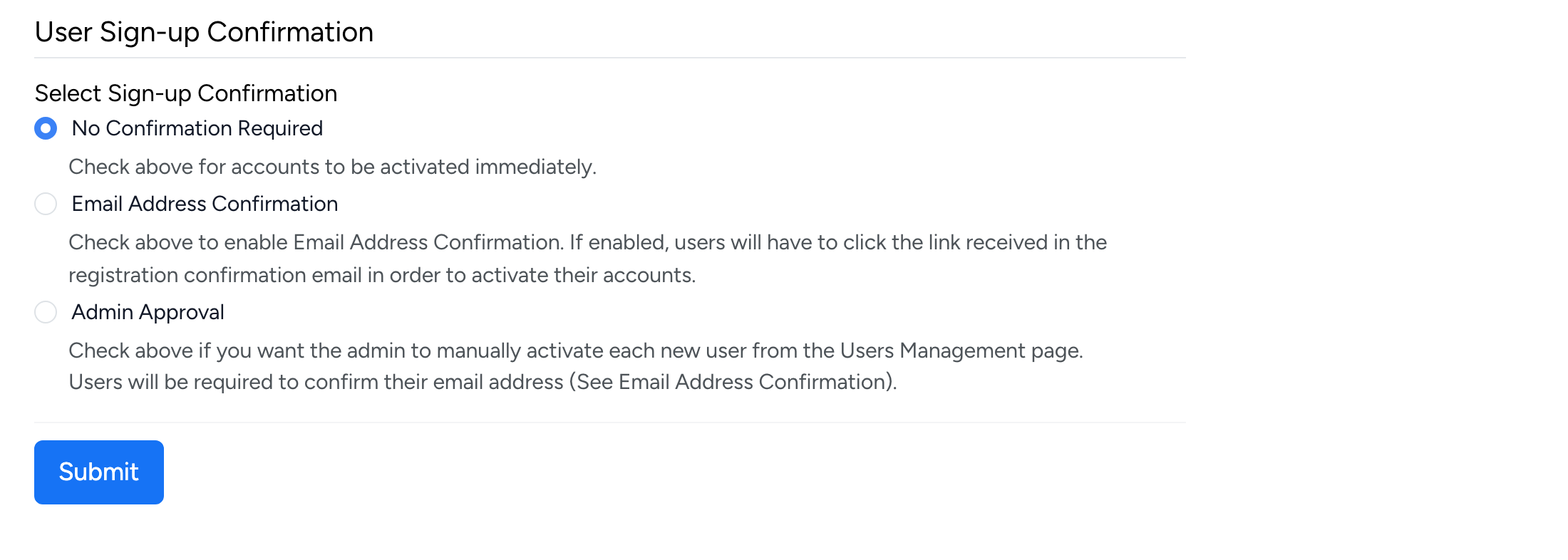
- No Confirmation Required — accounts are activated immediately after registration. Fastest option, but provides no email validation.
- Email Address Confirmation — users must click a confirmation link sent to their email. Ensures the email address is valid and owned by the registrant.
- Admin Approval — users confirm their email first, then an administrator must manually approve the account from the Users Management page. Users will also be required to confirm their email address.
Registration type and password strength settings are on the same admin page but are covered in Registration and Password & Security.