
Buyer Shipping Options
Overview
Buyers can view shipping details on every listing page and edit their shipping preferences on unpaid invoices. This page explains where to find shipping information and how to change the delivery address or postage method before paying.
Postage Information
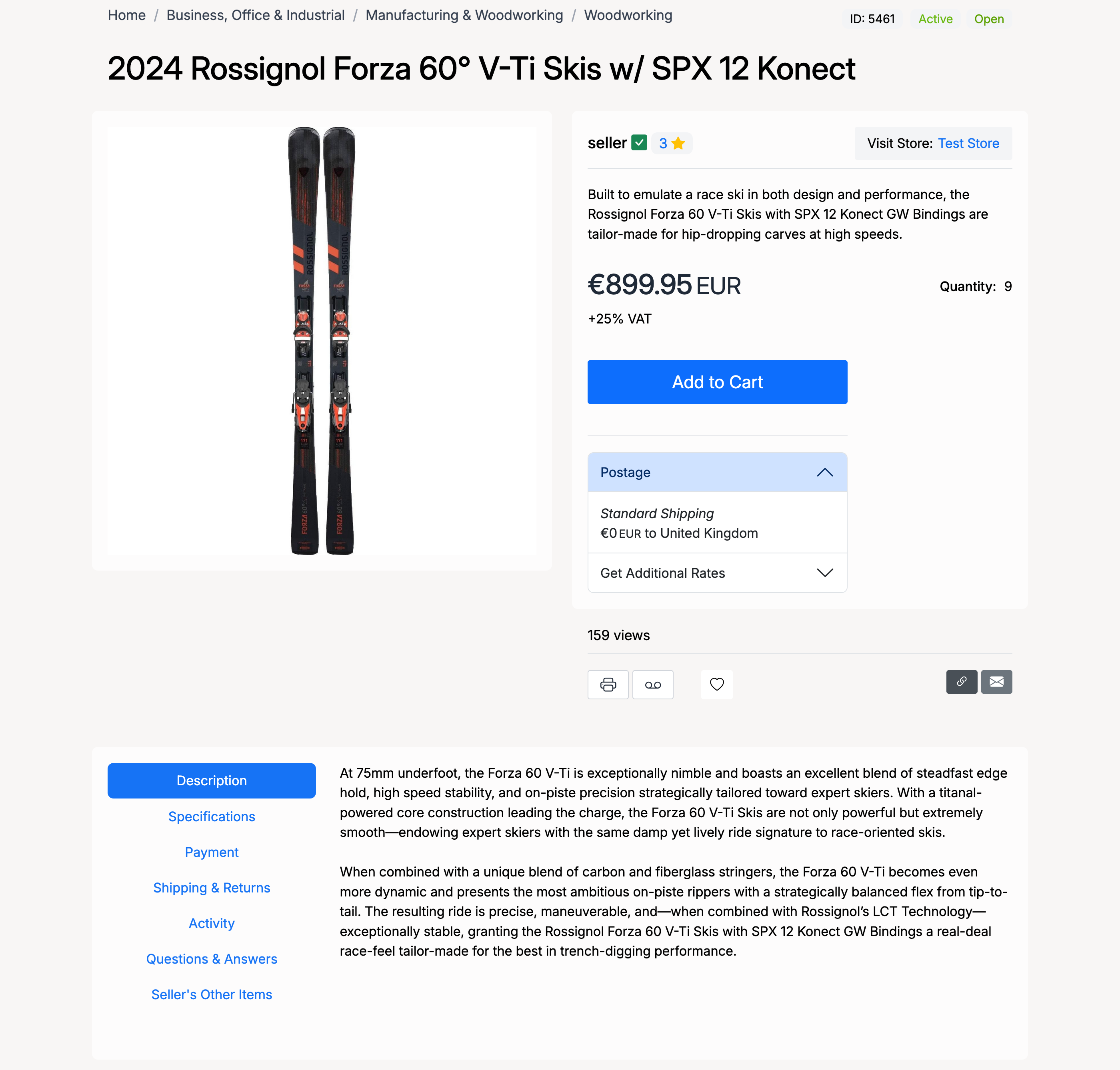
Each listing displays a Postage section below the price. This shows the shipping method, cost, and delivery destination. Click Get Additional Rates to see other available shipping options and rates.
Shipping & Returns Tab
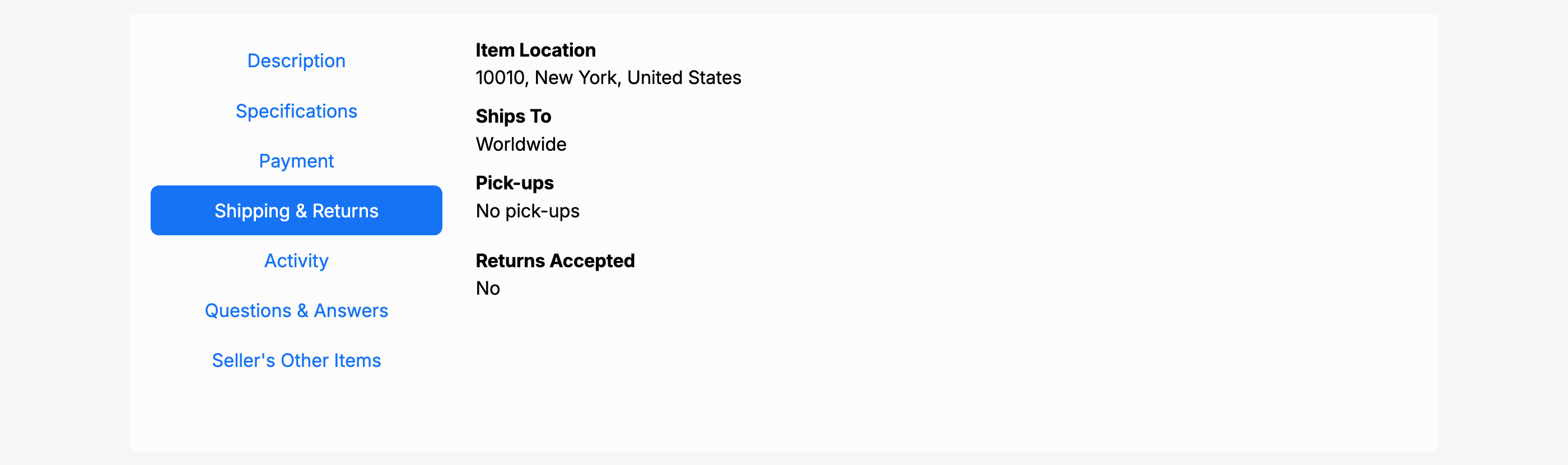
The Shipping & Returns tab on the listing page provides full shipping and returns details:
- Item Location — where the item is shipping from.
- Ships To — the locations the seller ships to (Domestic, Worldwide, or custom regions).
- Pick-ups — whether the seller offers local pick-up.
- Returns Accepted — whether the seller accepts returns on this item.
Editing Shipping on an Invoice
After purchasing an item, buyers can edit shipping options on unpaid invoices. Go to Members Area → Buying → Purchases and open the invoice.
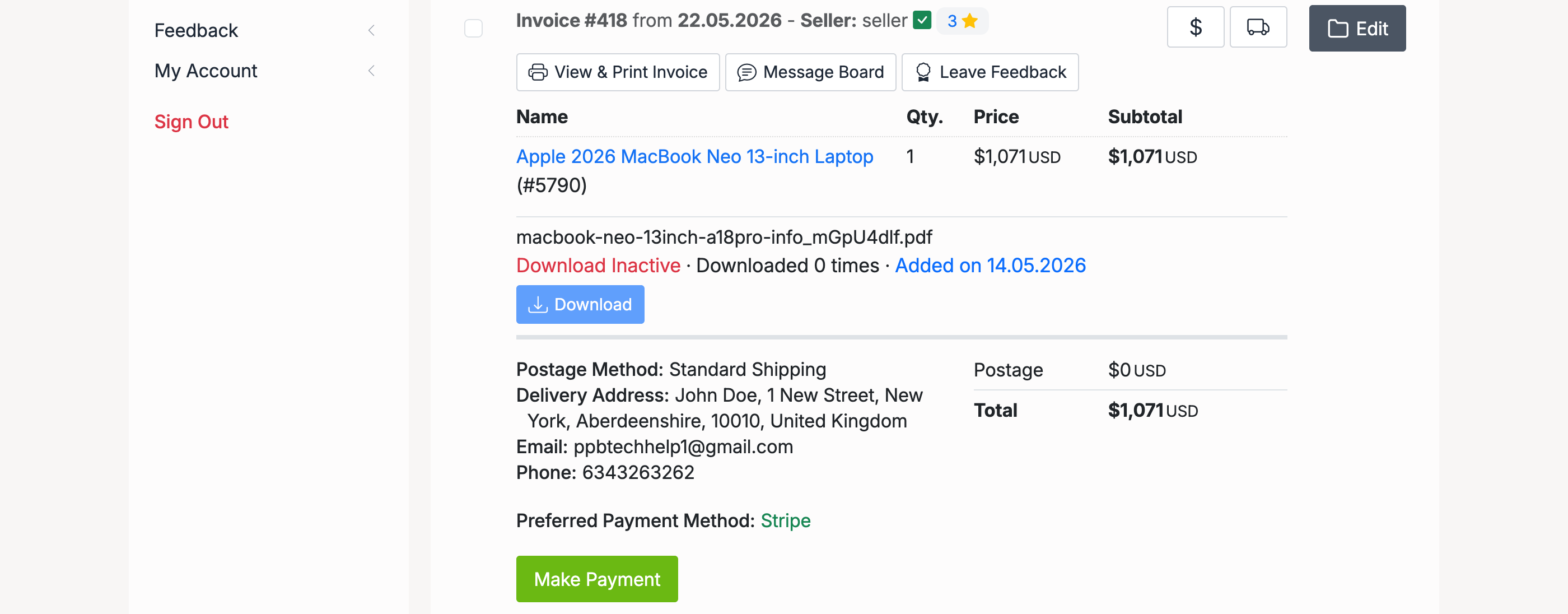
Click Edit on the invoice to change the delivery address or shipping method.
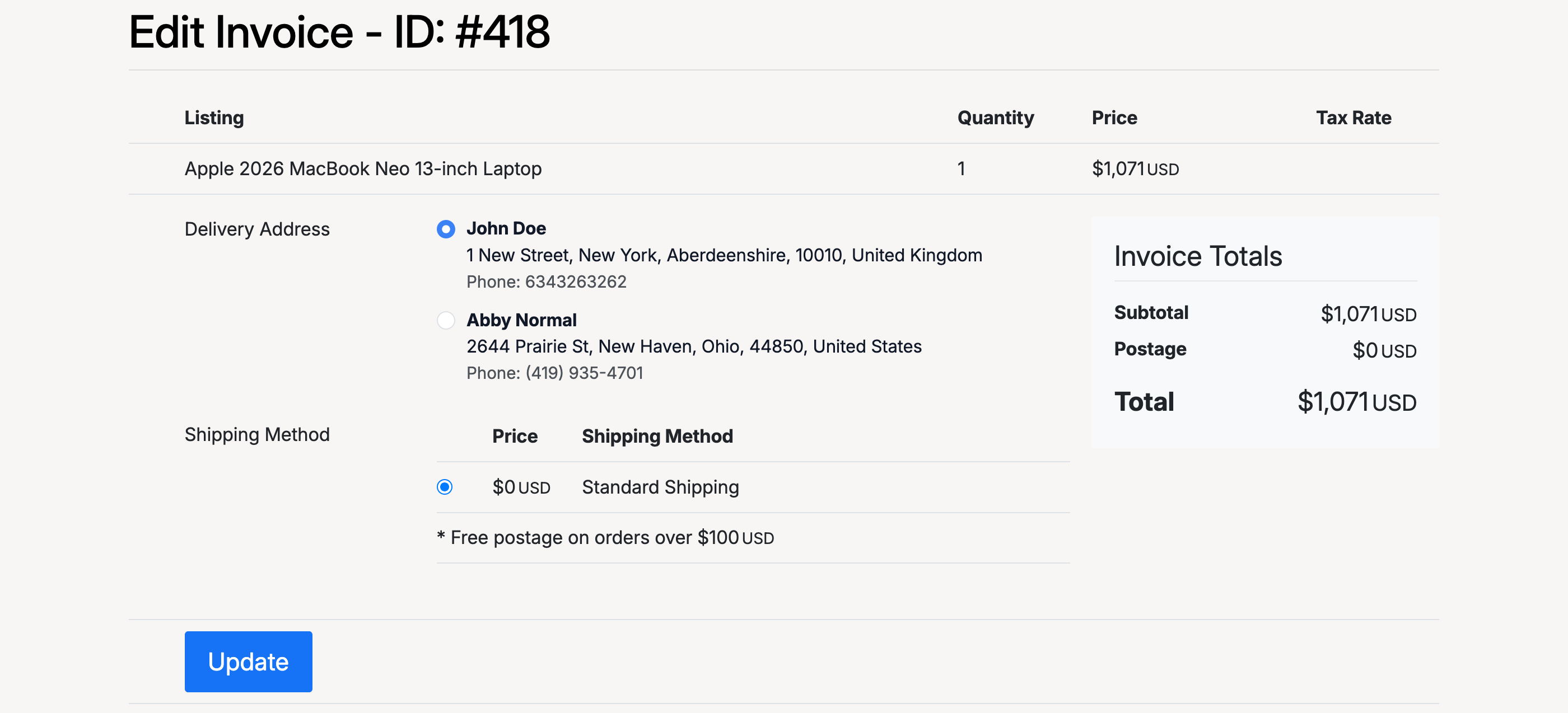
- Delivery Address — select from saved addresses in your address book. The invoice total updates automatically based on the selected address.
- Shipping Method — choose from the available postage options set by the seller. The postage cost updates when you select a different method.