
Address Book
Overview
The Address Book stores your shipping and billing addresses so they pre-fill automatically at checkout. You can save multiple addresses and designate one as your primary (default) address.
To open the Address Book: log in, click your username in the top-right corner, select Members Area, then go to My Account → Address Book.
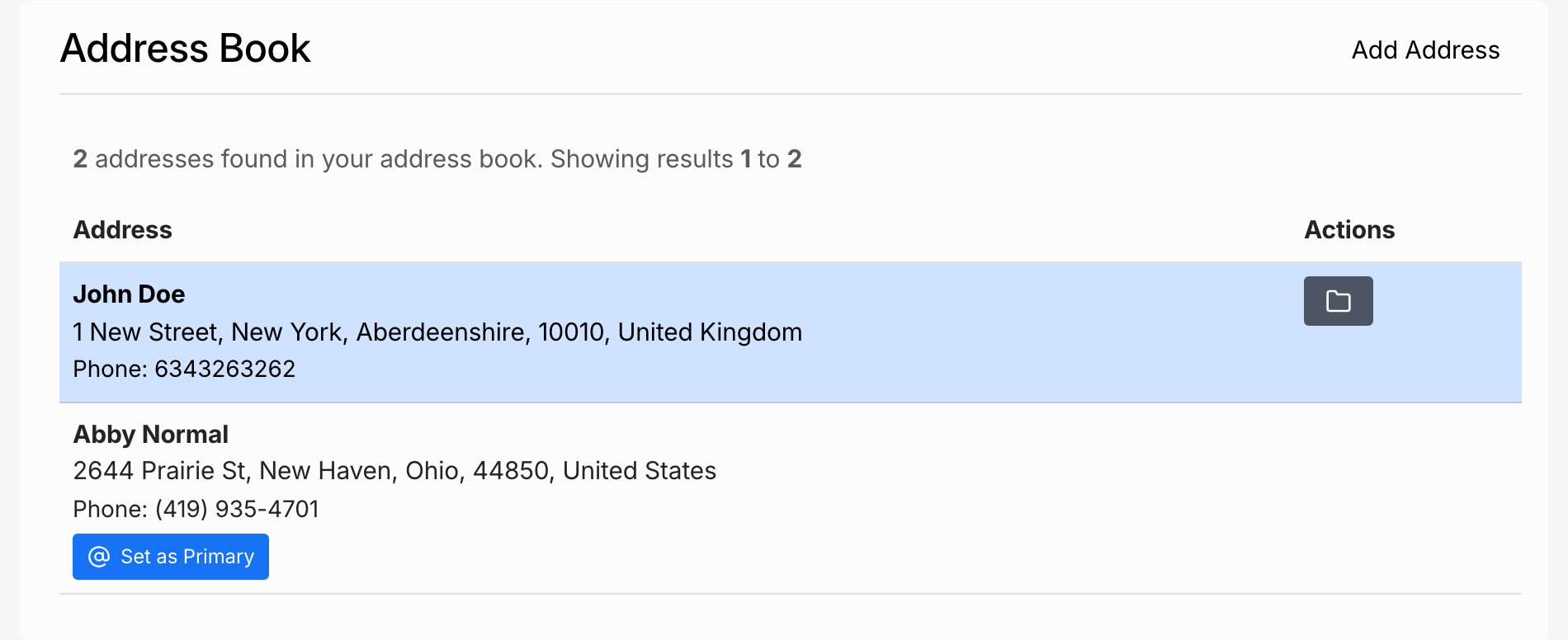
The screenshot above shows the address book list with:
- The total number of saved addresses.
- Each address displaying name, street, city, county/state, zip, country, and phone number.
- The primary address shown first (in bold).
- An Add Address button in the top-right corner.
- Edit and Set as Primary actions on secondary addresses.
Adding an Address
You can store as many addresses as you need — for example a home address, a business address, and a collection point.
- Go to Members Area → My Account → Address Book.
- Click Add Address.
- Fill in the required fields (see below).
- Click Submit to save the address.
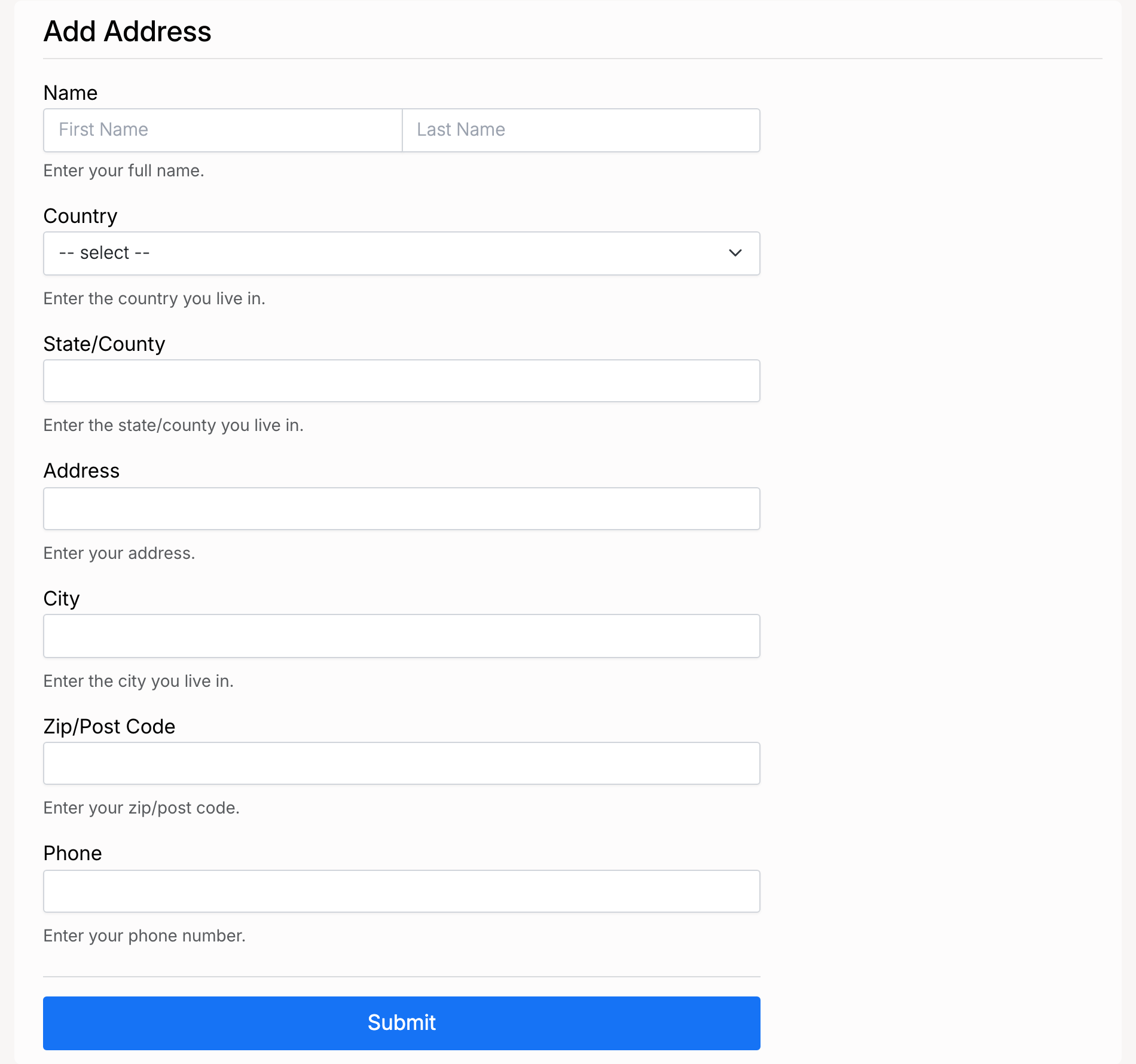
The Add Address form asks for:
- Name — first and last name for this address (e.g. the recipient's name).
- Country — select from the dropdown.
- State/County — may update based on the selected country.
- Address — street address or P.O. box.
- City
- Zip/Post Code
- Phone — a contact number for delivery.
Primary Address
Your primary address is the default shipping destination selected at checkout. It is also used as the billing address on invoices unless you choose otherwise during checkout.
- If you only have one address saved, it automatically becomes the primary address.
- To change which address is primary, click Set as Primary next to any secondary address.
- The primary address cannot be deleted while it is the primary — first set a different address as primary, then delete the old one.
- If the primary address has been used in a completed purchase or sale, it may be locked from editing to preserve the transaction record.
Editing and Deleting Addresses
Secondary addresses (any address that is not currently the primary) can be freely edited or deleted at any time.
- Go to My Account → Address Book.
- Click Edit next to the address you want to change, update the fields, and click Submit.
- To remove an address, click Delete. You will be asked to confirm.
Admin Settings
Administrators configure how addresses are displayed across the site from Admin Control Panel → Settings → Users → Address Display Format.
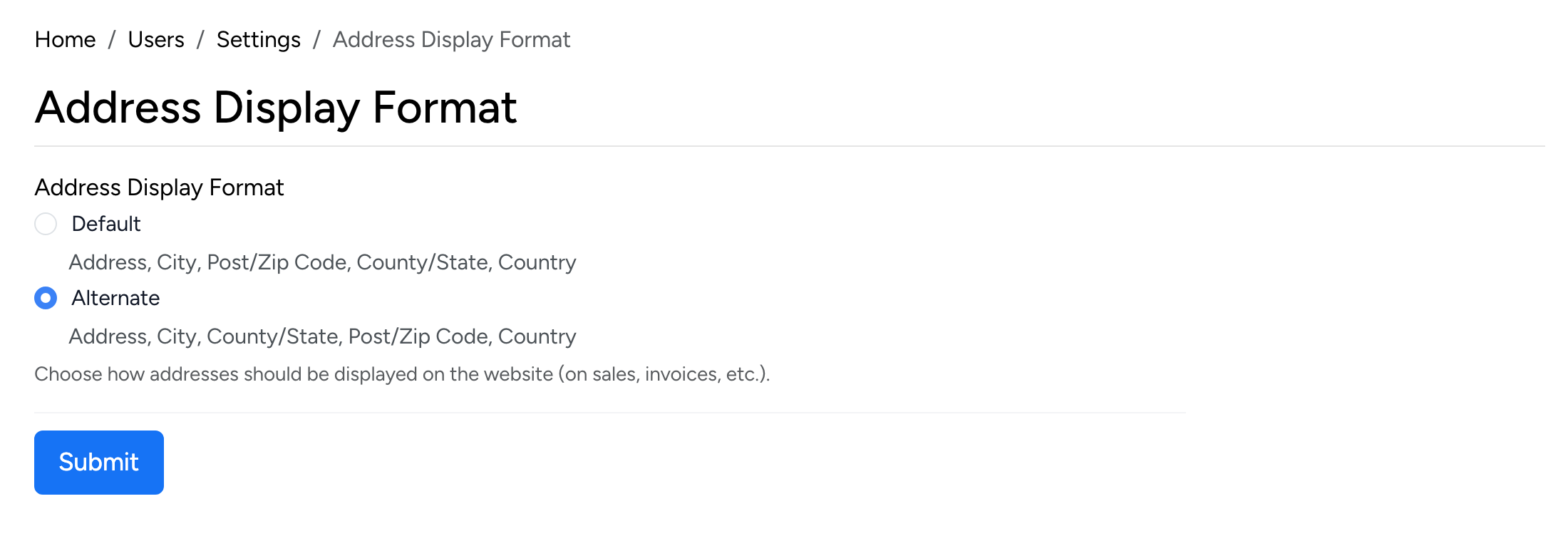
Two display formats are available:
- Default — Address, City, Post/Zip Code, County/State, Country
- Alternate — Address, City, County/State, Post/Zip Code, Country
This setting affects how addresses appear on sales pages, invoices, and shipping documents. It does not change the order of fields in the Address Book or registration form.