
Admin Tools
Admin tools provide utilities for managing newsletters, monitoring site visitors, filtering content, and setting up URL redirects. All options are found under Admin → Tools.
Newsletters
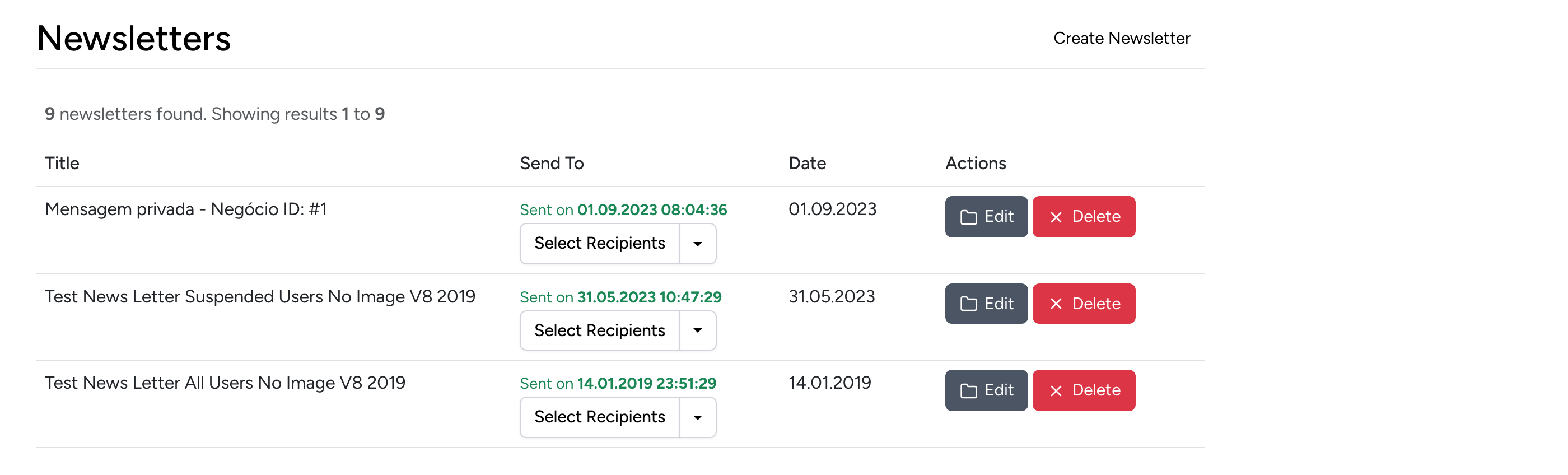
Create and send newsletters to your subscribers. The newsletter list shows:
- Title — the newsletter subject line.
- Send To — the recipient group. Use the dropdown to select specific user groups or all subscribers.
- Date — when the newsletter was sent.
- Actions — edit, clone, or delete a newsletter.
Click Create Newsletter to compose a new message:
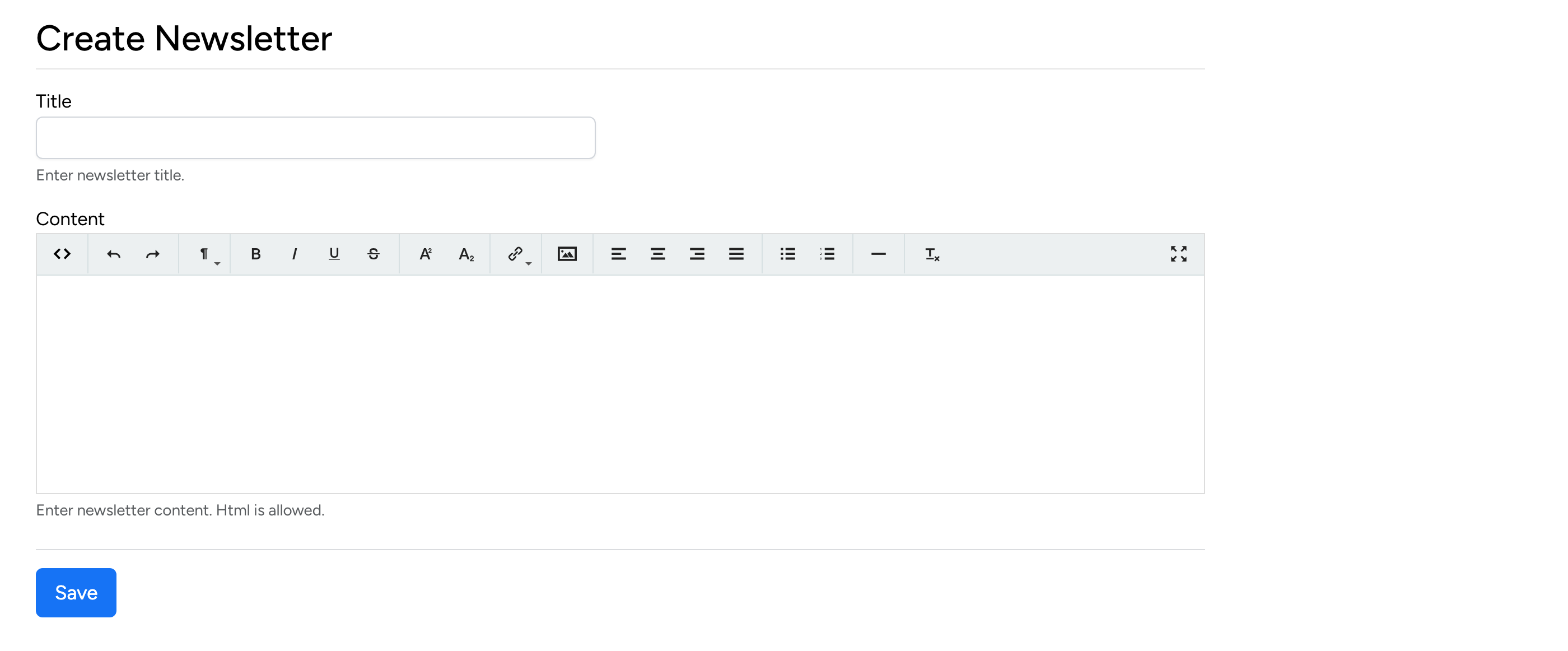
Enter a title (used as the email subject line) and compose the newsletter content using the rich text editor. HTML is supported. To enable or disable the newsletter system, see Site Settings → Newsletters Module.
Newsletter Subscribers
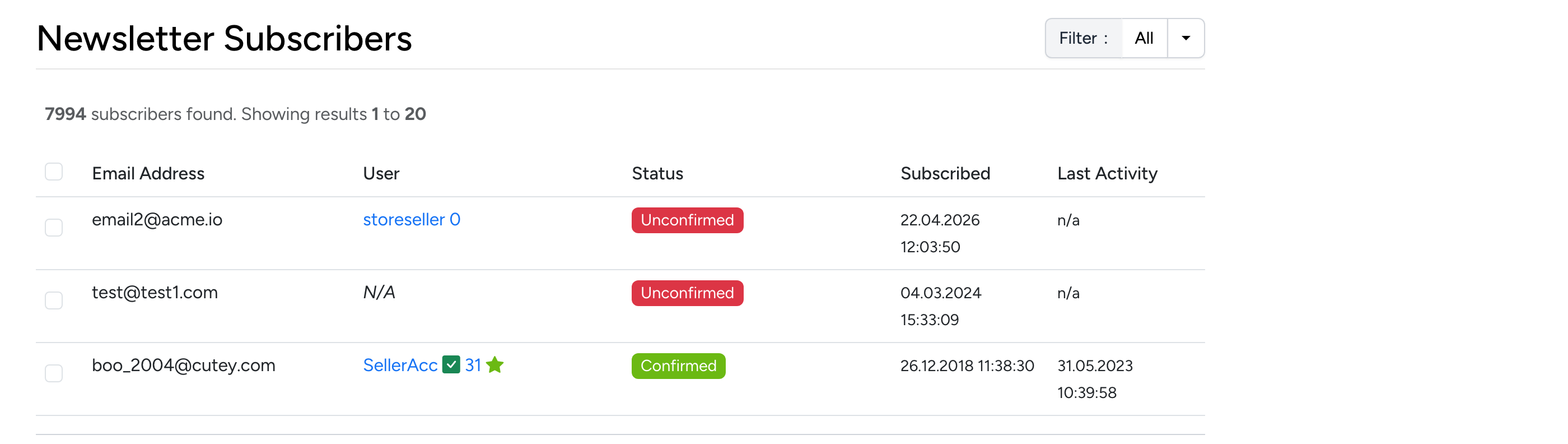
View and manage all newsletter subscribers. The table shows:
- Email Address — the subscriber’s email.
- User — the linked user account, if the subscriber is a registered member.
- Status — Confirmed, Unconfirmed, Unsubscribed, Spam, or Bounced. Use the filter dropdown to view subscribers by status.
- Subscribed / Last Activity — when the subscriber signed up and their most recent interaction.
Who’s Online
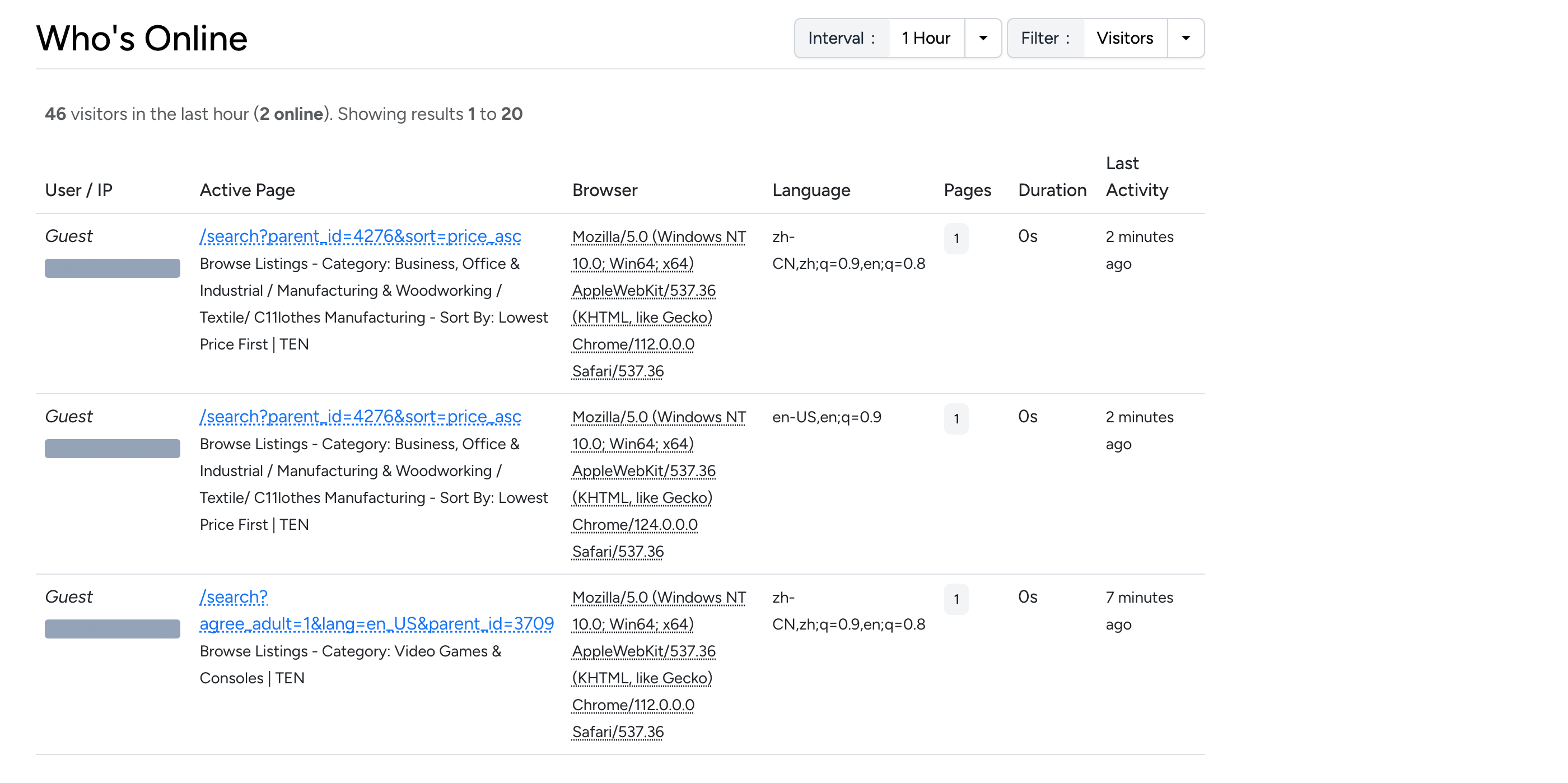
A real-time view of visitors currently browsing the site. For each visitor you can see:
- User / IP — the username (for logged-in members) or IP address (for guests).
- Active Page — the page the visitor is currently viewing.
- Browser — browser name and version.
- Language — the visitor’s browser language.
- Pages — the total number of pages viewed in the current session.
- Duration — how long the visitor has been on the site.
- Last Activity — time since the visitor’s last page load.
Use the interval and filter controls at the top to adjust the refresh rate and filter by visitor type (members, guests, or visitors from a specific country).
Word Filter
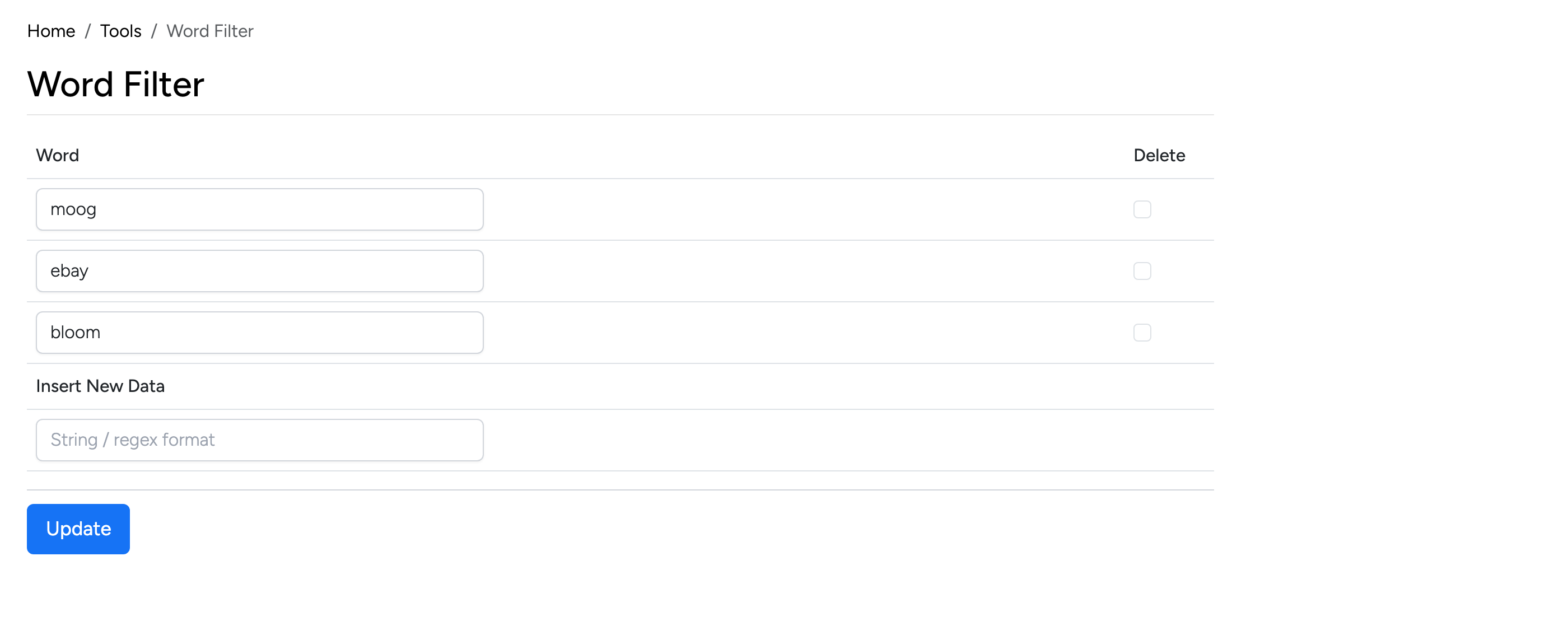
Block specific words or phrases from appearing in listing titles, descriptions, and other user-generated content. Filtered words are automatically removed or replaced when content is submitted.
- Word — the word or regex pattern to filter. Supports string or regex format.
- Insert New Data — add a new word or pattern to the filter list.
- Delete — check the box next to a word and click Update to remove it.
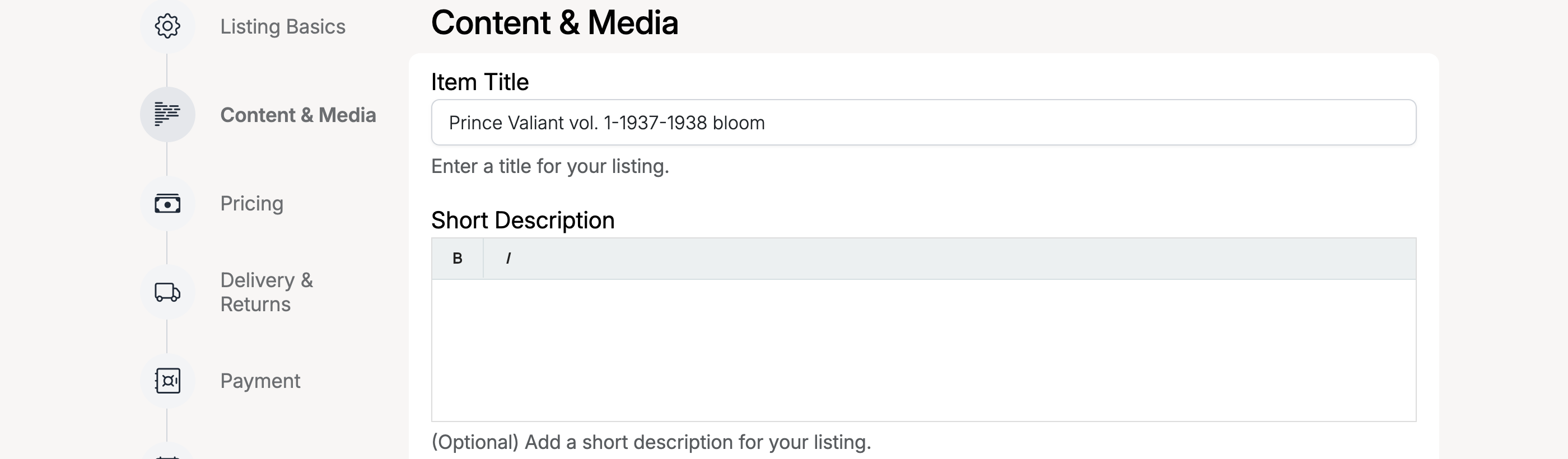
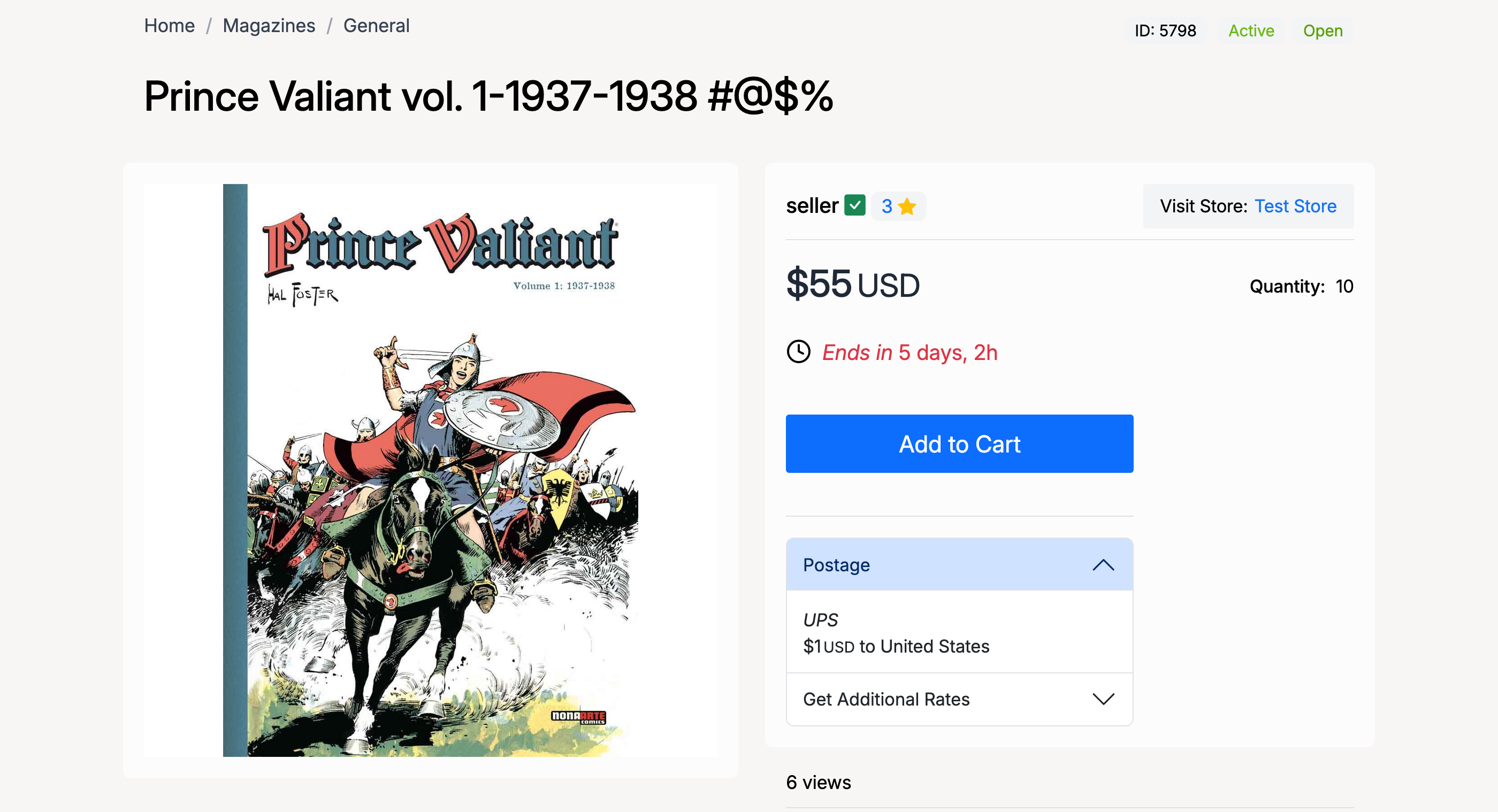
Example: A seller enters a listing title containing characters that match a word filter rule. The filter automatically replaces the matched content:
The front-end listing displays the original title as submitted:
SEO Link Redirects
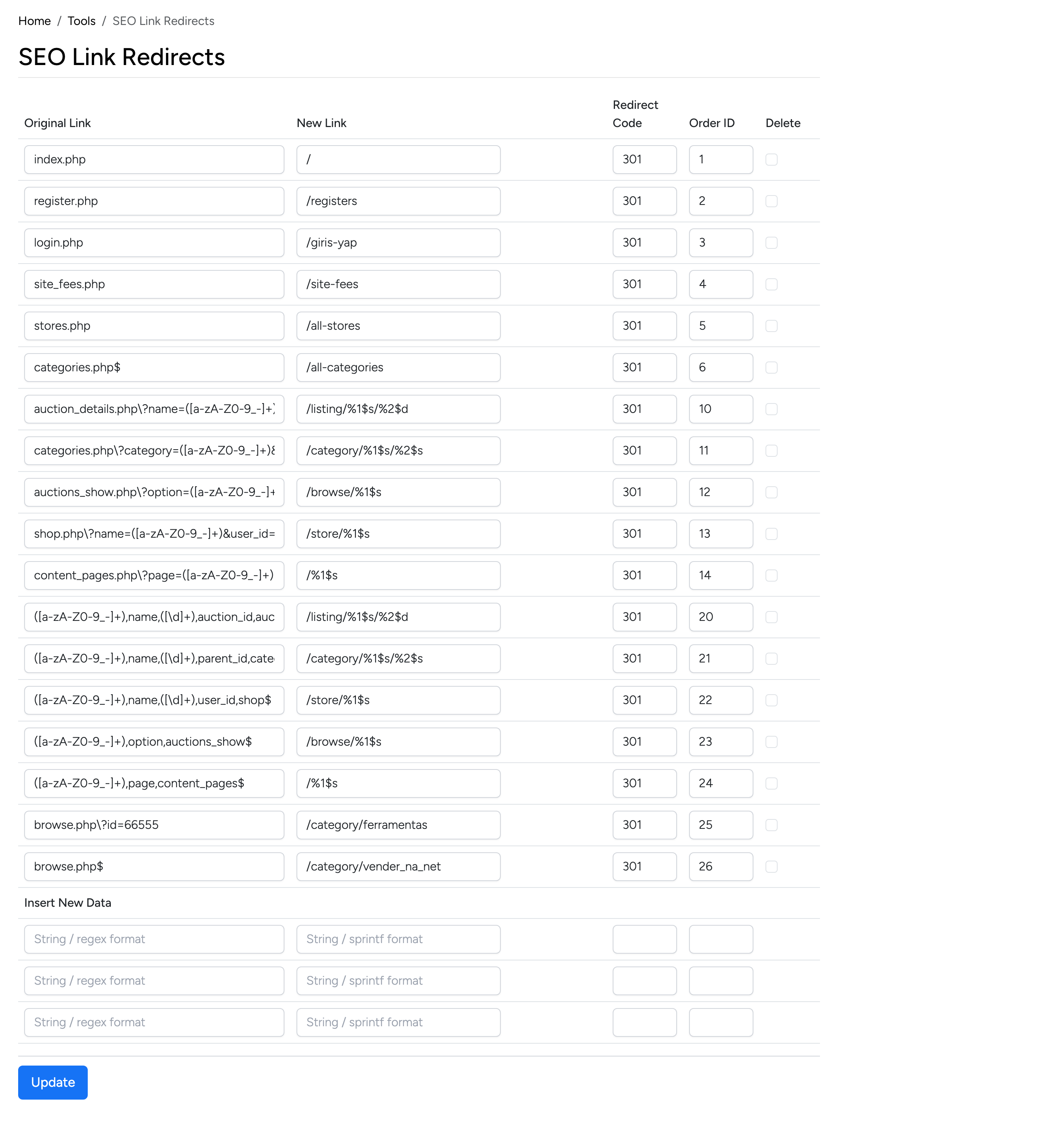
Set up URL redirects to preserve SEO when pages are moved or renamed. This is especially useful after upgrading from an older version of the software. Each redirect has:
- Original Link — the old URL pattern (supports regex).
- New Link — the destination URL (supports sprintf-style replacements for regex captures).
- Redirect Code — the HTTP status code (301 for permanent, 302 for temporary).
- Order ID — redirects are processed in order; lower numbers are matched first.
Use Insert New Data at the bottom to add new redirect rules.