
Create a Listing
Overview
Creating a listing is a two-step process: fill in the listing details on the Setup page, then review everything on the Preview page before going live. The setup form is divided into six sections — Listing Basics, Content & Media, Pricing, Delivery & Returns, Payment, and Publishing — each accessible via the left-hand navigation tabs.
You can create auctions, products (fixed price), or classified listings depending on how the administrator has configured the site.
Getting Started
To create a listing, open the sidebar menu and navigate to Selling → Listings → Create Listing:
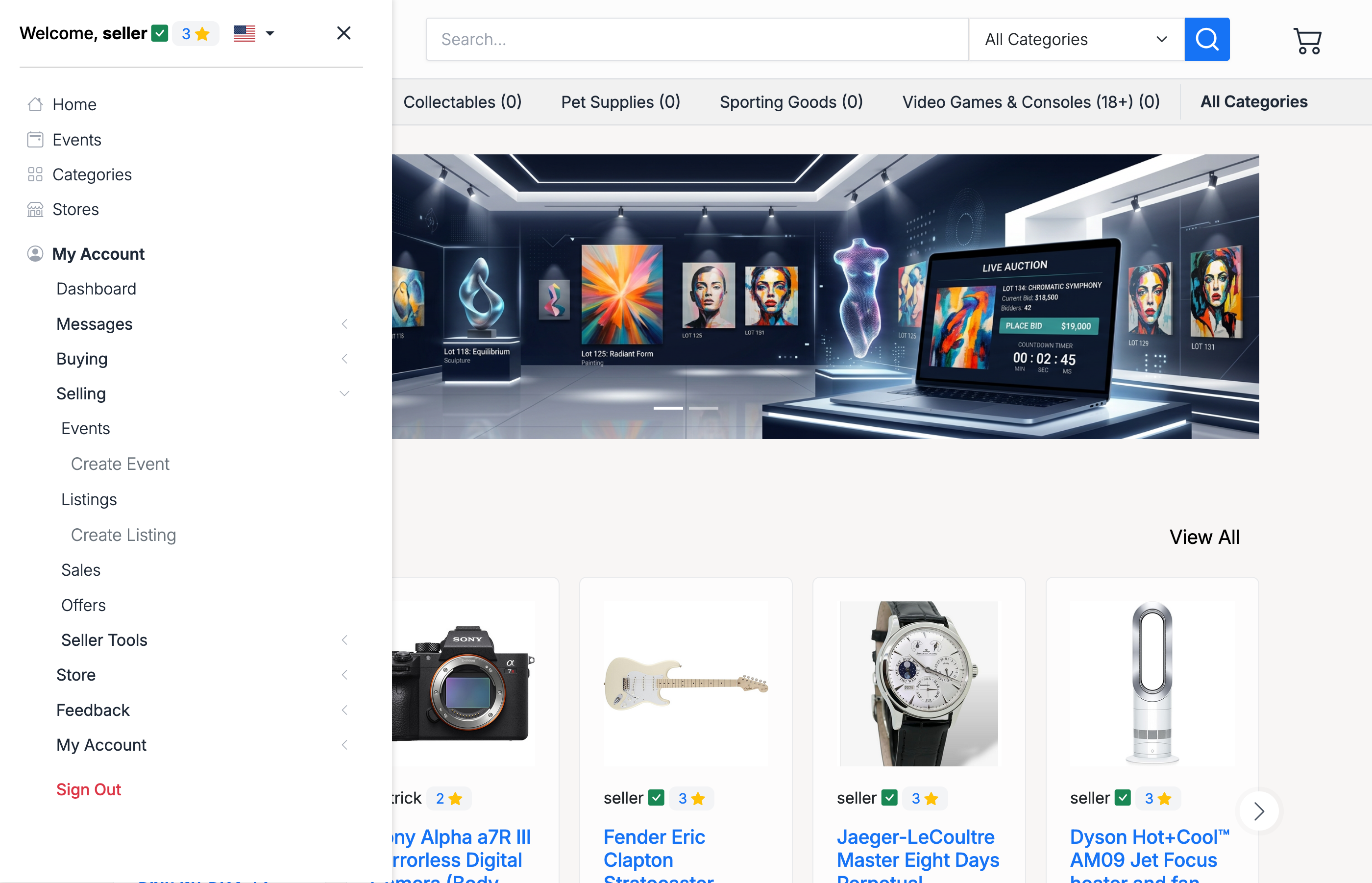
This opens the Create Listing page with a progress bar showing the two steps — Setup and Preview.
Listing Basics
The first section collects the essential details for your listing:
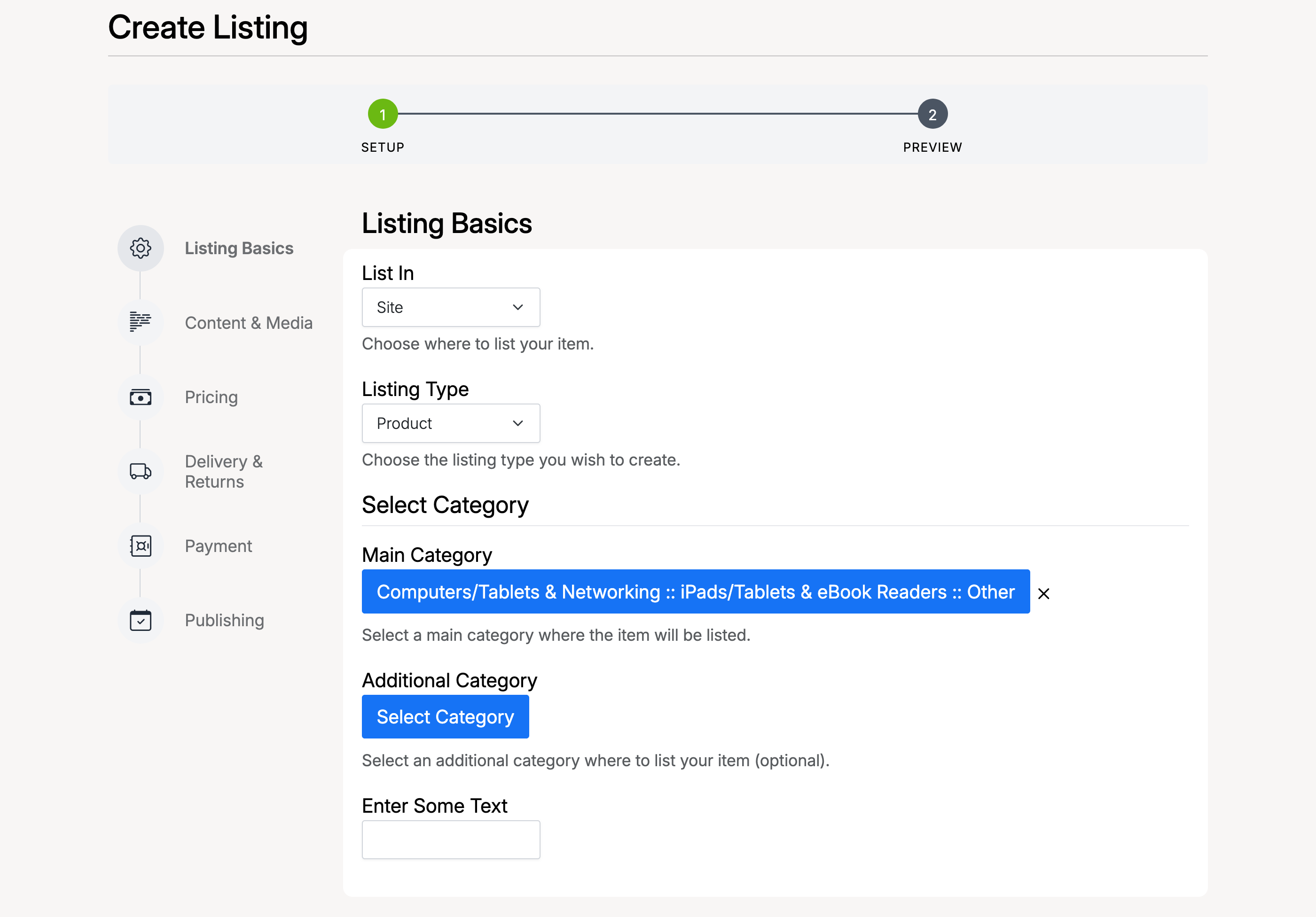
- List In — choose where to list your item: on the main site or in a specific store
- Listing Type — select the type of listing: Auction, Product, or Classified
- Main Category — select the category where your item will appear. Click through the category tree to find the right subcategory
- Additional Category — optionally list your item in a second category for extra visibility
- Enter Some Text — a captcha-style verification field to confirm you are not a bot
Content & Media
Add the details that buyers will see on the listing page:
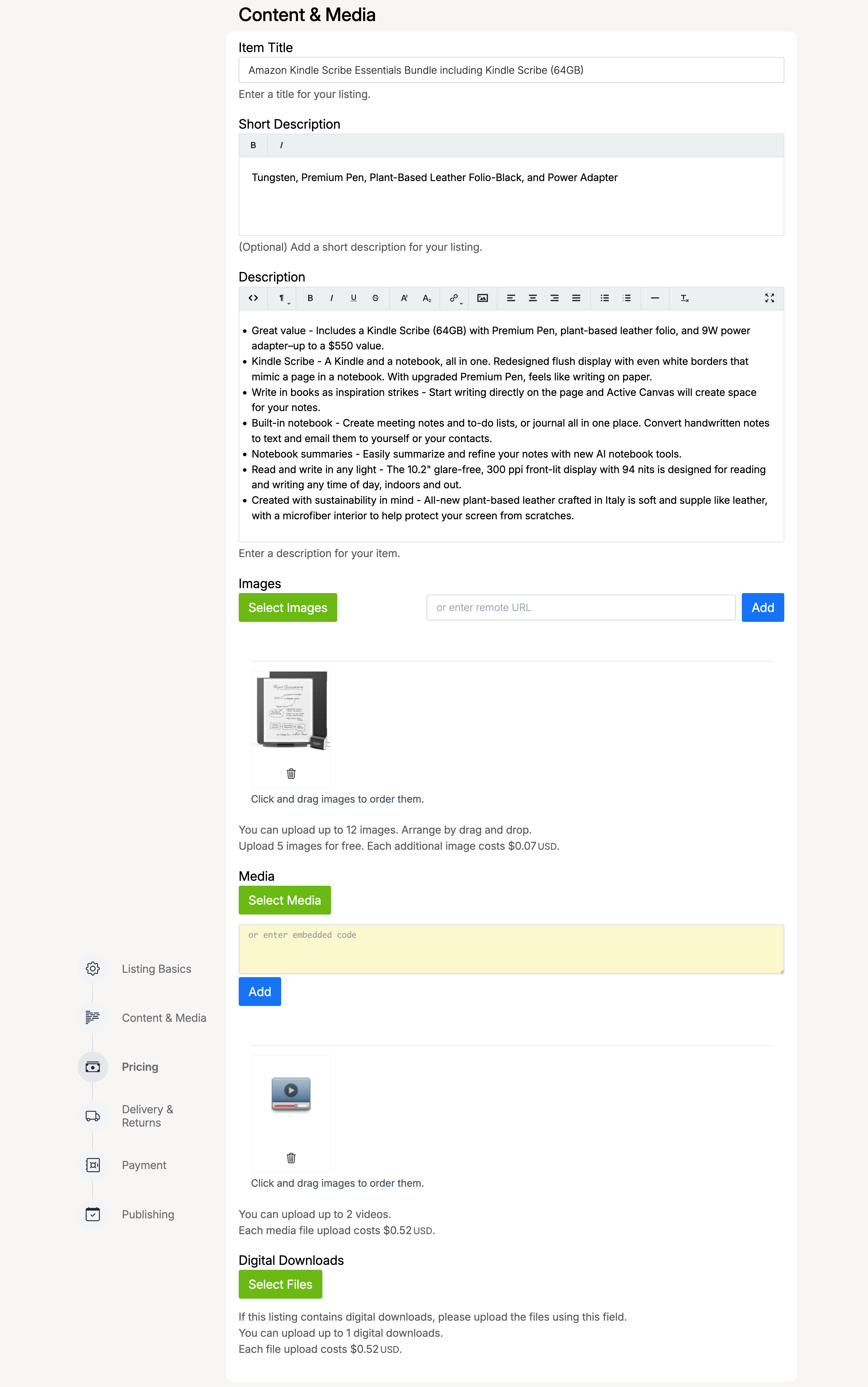
- Item Title — the main title shown in search results and on the listing page
- Short Description — a brief summary shown in listing cards and search results
- Description — the full listing description with a rich text editor. You can format text, add lists, insert links, and more
- Images — upload photos of your item. Click Select Images or drag and drop files. The first image becomes the main listing photo. You can reorder images by dragging
- Media — upload videos or embed video URLs (e.g. YouTube). Click Select Media to upload files or enter an embed code
- Digital Downloads — if your listing includes downloadable files (e.g. software, documents), upload them here using Select Files
Pricing
Set the price and payment options for your listing:
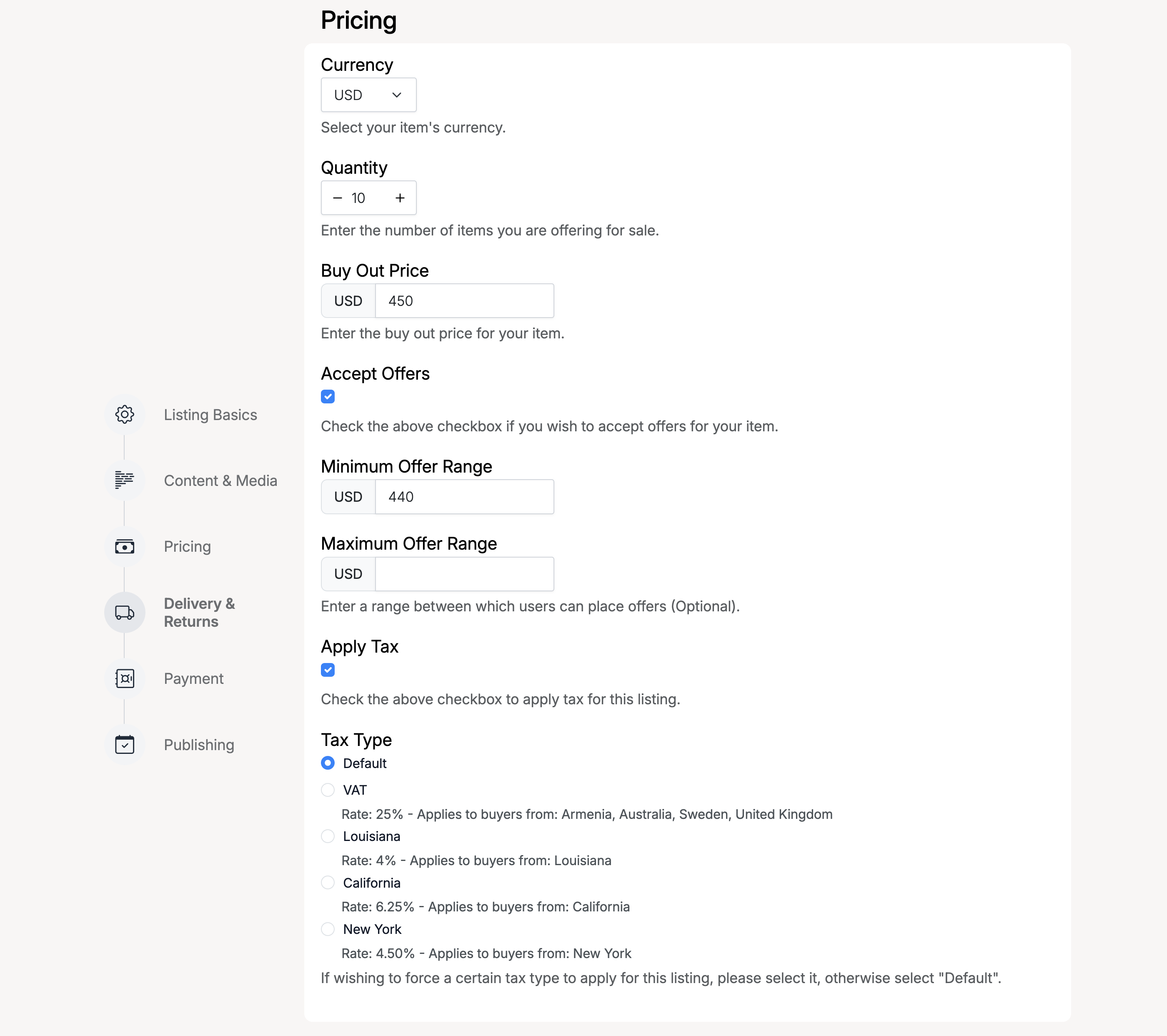
- Currency — the currency for your listing price
- Quantity — the number of items available (product listings only)
- Buy Out Price — the fixed purchase price (for product listings) or the instant-buy price (for auctions with Buy Out enabled)
- Accept Offers — check this to allow buyers to make offers. You can set a Minimum Offer Range and Maximum Offer Range to control acceptable offer amounts
- Apply Tax — check this to apply tax to the listing. Select a Tax Type from the configured tax rates (e.g. VAT, state-specific rates)
Delivery & Returns
Configure how the item will be shipped and whether returns are accepted:
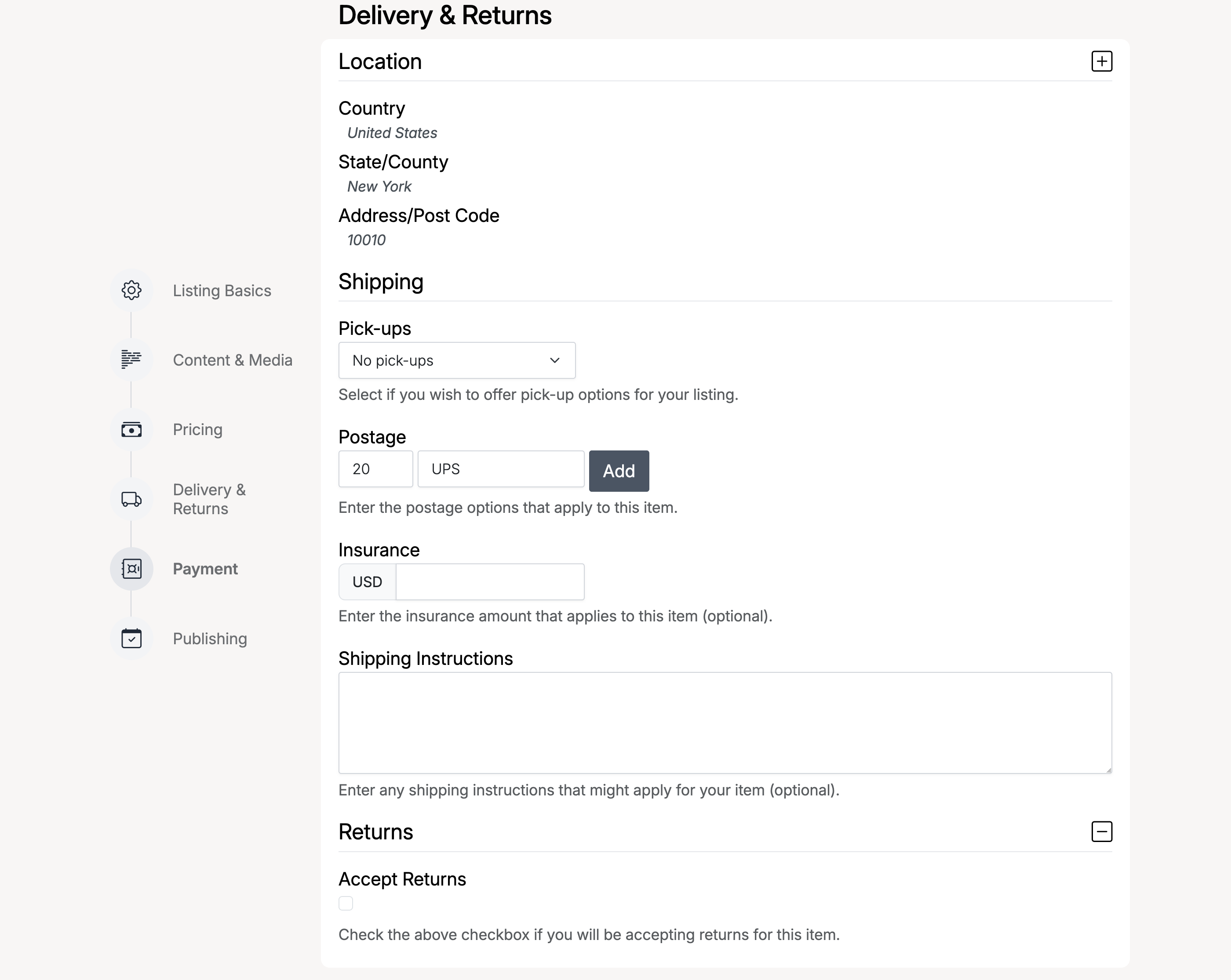
- Location — where the item is located: Country, State/County, and Address/Post Code
- Pick-ups — select whether you offer local pick-up as a delivery option
- Postage — enter the shipping cost and carrier (e.g. UPS, Royal Mail). Click Add to offer multiple shipping options
- Insurance — optional shipping insurance amount
- Shipping Instructions — any additional shipping notes for the buyer
- Accept Returns — check this to accept returns, then enter your Return Policy Details
Payment
Choose which payment methods buyers can use to pay for this listing:
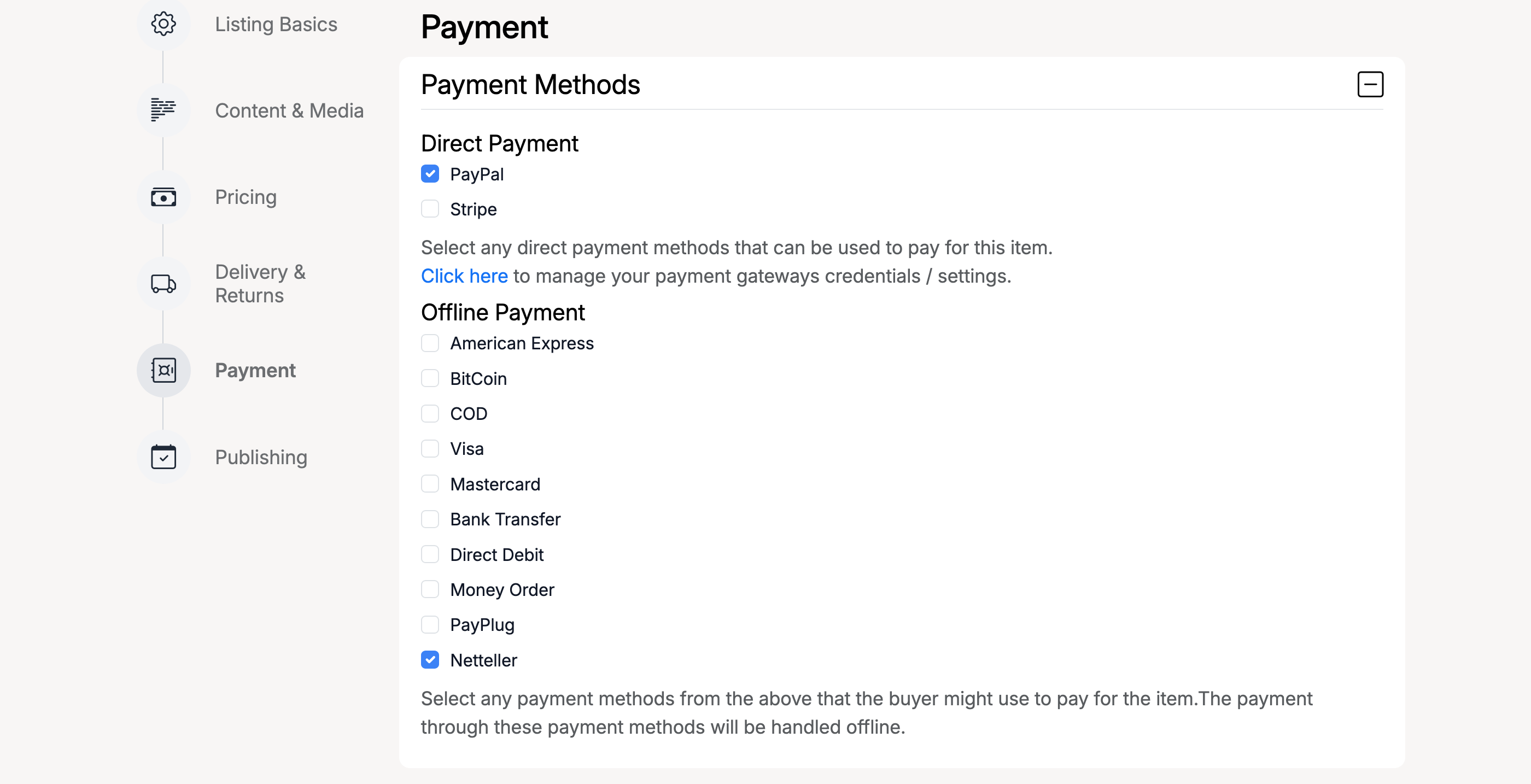
- Direct Payment — online payment gateways like Stripe. These process payments automatically. You must have your gateway credentials configured in your account settings
- Offline Payment — manual payment methods such as bank transfer, money order, COD, etc. Payment is handled outside the platform between buyer and seller
Publishing
Control when your listing goes live and add optional upgrades:
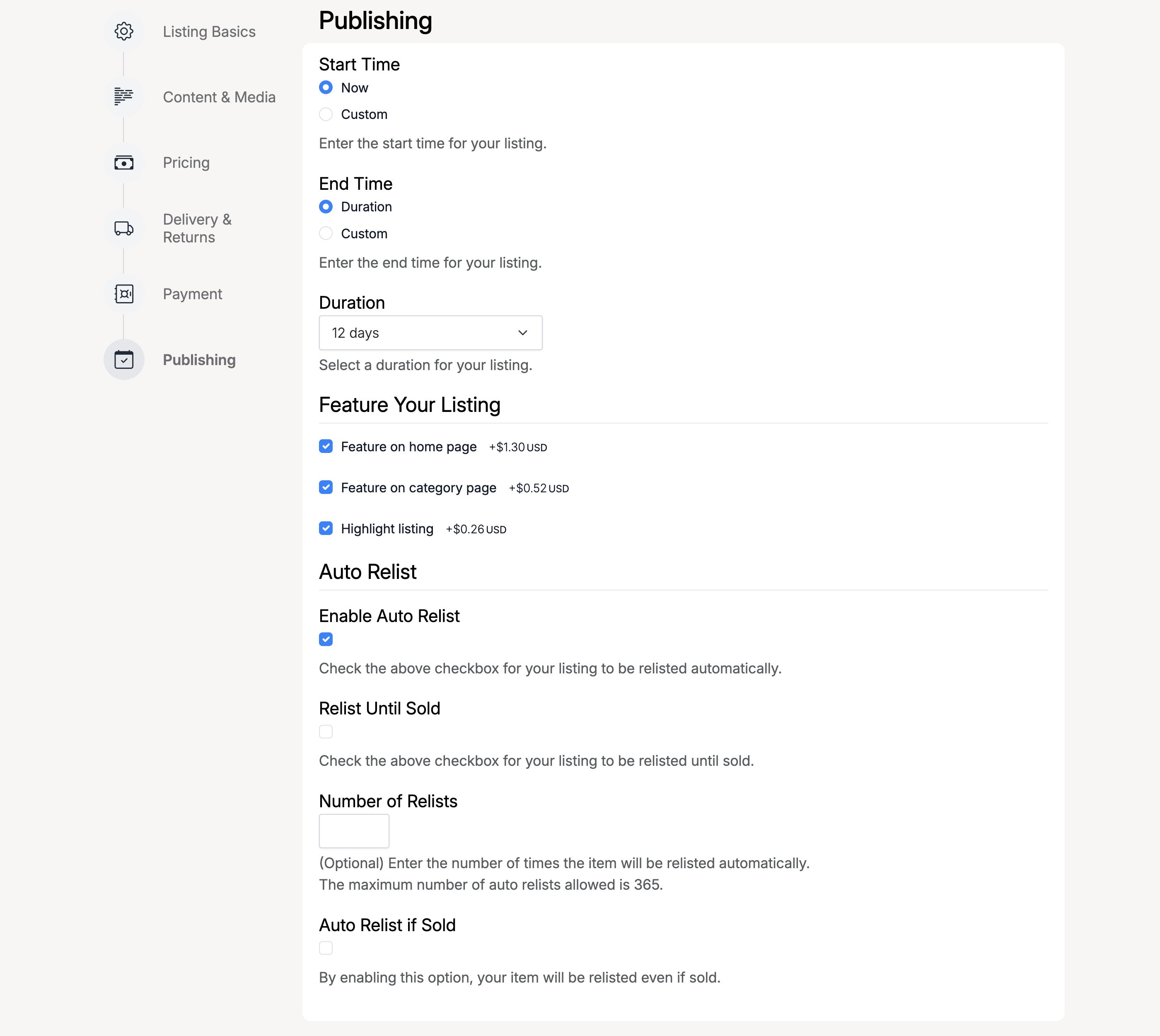
- Start Time — choose Now to list immediately, or Custom to schedule a future start date and time
- End Time — select Duration and choose from the available durations (e.g. 3, 5, 7, 12 days), or select Custom to set a specific end date and time
- Feature Your Listing — paid upgrades to increase your listing's visibility:
- Feature on home page — your listing appears in the featured section on the homepage
- Feature on category page — your listing is highlighted within its category
- Highlight listing — your listing gets a visual highlight in search results and browse pages
- Auto Relist — automatically relist the item when it expires:
- Enable Auto Relist — turn on automatic relisting
- Relist Until Sold — keep relisting until the item sells
- Number of Relists — set a maximum number of times to relist (up to 365)
- Auto Relist if Sold — relist the item even after it has been sold
Preview & Fees
After completing all sections, the preview page shows exactly how your listing will appear to buyers, along with a breakdown of the Listing Setup Fees:
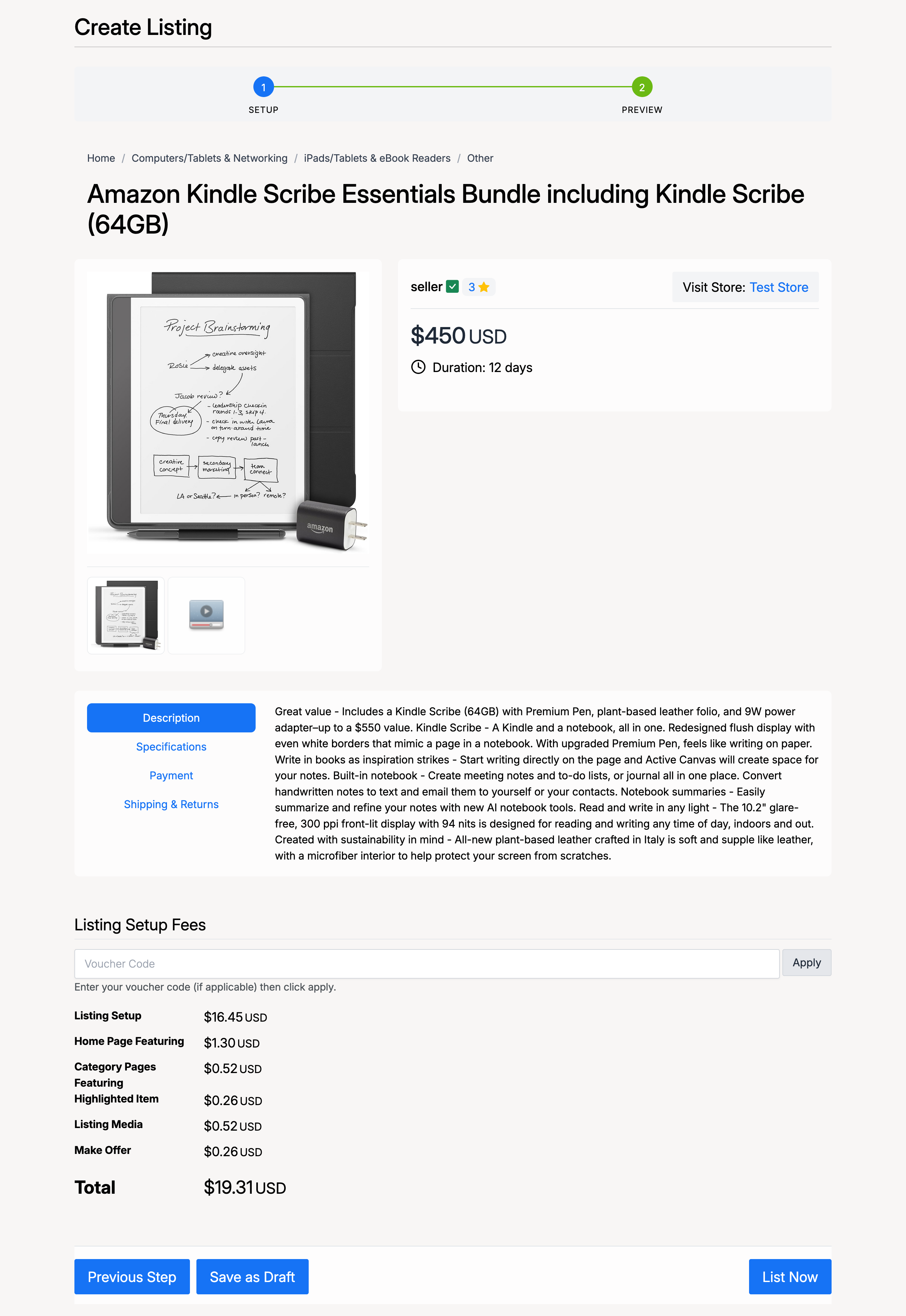
The fees table shows the cost for each feature you selected (listing setup, home page featuring, category page featuring, highlighting, media, make offer). Review your listing and fees, then:
- Previous Step — go back to edit your listing
- Save as Draft — save without publishing (you can return later)
- List Now — publish the listing and proceed to pay the setup fees
Fee Payment
If listing fees apply, you are taken to a payment page to pay the setup fees before the listing goes live:
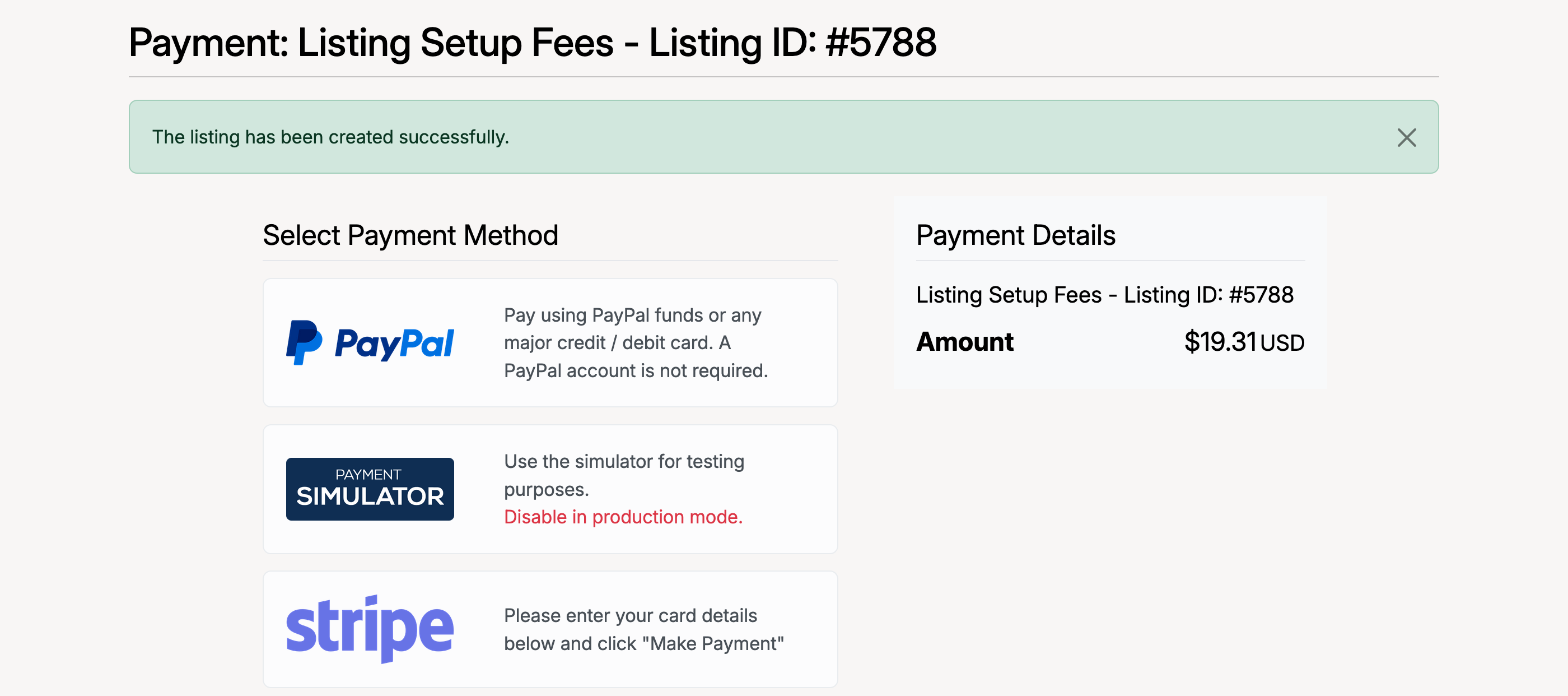
Select a payment method and complete the payment. The amount shown is the total of all listing setup fees.
Confirmation
Once payment is confirmed, you see a confirmation page with the listing details and management options:
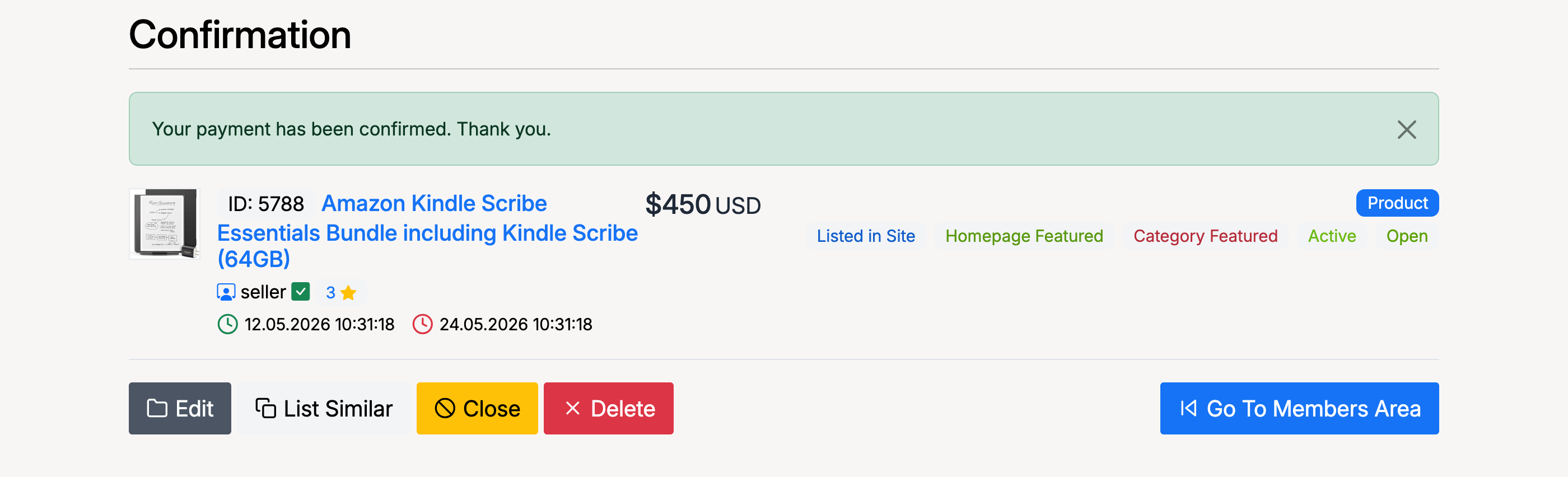
From here you can:
- Edit — modify the listing details
- List Similar — create a new listing using this one as a template
- Close — end the listing early
- Delete — remove the listing entirely
- Go To Members Area — return to your dashboard
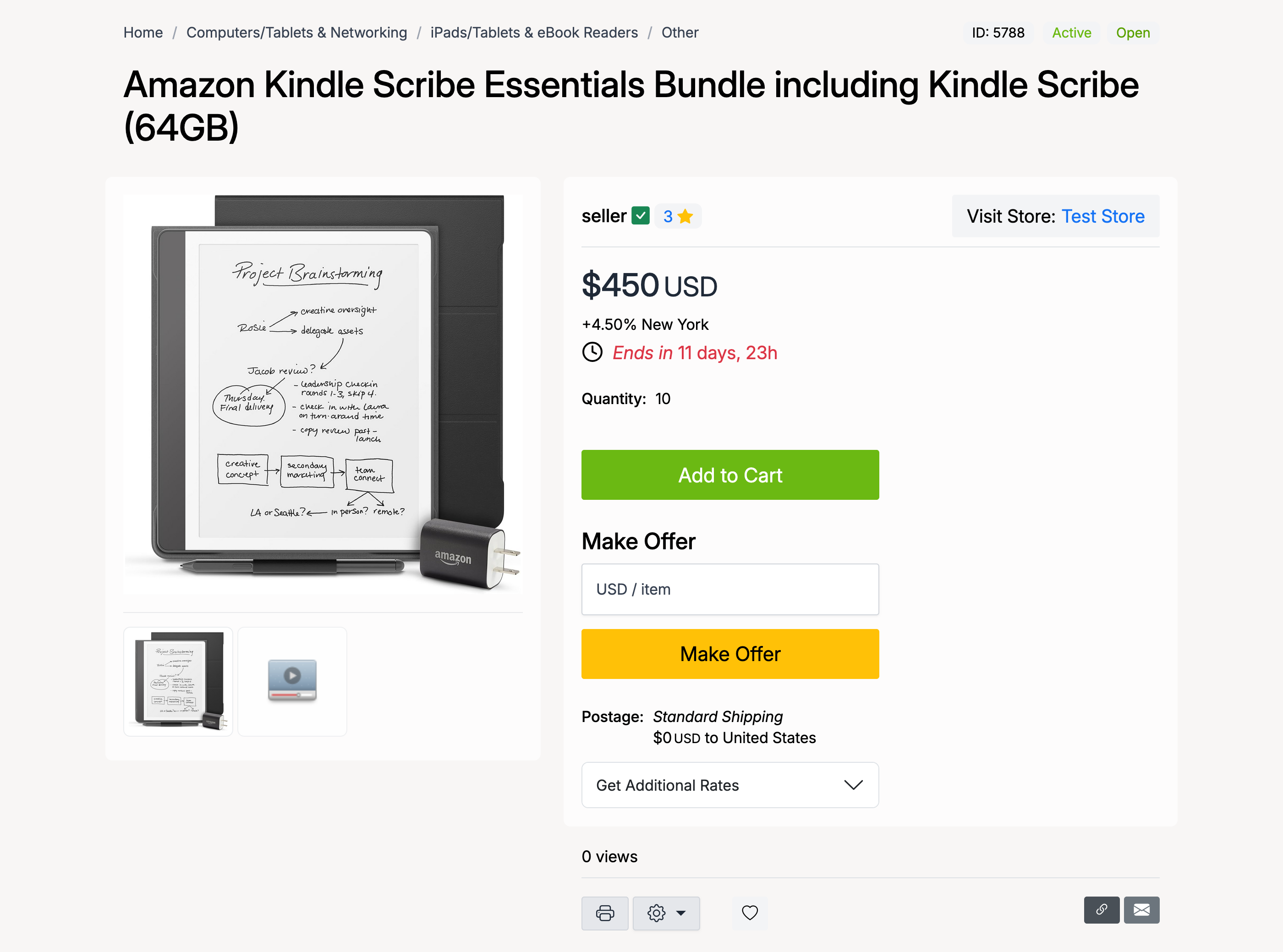
Your listing is now live and visible to buyers:
Admin Settings
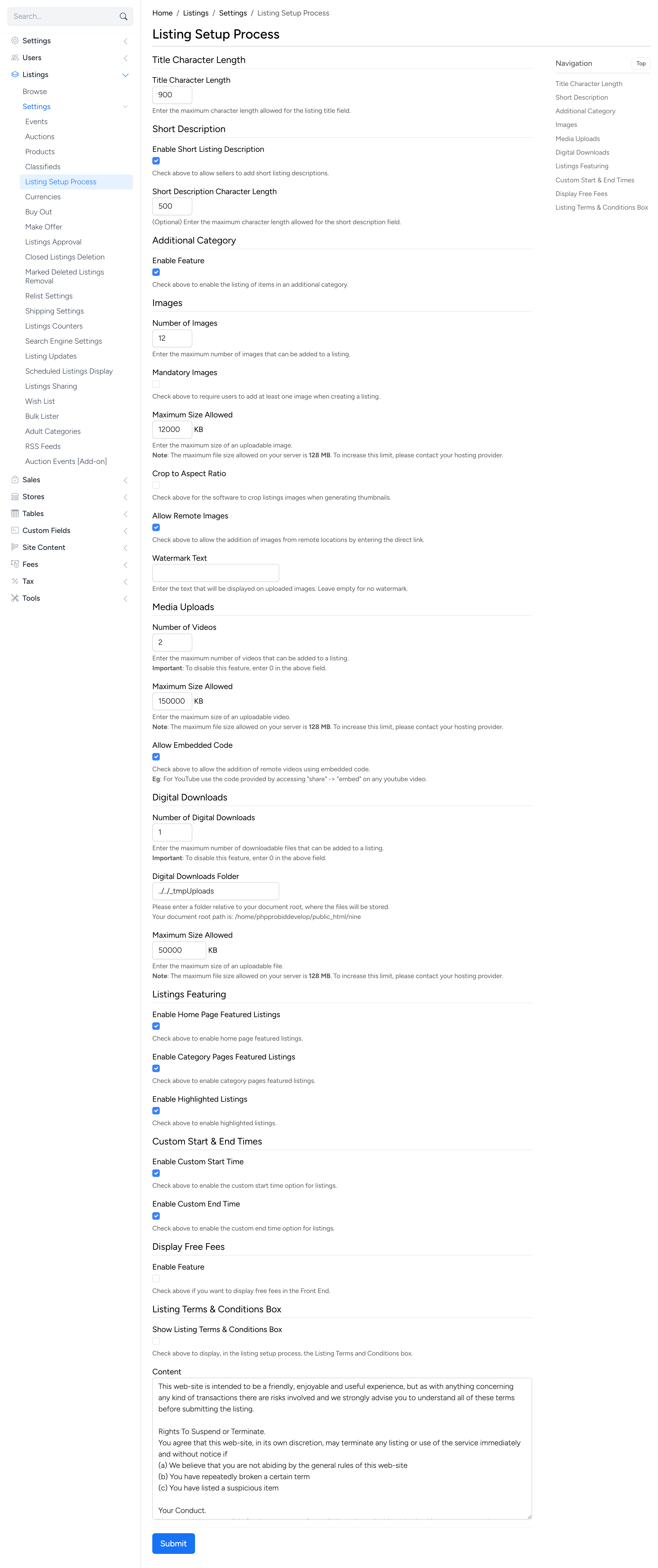
Listing setup settings are found at Admin → Listings → Settings → Listing Setup Process. These settings control what options are available to sellers when creating a listing.
Title Character Length

- Title Character Length — the maximum number of characters allowed in a listing title. Sellers cannot enter titles longer than this limit.
Short Description
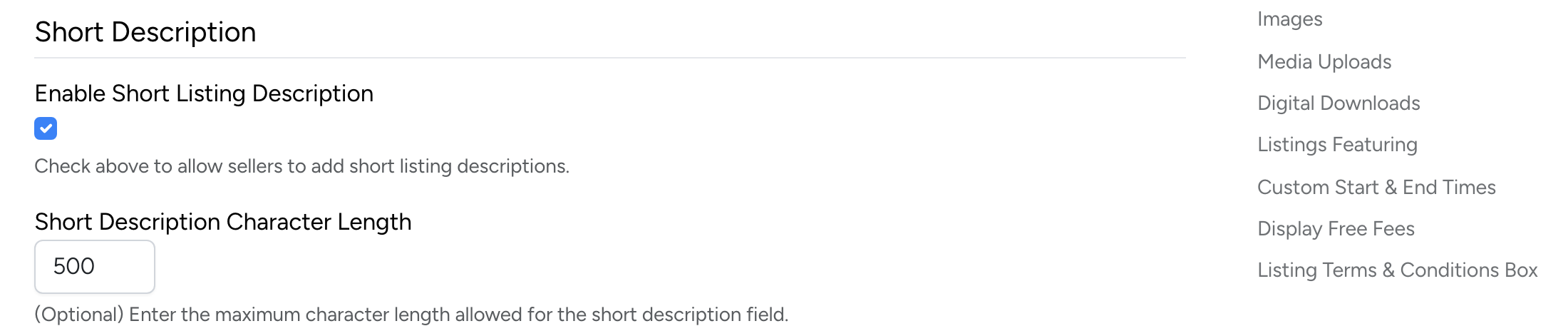
- Enable Short Listing Description — when checked, sellers can enter a short description that appears in search results and listing cards
- Short Description Character Length — the maximum number of characters allowed in the short description
Additional Category

- Enable Feature — when checked, sellers can list items in a second category for additional visibility. When unchecked, the Additional Category field is hidden from the listing form.
Images
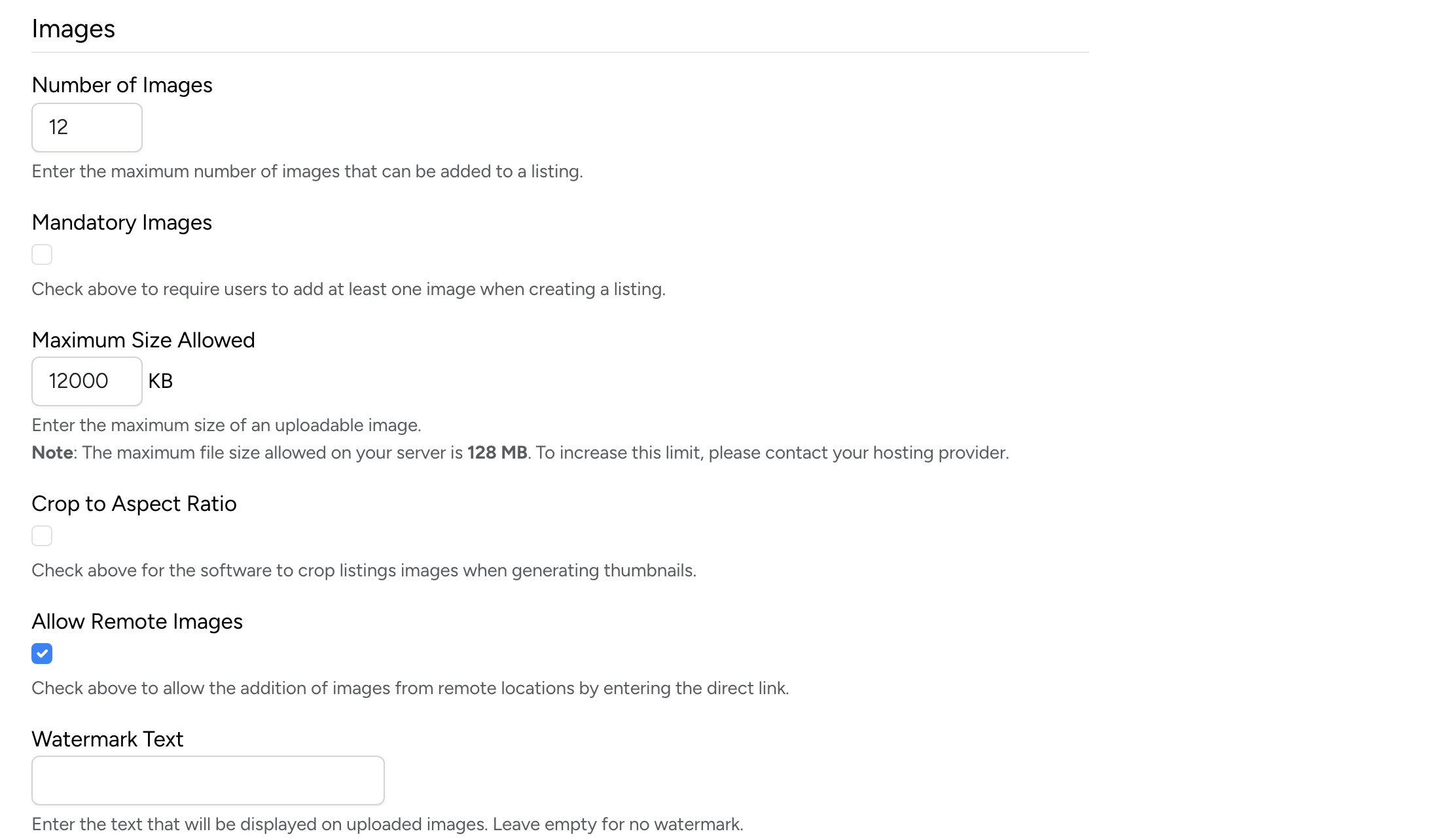
- Number of Images — the maximum number of images a seller can upload per listing
- Mandatory Images — when checked, sellers must upload at least one image to create a listing
- Maximum Size Allowed — the maximum file size for each uploaded image (in KB)
- Crop to Aspect Ratio — automatically crop uploaded images to a consistent aspect ratio
- Allow Remote Images — when checked, sellers can link to images hosted externally instead of uploading them
- Watermark Text — text overlaid on listing images to protect against unauthorised use. Leave empty to disable watermarking
Media Uploads
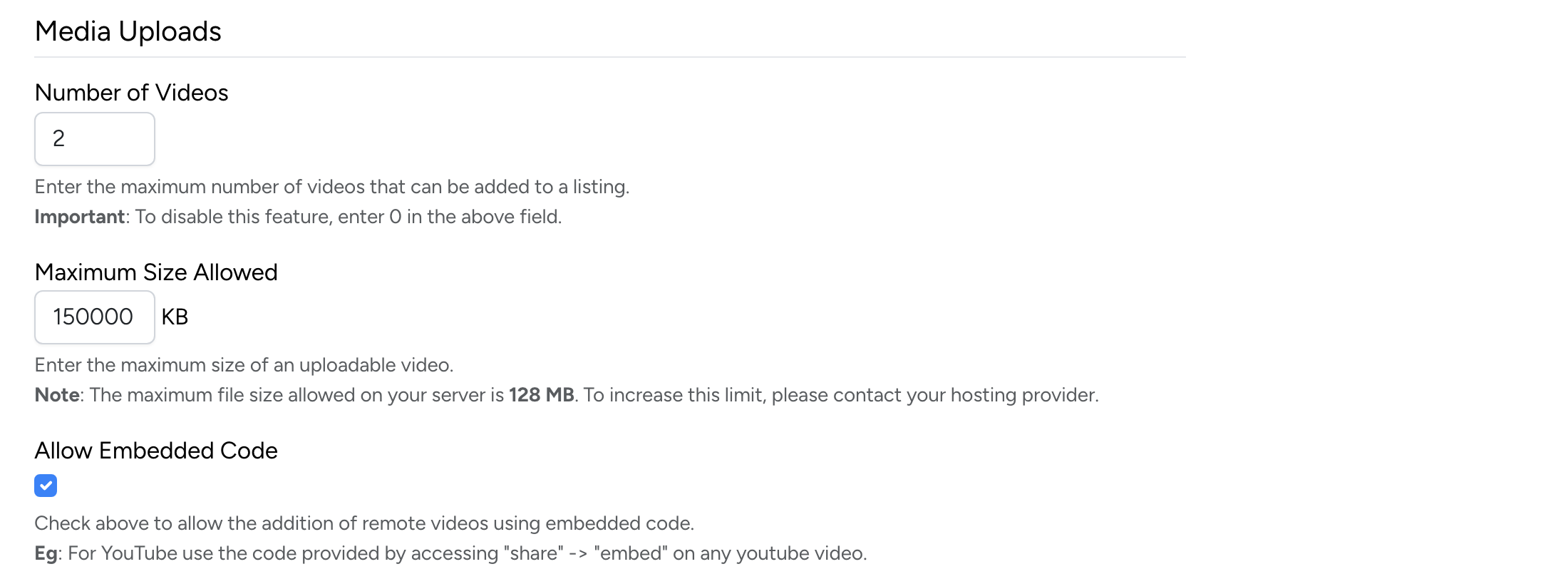
- Number of Videos — the maximum number of video files a seller can upload per listing
- Maximum Size Allowed — the maximum file size for each uploaded video (in KB)
- Allow Embedded Code — when checked, sellers can paste embed codes (e.g. YouTube or Vimeo URLs) instead of uploading video files
Digital Downloads
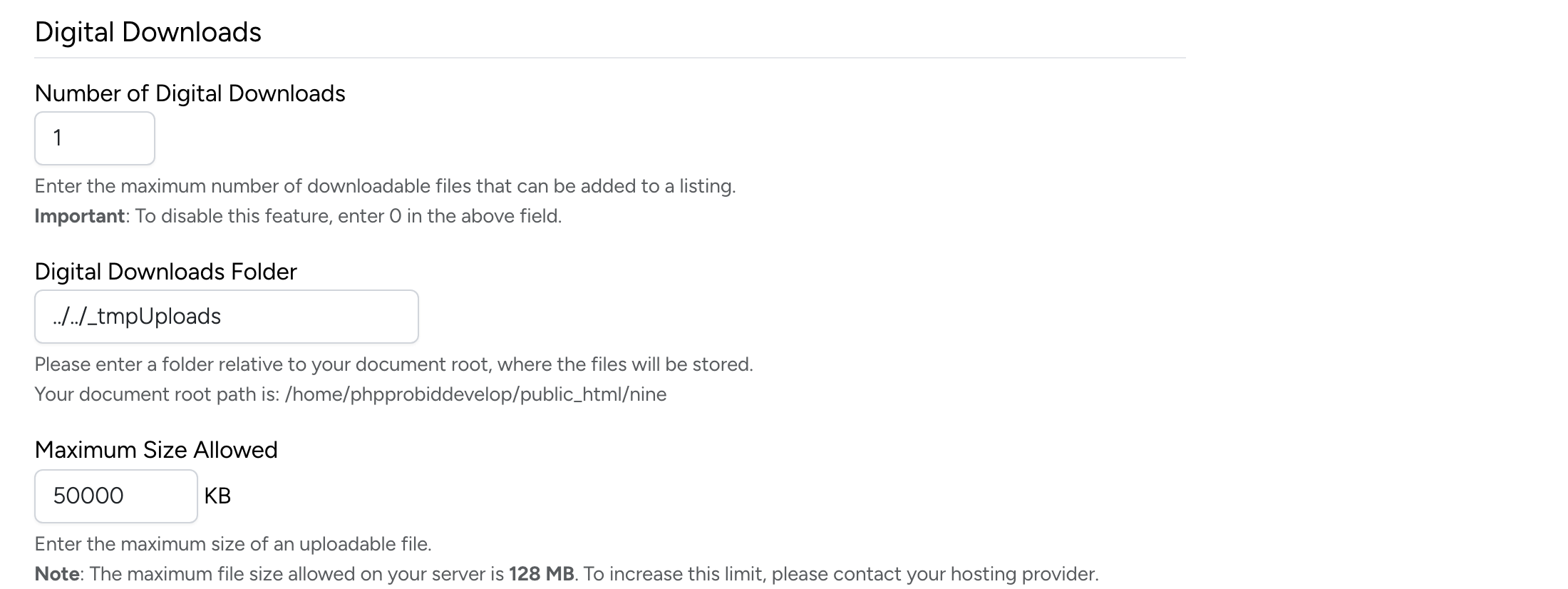
- Number of Digital Downloads — the maximum number of downloadable files a seller can attach per listing
- Digital Downloads Folder — the server directory where digital download files are stored
- Maximum Size Allowed — the maximum file size for each digital download (in KB)
Listings Featuring
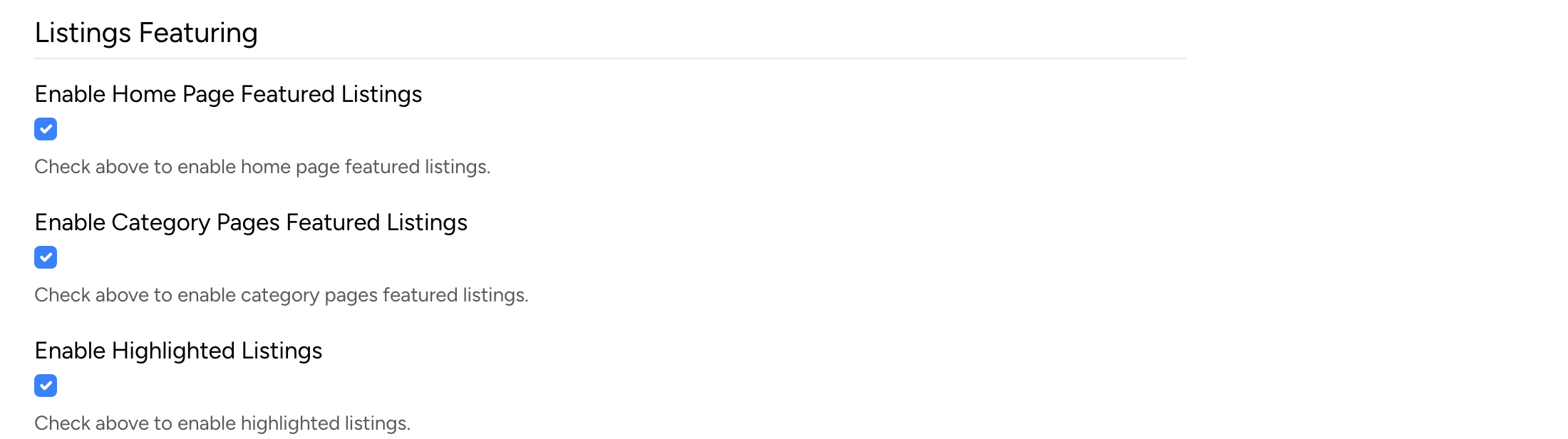
- Enable Home Page Featured Listings — allow sellers to pay to feature their listings on the homepage
- Enable Category Pages Featured Listings — allow sellers to pay to feature their listings on category browse pages
- Enable Highlighted Listings — allow sellers to pay for a visual highlight on their listings in search results and browse pages
Custom Start & End Times

- Enable Custom Start Time — when checked, sellers can schedule a listing to start at a future date and time instead of immediately
- Enable Custom End Time — when checked, sellers can set a specific end date and time instead of choosing a duration
Display Free Fees

- Enable Feature — when checked, the listing fee breakdown on the preview page shows items with a $0.00 fee. When unchecked, only fees with a cost are displayed.
Listing Terms & Conditions
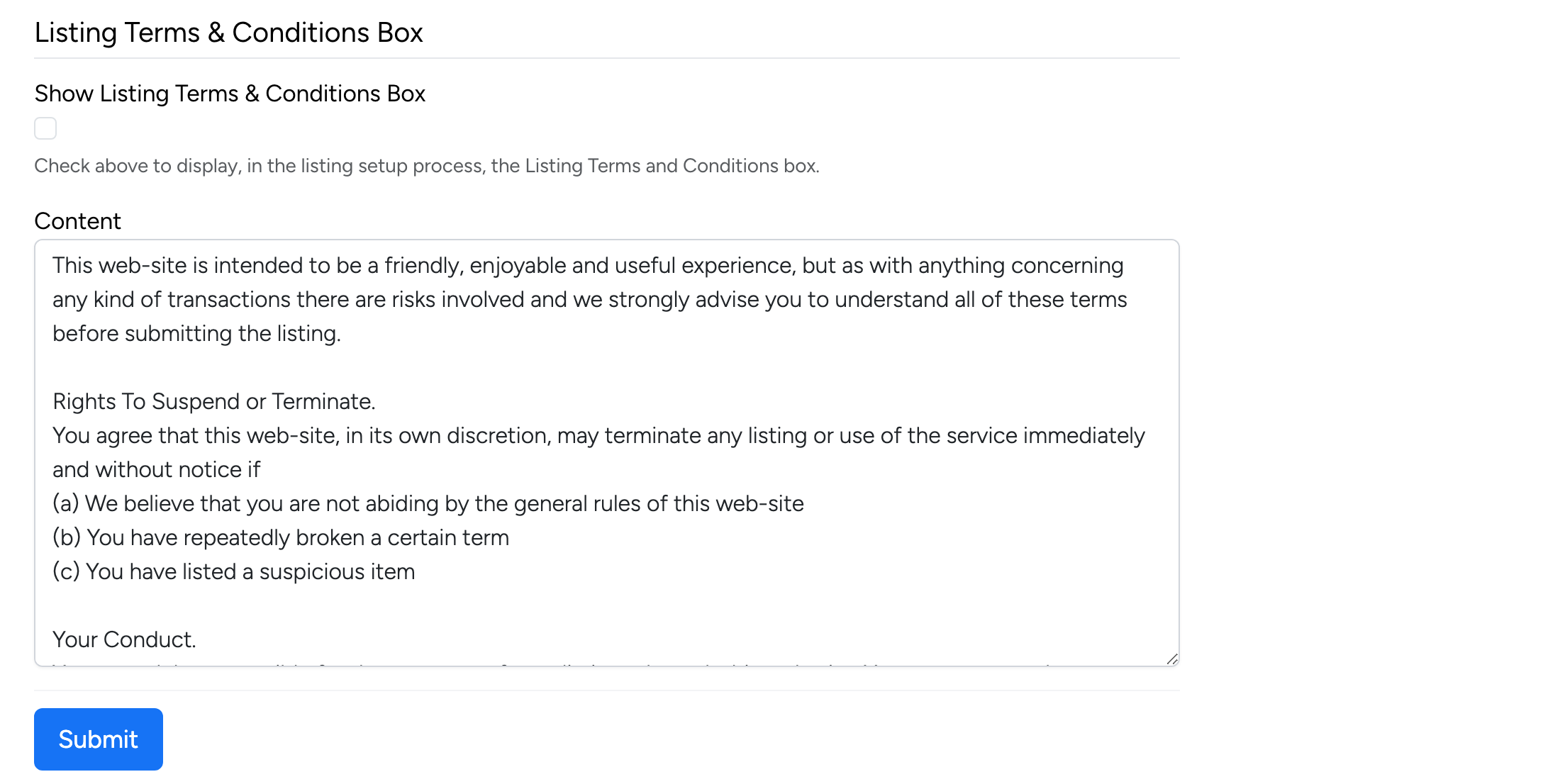
- Show Listing Terms & Conditions Box — when checked, sellers must agree to the listing terms and conditions before creating a listing
- Content — the terms and conditions text displayed to sellers. Use the rich text editor to format the content
Listings Approval
This setting is managed at Admin → Listings → Settings → Listings Approval:

- Enable Listings Approval — when checked, new and edited listings require admin approval before going live