
Edit a Listing
Overview
Once a listing is live, you may need to update the price, adjust stock levels, or correct a detail. PHP Pro Bid allows sellers to edit open listings, but with restrictions that depend on the listing type and whether it has any activity (bids or offers).
Your Listings
To manage your listings, go to Members Area → Selling → Listings. This page shows all your listings with filters for type (Auctions, Products, Classifieds) and status (Open, Closed, etc.).
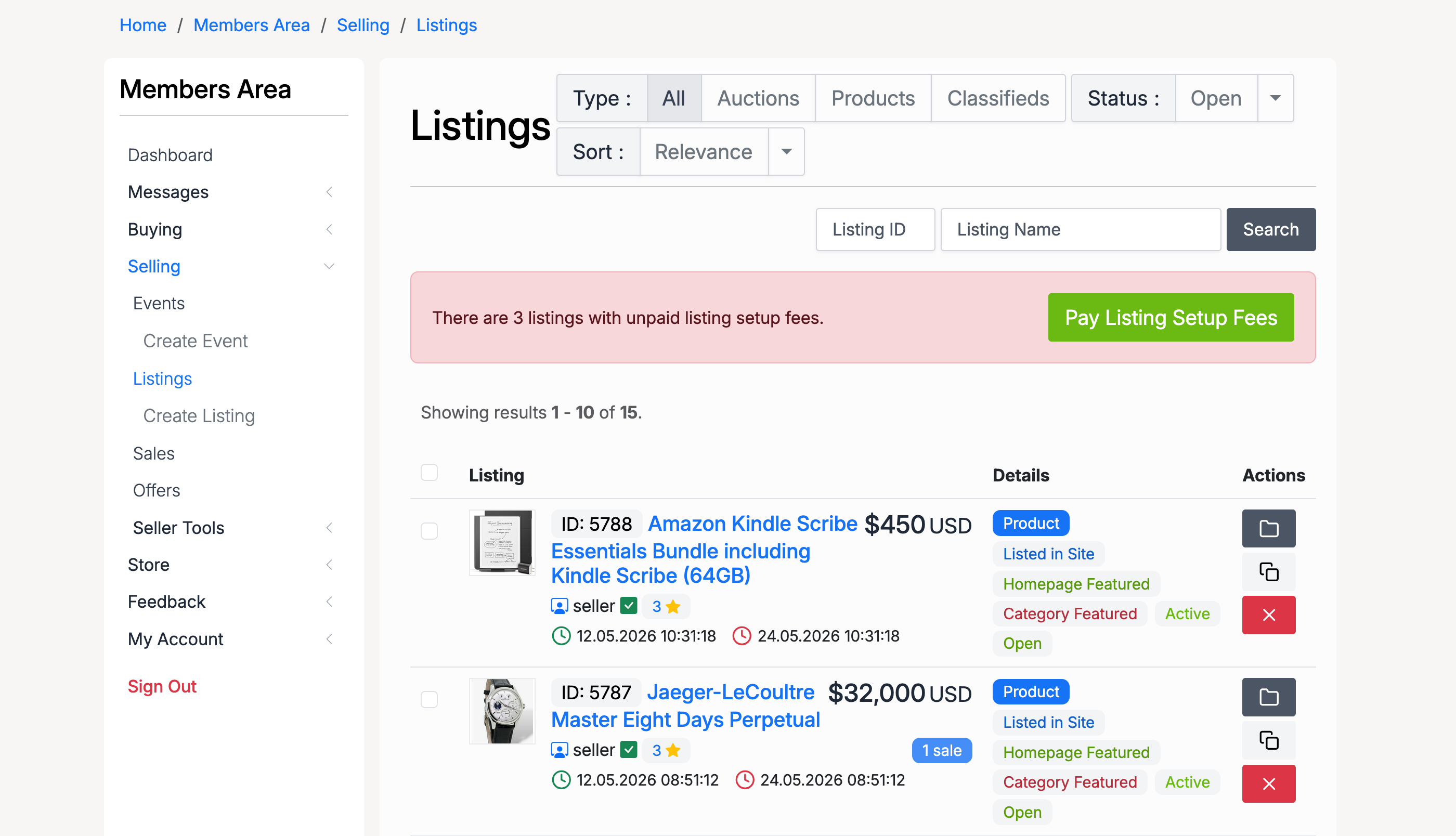
Each listing has action buttons on the right:
- Edit — open the listing form to make changes
- Close — end the listing early
- Delete — remove the listing from the site
Click the Edit button to open the same form used when creating the listing. The sections — Listing Basics, Content & Media, Pricing, Delivery & Returns, Payment, and Publishing — are all accessible, but some fields may be locked depending on the rules below.
Editing Auctions
Auction listings can only be edited when both of the following are true:
- The auction has no activity — no bids and no offers have been placed
- The remaining duration is above the administrator’s minimum edit time limit
Once a bid or offer is placed on an auction, the listing is locked and cannot be edited. This protects bidders from having the terms of the auction changed after they have committed.
Editing Products
Product (fixed price) listings have more flexibility. Even with existing activity, sellers can still edit:
- Currency
- Quantity / Stock Levels
- Price
- Make Offer settings — enable/disable offers, adjust minimum and maximum offer ranges
This allows sellers to update pricing and restock items without having to close and recreate the listing.
Fields That Cannot Be Changed
Regardless of listing type or activity, the following fields are permanently locked once the listing is published:
- Title
- Description
- Images