
Make an Offer
Overview
The Make Offer feature allows buyers to submit a price they are willing to pay for an item, as an alternative to bidding or buying out. The seller can then accept, decline, or counter the offer.
Make Offer is available on auctions and products when the seller enables it during listing creation. Sellers can set a minimum and maximum offer range to control the prices buyers can submit.
Seller Setup
To enable offers on a listing, check Accept Offers in the Pricing section when creating or editing a listing.
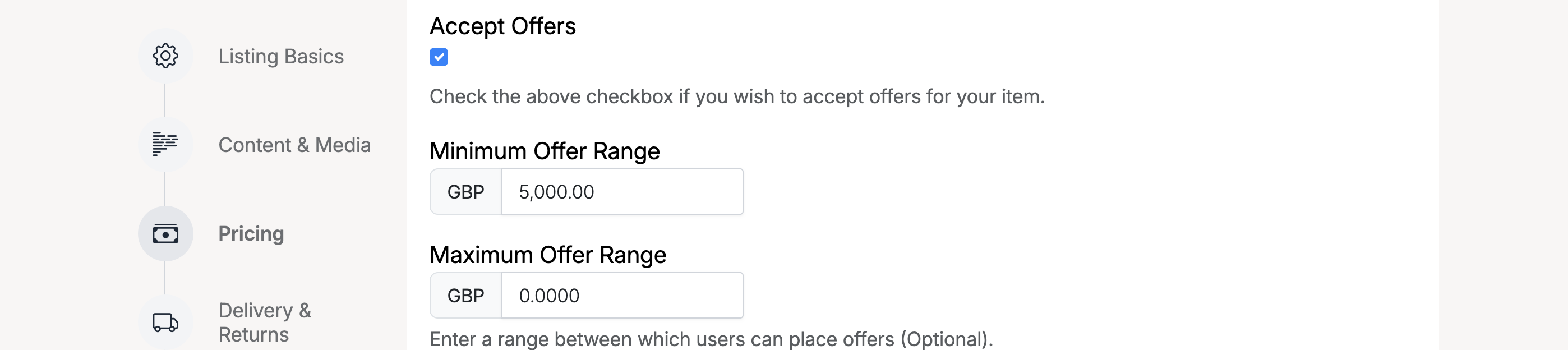
- Accept Offers — check to allow buyers to submit offers on this listing.
- Minimum Offer Range — the lowest offer amount the system will accept. Offers below this are rejected automatically.
- Maximum Offer Range — the highest offer amount allowed. Set to 0 or leave empty for no upper limit. This is optional.
Making an Offer
When a listing has offers enabled, a Make Offer section appears on the listing page below the bid and buy out options.
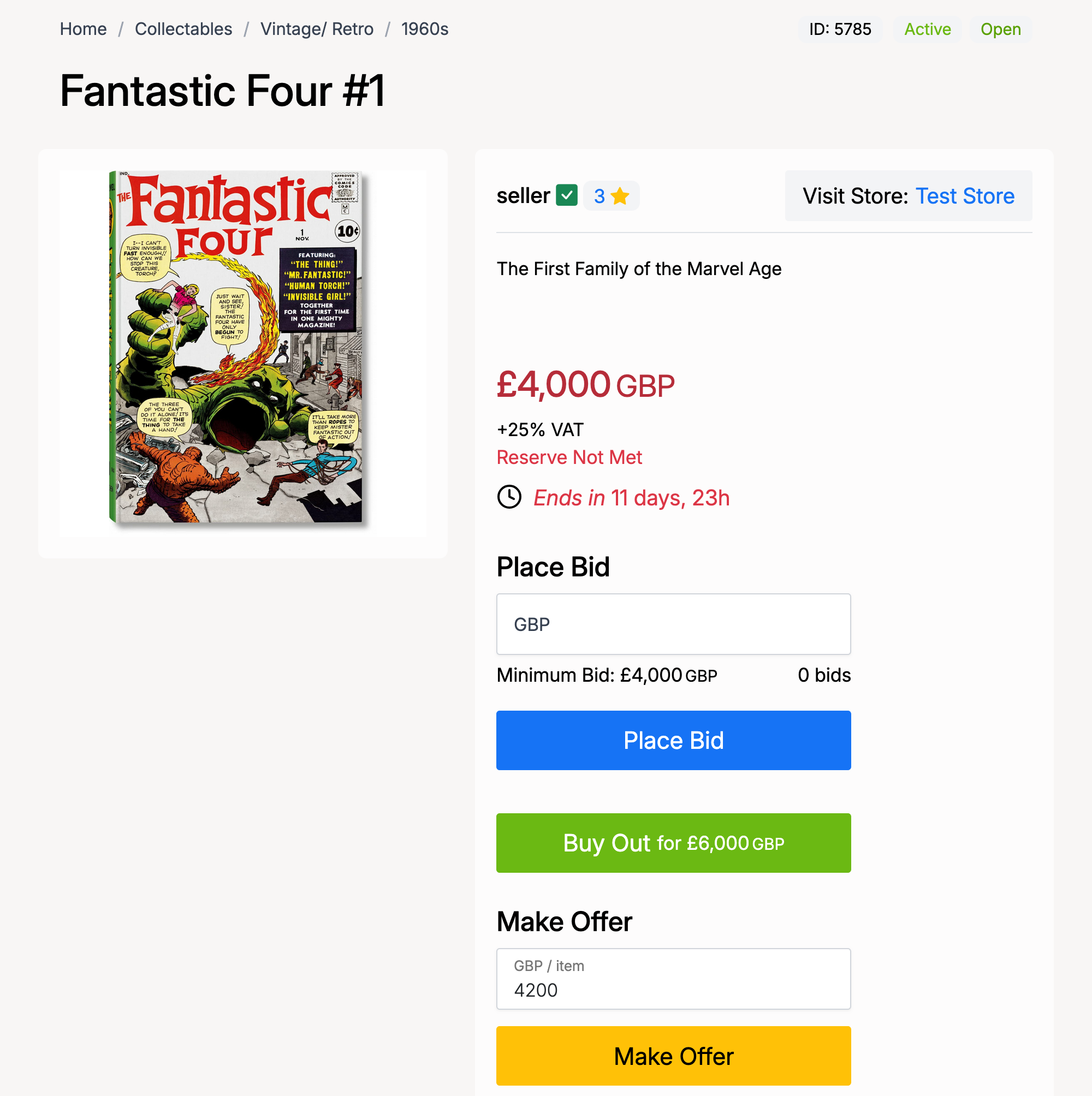
To make an offer:
- Enter your offer amount in the Make Offer field on the listing page.
- Click Make Offer.
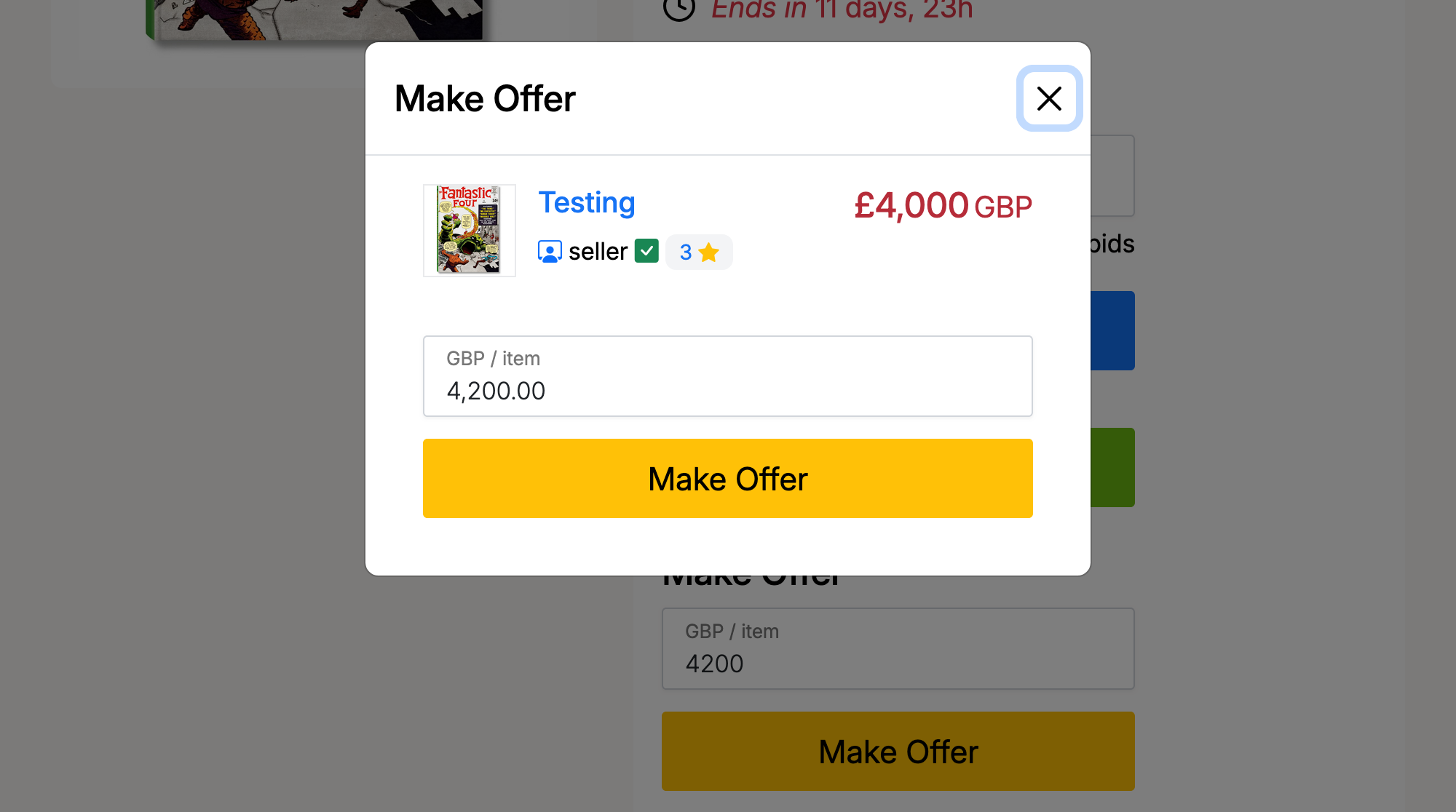
- A confirmation popup appears showing the item details and your offer amount. Click Make Offer to confirm.
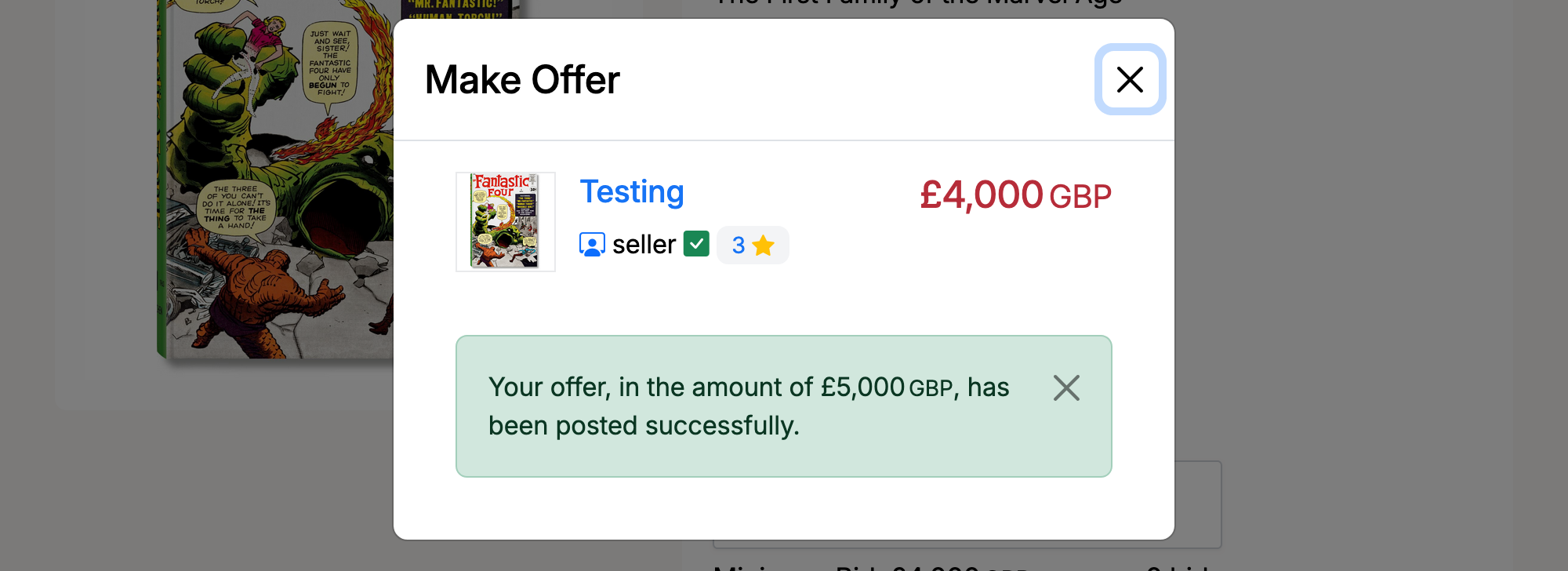
If your offer is accepted by the system (within the allowed range), a success message confirms it has been posted.
Offer Validation
If your offer falls below the seller’s minimum offer range, the system rejects it immediately with an error message.
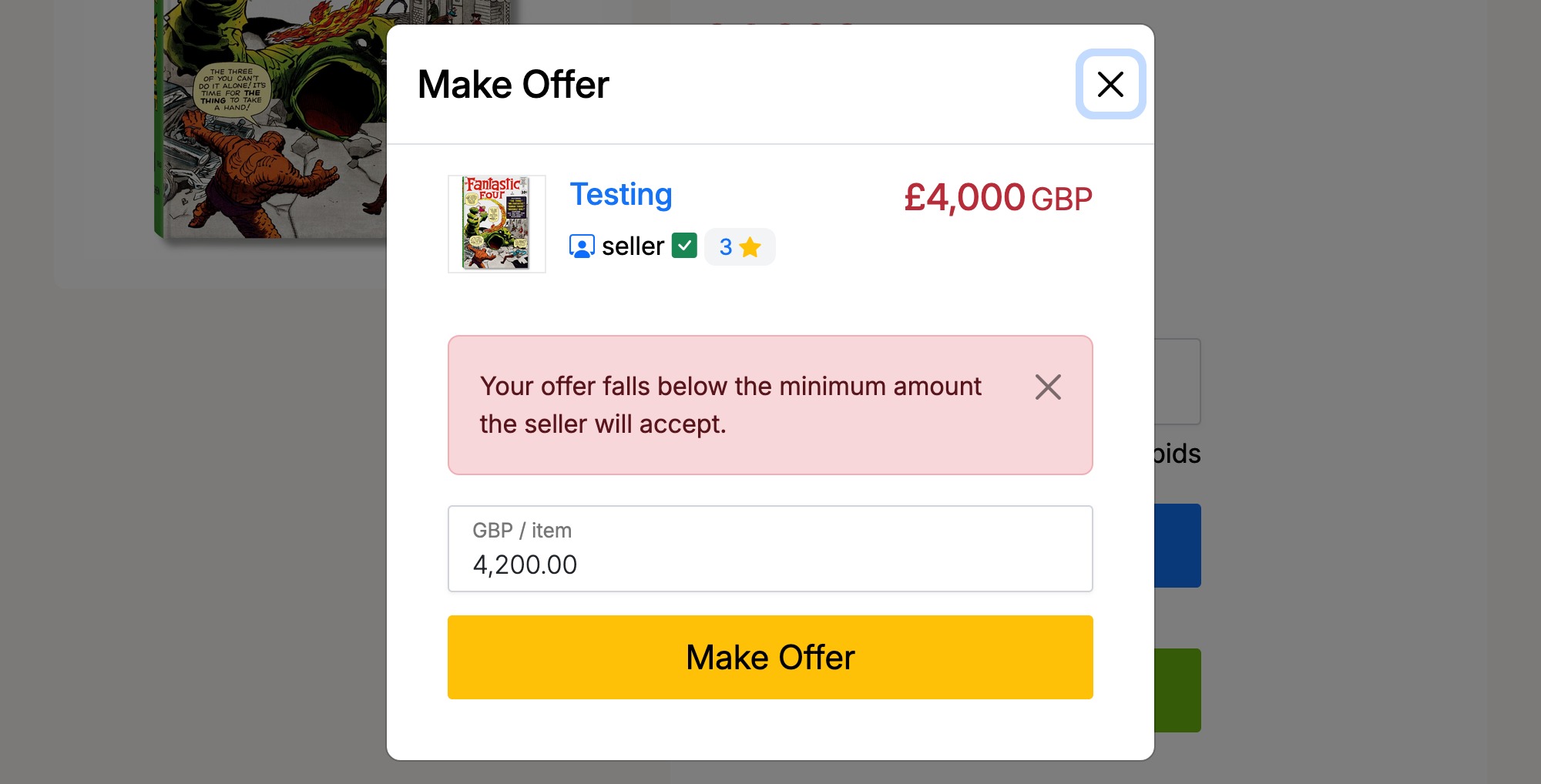
To resolve this, increase your offer amount and try again. If the admin has enabled Show Offer Ranges, the allowed range is displayed on the listing page so you know what the seller will consider.
Responding to Offers
As a seller, you can view and manage offers from your Members Area → Selling → Offers. You can also find offers by going to Selling → Listings and clicking the View Offers button on a listing that has received offers.
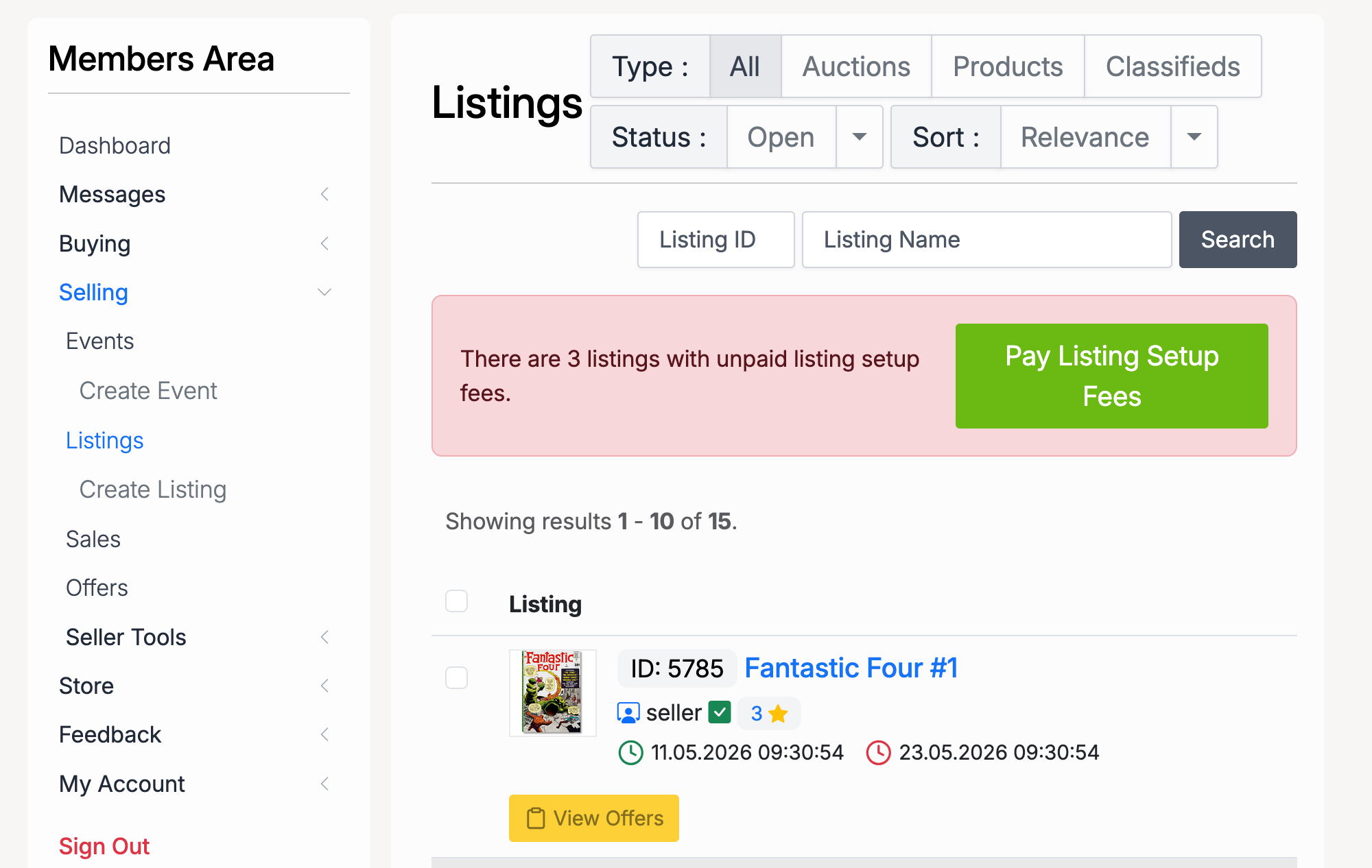
The Offer Details page shows each offer received, including the amount, buyer, date, and current status. Three actions are available for each pending offer:
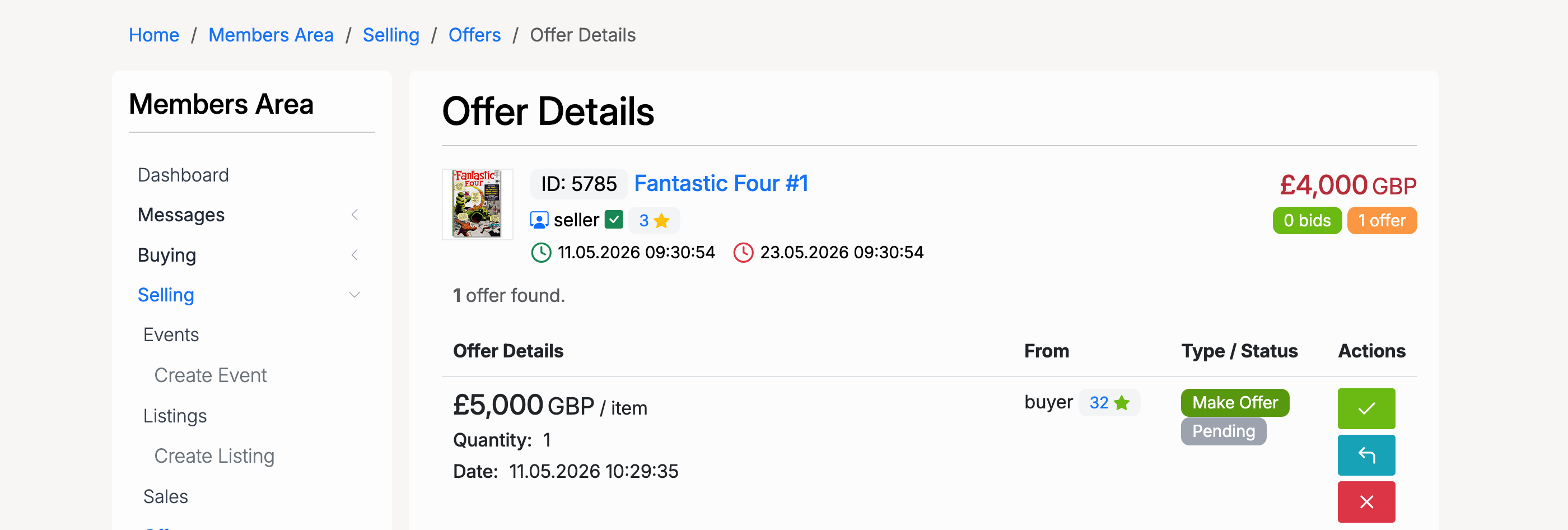
- Accept (green tick) — accept the buyer’s offer. The sale proceeds at the offered price.
- Counter Offer (orange arrows) — propose a different price back to the buyer.
- Reject (red cross) — decline the offer.
Making a Counter Offer
When you click the counter offer button, a confirmation popup asks you to confirm:

After confirming, you are taken to the Make a Counter Offer page where you enter your counter amount and submit it.
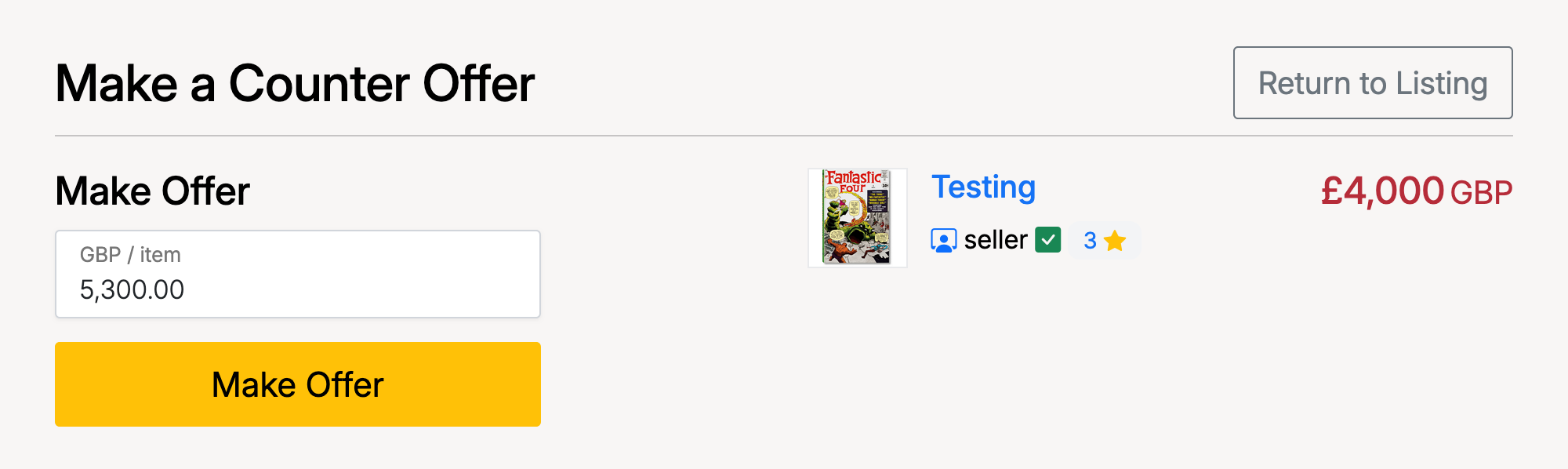
Once submitted, a success message confirms the counter offer has been posted. The buyer will be notified and can accept, counter, or decline.
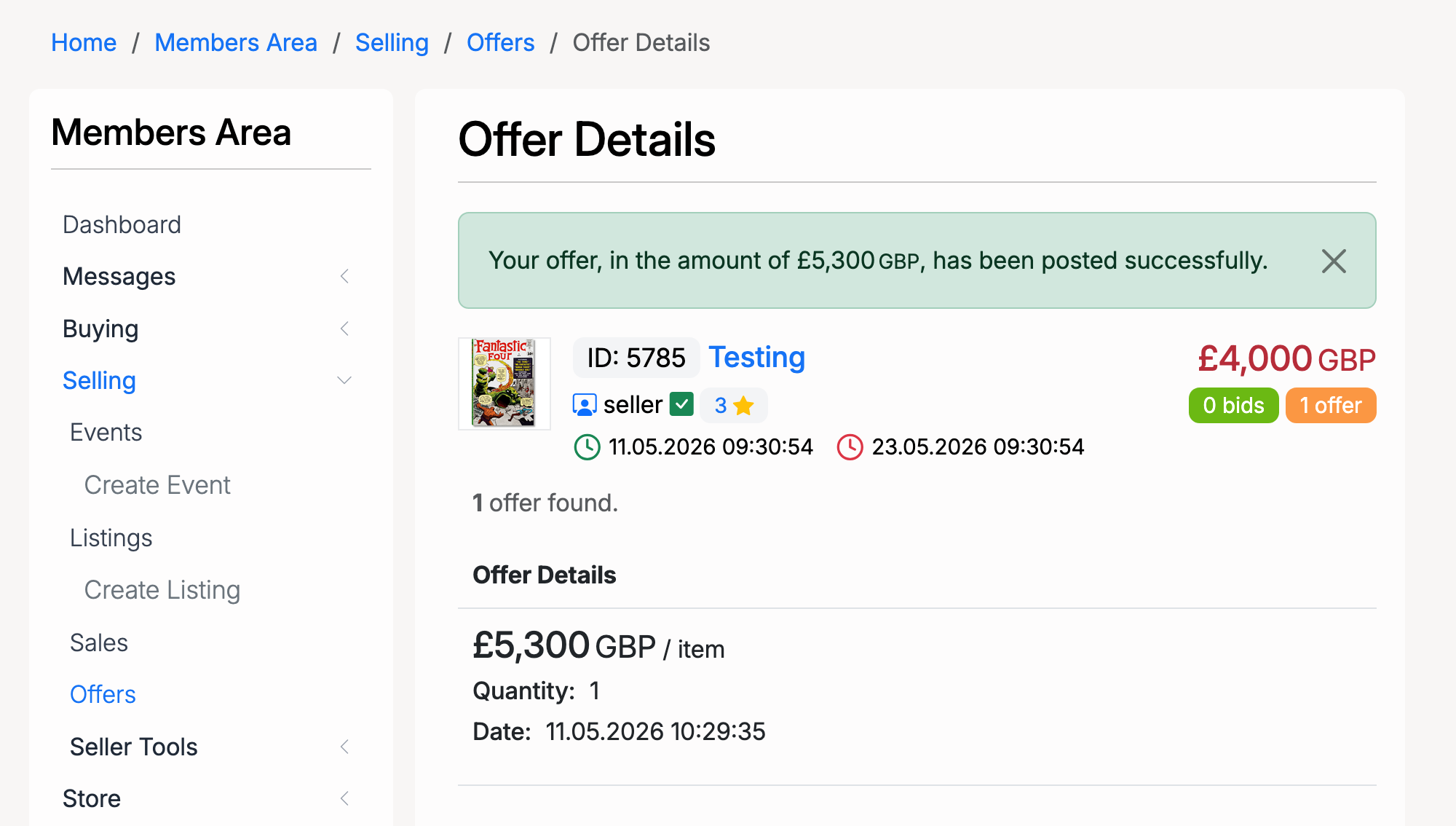
Buyer Offers Page
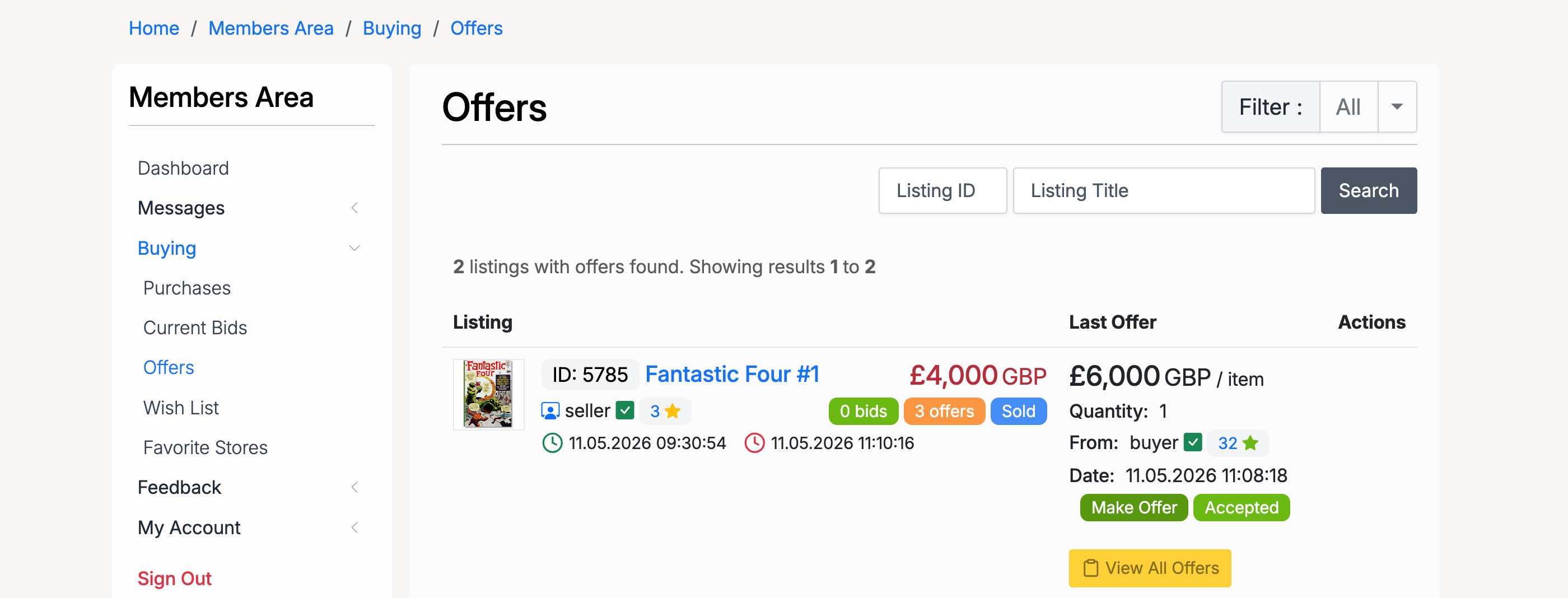
Buyers can view and manage all their offers from Members Area → Buying → Offers.
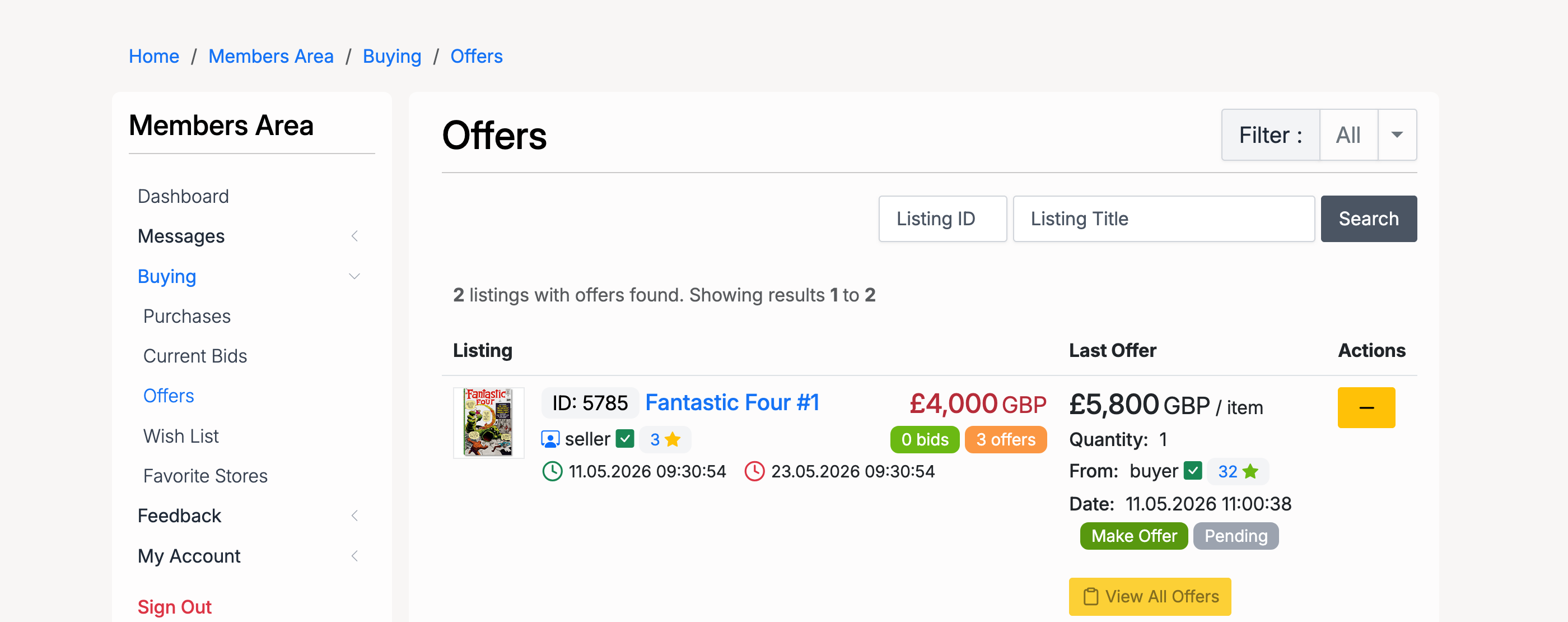
The page shows each listing you have made offers on, including the last offer amount, number of offers, status, and available actions. From here you can:
- Make Offer — submit a new offer or respond to a counter offer.
- View All Offers — see the full offer history for a listing.
- Withdraw — cancel a pending offer you no longer wish to pursue.
Withdrawing an Offer
To withdraw an offer, click the withdraw button. A confirmation popup appears:

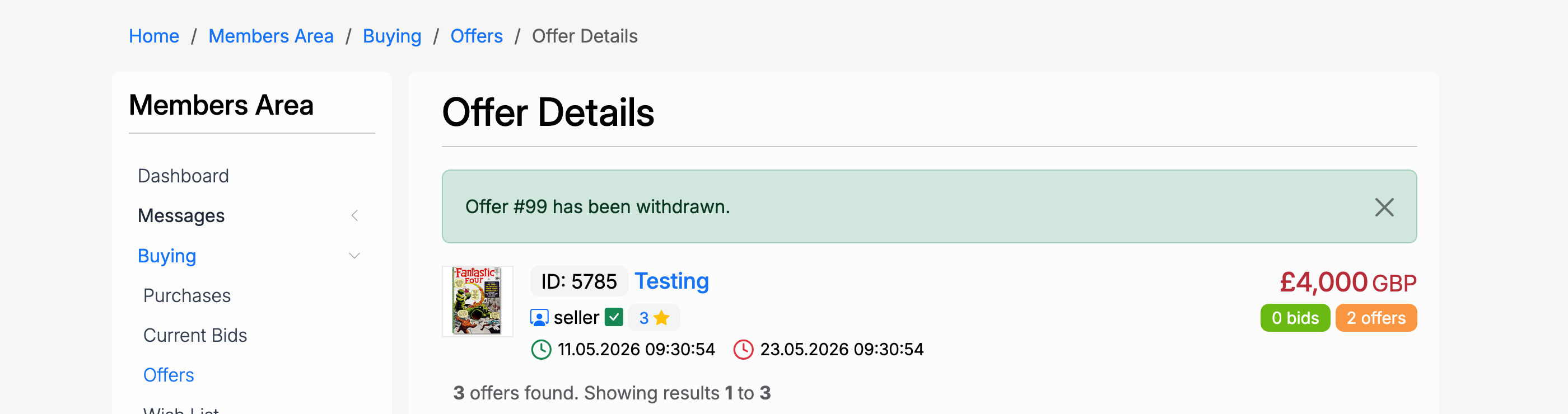
After confirming, the offer is withdrawn and the status updates accordingly.
Accepting an Offer
When a seller accepts an offer, the process completes the sale. The seller clicks the accept button and confirms:

Once accepted, the listing is marked as Sold and the offer status changes to accepted.
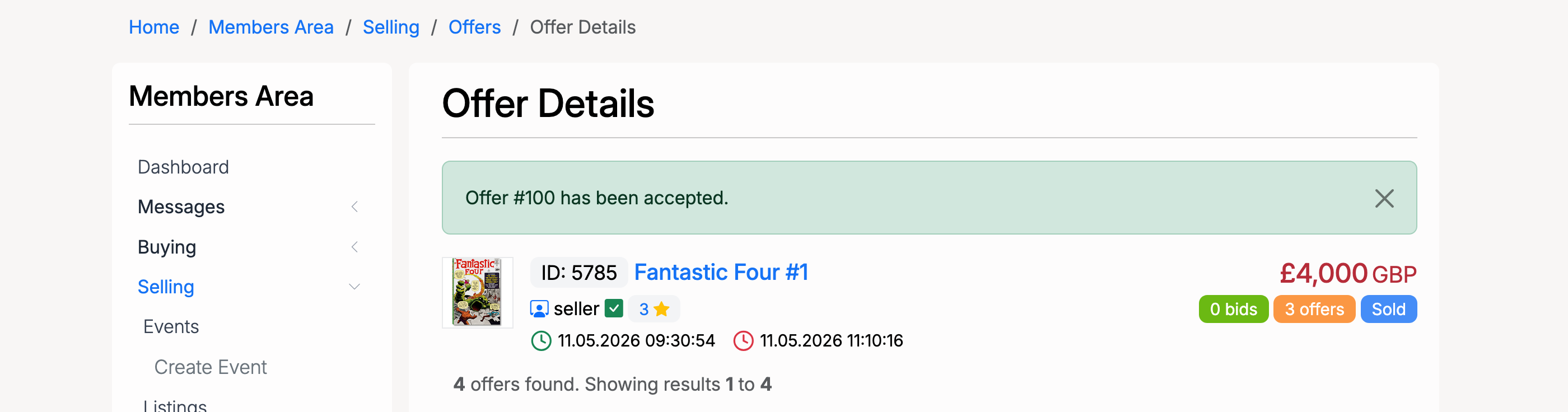
On the buyer side, the offer status updates to Accepted and a payment option becomes available.
Payment
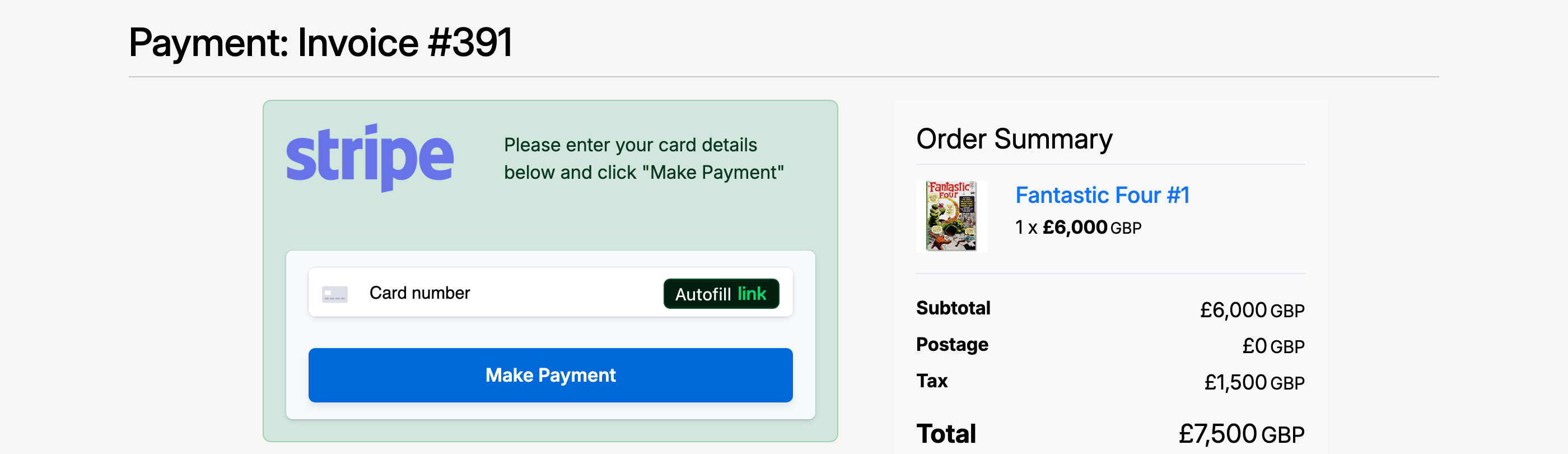
After an offer is accepted, the buyer proceeds to payment. The payment page shows the item, the agreed price, postage, tax, and total amount due.
Admin Settings
Make Offer is configured from Admin → Listings → Settings → Make Offer.
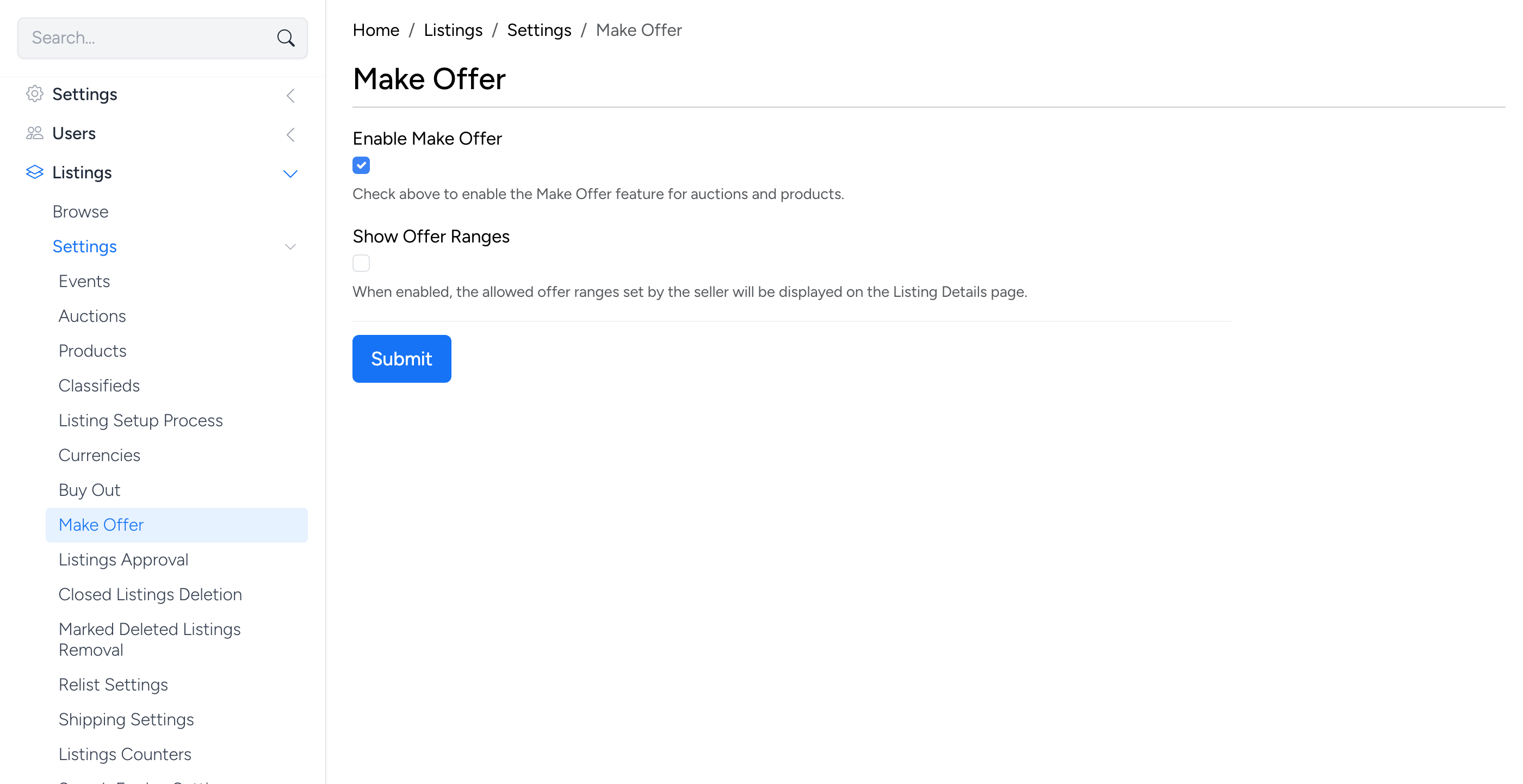
- Enable Make Offer — check to enable the Make Offer feature site-wide for auctions and products. When disabled, sellers cannot offer this option on their listings.
- Show Offer Ranges — when enabled, the minimum and maximum offer ranges set by the seller are displayed on the listing page. This helps buyers know what range is acceptable before submitting an offer.