
Bulk Lister
Overview
The Bulk Lister allows sellers to create multiple listings at once by uploading a CSV file. Instead of listing items one by one, sellers can prepare a spreadsheet with all their listings and upload them in a single step. Access it at Selling → Seller Tools → Bulk Lister.
Admin — Enable Bulk Lister
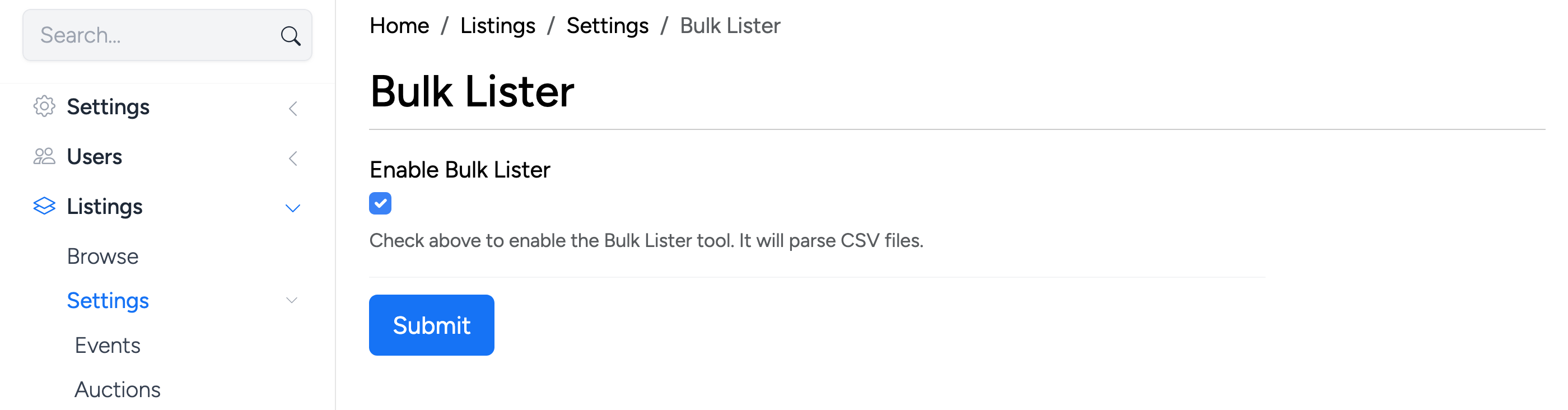
The Bulk Lister must be enabled by the site administrator before sellers can use it. The setting is at Listings → Settings → Bulk Lister in the admin panel.
Upload
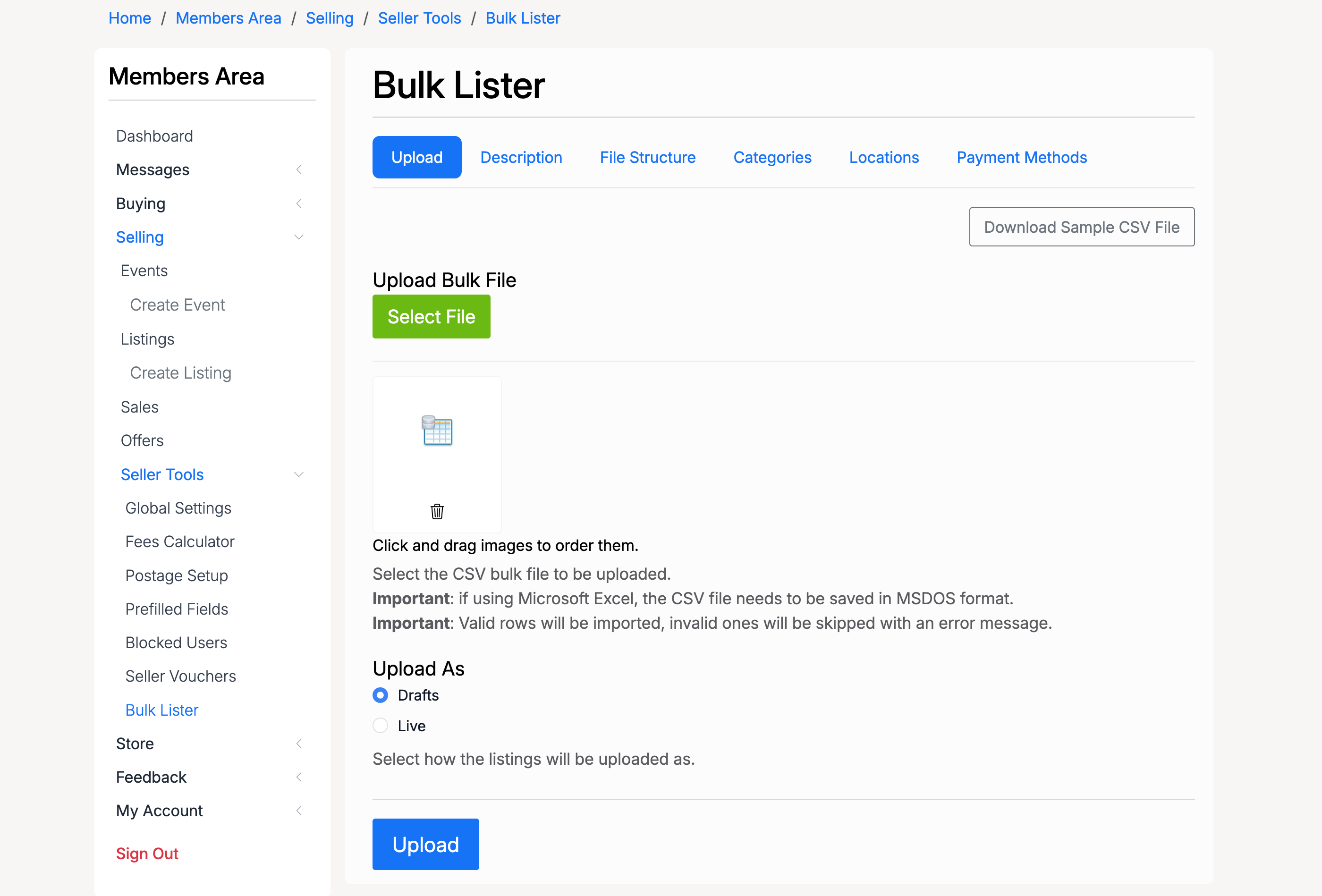
- Download Sample CSV File — download a pre-formatted CSV template with all available columns and a sample row. Use this as a starting point
- Upload Bulk File — select a CSV file to upload. If using Microsoft Excel, save the file in MSDOS format. Valid rows will be imported; invalid ones will be skipped with an error message
- Upload As — choose how the listings are created:
- Drafts — listings are saved as drafts for review before going live
- Live — listings are published immediately as active items available for sale
Upload Process
After clicking Upload, the system parses the CSV file and displays a progress bar:
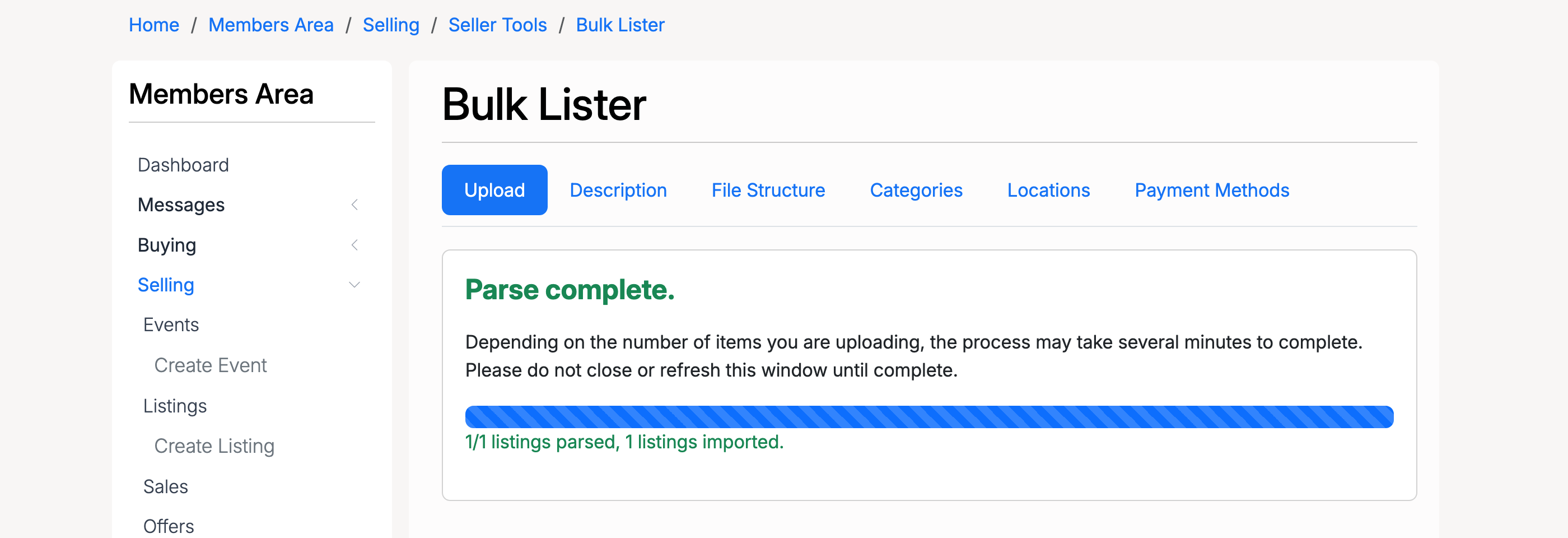
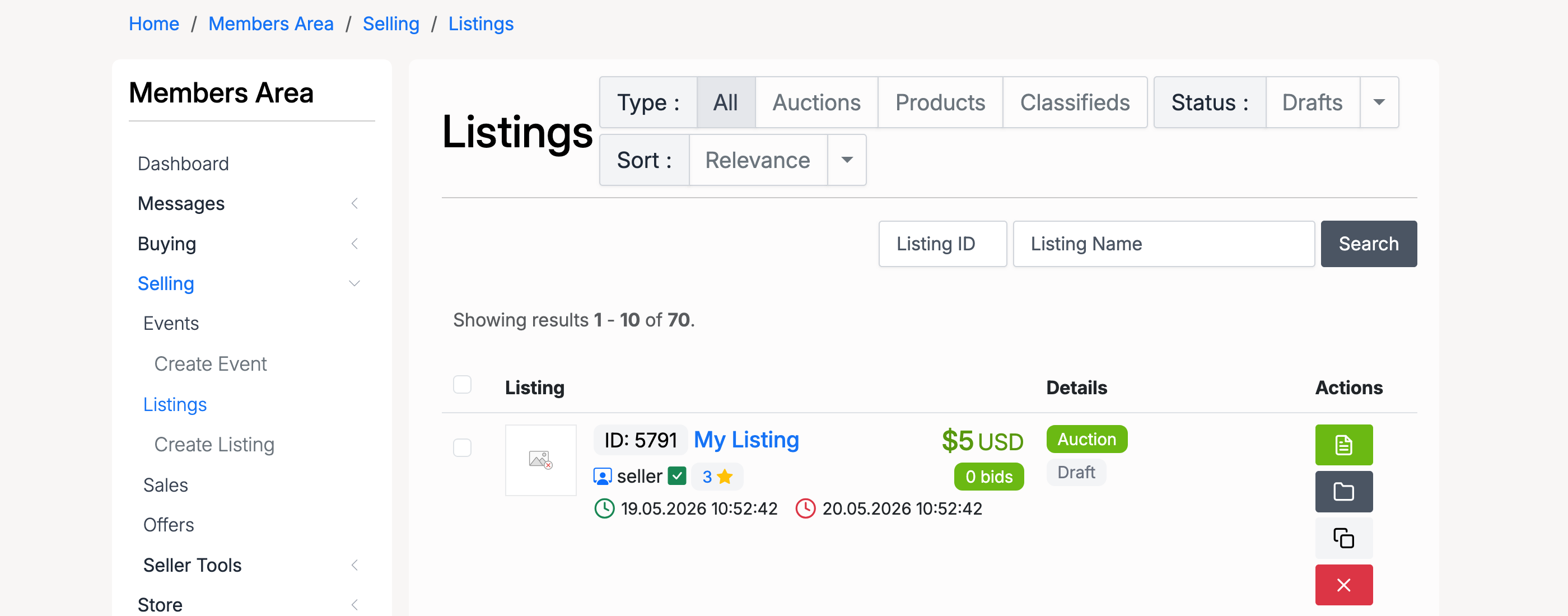
Once the import is complete, the listings appear in the seller’s listings page. If uploaded as drafts, they are available under the Drafts status filter for review before being published:
CSV File Format
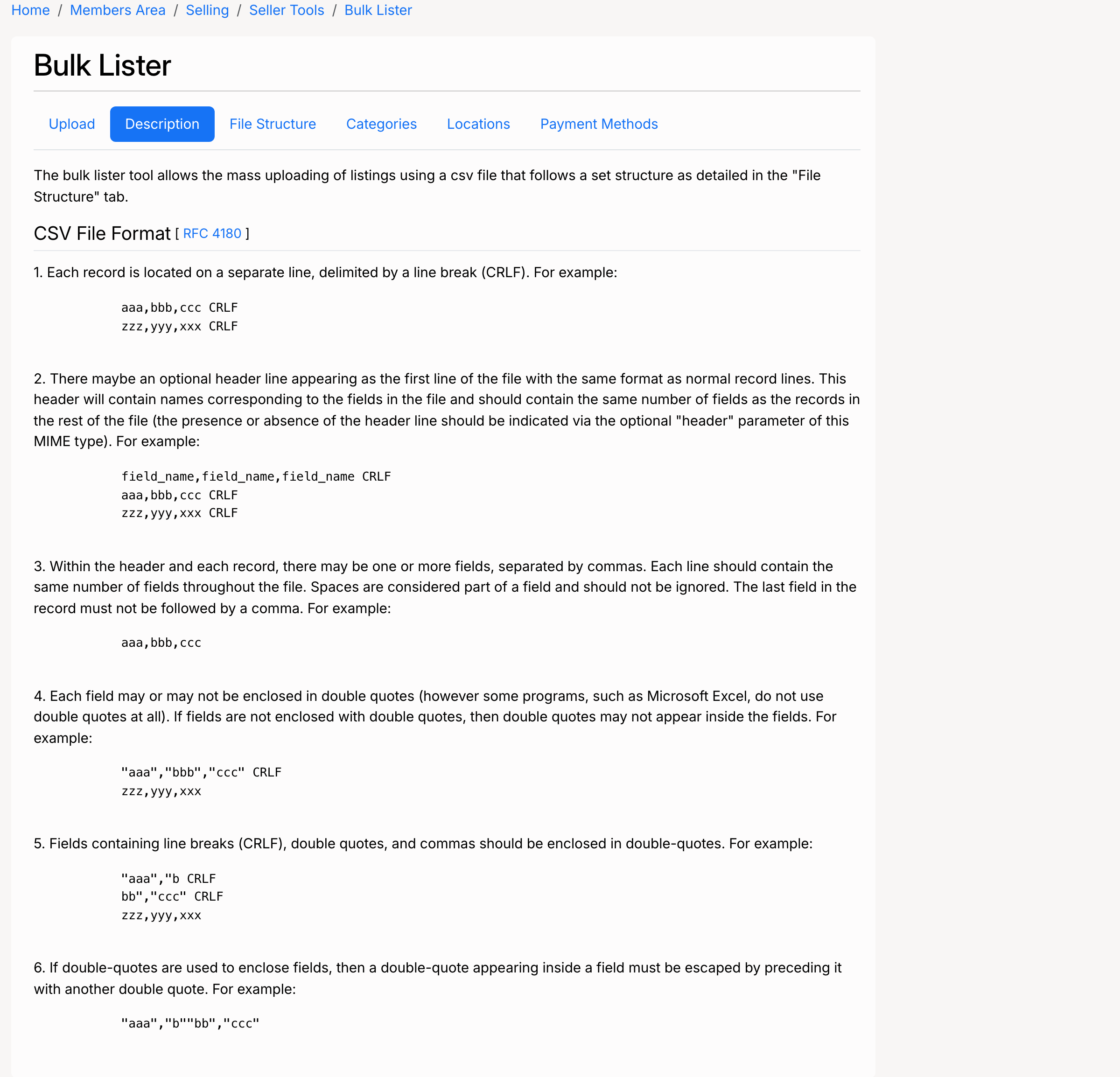
The CSV file must follow the standard CSV format (RFC 4180):
- Each record is on a separate line, delimited by a line break (CRLF)
- The first line is an optional header row with column names
- Fields are separated by commas. The last field must not be followed by a comma
- Fields may be enclosed in double quotes. If not enclosed, double quotes must not appear inside the field
- Fields containing line breaks, double quotes, or commas must be enclosed in double quotes
- A double quote inside a quoted field is escaped by preceding it with another double quote
File Structure
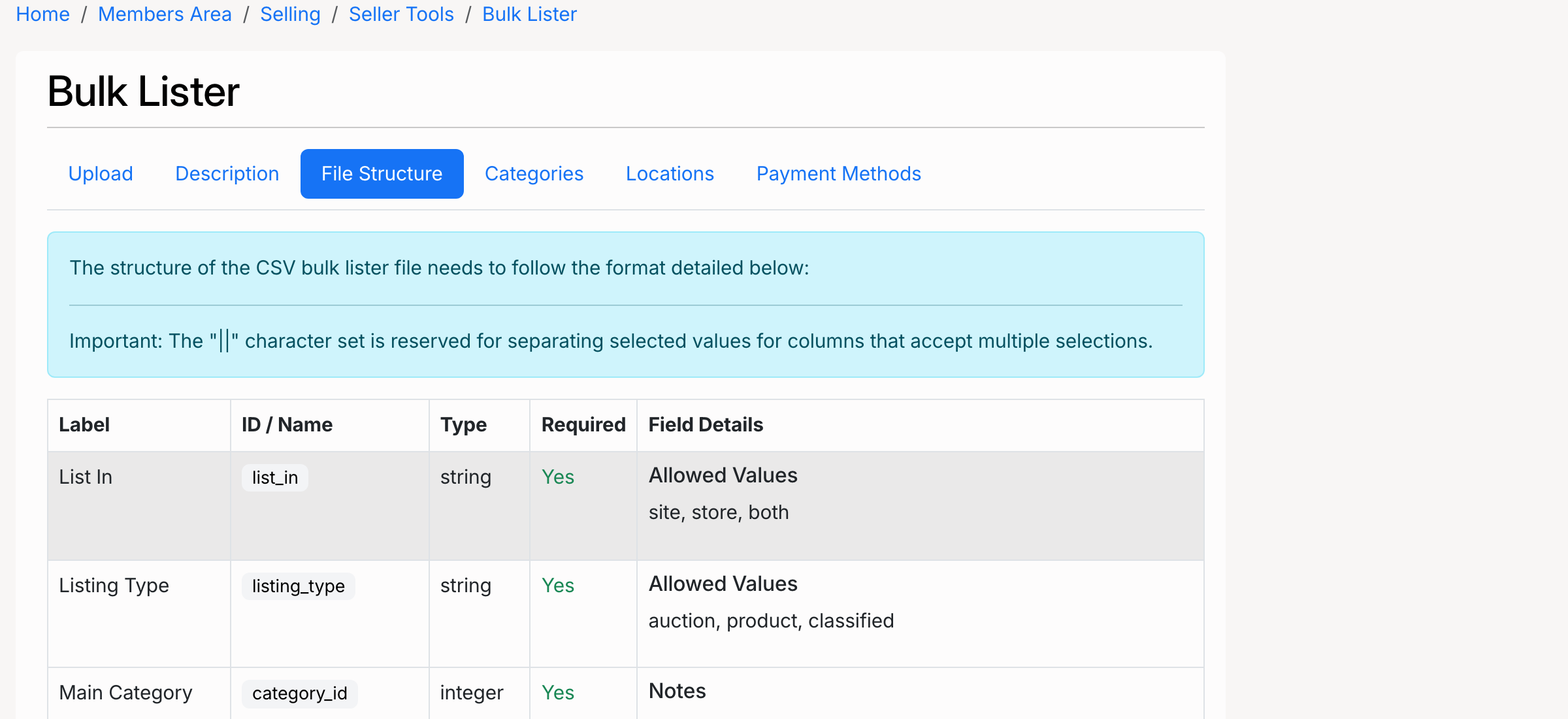
The File Structure tab shows every column available in the CSV file. The || separator is used for
columns that accept multiple values (e.g. multiple image URLs or payment method IDs).
Below is the complete column reference:
| Column | Type | Required | Description |
|---|---|---|---|
list_in |
string | Yes | Where to list: site, store, or both |
listing_type |
string | Yes | Listing format: auction, product, or classified |
category_id |
integer | Yes | Main category ID. Look up IDs in the Categories tab |
addl_category_id |
integer | No | Additional category ID |
name |
string | Yes | Listing title |
short_description |
string | No | Short description |
description |
string | No | Full listing description |
image |
string | No | Image URLs separated by || |
currency |
string | Yes | Currency code (e.g. USD, GBP, EUR) |
quantity |
integer | Yes | Stock quantity. For auctions this is always 1 |
start_price |
decimal | Yes | Starting price (auctions) or sale price (products) |
reserve_price |
decimal | No | Reserve price for auctions |
buyout_price |
decimal | No | Buy-out / buy-now price |
enable_make_offer |
0 / 1 | No | Enable Make Offer |
make_offer_min |
decimal | No | Minimum offer amount |
make_offer_max |
decimal | No | Maximum offer amount |
bid_increment |
decimal | No | Bid increment for auctions |
start_time_type |
0 / 1 | No | 0 = start immediately, 1 = custom start time |
start_time |
datetime | No | Custom start time (if start_time_type = 1) |
end_time_type |
0 / 1 | No | 0 = use duration, 1 = custom end time |
duration |
integer | No | Listing duration in days |
apply_tax |
0 / 1 | No | Apply tax to the listing |
tax_type_id |
integer | No | Tax type ID (if tax is applied) |
private_auction |
0 / 1 | No | Make the auction private (hide bidder identities) |
disable_sniping |
0 / 1 | No | Disable anti-sniping time extension |
hpfeat |
0 / 1 | No | Feature on home page |
catfeat |
0 / 1 | No | Feature on category page |
highlighted |
0 / 1 | No | Highlight the listing |
nb_relists |
integer | No | Number of automatic relists |
auto_relist_sold |
0 / 1 | No | Auto relist after a sale |
country |
integer | No | Country ID. Look up IDs in the Locations tab |
state |
integer | No | State/county ID |
address |
string | No | Address or post code |
pickup_options |
string | No | Pick-up option: no_pickups, pickups_only, or pickups_shipping
|
postage |
decimal | No | Postage cost |
insurance |
decimal | No | Shipping insurance cost |
shipping_details |
string | No | Shipping instructions |
accept_returns |
0 / 1 | No | Accept returns |
returns_policy |
string | No | Return policy text |
direct_payment |
integer | No | Direct payment method ID (e.g. Stripe) |
offline_payment |
string | No | Offline payment IDs separated by || |
custom_field_[id].
Categories
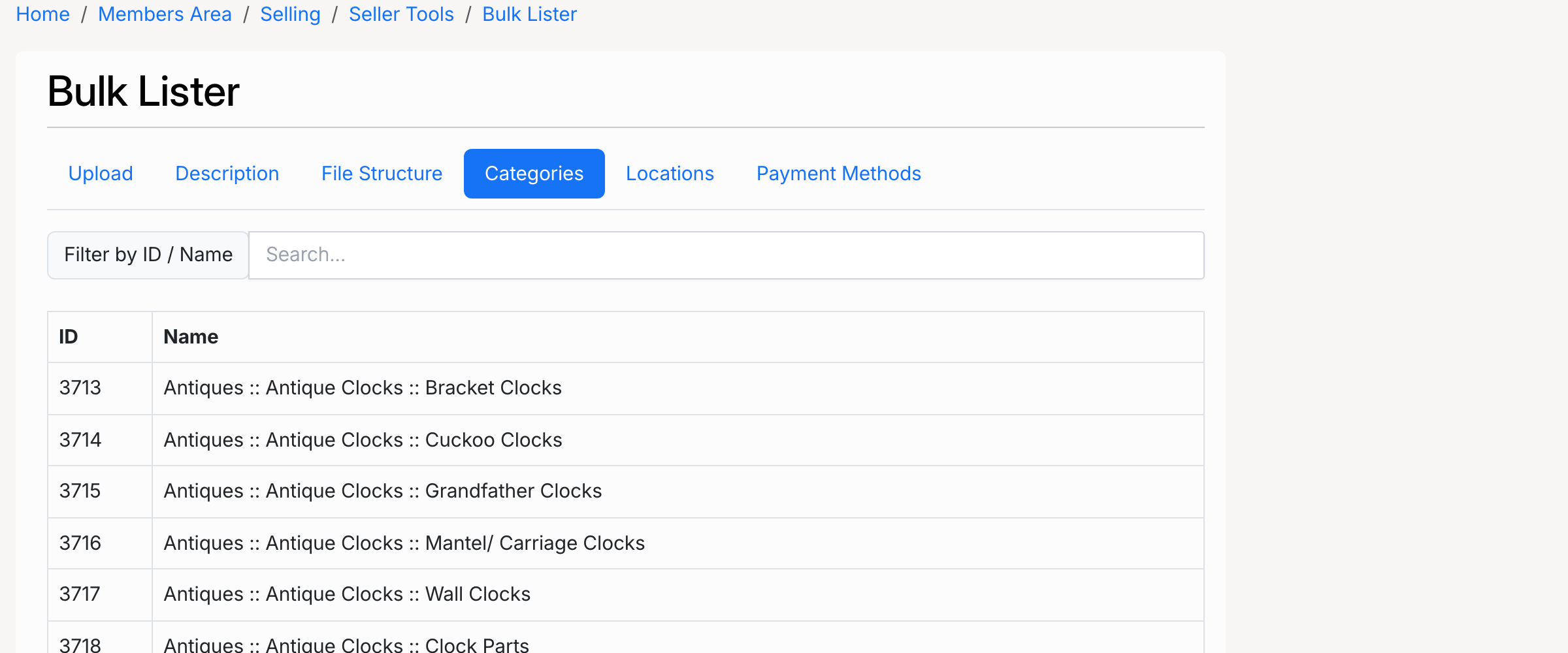
The Categories tab lists all available categories with their IDs and full paths. Use the search field to filter
by ID or name. Enter the category ID in the category_id column of your CSV file.
Locations
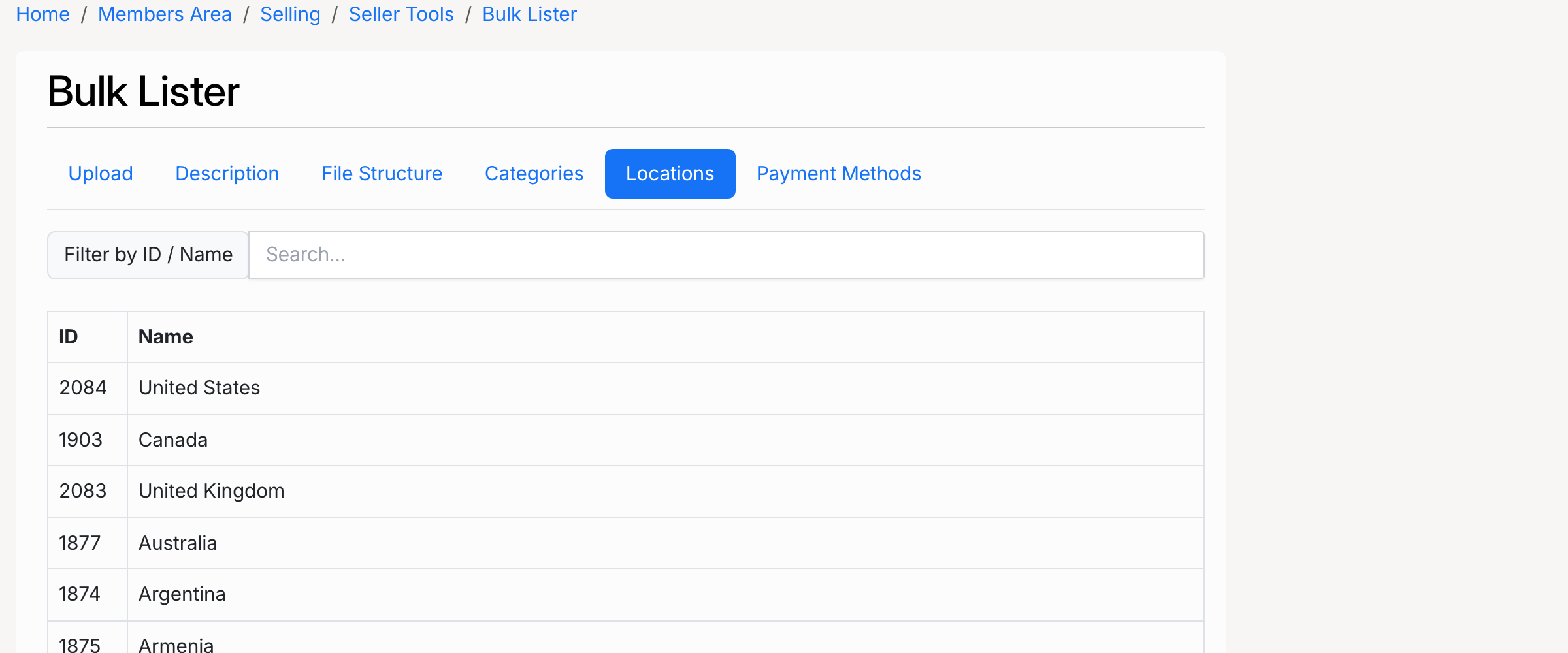
The Locations tab lists all countries and states with their IDs. Use the search field to filter by ID or name.
Enter the country ID in the country column and the state ID in the state column of
your CSV file.
Payment Methods
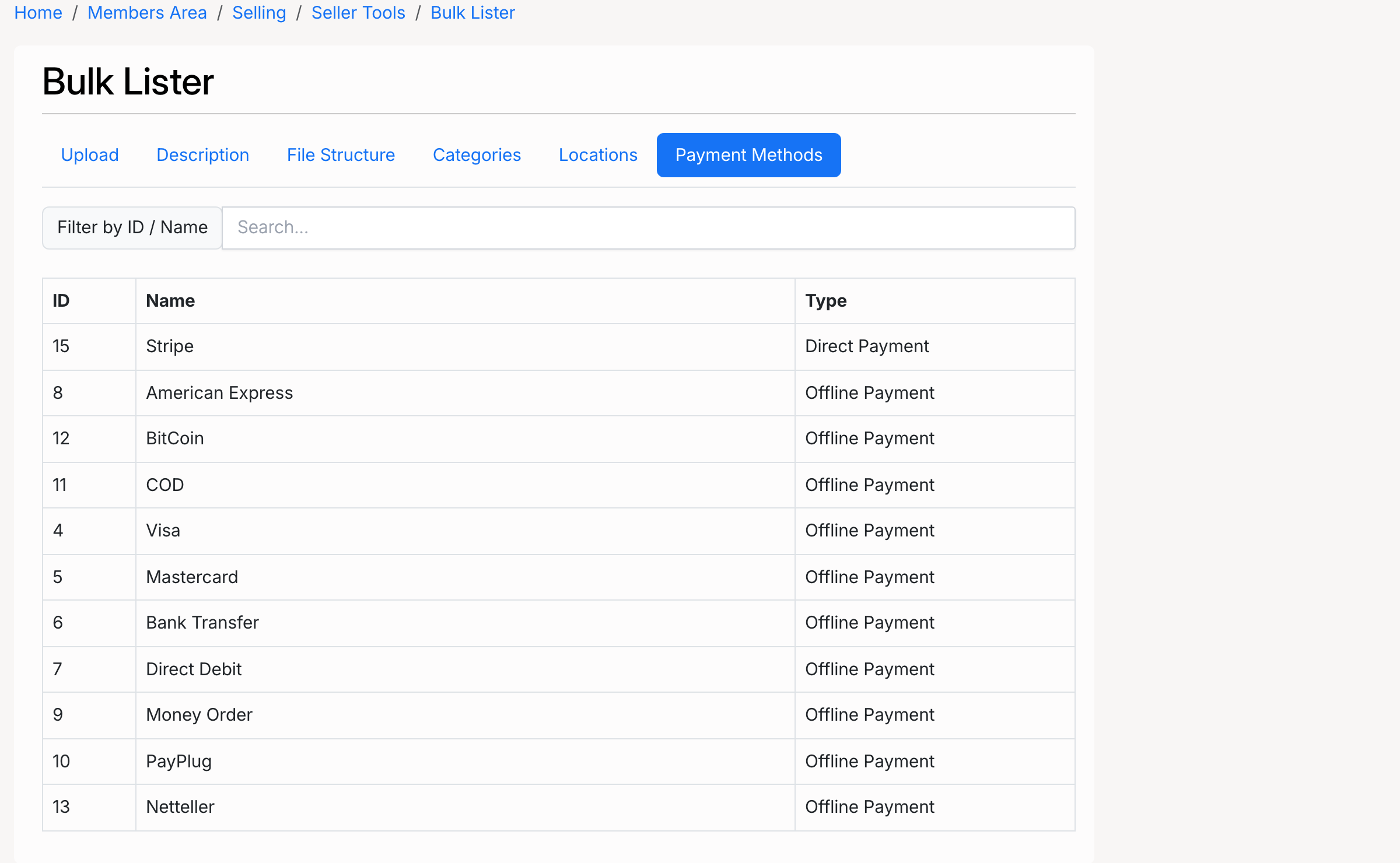
The Payment Methods tab lists all available payment methods with their IDs, names, and types (Direct Payment or
Offline Payment). Use these IDs in the direct_payment and offline_payment columns. For
multiple offline payment methods, separate the IDs with ||.