
Sections
Overview
Sections are the top-level content areas of the site managed through the CMS. Use them to create pages like Blog, FAQ, News, Terms, or any custom content area. Access the sections list at Admin → Site Content → Sections.
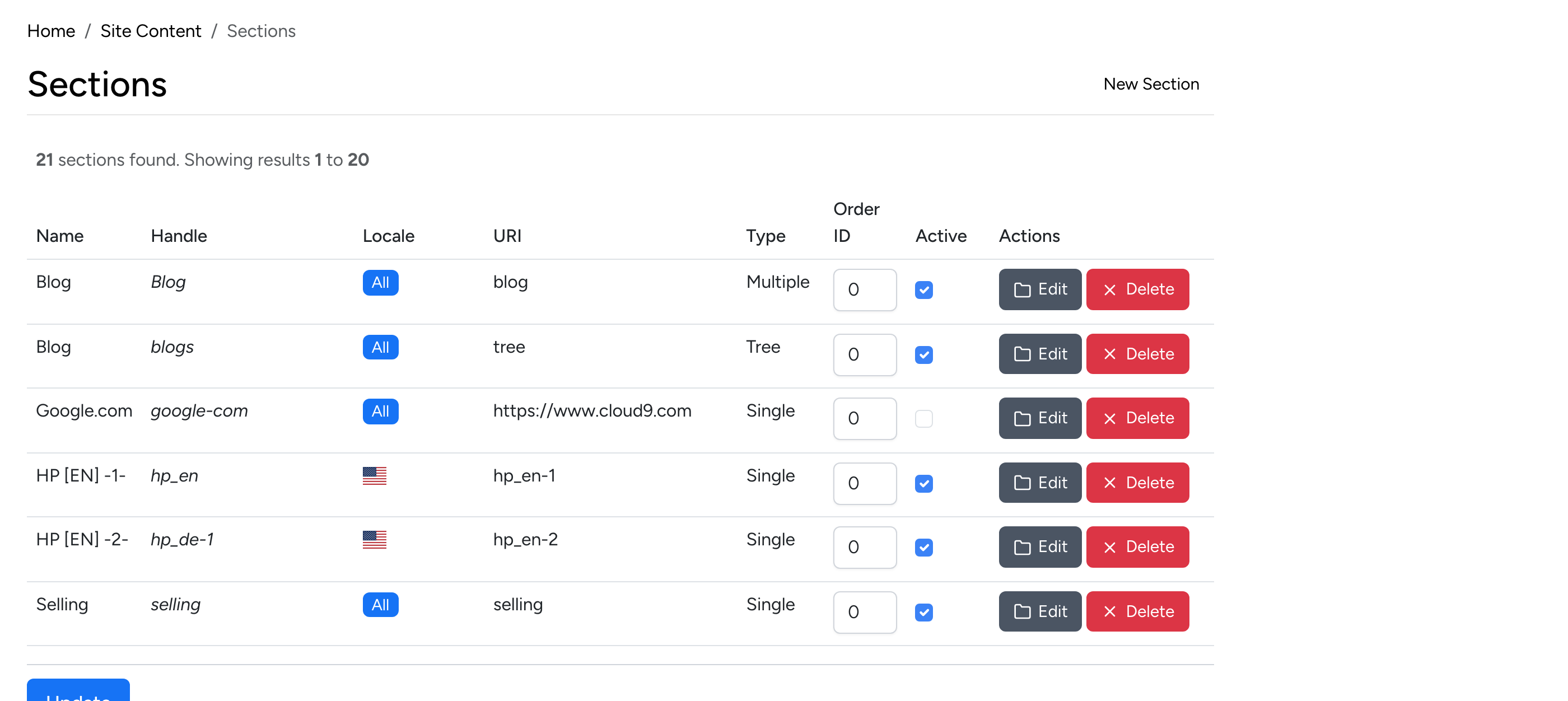
Each section in the list shows:
- Name / Handle — the display name and the URL-safe identifier used internally.
- Locale — the language the section content is written in. Set to “All” to display for all languages, or select a specific locale.
- URI — the URL path where the section is accessible on the front end.
- Type — Single, Multiple, or Tree (see below).
- Order ID — controls the display order when sections appear in navigation.
- Active — toggle the section on or off without deleting it.
Use the Edit button to modify a section’s settings, or Delete to remove it. Click New Section in the top right to create a new content area.
Create a Section
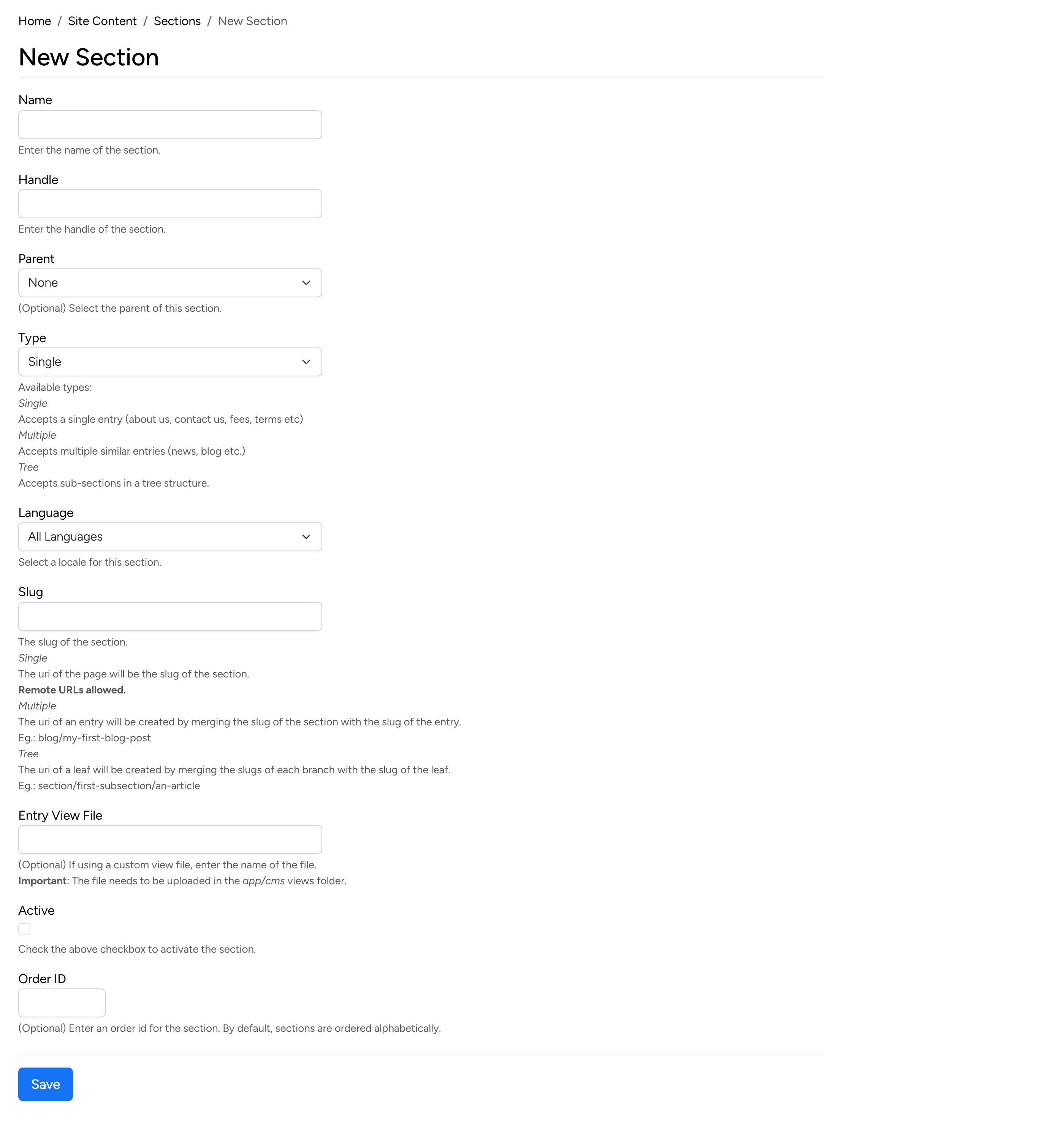
Click New Section to open the creation form. The available fields are:
- Name — the display name for the section (e.g. “Blog”, “FAQ”).
- Handle — the internal identifier, used in code and templates. Best practice: always use lowercase letters matching the section name.
- Parent — optional. Select a parent section to create a sub-section within a Tree structure. Leave as “None” for top-level sections.
- Type — determines how the section behaves (see section types below).
- Language — set to “All Languages” for universal content, or select a specific locale for translated versions.
- Slug — the URL path segment. For Single sections this is the full page URI. For
Multiple sections, the entry slug is appended (e.g.
blog/my-first-post). For Tree sections, all branch slugs are merged (e.g.section/sub/article). Remote URLs are also allowed. - Entry View File — optional. The default view file displays the entry title and
content. To use a custom layout, upload a PHP file to the
app/cmsfolder and enter its filename here. - Active — check to make the section visible on the site. Uncheck to keep it as a draft.
- Order ID — optional. Enter a number to control the section’s position in navigation. Sections are ordered alphabetically by default.
Section Types
When creating a section, choose one of three types:
- Single — accepts one entry only. Use for standalone pages like About Us, Contact, Terms, or Site Fees.
- Multiple — accepts many similar entries. Use for collections like a Blog, News, or FAQ where each entry is a separate post.
- Tree — accepts sub-sections (branches) and entries (leaves) in a hierarchy. Use for structured content like a knowledge base or multi-level documentation.
Entries
Each section contains one or more entries — the actual content pages. To view a section’s entries, click View Entries on the sections list (for Multiple and Tree types), or Edit Entry for Single sections.
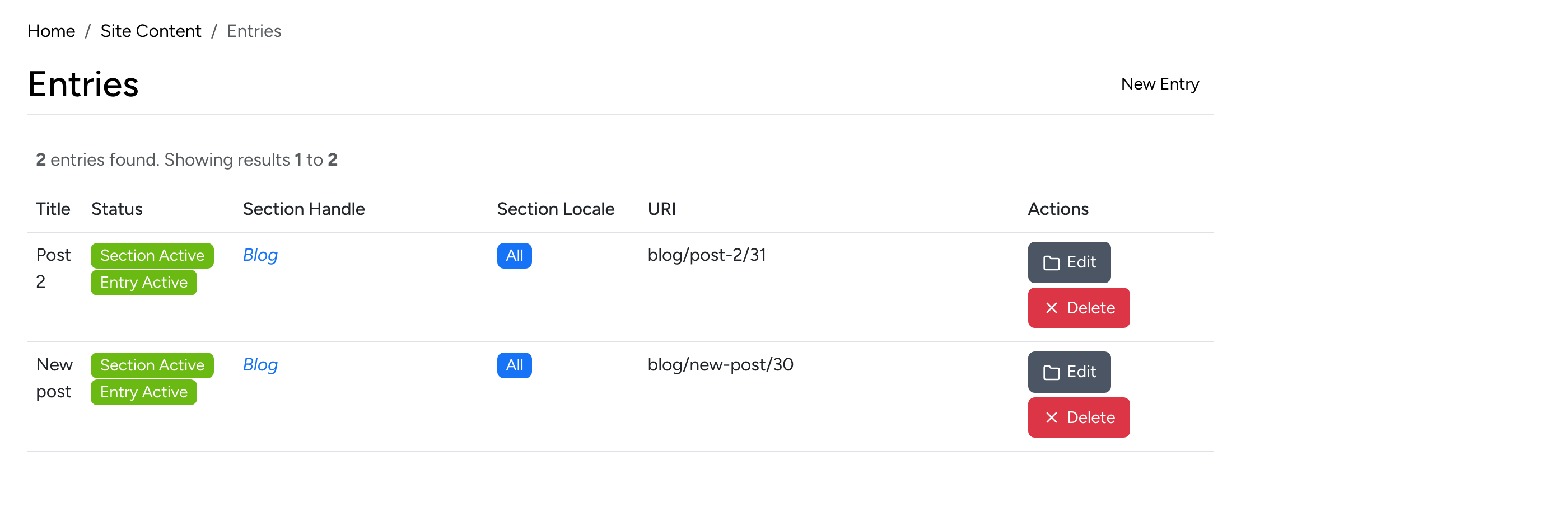
The entries list shows:
- Title — the entry’s display title.
- Status — badges showing whether the parent section and the entry itself are active.
- Section Handle — which section the entry belongs to.
- Section Locale — the language setting inherited from the section.
- URI — the full URL path for the entry on the front end.
Click Edit to modify an entry, or Delete to remove it. Click New Entry to add content to the section.
Create an Entry
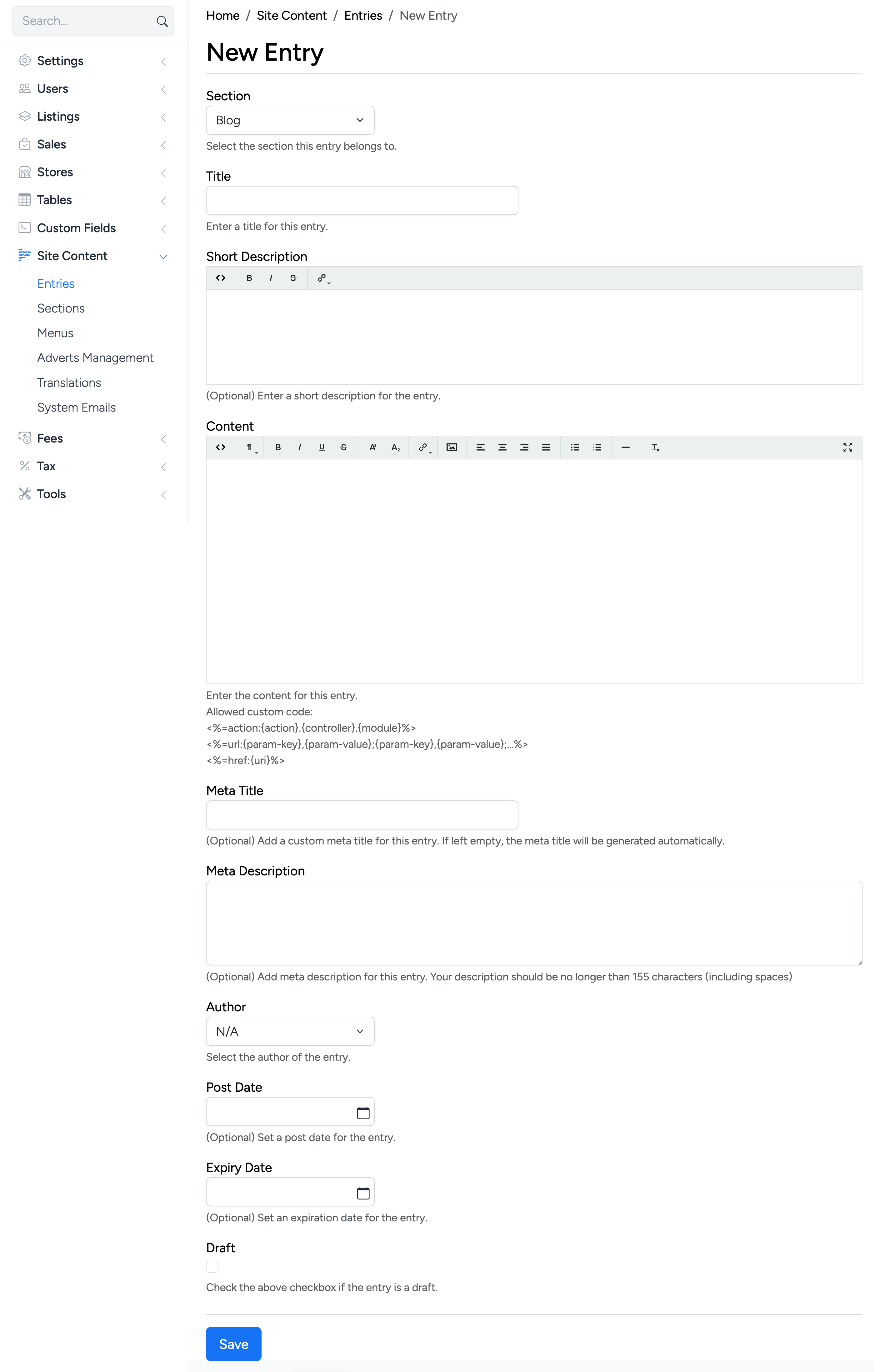
Click New Entry to create a content page within a section. The entry form includes:
- Section — select which section the entry belongs to.
- Title — the page title displayed on the front end and in the browser tab.
- Short Description — optional. A brief summary shown in listing views and search results. Supports basic formatting.
- Content — the main body of the page. The rich text editor supports headings, bold, italic, lists, links, images, tables, and custom HTML code.
- Meta Title — optional. A custom title for search engines. If left empty, the entry title is used automatically.
- Meta Description — optional. A description for search engines. Should be under 155 characters for best results.
- Author — select the author of the entry from registered users.
- Post Date — optional. Set a publish date for the entry. Useful for blog posts and news.
- Expiry Date — optional. Set an expiration date after which the entry is automatically hidden.
- Draft — check to save the entry without publishing it. Uncheck when ready to go live.