Documentation [V9.2]
Images
Documentation [V9.2]
Product descriptions and images complement each other. Only together do they provide a complete overview of a product. Thus, users should not hesitate to take advantage of the following features, to maximize their selling chances.
Configuration
From the Listing Images (Admin Control Panel -> Settings -> Listing Settings -> Global Settings -> Listing Images) menu set / allow:
Number of Images
The maximum number of images that can be added to a listing.

Mandatory Images
If checked, the user will have to add at least one image when creating a listing.

Maximum Size Allowed
The maximum size of an uploaded image.

Crop to Aspect Ratio
If checked, uploaded images will be cropped when generating thumbnails.

Allow Remote Images
If checked, allows the addition of images from remote locations by entering the direct link.

Watermark Text
Enter a text that will be applied to uploaded images.

Note: Leave it empty for no watermark.
Disable Local Image Caching
If checked, disables local image caching.

Lazy Load
Lazy Load is a plugin that drastically cuts the loading time of a website. It loads images only when they are about to reach the viewpoint or the scrollable area of the site.
Enable the Lazy Load plugin by checking the associated checkbox.

Uploading
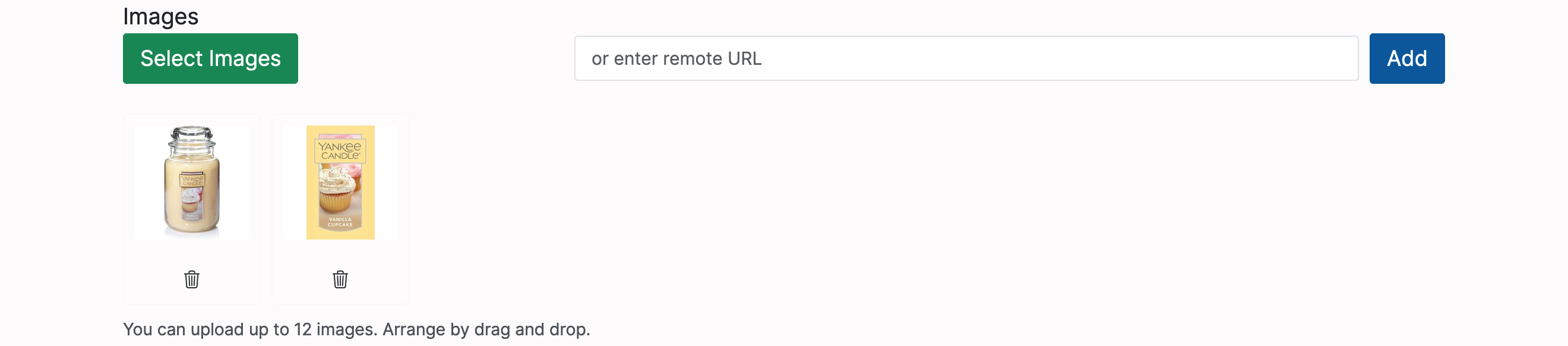
In the Listing Details section (Listings Create) click Select Images to add item pictures (or enter a remote URL).
Display
Find listings in the Selling menu (Home -> Members Area -> Selling -> Open):
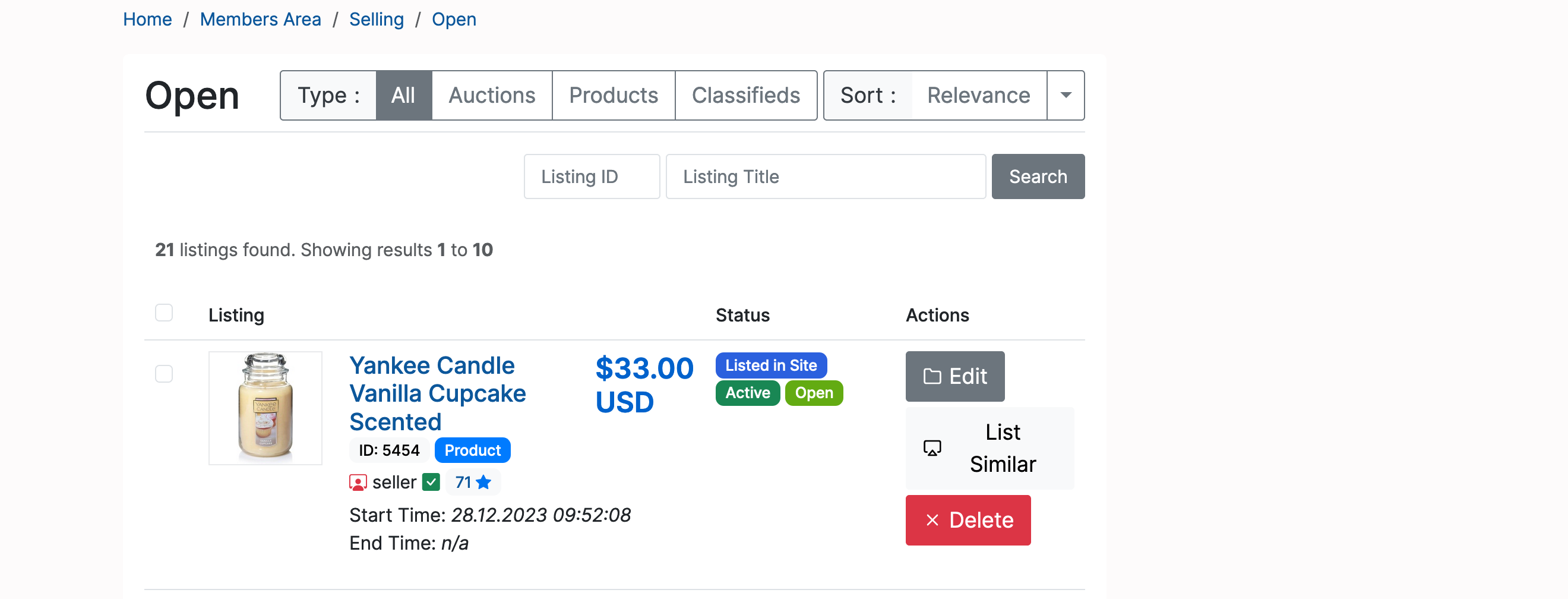
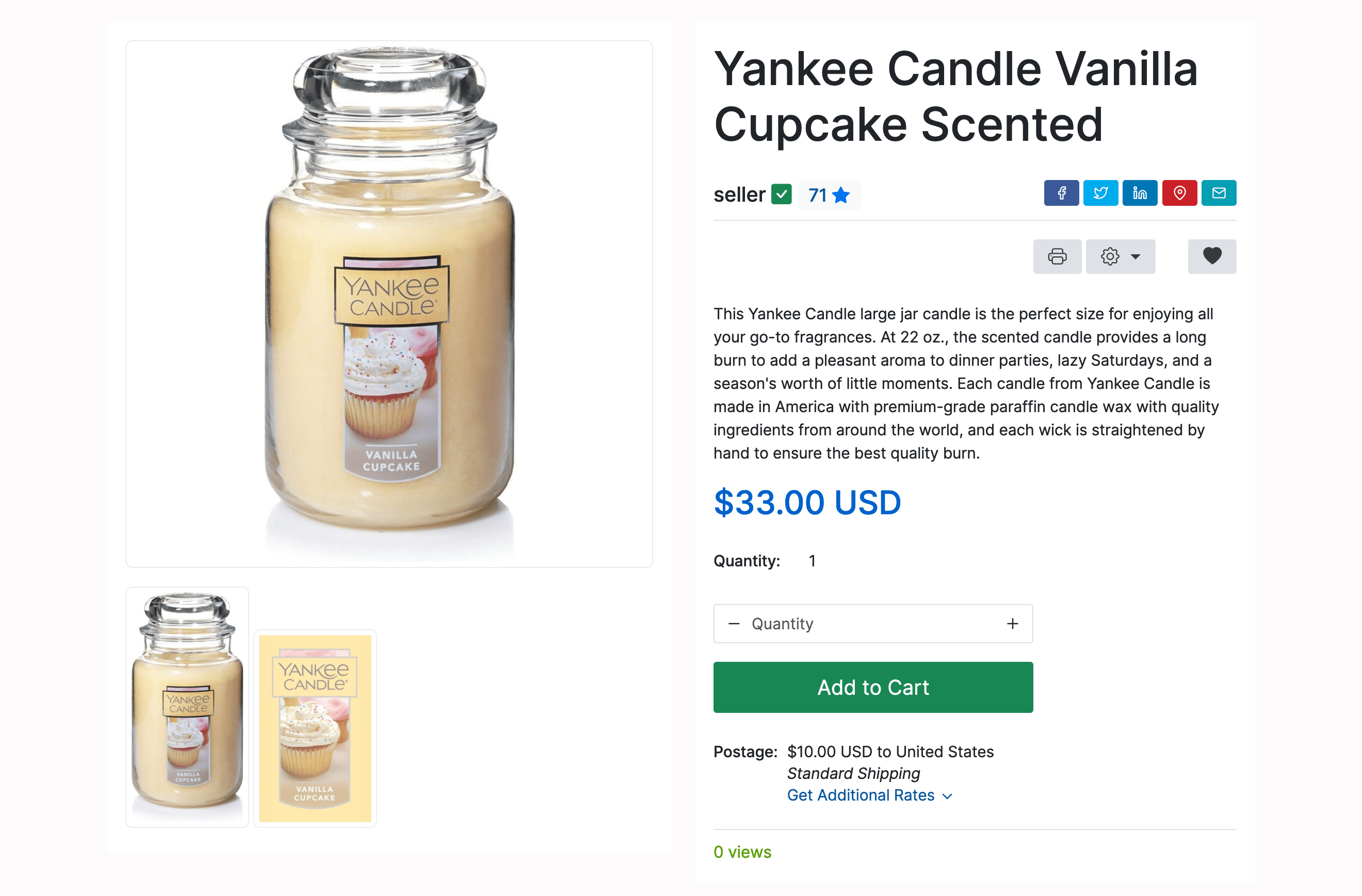
Note: When clicking on a picture, the screen will display full listing details (left side - images).